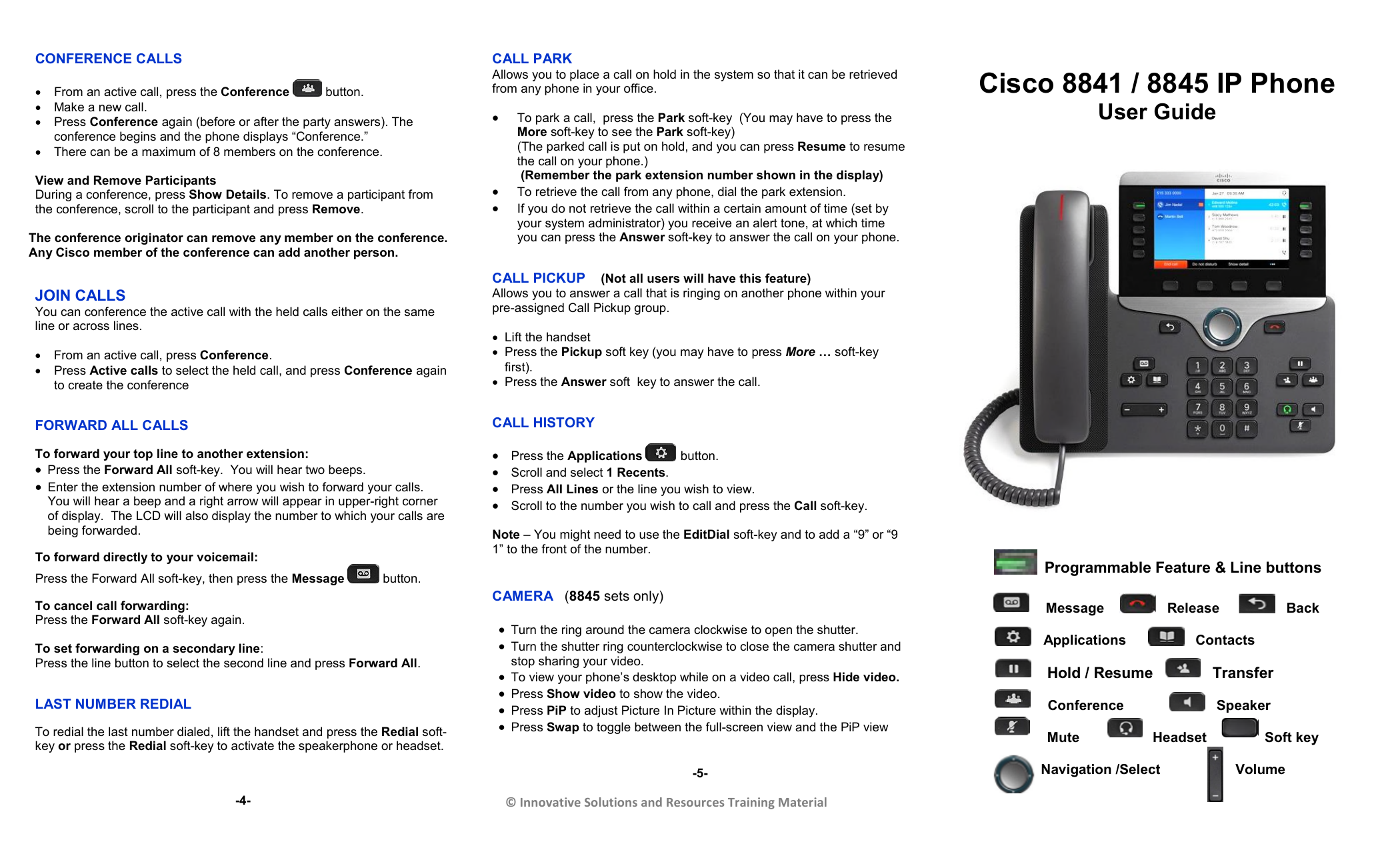
The Cisco IP Phone 7841 is a high-fidelity, multi-line voice communications endpoint designed for mid-to-large enterprise environments. This manual overview details the hardware layout, line capabilities, and navigational interface required to operate the device effectively within a Cisco Unified Communications Manager (CUCM) or multi-platform (MPP) environment.
Understanding the Cisco IP Phone 7841 Hardware
The physical architecture of the Cisco IP Phone 7841 is engineered for ergonomic efficiency and long-term durability. Unlike entry-level models, the 7841 provides four programmable line keys, making it suitable for professionals who handle multiple simultaneous calls or require quick-access speed dials.
Handset and Light Strip
The handset is a standard wideband-capable receiver connected via a coiled RJ-9 cord. A critical feature for office environments is the integrated Light Emitting Diode (LED) strip located at the top of the handset. In the context of 2026 enterprise standards, this visual indicator remains essential for silent notifications. It flashes red to indicate an incoming call and remains solid red when a new voicemail message is waiting.
High-Resolution Grayscale Display
The 7841 features a 3.5-inch (89 mm) backlit grayscale display with a resolution of 384 x 106 pixels. This screen is the primary interface for viewing caller ID, call history, and directory information. Because it is backlit, it remains legible in various lighting conditions, from low-light executive offices to brightly lit call centers. The display also houses the "softkey" labels, which change dynamically depending on the phone's current state (e.g., idle, on a call, or in a menu).
Programmable Line and Feature Keys
To the right of the display, there are four buttons equipped with tricolor LEDs (green, amber, and red). These are programmable keys that can be configured for:
- Directory Numbers (DN): Unique internal extensions.
- Speed Dials: One-touch dialing for frequent contacts.
- Service Features: Such as Privacy, Do Not Disturb (DND), or Call Park.
The LED colors provide immediate status updates: a steady green light indicates an active call on that line, while a flashing amber light signals an incoming call.
Navigation and Interface Controls
Navigating the Cisco IP Phone 7841 requires familiarity with the button clusters located below the display. These controls allow users to access deep system settings and manage calls without relying solely on the handset.
The Navigation Cluster
At the center of the phone is a 4-way navigation pad with a central "Select" button. Users press the outer ring to scroll through lists (like the Corporate Directory) or move between menu icons. The center button is used to confirm a selection. This tactile feedback is vital for users who need to navigate menus while maintaining eye contact with a computer screen or colleague.
Dedicated Fixed Keys
Cisco has standardized several fixed keys to reduce the learning curve for new users. These buttons have permanent icons and perform specific functions regardless of the software state:
- Messages: Provides one-touch access to the voicemail system.
- Applications: Opens the settings menu for adjusting brightness, ringtones, and font size.
- Directory: Accesses call logs (Missed, Received, Placed) and the corporate address book.
- Hold/Resume: Places the active call on hold or returns to it.
- Transfer: Initiates the process of moving a call to another extension.
- Conference: Allows the user to create a multi-party call.
Audio Control Buttons
At the bottom of the device, the 7841 includes three primary audio toggle buttons: Speakerphone, Headset, and Mute. The Speakerphone and Headset buttons glow green when active, while the Mute button glows red when the microphone is deactivated. A volume rocker sits at the very bottom, adjusting the handset, headset, or speaker volume when the phone is in use, or the ringer volume when the phone is idle.
Core Call Handling Procedures
Effective use of the Cisco 7841 depends on mastering the fundamental call management tasks defined in the official user documentation.
Making and Answering Calls
To initiate a call, a user can lift the handset, press the Speakerphone button, or press a line key. If a headset is connected, pressing the Headset button activates the dial tone. For internal calls, users enter the 4-to-6 digit extension; for external calls, the system typically requires a prefix (such as '9' or '0') followed by the full number.
Answering a call is equally versatile. Users can lift the handset or press the flashing amber line key. If a second call arrives while the first is active, the second line key will flash amber. Pressing that key will automatically place the first caller on hold and connect the second.
Using the Transfer Function
The 7841 supports two types of transfers:
- Consultative (Warm) Transfer: Press the Transfer button, dial the destination number, wait for the recipient to answer, announce the caller, and press Transfer again to complete the handoff.
- Blind (Cold) Transfer: Press the Transfer button, dial the destination, and immediately press Transfer again (or hang up) before the recipient answers.
Establishing a Conference Call
The 7841 allows for ad-hoc conferencing without requiring a dedicated bridge for small groups. While on an active call, press the Conference button. This automatically places the first participant on hold and opens a new line. Dial the third party, and once they answer, press Conference again to join all three participants. This process can be repeated to add more parties, depending on the system's administrative limits.
Technical Specifications and Connectivity
The Cisco 7841 is built on a modern networking backbone that supports high-speed data passthrough and efficient power consumption.
| Feature | Specification | Benefit |
|---|---|---|
| Ethernet Switch | Internal 10/100/1000 (Gigabit) | Allows a PC to share the phone's network port without speed loss. |
| Power over Ethernet | IEEE 802.3af (Class 1) | Draws minimal power (under 3.84W), reducing energy costs. |
| Audio Codecs | G.711, G.722, G.729a, iLBC | Supports High Definition (HD) voice and low-bandwidth options. |
| Protocol Support | SIP (Session Initiation Protocol) | Industry-standard protocol for maximum interoperability. |
| EHS Support | Electronic Hook Switch | Allows wireless headsets to answer calls remotely without a lifter. |
| Wall Mountable | Yes (Optional Kit) | Saves desk space in common areas or labs. |
Power and Networking
The 7841 is a PoE (Power over Ethernet) device. In most 2026 office deployments, the phone receives both its data connection and its electrical power through a single Category 6 (Cat6) cable plugged into the "Network" port on the back. For home offices or locations without PoE switches, a separate Cisco IP Phone Power Cube 4 can be used.
The "Computer" port on the back of the phone acts as a bridge. By connecting a workstation to this port, organizations can reduce the amount of cabling required at each desk, as the phone and the computer share a single wall jack. Because the 7841 supports Gigabit speeds, there is no bottleneck for the connected PC.
Customization and User Preferences
The Applications menu on the 7841 is the hub for personalizing the user experience. Within this menu, users can adjust several parameters to suit their physical environment.
- Brightness: Adjusting the backlit display to reduce eye strain.
- Ringtones: Choosing from a variety of chirps and traditional rings to help distinguish one's phone from a neighbor's in an open-office plan.
- Contrast: Enhancing the visibility of the grayscale text.
- Font Size: Increasing text size for better readability of caller ID and menu items.
These settings are stored on the phone's profile within the CUCM, meaning that if a user logs into a different 7841 using Extension Mobility, their preferences (and their line configuration) will often follow them.
Troubleshooting Common Issues
Even with its robust design, users may occasionally encounter issues with the Cisco 7841. The manual identifies several common scenarios and their resolutions.
Registration Problems
If the phone screen displays "Configuring IP" or "Registering" for an extended period, it usually indicates a network connectivity issue. The first step is to verify that the Ethernet cable is securely seated in the "Network" port (not the "Computer" port). If the cable is secure, the phone may need a power cycle, which is performed by unplugging the PoE cable for five seconds and then reconnecting it.
Audio Quality Issues
Echo or "robotic" voices are often the result of network jitter or packet loss. If these issues occur, users should check if the "Mute" light is stuck or if the headset cable is frayed. For those using the speakerphone, moving the phone away from large metal objects or other electronic devices can reduce interference.
Missing Features
If buttons like "Forward All" or "DND" are missing from the softkey menu, it is likely an administrative restriction. The 7841’s features are governed by the Cisco Unified Communications Manager. In these cases, the user must contact their IT administrator to have the specific feature profile updated for their extension.
Comparison with Other 7800 Series Models
While the 7841 is the most popular mid-range model, it is part of a broader family. Understanding its position helps in justifying its use over other models.
- 7811: This is the basic model with only one line and no backlight. It is primarily for hallways or breakrooms.
- 7821: Supports two lines and is the standard choice for cubicle workers with low-to-moderate call volume.
- 7841: The "sweet spot" for most professionals, offering four lines and Gigabit Ethernet.
- 7861: Includes 16 lines, designed for receptionists or administrative assistants who manage many extensions.
The 7841 remains the preferred choice for 2026 enterprise deployments because it balances the high-speed data needs of modern PCs with the multi-line flexibility required for professional communication.
Summary of Best Practices
To maximize the lifespan and utility of the Cisco IP Phone 7841, users should follow these guidelines:
- Use the Handset Properly: Ensure the handset is fully seated in the cradle to avoid "off-hook" errors.
- Cleaning: Use a soft, slightly damp cloth to clean the screen and buttons. Avoid harsh chemicals or sprays that could seep into the electronics.
- Headset Compatibility: Always use Cisco-approved headsets or those with the correct EHS adapter to ensure the "Headset" button functions correctly.
- Firmware Updates: Allow the phone to complete its update process if it restarts unexpectedly; these updates contain critical security patches and feature improvements.
Frequently Asked Questions
How do I set up speed dials on my Cisco 7841?
Speed dials on the 7841 are typically managed through the Cisco Self Care Portal. Users log in with their corporate credentials and assign names and numbers to the unused programmable buttons. Once saved in the portal, the phone will automatically update, and the new speed dials will appear on the line keys next to the display.
Can I use a Bluetooth headset with the Cisco 7841?
The Cisco IP Phone 7841 does not have built-in Bluetooth hardware. To use a wireless headset, you must use a DECT wireless headset system that connects via the RJ-9 headset port. For remote call control (answering calls using the button on the headset), you will need a Cisco-compatible Electronic Hook Switch (EHS) cable.
What does it mean when the line key is solid amber?
A solid amber line key usually indicates that the line is "Private" or that a shared line is currently in use by another person. If you share an extension with a colleague (a shared line appearance), the light turns amber when they are on a call, letting you know the line is busy.
How do I check my call history?
Press the Applications or Directory button (depending on your specific firmware version) and select Recents. From here, you can see all missed, placed, and received calls. You can highlight any number in this list and press the "Call" softkey to dial them back immediately.
Why is my screen blank even though the phone is plugged in?
Check if the phone is in "Power Save" mode, which is often configured by IT administrators to turn off the display outside of business hours. Pressing any button or picking up the handset should wake the screen. If it remains blank, ensure the PoE switch is providing power or check the external power brick if one is in use.
Recommended Next Action
To ensure your Cisco IP Phone 7841 is fully optimized for your specific role, you should first identify your firmware version by navigating to Applications > Phone Information. Once identified, visit the Cisco Support Portal to download the most recent user guide specifically tailored to your software version (SIP or MPP), as small UI differences may exist between enterprise and multi-platform firmware.