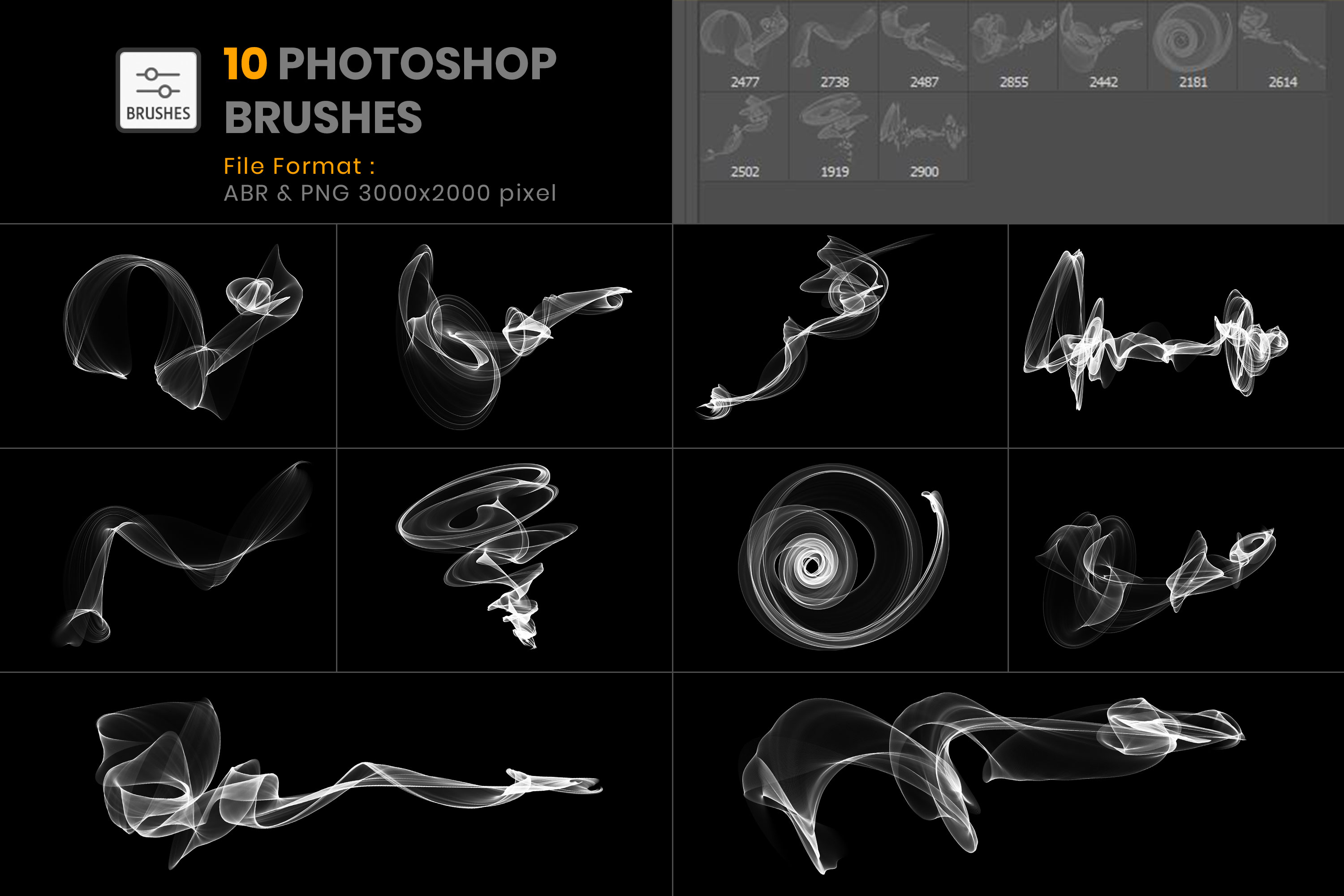
The ABR file format is a proprietary file type developed by Adobe Inc. specifically for Adobe Photoshop. It functions as a container for digital brush presets, storing data such as tip shapes, dynamics, texture configurations, and blending modes to streamline digital painting, photo manipulation, and graphic design workflows.
What is the ABR File Format?
At its core, the ABR file format serves as a digital storage medium for custom brush collections used within raster graphics editing software, predominantly Adobe Photoshop and compatible design applications. When digital artists, photographers, and graphic designers spend hours crafting custom brush tips—simulating charcoal textures, watercolor bleeds, organic foliage, or complex geometric patterns—they save these assets as ABR files. This allows professionals to back up their custom toolsets, share them with clients or colleagues, or load them onto different workstations without needing to recreate each brush manually.
The structure of an ABR file varies depending on the version of Photoshop in which it was created. Older versions of Photoshop (specifically Photoshop 6 and earlier) utilized a legacy format structure, while modern versions of the software employ a more robust, resource-rich format that accommodates advanced tool dynamics, dual-brush configurations, and high-resolution stamp data. Despite these internal format iterations, the primary purpose of the extension remains unchanged: to encapsulate the visual shape and behavioral settings of a brush tool into a single, portable file.
Understanding how this file format interacts with the application ecosystem is essential for anyone engaged in digital illustration or photo retouching. While Photoshop is the native and most thoroughly optimized environment for handling these files, the ubiquity of the format has led various third-party applications—such as GIMP, Krita, and Procreate—to implement varying degrees of import compatibility. However, complex dynamic settings authored in Photoshop do not always translate perfectly to non-Adobe software due to proprietary algorithmic differences in brush engines.
Technical Architecture and Version History
To fully comprehend how ABR files operate, it is helpful to examine their evolution across different eras of Adobe Photoshop. The file format has undergone structural revisions to support increasingly sophisticated digital painting engines.
Legacy ABR Files (Photoshop 6 and Earlier)
In the earliest iterations of Photoshop, brush presets were relatively simple. The legacy ABR format stored basic bitmap images representing the brush tip, alongside spacing information. These files were lightweight, but they lacked support for the advanced dynamics, scatter parameters, and dual-brush blending modes that modern digital artists rely upon. While modern versions of Photoshop can still read most legacy ABR files, they are fundamentally limited in the depth of data they convey.
Modern ABR Files (Photoshop 7 and Newer)
Beginning with Photoshop 7, Adobe introduced a substantially overhauled ABR structure. This modern architecture supports not only the core grayscale pixel map of the brush tip but also a vast array of metadata governing brush behavior. This includes tilt sensitivity, size jitter, color dynamics, texture overlays, wetness parameters for mixer brushes, and scattering rules. Consequently, a modern ABR file is a complex resource container rather than a simple flat image file.
The following table outlines the key architectural distinctions between legacy and modern ABR file iterations:
| Feature / Attribute | Legacy ABR Format (Photoshop 6-) | Modern ABR Format (Photoshop 7+) |
|---|---|---|
| Data Structure | Simple grayscale bitmap arrays | Complex resource forks and metadata tags |
| Brush Dynamics | Not supported (static stamps only) | Fully supported (jitter, scatter, shape dynamics) |
| Maximum Tip Resolution | Typically limited (2509 pixels or lower) | High-resolution support (up to 5000 pixels) |
| Tool Presets Integration | Excluded | Can bundle tool settings and color data |
| Compatibility | Broad third-party support | Primarily Adobe ecosystem; variable external support |
How to Install and Manage ABR Files in Photoshop
Working with custom brushes requires knowing how to import, organize, and export ABR files effectively within the Adobe Photoshop environment. Overloading the software with thousands of active brushes can degrade performance and clutter the interface, making proper preset management an essential skill for digital creatives.
Importing Brushes via the Preset Manager
The traditional method for adding new brush sets involves the Preset Manager, though modern versions of Photoshop have streamlined this process significantly through the dedicated Brushes panel. To load an ABR file:
- Open Adobe Photoshop and ensure the Brushes panel is visible (navigate to Window > Brushes if it is not displayed).
- Click on the panel menu icon in the upper-right corner of the Brushes panel.
- Select Import Brushes... from the drop-down menu.
- Locate and select the desired
.abrfile on your local storage drive, then click Load. - The newly imported brushes will appear at the very bottom of your brush list, ready for immediate use.
Drag-and-Drop Installation
Alternatively, modern versions of Photoshop support direct drag-and-drop installation. You can simply open your operating system's file explorer or Finder, select the ABR file, and drag it directly onto the open Photoshop workspace. The application will automatically parse the file and append the brushes to your active panel.
Managing and Exporting Custom Sets
Once you have curated a specialized collection of brushes for a specific project, backing them up is crucial to prevent data loss.
- Open the Brush Settings or Brushes panel.
- Select the specific brushes you wish to export (hold
Shiftto select a contiguous range orCtrl/Cmdto select multiple individual brushes). - Click the panel menu and choose Save Brushes....
- Name your new ABR file and save it to a secure location, such as an external backup drive or cloud storage repository.
Compatibility with Alternative and Third-Party Software
While the ABR file format is proprietary to Adobe, its widespread popularity has prompted developers of competing raster graphics editors to build import filters for it. However, users should understand the technical limitations and rendering discrepancies that often arise when opening ABR files outside of Photoshop.
GIMP (GNU Image Manipulation Program)
GIMP, a popular open-source image editor, natively supports the loading of modern ABR files. Users can place .abr files directly into GIMP's local brushes directory or load them through the GIMP brush dialog. While GIMP successfully extracts the primary grayscale pixel data to create usable brush tips, advanced Photoshop brush dynamics—such as complex angle jitter, dual-brush blending, and transfer parameters—do not translate directly, requiring users to manually configure GIMP's internal dynamics to mimic the original feel.
Krita
Krita is built specifically for digital painting and concept art, boasting an exceptionally advanced brush engine. Krita can import ABR files, reading the brush tip bitmaps effectively. Because Krita's brush configuration system is structured differently from Photoshop's, imported ABR tips act as raw stamp shapes. Artists frequently import Photoshop brush tips into Krita to leverage Krita's superior stabilization and mixing algorithms with their preferred brush textures.
Procreate (iPad)
Procreate natively supports the import of ABR files. Users can tap an ABR file within the iOS Files app or import it directly through Procreate's brush studio interface. Procreate translates the stamp data into its own proprietary brush format (.brush), allowing digital artists working on tablets to utilize desktop-grade brush textures on mobile hardware.
Troubleshooting Common ABR File Issues
Encountering errors when handling ABR files is common, particularly when downloading older files from the internet or transferring assets across different operating systems. Below are the most frequent issues and their verified resolutions.
"Could not complete your request because the file is not compatible"
This error typically occurs when attempting to load a corrupted file, an incorrectly renamed file (such as a zipped archive ending in .abr), or a file authored in an obsolete or unsupported structure.
- Resolution: Verify the file extension. Ensure the file is unzipped if it was downloaded as part of a compressed
.zipor.rarpackage. If the file remains unreadable, it may be severely corrupted; re-downloading or requesting a fresh export from the creator is necessary.
Missing Brushes After Software Updates
Major updates to Adobe Photoshop occasionally reset preference files or relocate default preset directories, leading users to believe their custom brushes have vanished.
- Resolution: Check your user profile directory. Photoshop stores custom presets in specific paths (e.g.,
C:\Users\[Username]\AppData\Roaming\Adobe\Adobe Photoshop [Year]\Presets\Brusheson Windows, or the equivalent Library path on macOS). Re-importing the ABR files manually using the Preset Manager restores access immediately.
Sluggish Performance and Lag
Loading massive ABR files containing hundreds of ultra-high-resolution brush tips can consume substantial system RAM and cause noticeable input lag when opening the brush panel.
- Resolution: Clean out unused brush presets. Rather than keeping thousands of brushes active simultaneously, organize your ABR files into project-specific collections and load only the specific set required for the task at hand.
Frequently Asked Questions
Can I convert an ABR file into a PNG image sequence?
Yes. Because an ABR file contains grayscale pixel data for each brush tip, you can easily export them visually. Create a new document in Photoshop, select the brush tool, stamp each brush onto a transparent layer at full size, and export the layers as individual PNG files using File > Export > Export Layers to Files.
Are all ABR files free to use commercially?
No. The ABR file format is merely a container; the copyright of the artistic assets within it belongs entirely to the creator. While many artists distribute custom brushes for free or under permissive licenses, premium or commercial brush sets purchased from marketplaces require adherence to specific end-user license agreements (EULAs).
Why do some imported brushes look pixelated or blocky?
Brush tips in ABR files are raster graphics rendered at a fixed pixel resolution. If you attempt to paint on a canvas resolution that significantly exceeds the maximum resolution of the brush tip (for example, using an old 500-pixel brush on an 8K ultra-HD canvas), the software will upscale the pixels, resulting in visible blockiness. Always check the original author's specifications regarding intended canvas sizes.
Can vector software like Adobe Illustrator use ABR files?
No. Adobe Illustrator is a vector-based design application that utilizes vector brush engines (calligraphic, scatter, art, and pattern brushes). Because ABR files contain raster bitmap data, Illustrator cannot natively read or execute them. Vector equivalents in Illustrator typically use the .ait or symbol library formats.
How do I create my own custom ABR file?
To create your own ABR file, paint or place a black-and-white design on a transparent canvas in Photoshop (ensuring it does not exceed 5000x5000 pixels). Select the imagery using the marquee tool or leave it on its own layer, navigate to Edit > Define Brush Preset..., name your brush, and then save your active brush library via the Brushes panel menu.
Conclusion
The ABR file format remains an indispensable component of the digital creative workflow, bridging the gap between raw artistic design and software execution. By understanding its technical scope, proper management techniques, and cross-platform limitations, designers can maintain clean, efficient tool libraries that enhance productivity and preserve artistic assets across workstations. Always source your files from trusted creators, maintain organized backups of your custom toolsets, and match your canvas resolutions to your brush specifications for optimal visual results.