Getting locked out of your Windows 10 laptop can be an alarming experience, especially when you need immediate access to your files, applications, or accounts. Fortunately, Microsoft provides multiple recovery pathways depending on whether your account is connected to a Microsoft online profile or a local offline user account.
Understanding Your Account Type: Microsoft vs. Local Account
Before attempting any password reset procedure, it is vital to identify whether your Windows 10 installation uses a Microsoft Account (MSA) or a traditional local account. This distinction dictates which recovery methods will work.
A Microsoft Account relies on an email address (such as an Outlook.com, Hotmail, or Live address) and a cloud-hosted password. Because authentication is managed on Microsoft’s remote servers, resetting your password requires an internet connection and access to a secondary device to verify your identity via security codes sent to alternative emails or phone numbers.
A Local Account, conversely, is stored entirely on your computer's local hard drive. It does not require an internet connection to log in. Resetting a local account password typically requires a pre-configured password reset disk, answering security questions established during account setup, or utilizing advanced administrative bypass techniques.
Method 1: Reset a Microsoft Account Password Online
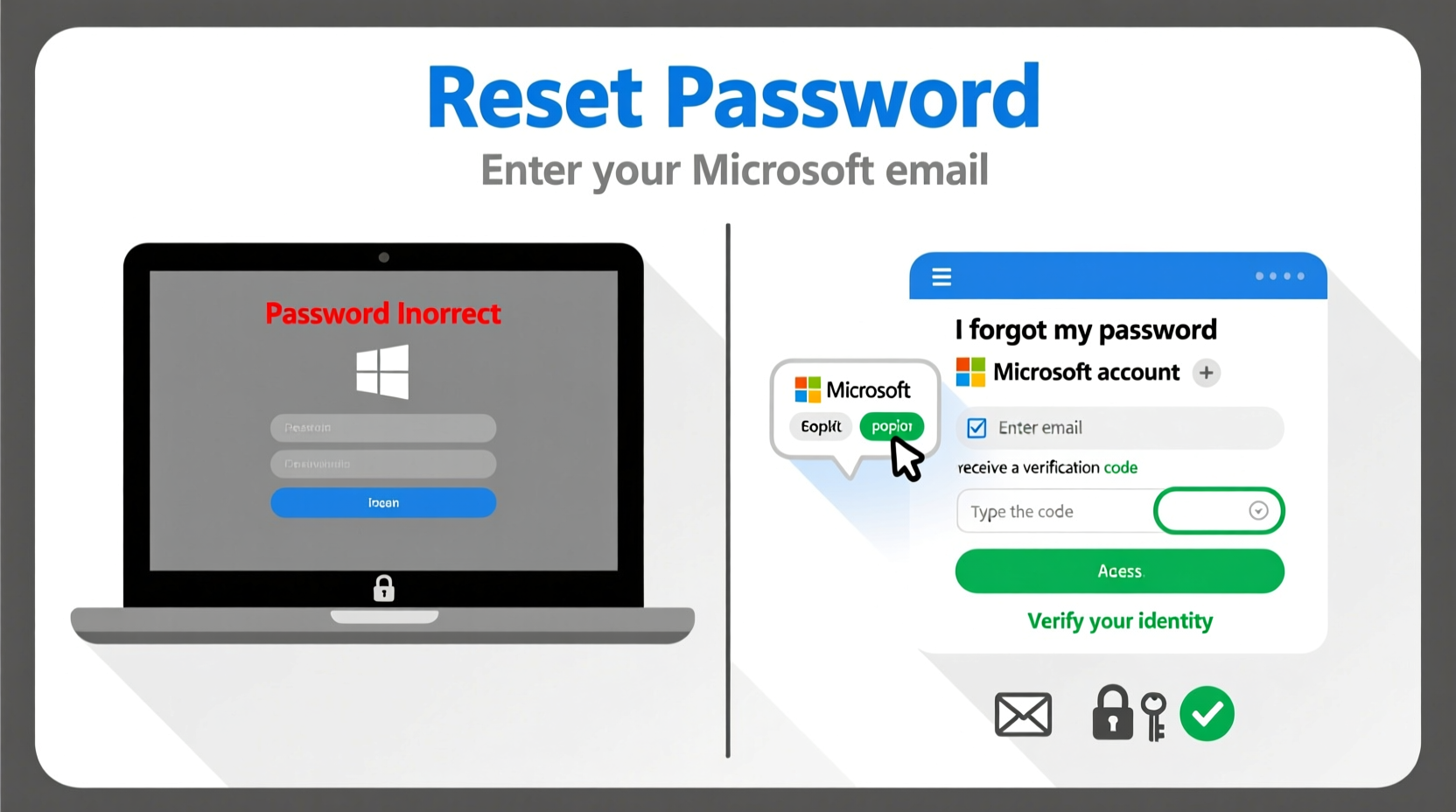
If your Windows 10 laptop uses a Microsoft account, the most reliable and straightforward recovery method involves resetting your credentials through Microsoft’s centralized account recovery portal using a secondary device, such as a smartphone or another computer.
Prerequisites
- Access to a secondary device connected to the internet (a smartphone, tablet, or another PC).
- Access to the phone number or alternative recovery email address associated with your Microsoft account to receive verification codes.
Step-by-Step Instructions
- Navigate to the Recovery Portal: Open a web browser on your secondary device and go to the official Microsoft Account Recovery Page.
- Enter Account Details: Input the email address, phone number, or Skype name associated with the locked Windows 10 laptop account. Click Next.
- Verify Your Identity: Microsoft will prompt you to prove your identity. Choose an available verification option—such as receiving a text message or an email containing a security code—to the contact info on file.
- Enter the Security Code: Retrieve the code from your phone or alternative email, type it into the verification field on the recovery page, and click Next.
- Create a New Password: Enter a strong, new password that meets Microsoft's complexity requirements (minimum of 8 characters, including a mix of uppercase letters, lowercase letters, numbers, and symbols), then confirm it.
- Reconnect Your Laptop to the Internet: Power on your locked Windows 10 laptop. Ensure it is connected to the internet via Wi-Fi or an Ethernet cable. (Note: If the laptop is not connected to the internet, it will not recognize the new password change processed in the cloud.)
- Log In: Type your newly created password into the Windows 10 login screen to regain access.
Method 2: Answer Security Questions for a Local Account
Users who set up their Windows 10 local account with security questions have a built-in recovery mechanism directly on the login screen. This method requires no external tools, USB drives, or secondary devices.
Prerequisites
- A local user account on Windows 10.
- Prior configuration of the three mandatory security questions during the initial account setup phase.
Step-by-Step Instructions
- Trigger the Reset Prompt: On the Windows 10 sign-in screen, type an incorrect password intentionally and press Enter.
- Select Reset Password: Once the error message appears stating that the password is incorrect, click the Reset password link located directly beneath the password input field.
- Answer Security Questions: Windows will present the three security questions you selected when configuring the local account. Type the correct answers into the corresponding fields.
- Press Enter: After answering all three questions accurately, press Enter or click the arrow icon to proceed.
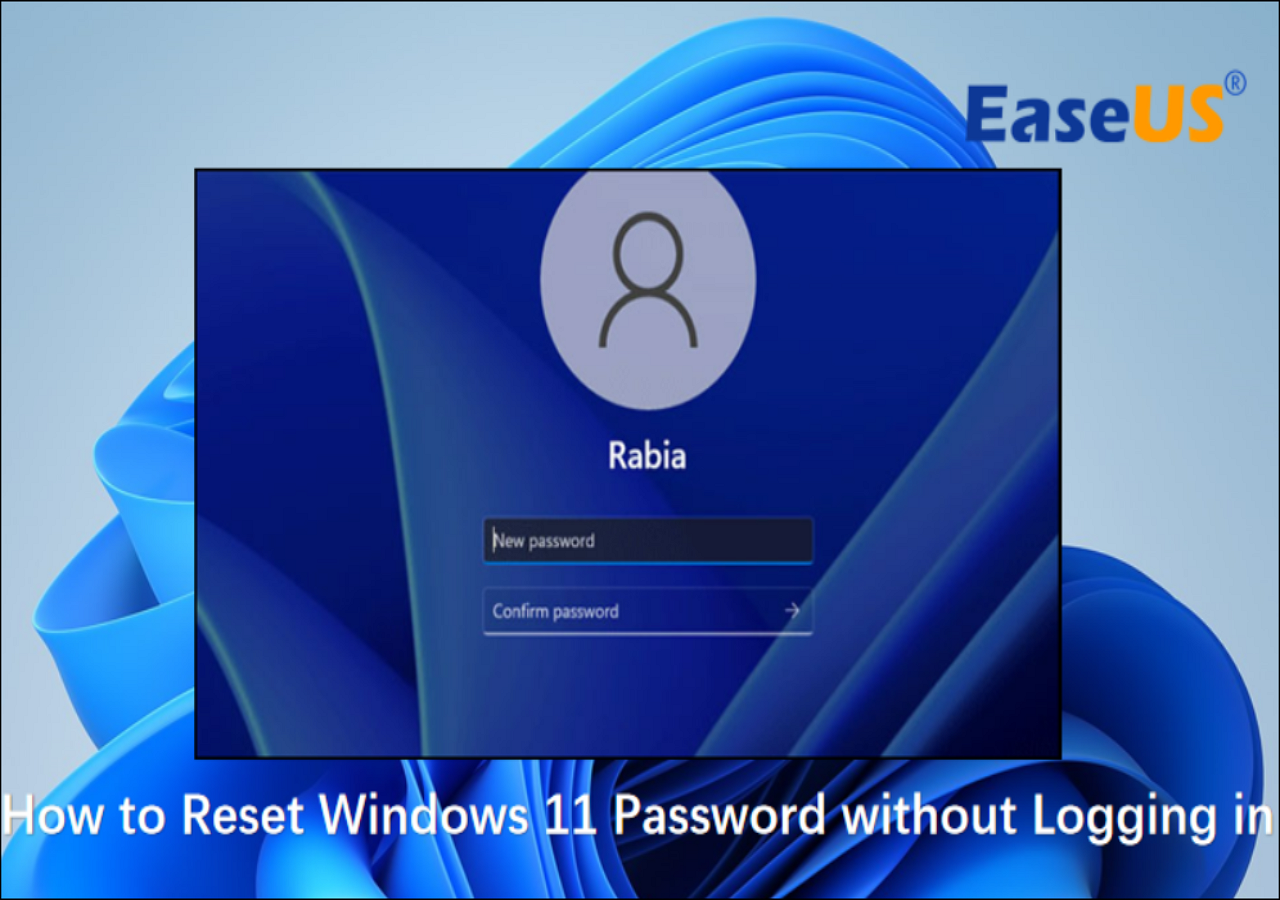
- Define a New Password: Windows 10 will prompt you to enter a new password and confirm it. You may also leave the fields blank if you prefer logging in without a password, though this is not recommended for security reasons.
- Complete the Process: Once confirmed, use your new credentials to access your desktop environment.
Method 3: Use a Pre-Created Password Reset Disk (USB Flash Drive)
For users running a local account who anticipated a potential lockout, a USB password reset disk created in advance offers a reliable fallback. This method writes a specialized security file to a removable flash drive, allowing immediate credential resetting without internet access.
Prerequisites
- A USB flash drive that you are willing to have formatted or dedicated to this purpose.
- A password reset disk that was previously created while you still had access to the account. (Note: You cannot create this disk after getting locked out).
Step-by-Step Instructions
- Insert the USB Drive: Plug your pre-configured password reset USB flash drive into the locked Windows 10 laptop.
- Initiate the Reset Wizard: On the Windows 10 login screen, type an incorrect password and click Enter. Once the error appears, click the Reset password link.
- Launch the Forgotten Password Wizard: When the Password Reset Wizard dialog box appears on your screen, click Next.
- Select the USB Drive: Choose the drive letter corresponding to your inserted USB flash drive from the drop-down menu and click Next.
- Enter New Credentials: Type a new password and password hint into the designated fields. Click Next, followed by Finish.
- Log In: Remove the USB flash drive and log into your Windows 10 laptop using your newly established password.
Comparison of Windows 10 Password Reset Methods
To help determine which recovery pathway best matches your specific situation, review the comparative breakdown below:
| Reset Method | Account Type | Internet Required? | External Tools Required? | Complexity Level |
|---|---|---|---|---|
| Online Account Portal | Microsoft Account | Yes | Secondary device (Phone/PC) | Low |
| Security Questions | Local Account | No | None | Low |
| Password Reset Disk | Local Account | No | Pre-configured USB Flash Drive | Moderate |
Troubleshooting and Alternative Solutions
If none of the three standard methods resolve your lockout issue due to missing security questions, lack of internet access, or absence of a recovery USB, you may need to consider more advanced administrative actions.
- Command Prompt Hack (Advanced): Advanced users sometimes utilize installation media (a bootable Windows 10 USB) to replace the Ease of Access utility on the login screen with the Command Prompt (
cmd.exe). This allows administrators to enable the hidden built-in Administrator account or use thenet usercommand to force a password change. This method requires technical proficiency and careful execution to avoid corrupting system files. - Factory Reset / Clean Installation: As a final resort when all data recovery options fail, you can reinstall Windows 10 using a bootable USB installer. While this will successfully bypass the password barrier, it will erase all personal files, applications, and settings stored on the primary partition unless a recent cloud or external backup exists.
Frequently Asked Questions
Can I reset a Windows 10 password without losing my data?
Yes. All three standard methods detailed above—using the Microsoft online portal, answering local security questions, or using a password reset disk—reset your credentials without modifying, deleting, or altering your personal files, installed applications, or system configurations.
What should I do if I didn't set up security questions for my local account?
If you configured a local account without security questions and do not have a pre-made USB password reset disk, Windows 10 does not offer a native graphical way to recover access. In such scenarios, advanced users resort to bootable installation media to modify system files or perform a clean reinstallation of the operating system.
Why won't my laptop accept my new Microsoft account password?
If you successfully reset your Microsoft account password online but your laptop rejects it, the most common cause is a lack of an active internet connection on the laptop. Windows 10 requires an active internet connection to communicate with Microsoft's servers and synchronize the new credential hash. Connect your laptop to Wi-Fi or plug in an Ethernet cable before attempting to log in again.
Can I use a PIN instead of a password if I get locked out?
If you previously set up Windows Hello PIN authentication, you may still be able to log in using your PIN even if you forgot your main account password. However, if the system requires you to re-enter your master account password due to a security policy update or system reboot, the PIN option may be temporarily disabled until the primary credentials are verified.
How do I prevent getting locked out of my laptop in the future?
To prevent future lockouts, ensure your local account has updated security questions configured via Settings > Accounts > Sign-in options. Alternatively, link your local account to a Microsoft account to enable seamless cloud-based credential recovery, or create a dedicated USB password reset disk and store it in a secure physical location.