Managing storage on an iPhone 7 can become a challenge, especially when dealing with the device's fixed internal capacity options of 32GB, 128GB, or 256GB. When internal space runs low, users can choose between upgrading storage via cloud services, utilizing Lightning-connected external flash drives, or leveraging computer-based local backups and media syncing. Each option handles space expansion, file access, and cost differently.
Understanding the iPhone 7 Storage Challenge
Released originally in 2016, the iPhone 7 remains a functional device for basic tasks, communication, and lightweight photography. However, modern applications, high-resolution media, and operating system updates place heavy demands on its physical memory. Because Apple devices do not feature microSD card slots for expandable local hardware, users must look beyond the physical chassis to manage data overflow.
When approaching storage management for this specific model, owners must evaluate whether they need constant, real-time access to their files or if they prefer an offline, archived approach. The three primary storage solutions—Cloud Storage Services, Lightning Flash Drives, and Computer-Based Local Offloading—cater to distinct user workflows, technical comfort levels, and budgetary constraints.
Option 1: Cloud Storage Services (iCloud, Google Drive, OneDrive)
Cloud storage utilizes remote data centers to house photos, documents, and system backups, keeping files off the local iPhone 7 hardware entirely.
How It Works
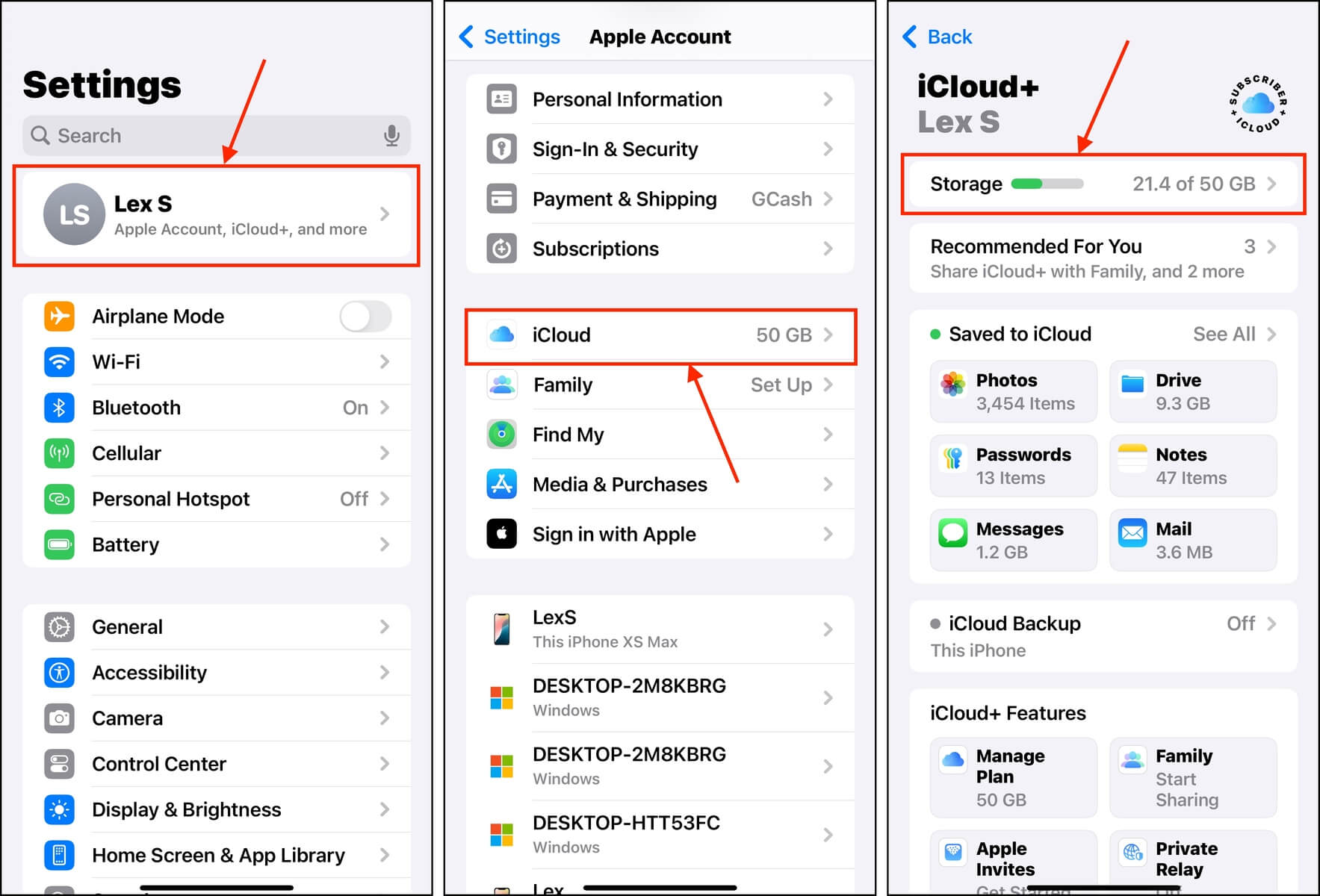
Cloud platforms sync data over Wi-Fi or cellular networks. For iPhone 7 users, Apple’s native iCloud service integrates directly into iOS, offering features like "Optimize iPhone Storage," which keeps lower-resolution thumbnails on the device while storing full-resolution originals in the cloud. Third-party alternatives like Google Drive, Microsoft OneDrive, and Dropbox operate similarly through dedicated iOS applications.
Pros and Cons
- Pros: Automatic background backups, seamless integration with iOS (for iCloud), protection against physical device loss or failure, and scalable capacity tiers.
- Cons: Requires a continuous internet connection for full access, recurring monthly subscription fees for higher tiers, and potential privacy concerns regarding remote data hosting.
Ideal Use Case
Users who have reliable internet connectivity, prefer a hands-off backup process, and want to keep their photo libraries accessible across multiple Apple or multi-platform devices without managing physical hardware.
Option 2: Lightning Flash Drives and External SSDs
External hardware designed specifically for iOS devices connects directly to the iPhone 7's Lightning port, providing tangible, physical storage expansion.
How It Works
Manufacturers such as SanDisk (iXpand), Kingston, and others build flash drives equipped with a standard USB connector on one end and a Lightning connector on the other. By installing the companion app provided by the manufacturer, users can manually transfer photos, videos, and documents from the iPhone 7 internal storage onto the external drive.
Pros and Cons
- Pros: One-time purchase cost with no recurring subscription fees, absolute data ownership and privacy, and independence from internet connectivity or cellular data caps.
- Cons: Requires manual file management, adds physical bulk when connected, draws power from the phone battery during transfers, and relies on proprietary mobile apps that may lose software support over time.
Ideal Use Case
Travelers, photographers, or individuals with limited internet access who need to offload large video files or photo libraries locally while away from a computer.
Option 3: Computer-Based Local Offloading (iTunes / Finder Sync)
Traditional local archiving involves connecting the iPhone 7 to a desktop computer (Mac or Windows PC) via a Lightning-to-USB cable to transfer and store files locally.
How It Works
Using Finder (on modern macOS) or iTunes (on Windows and older macOS versions), users can manually drag and drop media files or perform full device backups onto a computer hard drive. Once files are safely transferred to the computer, they can be deleted from the iPhone 7 to reclaim internal space.
Pros and Cons
- Pros: Completely free if you already own a computer, highly secure local data control, and ideal for creating comprehensive device backups before performing software updates.
- Cons: Tethered workflow requiring a physical cable and computer, lack of on-the-go file accessibility, and manual sorting required to keep track of offloaded files.
Ideal Use Case
Users who regularly back up their devices at home or in an office environment and prefer managing their digital archives on a traditional desktop file system.
Comparative Analysis of iPhone 7 Storage Options
To clearly evaluate which method best suits your daily routine, hardware availability, and budget, review the comparison of key operational factors below:
| Feature / Factor | Cloud Storage Services | Lightning Flash Drives | Computer-Based Local Offloading |
|---|---|---|---|
| Primary Requirement | Active internet connection | Lightning-compatible hardware | Desktop or laptop computer |
| Cost Structure | Monthly or annual subscription | One-time hardware purchase | Free (uses existing computer storage) |
| Portability | High (accessible anywhere online) | Moderate (physical dongle/drive required) | Low (tied to desktop/laptop) |
| Automation | High (automatic background sync) | Low (manual file transfers) | Low (manual connection and sync) |
| Internet Dependency | Essential | None | None |
Frequently Asked Questions
Can I upgrade the internal storage chip inside my iPhone 7?
No. Apple sold the iPhone 7 in fixed capacities of 32GB, 128GB, and 256GB. The internal flash memory chips are soldered directly to the logic board and cannot be upgraded, replaced, or expanded by users or standard repair technicians.
Do Lightning flash drives work with all file types on iOS?
Lightning flash drives excel at storing photos, videos, and generic document formats like PDFs. However, iOS file system restrictions mean you cannot directly run applications or store system-level data on an external Lightning flash drive.
Which cloud storage option is best for an iPhone 7 running older iOS versions?
Apple's iCloud integrates most smoothly with older iOS builds supported by the iPhone 7. However, free tiers offer only 5GB of space, which fills up rapidly. Reviewing third-party options like Google Drive can sometimes yield higher free storage allocations (such as 15GB).
Will using external storage drain my iPhone 7 battery?
Cloud storage uses Wi-Fi or cellular radios, which consume battery during active synchronization. Lightning flash drives draw operational power directly from the iPhone 7 lightning port, which can noticeably accelerate battery drain during large file transfers on an aging battery.
Recommendations for Next Actions
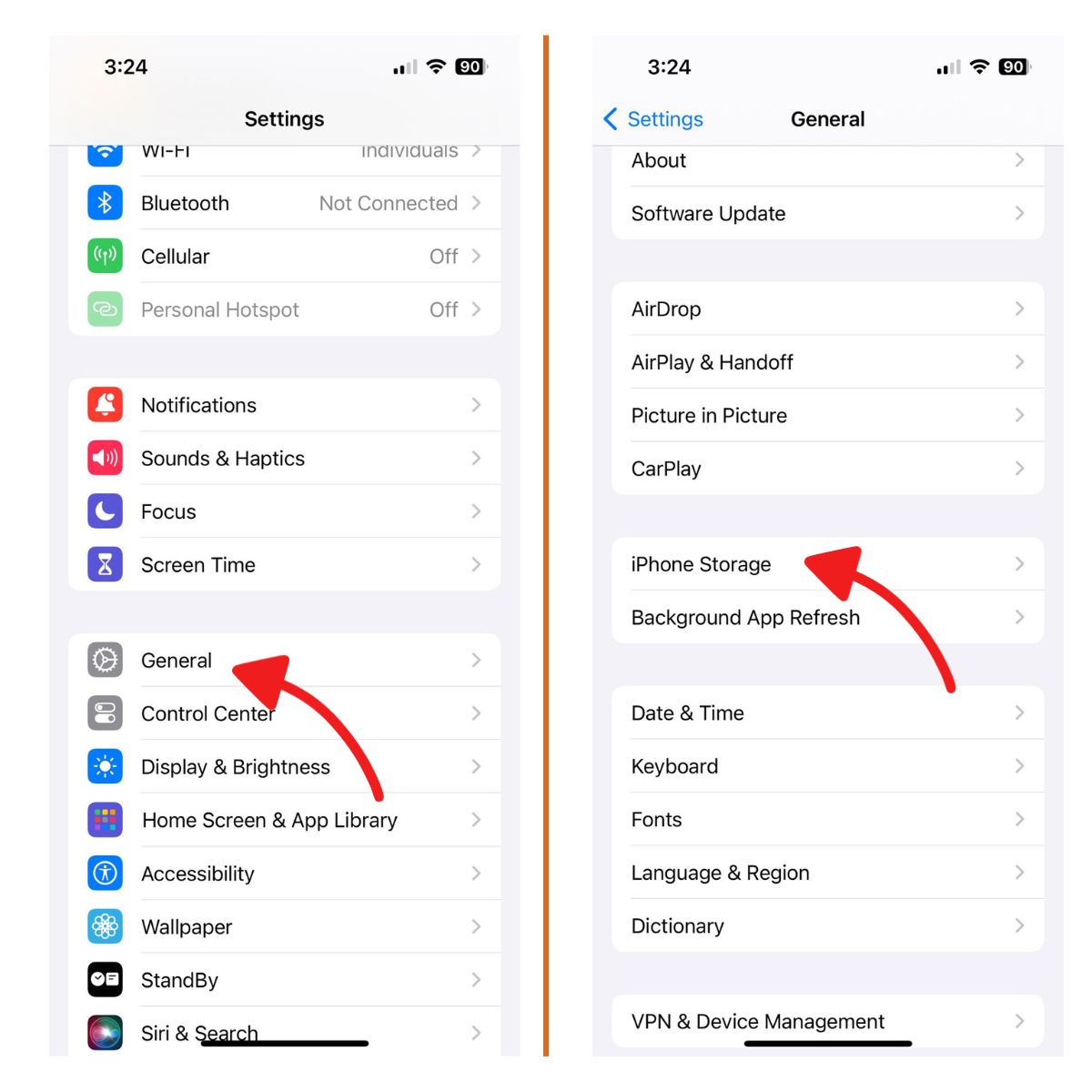
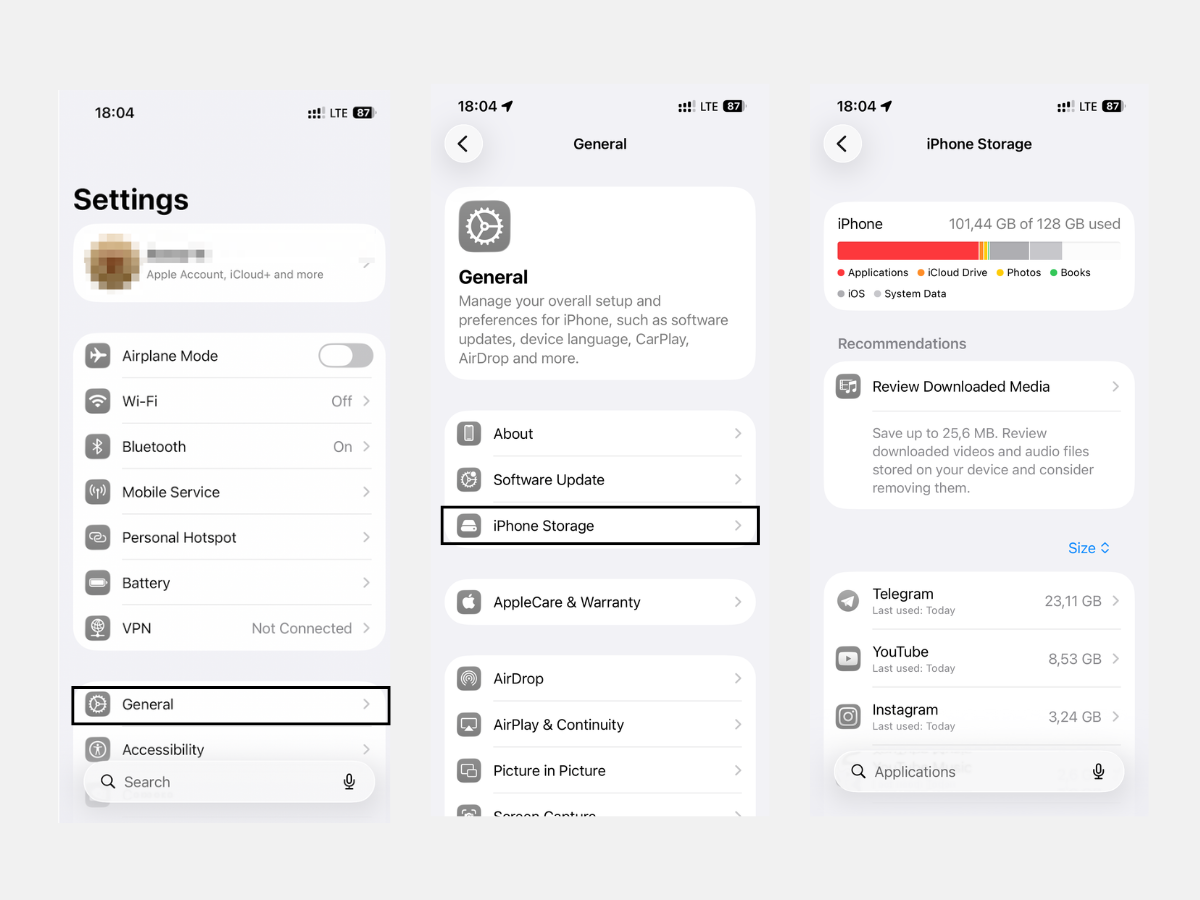
If you are currently struggling with storage warnings on your iPhone 7, assess your daily habits before spending money. First, check your device usage under Settings > General > iPhone Storage to identify which applications or media types consume the most space.
If you travel frequently and lack stable Wi-Fi, invest in a reputable Lightning flash drive for portable offline transfers. If you rarely stray from home and own a computer with ample hard drive space, establish a routine of monthly manual offloading via a USB cable. Finally, if you value automation and effortless synchronization across multiple devices, evaluate entry-level paid cloud subscription tiers to permanently lift your local storage constraints.