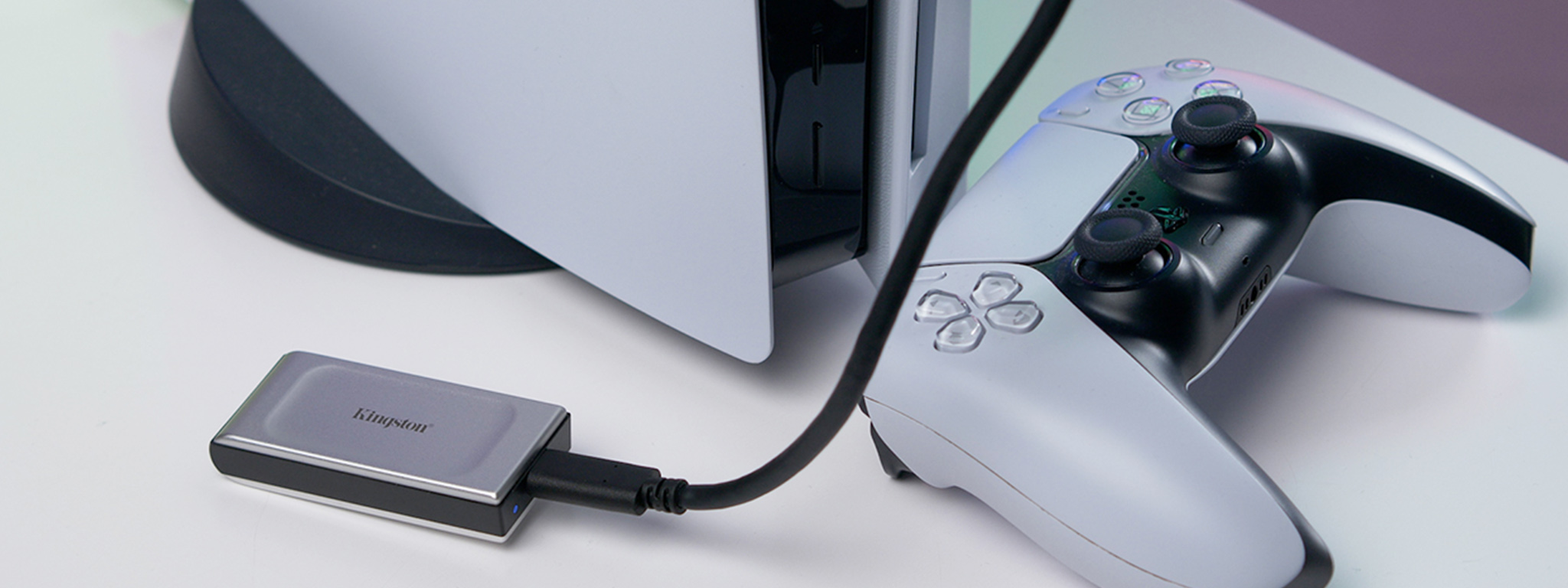
Installing an internal M.2 NVMe SSD is the official, high-performance method to expand your PlayStation 5 storage capacity, allowing you to store and play both PS5 and PS4 games directly from the drive without performance compromises.
The PlayStation 5 ships with a custom high-speed solid-state drive built directly onto its motherboard, offering rapid asset streaming and ultra-short loading times. However, with modern gaming files frequently exceeding 100 gigabytes per title, the base storage fills up rapidly. Sony designed the console with an expandable internal expansion slot, allowing players to install a compatible M.2 NVMe SSD. Understanding how this internal extended storage works, what hardware specifications are required, and how to safely install and manage the drive ensures you avoid performance bottlenecks, hardware incompatibilities, or voided system guidelines.
Understanding the PS5 Internal Storage Architecture
The PS5 relies on a custom input/output (I/O) controller integrated with a proprietary solid-state drive architecture. This system bypasses traditional bottlenecks, feeding compressed assets directly to the processor and graphics chip at unprecedented speeds. When Sony enabled the M.2 expansion slot via a system software update, engineers established strict hardware thresholds to ensure any added drive could match or exceed the performance characteristics of the factory-installed storage.
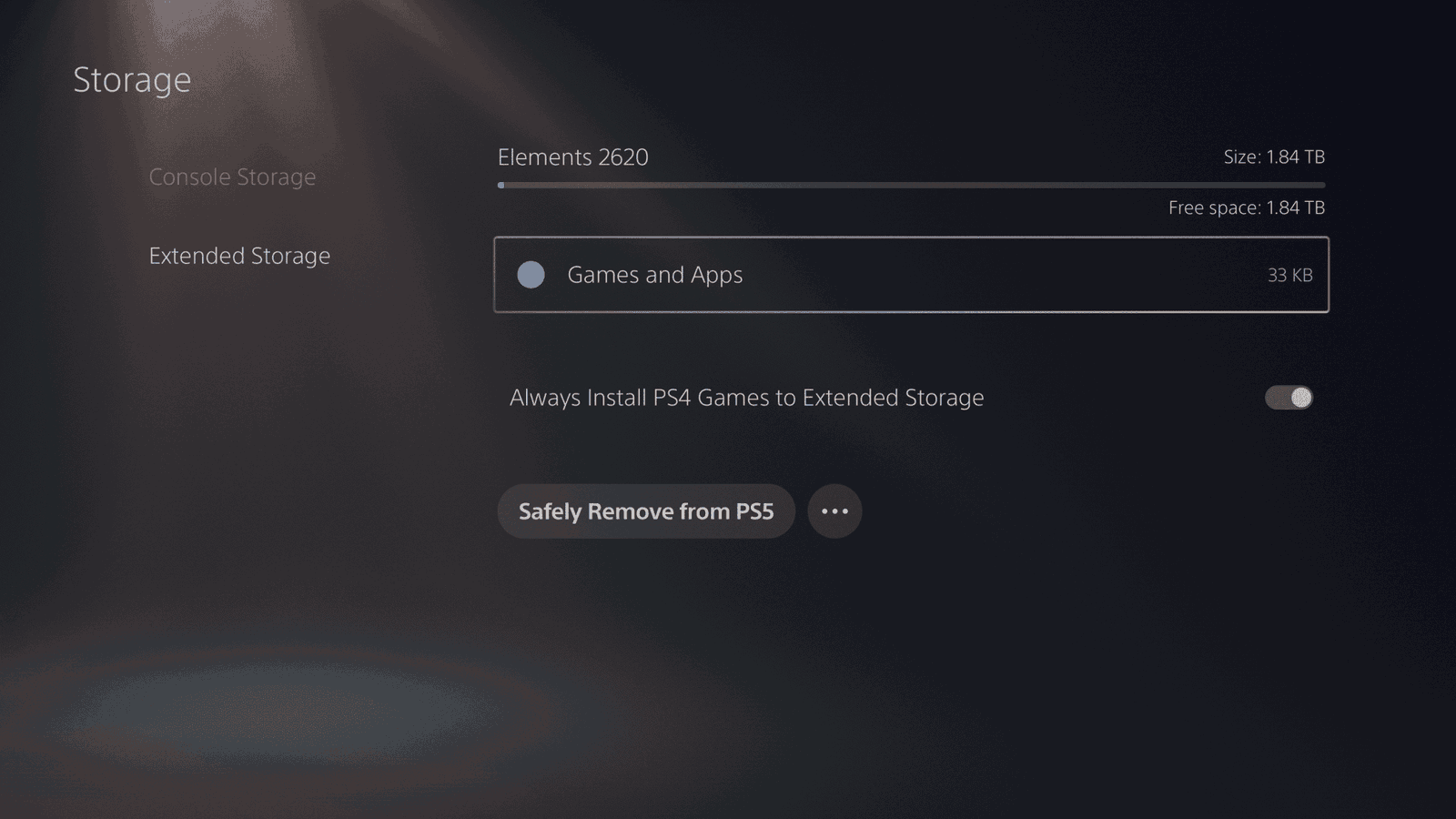
Unlike external USB hard drives or traditional SATA solid-state drives, which can only store PlayStation 5 games or play legacy PlayStation 4 games, an internal M.2 NVMe SSD functions identically to the console's native storage. Once installed and formatted, the operating system treats the internal expansion drive as a seamless extension of the system memory pool. Games launch with identical fidelity, texture streaming remains uninterrupted, and asset delivery speeds comply fully with the demands of modern game engines.
Essential Hardware Requirements for a Compatible SSD
You cannot simply purchase any computer solid-state drive and insert it into a PlayStation 5. Sony enforces mandatory hardware specifications to protect system stability and maintain game performance standards. Failing to meet these parameters can result in severe performance degradation, graphical stuttering, or failure of the console to recognize the drive.
| Specification Feature | Mandatory Requirement |
|---|---|
| Interface Type | PCIe Gen4 x4 M.2 NVMe SSD |
| Capacity | 250GB to 8TB |
| Sequential Read Speed | 5,500 MB/s or faster recommended |
| Form Factor | 2230, 2242, 2260, 2280, 22110 (2280 is standard) |
| Thermal Dissipation | Heat sink required (built-in or third-party) |
Interface and Speed Specifications
The expansion slot requires a PCIe Gen4 x4 M.2 NVMe SSD. Older PCIe Gen3 drives or standard SATA drives will not fit or will fail to operate at acceptable speeds. Sony recommends a sequential read speed of 5,500 MB/s or faster. While drives with slightly lower speeds may occasionally pass the console's initial formatting test, Sony explicitly warns that slower speeds can cause performance drops during intensive asset streaming sequences.
Physical Dimensions and Clearance
Space inside the PS5 expansion bay is tightly constrained. The physical dimensions of the circuit board must match standard sizes, with 2280 being the most common and widely supported length. Furthermore, the total thickness of the drive—including any applied cooling mechanisms—is restricted. The maximum allowable height is 11.25 mm total, with strict limitations on how much material can sit above and below the printed circuit board. Installing an oversized drive will prevent you from reattaching the metal expansion slot cover, which can disrupt internal airflow and damage the hardware.
The Absolute Necessity of a Heatsink
Because high-performance PCIe Gen4 NVMe drives generate substantial heat during sustained data transfers, Sony mandates the use of a thermal dissipation structure, commonly known as a heatsink. This can be a built-in metal plate provided by the SSD manufacturer or a third-party aftermarket heatsink attached by the user. Operating an unheatsinked drive inside the enclosed chassis of a PlayStation 5 risks thermal throttling, system instability, and hardware degradation over time.
Preparing for Installation: Tools and Safety
Before opening your console, proper preparation prevents hardware damage, static discharge, and data loss.
- Power Down Completely: Turn off your PlayStation 5 entirely. Do not leave the system in Rest Mode. Unplug the AC power cord, HDMI cable, and all peripheral wires.
- Gather Tools: You will need a standard #1 Phillips screwdriver or a precision crosshead screwdriver. Having a clean, well-lit, and static-free flat surface is essential.
- Discharge Static Electricity: Touch a grounded metal object before handling the console or the solid-state drive to prevent electrostatic discharge from frying sensitive microchips.
- Identify Console Revision: Be aware that the physical placement of the expansion slot cover varies slightly between the original PS5 model (released in 2020), the revised CFI-1200 models, and the slimmer redesigned PS5 models introduced later. Always consult the specific hardware manual associated with your console revision.
Step-by-Step Installation Procedure
Installing the internal drive is a straightforward mechanical process if approached with patience and care.
Step 1: Remove the Console Cover
Place your PS5 on a flat surface protected by a soft cloth. Position the console so that the PlayStation logo faces downward and the power button is pointing away from your left hand.
- For the original model, grip the top-left corner of the white plastic cover, gently lift it up while sliding it toward you, and the panel will unclip.
- For newer slim models, the side panels are split into multiple pieces; you will need to remove the specific lower panel that exposes the long, metallic expansion bay slot.
Step 2: Access the Expansion Bay
Locate the rectangular metal cover secured by a single screw on the exposed chassis. Using your #1 Phillips screwdriver, carefully remove this screw and set it aside in a secure location. Lift off the metal cover plate. Inside, you will see the M.2 slot containing a spacer screw and a small metal ring.
Step 3: Configure the Spacer and Insert the Drive
Unscrew the spacer screw and move it to the notch that corresponds to the length of your SSD (typically the 80 position for standard 2280 drives).
- Align the pins on your M.2 SSD with the notch inside the expansion slot.
- Insert the drive at a 30-degree angle, pushing it firmly into the slot.
- Gently push the other end of the drive downward until it rests flat against the metal spacer.
- Secure the drive in place using the spacer screw you removed earlier. Do not overtighten the screw, as this can crack the circuit board.
Step 4: Reassemble the System
Place the metal expansion bay cover back over the slot and secure it with its screw. Finally, align the plastic console cover with the guiding hooks on the chassis and slide it back into position until you hear a distinct click. Reconnect your power and video cables and turn on the console.
Formatting and Verifying Your New Drive
When you power on your PlayStation 5 after installing a new internal SSD, the system automatically detects the hardware and launches a formatting utility.
- Read Speed Test: The console will run an automatic diagnostic test to measure the sequential read speed of the newly installed drive.
- Formatting Process: Follow the on-screen prompts to format the drive to the proprietary file system required by the PS5. Warning: Formatting will erase all data currently on that drive.\n3. Verification: Once formatting completes, navigate to Settings > Storage > Installation Location to verify that the M.2 SSD appears as a usable storage pool alongside console storage.
Managing Storage: Moving and Downloading Games
With your internal extended storage active, you gain total flexibility over how your game library is organized.
Setting Default Install Locations
You can designate whether new games, downloadable content, and updates automatically download to the console's internal storage or your new M.2 NVMe SSD. Navigating to the storage menu allows you to set your preferred default location with a single click.
Transferring Games Between Drives
If your console storage fills up, you do not need to delete games to make space. You can move installed titles back and forth between the console storage and the M.2 SSD at high speeds.
- Select the game from your library or storage menu.
- Press the Options button on your DualSense controller.
- Choose Move Games and Apps, select the items you wish to transfer, and execute the move. Transferring files between internal solid-state drives takes only a fraction of the time required by older USB external drives.
Frequently Asked Questions
Can I use any NVMe SSD if it has a fast enough read speed?
No. Beyond read speed requirements, the drive must feature a PCIe Gen4 x4 interface, match the correct physical form factor (2280), and fit within the console's strict height restrictions while equipped with a heatsink. Uncertified or mismatched drives may fail to register or cause system crashes.
Do I need to remove the built-in heatsink if my SSD comes with one pre-installed?
Never remove a factory-installed heatsink if it was engineered specifically for the drive, as doing so often voids the manufacturer's warranty and can damage thermal pads. However, if you purchase an SSD without a heatsink, you must install a compatible third-party heatsink before inserting the drive into the PS5 console.
Can I play PlayStation 5 games from a USB external hard drive?
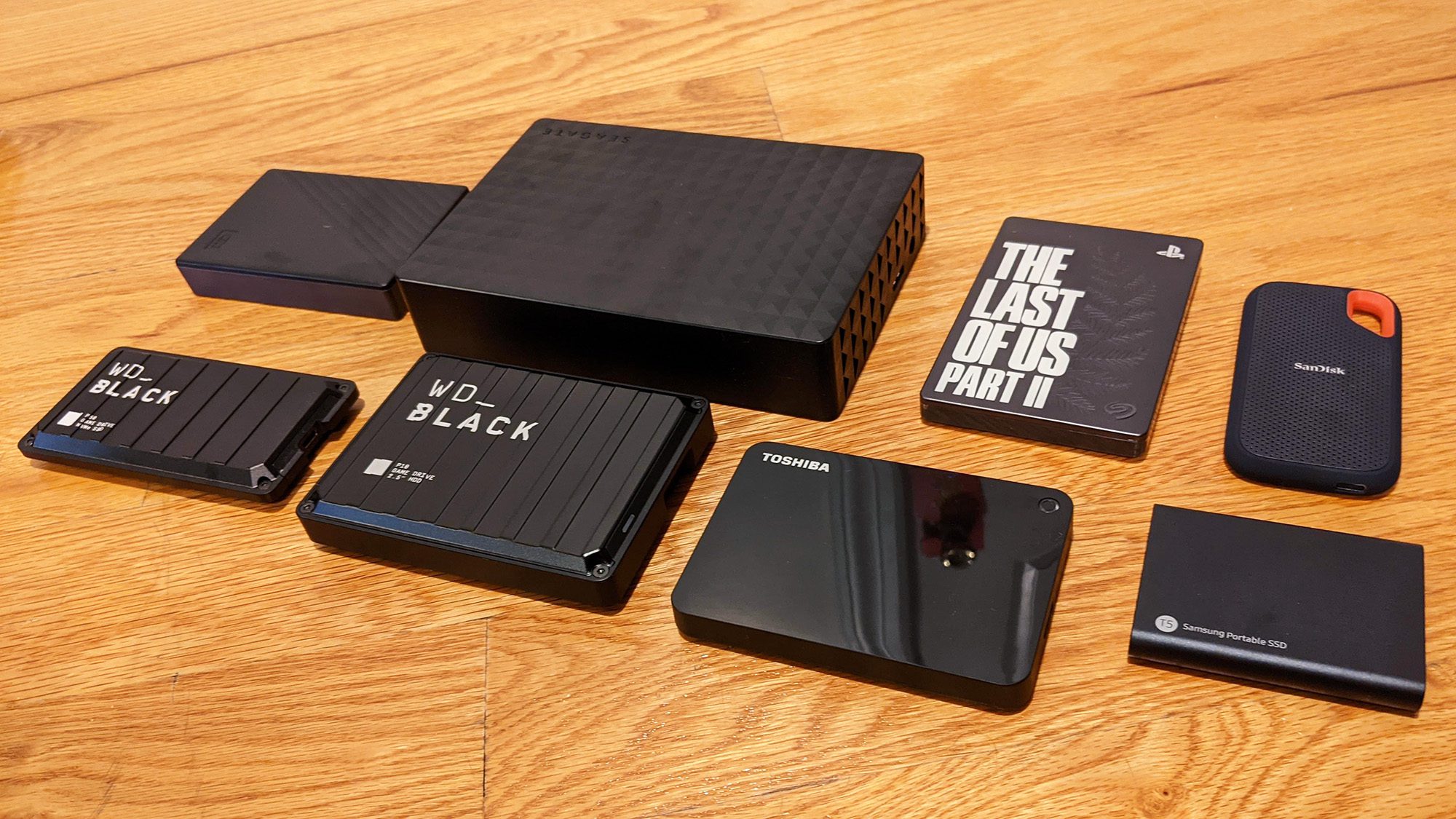
No. PlayStation 5 native games require the ultra-low latency and high data throughput of an internal M.2 NVMe SSD or the native console storage. USB external storage devices can only be used to store PS5 games in a cold-storage archive state, or to directly play legacy PlayStation 4 games.
What happens to my game saves if I move a game to the M.2 SSD?
Game save data is stored separately from the core game installation files in the system's main cloud or console storage. Moving or deleting game application files on your M.2 SSD will not delete your saved progress or trophy data.
Can an internal SSD improve game loading times beyond the factory drive?
While certified M.2 SSDs meet or exceed the performance of the factory storage, loading times in practice remain largely identical. The PS5 hardware architecture is optimized around a specific baseline speed; exceeding that speed yields diminishing returns rather than noticeable performance leaps.
Summary Recommendation
Installing a compatible PCIe Gen4 NVMe M.2 SSD with an integrated heatsink is the definitive way to solve storage constraints on your PlayStation 5. Prioritize drives meeting or exceeding 5,500 MB/s read speeds, verify physical dimensions before purchase, and always follow proper grounding and installation steps to protect your hardware investment.