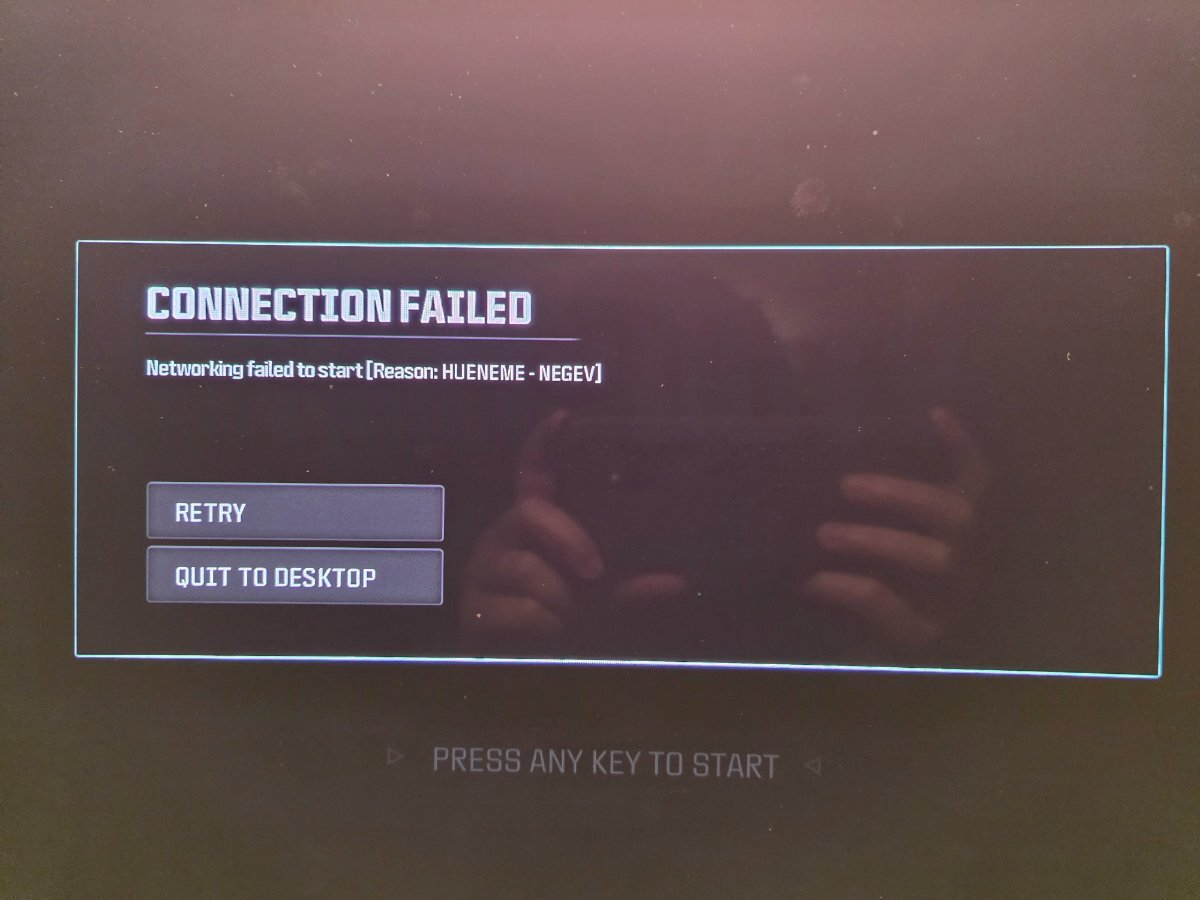
The "Hueneme Negev" error on PS5 is a network connectivity failure that prevents your console from establishing a secure handshake with Call of Duty game servers. It typically occurs due to local router configuration issues, restrictive NAT types, or outdated DNS settings. You can usually resolve this by power cycling your hardware, switching to a public DNS like Google or Cloudflare, or enabling UPnP in your router settings.
Understanding the Hueneme Negev Error Code
In the gaming landscape of 2026, network errors still rely on the internal naming conventions established years ago by developers like Infinity Ward and Raven Software. "Hueneme Negev" is not a description of a physical location or a specific piece of hardware; rather, it is a localized error string used to identify a "Network Failed to Start" condition. Specifically, this error indicates that the game client on your PlayStation 5 is unable to reach the Activision data centers.
When you launch a title like Warzone or Modern Warfare, the console attempts to authenticate your account and fetch the latest playlist files. If the connection times out during this initial "handshake," the system triggers the Hueneme Negev code. Unlike other errors that might suggest a server-side outage, this specific code frequently points to a problem with how your local network (the router and modem) is communicating with the wider internet. It is often a symptom of "Strict NAT" or a firewall blocking the specific ports required for the Call of Duty engine to function.
Immediate Troubleshooting: The Power Cycle Method
Before diving into complex network configurations, you must rule out temporary hardware glitches. Electronic interference or a "hung" process in your router’s memory can often cause packet loss that leads to the Hueneme Negev error.
- Completely Shut Down the PS5: Do not just enter Rest Mode. Hold the power button or use the UI to select "Power Off."
- Unplug the Hardware: Remove the power cables from both your PlayStation 5 and your internet router/modem.
- Wait for Discharge: Wait at least 60 seconds. This allows the capacitors in the router to fully discharge, clearing the temporary cache.
- Sequential Reboot: Plug the router back in first. Wait for all lights (Internet, 2.4GHz, 5GHz) to turn solid green or white.
- Launch the Console: Turn on your PS5 and attempt to connect to the game again.
If the error persists after a full power cycle, the issue likely resides in your network's logical configuration rather than a physical connection glitch.
Optimizing PS5 DNS Settings for Better Routing
One of the most effective solutions for the Hueneme Negev issue is changing your Domain Name System (DNS) settings. By default, your PS5 uses the DNS provided by your Internet Service Provider (ISP). If your ISP’s DNS servers are slow, congested, or have poor routing tables to Activision’s servers, the connection will fail.
Switching to a primary public DNS provider ensures that your console finds the most efficient path to the game servers.
How to Change DNS on PS5
- Navigate to Settings > Network > Settings > Set Up Internet Connection.
- Highlight your current connection and press the Options button on your controller.
- Select Advanced Settings.
- Change DNS Settings from "Automatic" to "Manual."
- Input the following values:
- Primary DNS: 8.8.8.8 (Google) or 1.1.1.1 (Cloudflare)
- Secondary DNS: 8.8.4.4 (Google) or 1.0.0.1 (Cloudflare)
- Leave other settings as they are and select OK.
Cloudflare (1.1.1.1) is often preferred in 2026 for gaming because of its focus on privacy and low latency, which can help bypass the regional routing bottlenecks that trigger the Hueneme Negev failure.
Advanced Router Configurations: UPnP and NAT Types
The Hueneme Negev error is notoriously linked to Network Address Translation (NAT) issues. Your PS5 communicates best when it has an "Open" NAT type (Type 1 or Type 2). If your router is set to "Strict" (Type 3), it will block the incoming data packets required for the game to start.
Enabling Universal Plug and Play (UPnP)
UPnP is a protocol that allows your PS5 to automatically request the necessary ports from your router. To enable this:
- Access your router’s web interface by typing its IP address (usually 192.168.1.1 or 192.168.0.1) into a web browser.
- Log in with your administrative credentials.
- Locate the Advanced or Network tab.
- Find the UPnP setting and ensure it is toggled to On.
- Restart your router and PS5.
Port Forwarding for Call of Duty
If UPnP does not resolve the Hueneme Negev error, you may need to manually "forward" ports. This creates a dedicated lane for game data to reach your console without being filtered by the router’s firewall. For the best experience on PS5, ensure the following ports are open:
- TCP: 1935, 3478-3480
- UDP: 3074, 3478-3479
Directing these ports to the static IP address of your PS5 is the most robust way to ensure the "Network Failed to Start" message does not reappear.
Comparison of Connection Methods and Success Rates
The way you connect to the internet significantly impacts the frequency of "Hueneme Negev" errors. While Wi-Fi has improved by 2026 with Wi-Fi 7 standards, wired connections remain the gold standard for stability.
| Connection Type | Stability Rating | NAT Conflict Risk | Recommended Fix |
|---|---|---|---|
| Ethernet (Wired) | High | Low | Enable UPnP |
| Wi-Fi (5GHz/6GHz) | Medium | Moderate | Change DNS to 1.1.1.1 |
| Mobile Hotspot | Low | High | Use VPN or change APN |
| Powerline Adapters | Medium | Low | Check for electrical noise |
Account-Level Troubleshooting
In some instances, the Hueneme Negev error isn't about your hardware at all, but rather a desynchronization between your PlayStation Network (PSN) ID and your Activision account. If the game cannot verify your license or your "handshake" token has expired, it will default to this network error.
To resolve account desync:
- Visit the official Activision Login page.
- Sign in using your PSN credentials.
- Navigate to Account Linking.
- If your PSN account is linked, try unlinking it and then re-linking it (note: there are often cooldown periods for unlinking, so use this as a last resort).
- Ensure that "Two-Factor Authentication" is active, as this sometimes forces a refreshed security token that clears the connection error.
ISP Routing and Regional Issues
If you have tried DNS changes and port forwarding but the Hueneme Negev error persists, the problem may lie with your Internet Service Provider. ISPs sometimes change their routing tables, causing traffic intended for gaming servers to be routed through overloaded or "dead" nodes.
Teredo Tunneling and IPv6: While more common on PC, the PS5's interaction with IPv6 can sometimes cause issues. If your ISP has recently moved to an IPv6-only infrastructure using "DS-Lite," your router might struggle to translate the IPv4 packets used by older Call of Duty server architectures. In this case, logging into your router and disabling IPv6—forcing the console to use a traditional IPv4 address—can often bypass the Hueneme Negev block.
Troubleshooting the "1 Network Failed to Start" Specifics
The prefix "1" in the error "1 network failed to start" usually indicates a primary interface failure. This means the PS5 isn't even seeing a valid gateway to the internet when the game launches.
- Check the LAN Cable: If using a wired connection, a frayed or Cat5 cable (rather than Cat6 or Cat7) can cause intermittent signal drops.
- Reset the Network Cache: On your PS5, go to Settings > Network > Status > View Connection Status. If the "Internet Connection" says "Failed" even if other apps work, your console's network stack may need a reset. You can do this by selecting "Forget Network" and setting it up as if it were a new connection.
Frequently Asked Questions
Why does Hueneme Negev only happen in Call of Duty?
Call of Duty uses a proprietary networking engine that is highly sensitive to packet fragmentation and NAT types. While apps like Netflix or YouTube can buffer through minor connection gaps, the real-time handshake required by Activision's servers will fail and trigger the "Hueneme Negev" code if even a small amount of data is blocked by a firewall.
Does a PS5 system update fix this error?
Generally, no. This error is rarely caused by the PS5 firmware itself. It is almost always an external communication issue between the game software and the network hardware. However, keeping your system updated ensures you have the latest drivers for the Wi-Fi and Ethernet controllers.
Can a VPN fix the Hueneme Negev error on PS5?
Yes, in specific cases. If your ISP is throttling gaming traffic or has a broken route to the game servers, a VPN can provide an alternative path. Since you cannot install a VPN directly on a PS5, you would need to install it on your router or share a connection from a PC. This "tunnels" your data past the ISP's problematic nodes.
Is Hueneme Negev a sign of a hardware failure?
It is extremely unlikely to be a hardware failure. If your PS5 can connect to the PlayStation Store or play other online games, your network card is functioning correctly. Hueneme Negev is a software-level report of a failed network "handshake."
What is the difference between Hueneme Negev and Hueneme Concord?
Both are network timeout errors, but they typically refer to different stages of the connection process. "Negev" is usually associated with the initial fetch of digital certificates and "Connecting to Online Services," while "Concord" often appears during the "Fetching Online Profile" stage. The fixes—DNS and NAT optimization—remain the same for both.
Will resetting my PS5 to factory settings help?
This should be avoided. Factory resetting your console is a drastic step that deletes all your data and rarely solves network-specific errors like Hueneme Negev. Focus instead on resetting your router or contacting your ISP to check for "IP reputation" issues or port blocking.
Final Recommendations for a Stable Connection
To permanently resolve and prevent the "Hueneme Negev" error on your PS5 in 2026, you should prioritize a wired Ethernet connection and a static IP configuration. By assigning your PS5 a specific IP address within your router settings and placing that IP in the DMZ (Demilitarized Zone), you bypass all internal firewalls, ensuring the game always has an "Open" NAT status. While this carries a very slight security risk for PCs, the PS5's closed ecosystem makes it a safe and highly effective way to guarantee uninterrupted access to game servers.
If all else fails, contact your ISP and specifically ask if they are using CGNAT (Carrier Grade NAT). If they are, you may be sharing a public IP address with hundreds of other users, which frequently breaks the unique handshakes required by PlayStation 5 titles. Requesting a "Static Public IP" from your provider is often the final, definitive fix for persistent Hueneme Negev errors.