Downloading your saved data on a PlayStation 5 is an essential process for migrating your progress, recovering from local storage corruption, or moving between consoles. Whether you are transitioning to a new machine or simply restoring a lost game state from the cloud, the process relies on the integration between your PS5 system and the PlayStation Network (PSN). By leveraging cloud storage, you ensure that your hard-earned achievements and campaign progress are never permanently lost, even if your local hardware fails.
Understanding the PlayStation Plus Cloud Storage Requirement
The ability to "download" saved data onto your PS5 implies that the data already exists somewhere else, typically within the cloud storage provided by the PlayStation Plus service. It is important to clarify that Sony’s ecosystem treats cloud storage as a synchronized backup system. Without an active PlayStation Plus subscription, you cannot upload your saves to the cloud to begin with; therefore, you would be unable to download them via the network.
If you are a PlayStation Plus member, your PS5 automatically uploads your game saves to the cloud by default, provided the setting for "Sync Saved Data" is enabled. If you have recently upgraded your console or are setting up a second unit, the primary task is to authenticate your account and instruct the system to pull that specific data down from Sony’s servers. This process is distinct from copying data via USB, which serves as a local manual backup method.
Prerequisites for Successful Data Restoration
Before attempting to download your saved data, verify that you have satisfied the following requirements to avoid connection errors or data mismatches:
- Active Subscription: Ensure your PlayStation Plus subscription is current. If your membership has lapsed, your cloud saves may be held in a grace period, but you will need to renew the service to regain access to the download functionality.
- Network Connectivity: A stable internet connection is mandatory. Because cloud saves reside on remote servers, any packet loss or intermittent connectivity during the transfer could result in a corrupted save file. Use a wired Ethernet connection if possible to ensure the highest integrity during the download.
- Account Matching: You must be signed into the exact same PlayStation Network (PSN) account that originally created the save files. Saved data is encrypted to the specific user profile; you cannot download saves from one account to another, even on the same physical console.
- System Firmware: Ensure your PS5 is running the most recent system software. Older versions of the firmware may occasionally experience compatibility issues with newer cloud sync protocols.
Step-by-Step: Downloading Saved Data from the Cloud
Once you have confirmed your prerequisites, you can retrieve your data by navigating through the system settings. Follow these steps precisely:
- Navigate to Settings: From the PS5 home screen, select the gear-shaped "Settings" icon located in the top-right corner.
- Access Saved Data and Game/App Settings: Scroll down until you find the "Saved Data and Game/App Settings" menu. Select it to open the sub-menu.
- Choose Saved Data (PS5): Within this section, select "Saved Data (PS5)" (or "Saved Data (PS4)" if you are recovering legacy titles).
- Initiate Cloud Download: Select the "Cloud Storage" option. You will be presented with a list of all games that have backed-up save data associated with your account.
- Select Files: Choose the specific game title you wish to recover. From here, you will see a list of individual save files.
- Download: Select "Download to Console Storage." The system will initiate the transfer, and a progress bar will appear. Once finished, the save data will be available the next time you launch the game.
Handling Conflict Resolution and Overwrites
A common scenario during this process occurs when a save file already exists on your console. If you try to download a file that shares a name with an existing local file, the PS5 will trigger a conflict resolution prompt. The system will display the time and date of both the local file and the cloud file.
Always prioritize the file with the most recent timestamp unless you have specific evidence that the local file is corrupted. If you choose to download, the incoming cloud file will overwrite the local one. This action is irreversible. If you are unsure, back up your current local file to a USB drive before performing the cloud download to ensure you have a fallback.
Comparison of Backup Methods
While cloud storage is the primary method for moving save data, it is not the only option. The table below compares the two primary ways to manage your save data in 2026.
| Feature | PlayStation Plus Cloud Storage | USB Drive Transfer |
|---|---|---|
| Ease of Use | High (Automated) | Moderate (Manual) |
| Connectivity | Requires Internet | Requires USB Hardware |
| Subscription | Requires PlayStation Plus | Free |
| Capacity | 100 GB limit | Limited by drive size |
| Portability | Syncs across consoles | Requires physical device |
Troubleshooting Common Download Failures
If you encounter errors while attempting to download your data, consider the following technical checkpoints:
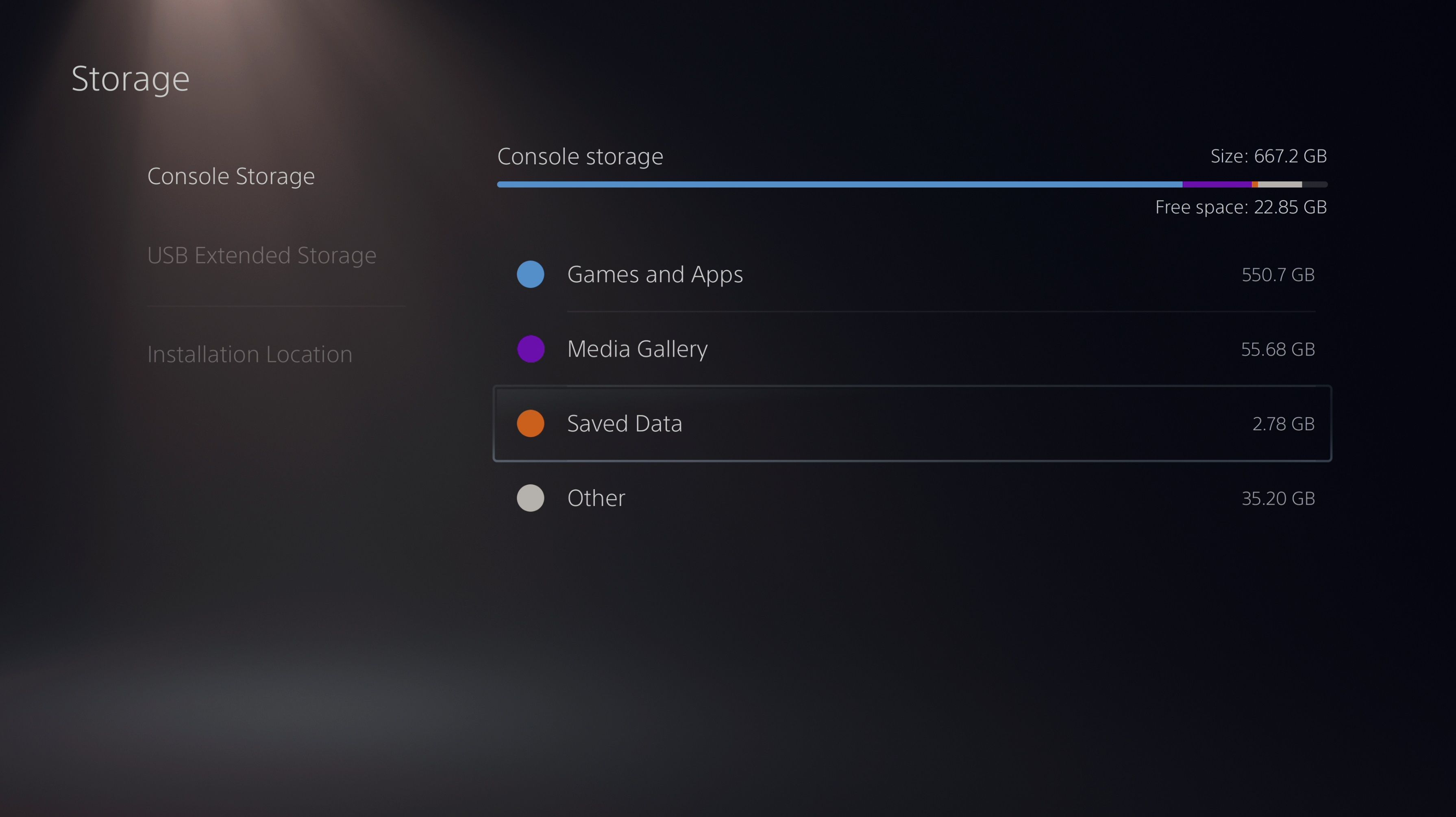
- "Insufficient Storage" Error: If your console storage is full, the PS5 will not allow the download. You must delete unnecessary game data or media clips to clear enough space for the save file, even if the save file itself is relatively small.
- "No Data Found": If the cloud list is empty, verify that "Sync Saved Data" was enabled on your previous console. If it was never enabled, the files likely remain on the old console's local SSD and are not accessible via the cloud.
- Timeouts and Server Errors: If the download repeatedly fails, perform a "Test Internet Connection" in the Network settings. If your connection is stable but the download still fails, perform a full restart of the PS5 to clear the system cache.
- Restricted Content: Some titles prevent cloud uploads for specific files (often due to copyright or anti-cheat measures). If a game does not appear in the cloud list, check the developer's support pages to see if that specific title supports cloud synchronization.
Best Practices for Data Maintenance
To ensure your progress is always secure, adopt a habit of verifying your sync status. In the "Saved Data and Game/App Settings," ensure the "Sync Saved Data" toggle is set to "On" for all games.
Furthermore, if you are planning to sell or trade in an older console, perform a final manual upload. Navigate to the cloud storage menu, select the "Upload to Cloud Storage" option, and verify that every game you care about has a "Cloud" icon next to it. This confirmation acts as a final sanity check, ensuring that your most recent progress is safely stored on Sony’s servers before you relinquish physical access to your hardware.
Frequently Asked Questions
Can I download save data from a PS5 to a PS4?
No. While PS4 saves can be moved to a PS5, the reverse is not true. Save data created or updated on the PS5 version of a game is technically incompatible with the PS4 version.
Does downloading a save file overwrite my current trophies?
No. Trophies are tied to your PSN account identity, not your specific save file. You will retain all earned trophies regardless of which save file you download or use.
Do I lose my save data if my PlayStation Plus subscription expires?
Your data is not immediately deleted, but you will lose access to the "Download" button for cloud saves. If you resubscribe, your data will typically be available again, provided Sony has not purged the data after a prolonged period of inactivity (usually after several months of expired membership).
Can I move save data using an external hard drive?
You can use a USB flash drive to copy PS4 game saves, but the PS5 does not allow you to copy PS5-specific save files to external USB storage. Those must be handled through the cloud.
What should I do if my save file is corrupted?
If you have a corrupted file, do not attempt to sync it to the cloud. Instead, delete the local corrupted file and use the "Download" steps provided in this guide to pull a clean, healthy version of the file from your cloud history.
Recommendation for Next Steps
If you are moving to a new PS5, log in to your account, verify your internet connection, and navigate to your cloud storage immediately. Prioritize downloading your most played games first. If you have critical save data for single-player titles, manually trigger an upload from your old console before moving to the new one to ensure the "Last Synced" timestamp is as recent as possible.