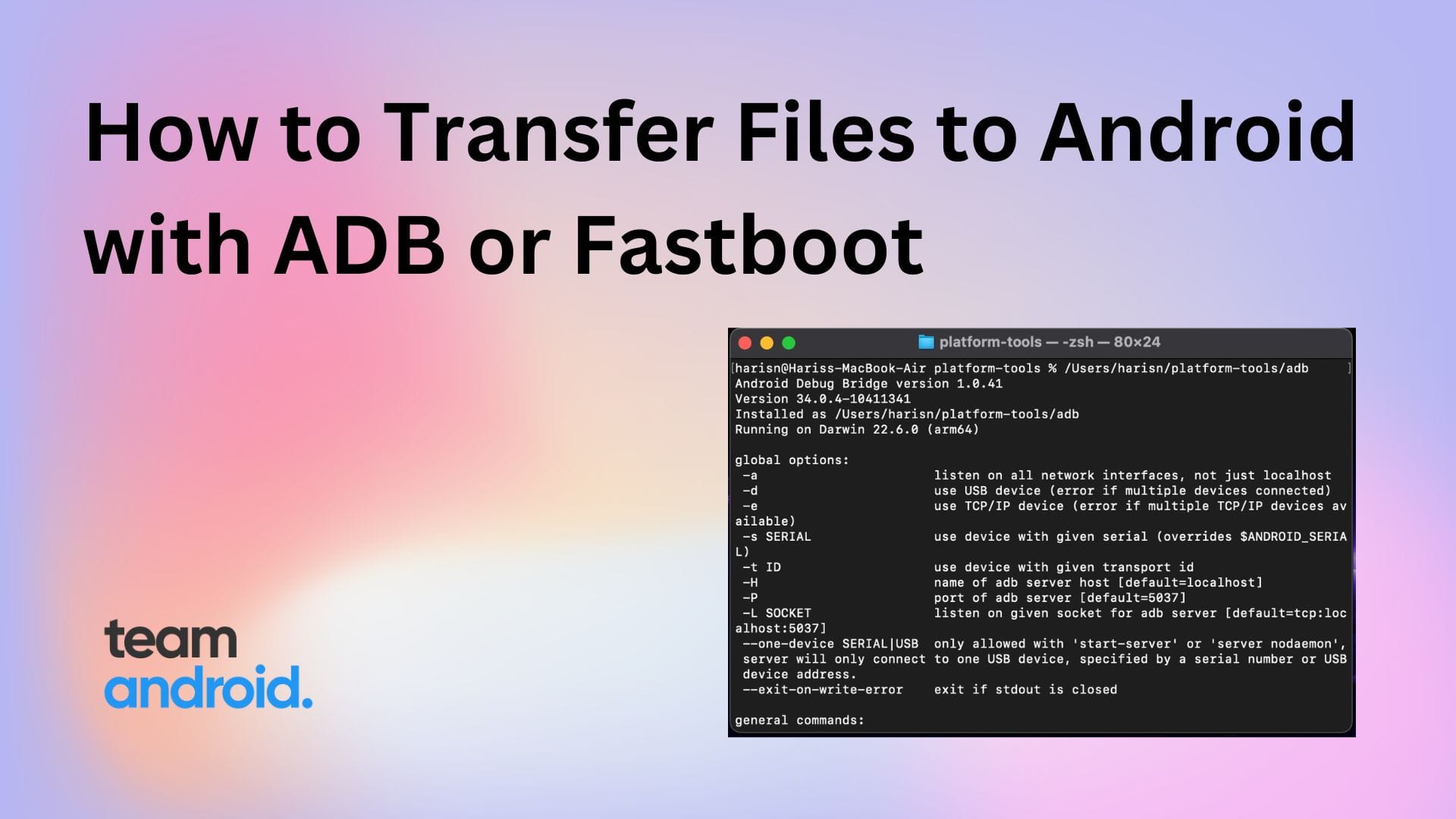
The Android Debug Bridge (ADB) is a versatile command-line tool that enables communication between a workstation and an Android device. As a primary component of the Android SDK Platform-Tools, it facilitates essential tasks such as app installation, system debugging, file transfers, and direct access to the device's underlying Unix shell.
Understanding the basics of the Android SDK and its debugging bridge is the first step toward moving beyond the standard user interface. Whether you are a developer testing a new build or a tech enthusiast looking to customize your device, ADB provides the low-level access necessary to manage an Android environment effectively. As of 2026, while wireless debugging and modern IDE integrations have simplified some workflows, the core ADB command-line interface remains the industry standard for reliability and granular control.
Understanding the ADB Architecture
To use ADB effectively, it is helpful to understand that it is not a single program but a client-server tool consisting of three distinct components. This modular design allows the tool to manage multiple devices simultaneously and handle connections over both USB and Wi-Fi.
The Client
The client is the part of the system that you interact with directly. It runs on your development machine (Windows, macOS, or Linux). When you type a command into your terminal, such as adb devices, you are sending a request through the client.
The Daemon (adbd)
The daemon is a background process that runs on the Android device itself. Its job is to listen for requests from the ADB server and execute the commands on the device’s operating system. In the context of the Android Open Source Project (AOSP), this is known as adbd.
The Server
The server is a background process that runs on your development machine. Its primary function is to manage communication between the client on your PC and the daemon on your device. When you start the ADB client, it first checks if a server process is already running. If not, it starts the server, which then binds to local TCP port 5037 to listen for commands.
Prerequisites: Installing the Android SDK Platform-Tools
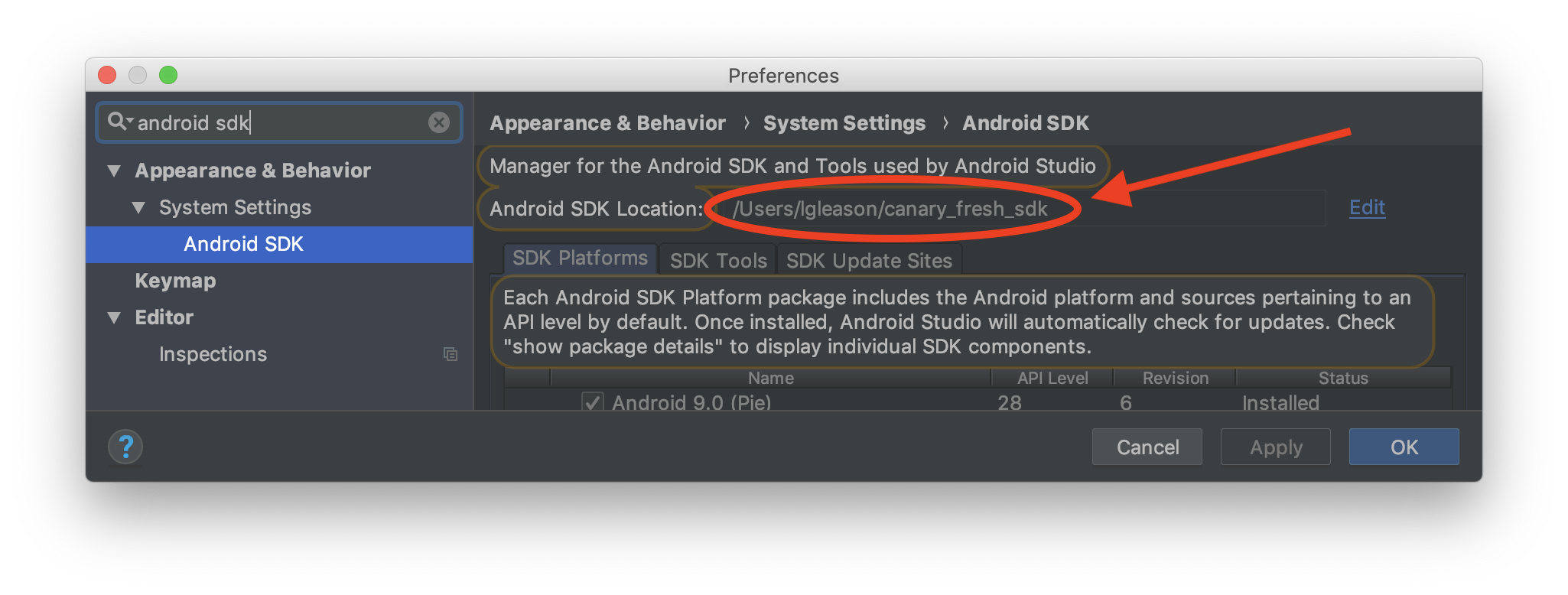
Before you can run ADB commands, you must download the necessary binaries. These are bundled in the Android SDK Platform-Tools package. While full environments like Android Studio include these tools, many users prefer the standalone package to save disk space.
Step 1: Download the Binaries
You can obtain the latest version of the Platform-Tools directly from the official Android Developer website. Ensure you select the version corresponding to your computer's operating system.
Step 2: Extraction and Path Configuration
Once downloaded, extract the ZIP file to a permanent location, such as C:\platform-tools on Windows or /usr/local/bin/platform-tools on Linux/macOS.
To use ADB from any command prompt window without navigating to that specific folder, you should add the directory to your system’s Environment Variables (PATH).
- Windows: Search for "Edit the system environment variables," click "Environment Variables," find "Path" under System Variables, and add the full path to your extracted folder.
- macOS/Linux: Edit your
.bashrcor.zshrcfile to includeexport PATH=$PATH:/path/to/your/platform-tools.
Preparing Your Android Device
Hardware preparation is just as critical as software installation. By default, Android devices are locked down to prevent unauthorized access to the system via the data port.
Enabling Developer Options
Navigate to Settings > About Phone on your device. Locate the Build Number and tap it seven times in rapid succession. You will see a notification stating, "You are now a developer." This unlocks a hidden menu in your system settings.
Activating USB Debugging
Go to Settings > System > Developer Options (the location may vary slightly depending on your device manufacturer's skin). Scroll down to the "Debugging" section and toggle the switch for USB Debugging. This allows the ADB server on your PC to communicate with the adbd daemon on your phone.
Verification and RSA Key Authorization
Connect your device to your computer via a high-quality USB cable. Open your terminal and type:
adb devices
If this is your first time connecting, your phone will display a prompt asking: "Allow USB debugging?" This prompt includes an RSA key fingerprint for security. Check the box "Always allow from this computer" and tap Allow. If you miss this step, the terminal will show your device as unauthorized.
Core ADB Command Reference
Mastering the basics involves learning the commands that perform the most common administrative tasks. Below is a breakdown of the essential operations.
Device Connectivity and Management
The most basic command is adb devices, which lists all attached devices and their current state (online, offline, or unauthorized). If you have multiple devices connected, you must use the -s flag followed by the serial number to target a specific one, for example:
adb -s [serial_number] shell
File Transfers: Push and Pull
ADB makes it easy to move files between your computer and the device’s internal storage.
- adb push: Moves a file from your PC to the device.
- Example:
adb push local_file.txt /sdcard/
- Example:
- adb pull: Moves a file from the device to your PC.
- Example:
adb pull /sdcard/photo.jpg C:\Users\Desktop\
- Example:
App Management
Installing apps via ADB is often faster than using the Play Store, especially for developers testing multiple versions of an APK.
- Installation:
adb install app_name.apk - Reinstallation (Keep data):
adb install -r app_name.apk - Uninstallation:
adb uninstall com.package.name
System Logs and Debugging
One of the most powerful features of the Android SDK is the ability to view real-time system logs. This is invaluable for troubleshooting app crashes or system lag.
adb logcat
To stop the stream of data, press Ctrl+C. You can filter logs by priority (e.g., Error, Warning, Info) to find specific issues more efficiently.
| Command Category | Command | Primary Purpose |
|---|---|---|
| Connectivity | adb devices |
Lists all connected Android hardware/emulators. |
| Connectivity | adb connect [IP] |
Establishes a connection over Wi-Fi/Network. |
| File Transfer | adb push [L] [R] |
Copies files from Local (PC) to Remote (Device). |
| File Transfer | adb pull [R] [L] |
Copies files from Remote (Device) to Local (PC). |
| Package Management | adb install [Path] |
Installs an APK file onto the device. |
| Package Management | adb shell pm list packages |
Lists all installed app packages on the device. |
| System Control | adb reboot |
Restarts the device normally. |
| System Control | adb reboot recovery |
Restarts the device into recovery mode. |
The Power of the ADB Shell
The adb shell command opens a remote terminal session on your device. Because Android is built on top of the Linux kernel, the shell allows you to execute standard Unix commands and interact with the Android framework directly.
Interacting with the Package Manager (pm)
Once inside the shell, the pm tool provides deep control over applications. You can disable system apps (bloatware) that the standard UI doesn't allow you to touch.
- Disable an app:
adb shell pm disable-user --user 0 com.example.app - Clear app data:
adb shell pm clear com.example.app
Activity Manager (am)
The am tool allows you to start activities, send broadcasts, and manage tasks. This is frequently used in automated testing scripts.
- Start an app:
adb shell am start -n com.package.name/.MainActivity
Screen Capture and Recording
You can trigger screen captures directly from the command line, which saves the file directly to the device's storage.
- Screenshot:
adb shell screencap /sdcard/screen.png - Screen Recording:
adb shell screenrecord /sdcard/demo.mp4
Troubleshooting Common ADB Issues
Even with a correct setup, you may encounter obstacles. Most ADB issues stem from driver conflicts or physical connection problems.
Device "Unauthorized"
If adb devices shows your device as unauthorized, it means the RSA handshake was not completed. Unplug the device, go to Developer Options, select Revoke USB debugging authorizations, and reconnect the cable to trigger the prompt again.
Device Not Detected
If the device doesn't show up at all:
- Check the USB cable; many cables are "charging only" and do not support data transfer.
- Ensure you are using a direct port on the computer rather than a USB hub.
- On Windows, check the Device Manager. If you see an "Android" device with a yellow exclamation mark, you need to update the Google USB Driver via the SDK Manager or manual download.
Server Hanging
Sometimes the ADB server process on your PC becomes unresponsive. You can reset it without restarting your computer by using:
adb kill-server
adb start-server
Security Considerations in 2026
While ADB is a powerful tool, it presents a significant security risk if left unmanaged. USB debugging grants nearly unrestricted access to your device's data.
- Always Disable When Not in Use: Keeping USB Debugging active makes your device vulnerable to "Juice Jacking" (malicious charging stations) and unauthorized data extraction if the phone is lost or stolen.
- Verify RSA Fingerprints: Never click "Allow" on a debugging prompt unless you are certain the request originated from your trusted computer.
- Wireless Debugging Security: If using wireless ADB, ensure you are on a private, encrypted network. In 2026, Android's built-in wireless debugging uses a pairing code system that is significantly more secure than older methods, but it should still be used with caution on public Wi-Fi.
Summary and Next Steps
The basics of Android ADB and the SDK form the foundation of advanced device management. By mastering the installation process, understanding the client-server architecture, and learning the primary command set, you gain the ability to troubleshoot, customize, and develop for the Android platform with high efficiency.
As a next step, practice using the adb shell to explore your device's file system or use logcat to monitor how different apps behave in real-time. For those looking to dive deeper into development, installing the full Android Studio suite will provide a graphical interface for these tools, integrating them into a professional-grade coding environment.
Frequently Asked Questions
Is ADB safe to use for beginners? Yes, ADB is safe as long as you stick to well-documented commands. However, because it provides access to system-level functions, running unknown commands found on the internet can lead to data loss or "bricking" (making the device unbootable). Always back up your data before performing system-level changes.
Do I need to root my phone to use ADB? No, ADB does not require root access. Most standard commands for file transfer, app installation, and log monitoring work on any retail Android device. However, some "shell" commands that modify protected system files will require root privileges to execute successfully.
Can I use ADB wirelessly without a USB cable? Yes. In modern versions of Android (Android 11 and later), there is a built-in "Wireless Debugging" option in Developer Settings. You can pair your device with your computer using a pairing code or QR code. Once paired, you can run all ADB commands over your local Wi-Fi network.
What is the difference between ADB and Fastboot? ADB is used while the Android operating system is running. Fastboot is a diagnostic tool used while the device is in "Bootloader mode." Fastboot is used for more fundamental changes, such as flashing a new operating system (ROM), unlocking the bootloader, or updating firmware partitions.