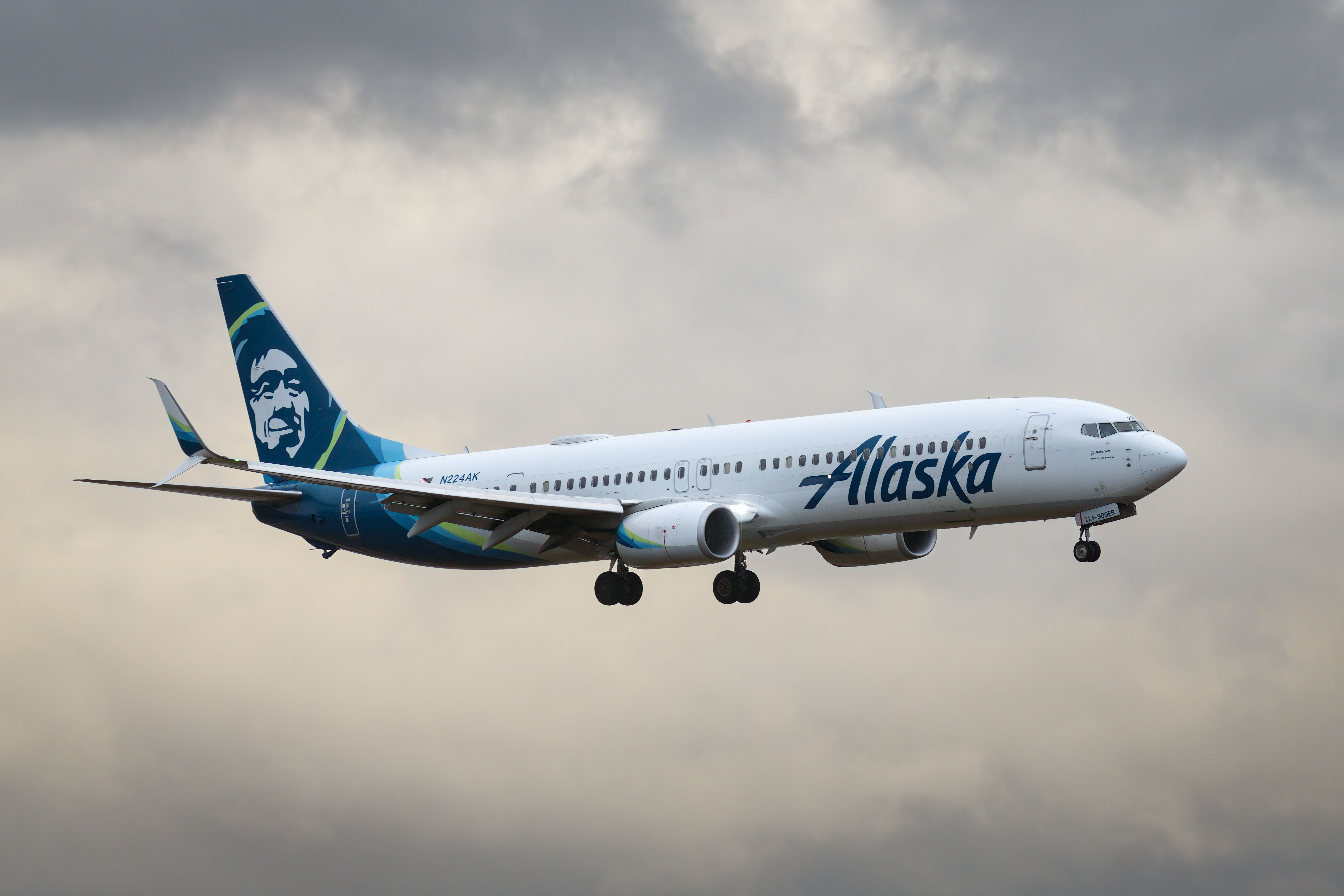
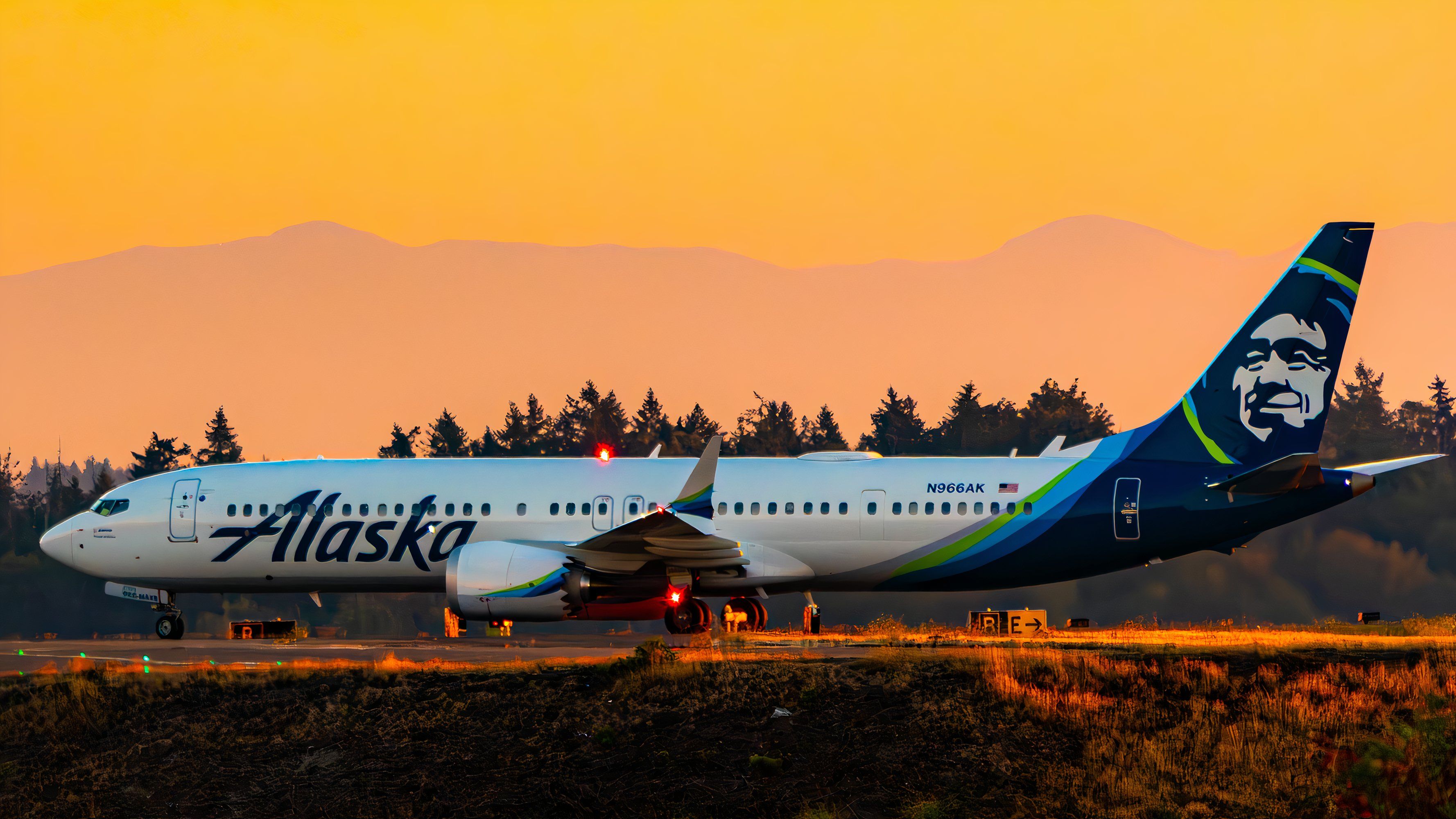
Alaska Airlines provides a complimentary library of hundreds of movies and TV shows that passengers can stream directly to their own smartphones, tablets, or laptops during a flight. Because the airline does not install seatback video screens on most of its mainline and regional aircraft, travelers must bring their own personal devices and web-enabled gear to access the digital entertainment platform over the onboard Wi-Fi network.
Understanding Alaska Airlines Inflight Entertainment Architecture
Unlike legacy carriers that rely heavily on embedded seatback hardware, Alaska Airlines utilizes a Bring Your Own Device (BYOD) model for its primary inflight entertainment (IFE) delivery. This operational strategy reduces aircraft weight, minimizes mechanical maintenance issues associated with touchscreens and wiring harnesses, and aligns with modern consumer habits where passengers prefer watching content on their personal electronics.
The system relies on an onboard media server hosted locally on the aircraft. When an aircraft is parked at the gate or flying at cruising altitude, this server transmits a localized, closed-loop Wi-Fi signal. Passengers connect their devices to this local network, which grants access to the entertainment portal without requiring a paid internet session. Consequently, you do not need to purchase an inflight Wi-Fi plan just to watch movies or television shows.
Content Library Scope and Studio Partnerships
The media library typically features hundreds of Hollywood blockbusters, classic films, independent cinema, and popular television series. Alaska Airlines partners with major content providers and studios to refresh selections regularly, ensuring a rotation of recent releases and perennial favorites.
While the exact catalog varies month-to-month based on licensing agreements, the platform generally categorizes content into clear genres:
- Action and Adventure
- Comedy and Drama
- Family and Kids Programming
- Documentaries and Short Films
- Current-Season Television Series
Step-by-Step Instructions to Access Free Movies Onboard
Connecting to the inflight entertainment network requires a specific sequence of actions once the aircraft doors close and the flight attendants make the initial announcements. Because the system depends on local server connectivity, attempting to load content before the aircraft pushes back from the gate or before the Wi-Fi system initializes may result in connection errors.
1. Prepare Your Device Before Takeoff
Before boarding, ensure your device is fully charged and that you have downloaded any necessary applications or updated your web browser. While most content streams directly through standard web browsers, checking for updates prevents compatibility issues with modern video streaming codecs. Bring a pair of headphones or earbuds, as audio must be kept private out of courtesy to neighboring passengers.
2. Enable Airplane Mode and Activate Wi-Fi
Once the aircraft pushes back from the gate and the flight crew announces that electronic devices may be used in flight, turn on Airplane Mode on your smartphone, tablet, or laptop. After enabling Airplane Mode, turn your device's Wi-Fi radio back on. This ensures your cellular transceiver remains inactive while allowing your local network adapter to search for nearby signals.
3. Connect to the Alaska Wi-Fi Network
Open your device's Wi-Fi settings menu and look for the network named AlaskaWiFi or a similar variation designated by the airline. Select this network and connect. If your device displays a prompt indicating that the network has no internet access, acknowledge or accept it. The onboard network is an intranet; it provides access to the local media server rather than the broader internet.
4. Launch Your Browser and Navigate to the Portal
Open your preferred web browser—such as Safari, Google Chrome, Microsoft Edge, or Mozilla Firefox—and attempt to load any standard web page. The browser should automatically redirect you to the Alaska Airlines inflight entertainment portal (typically hosted at entertainment.alaskaair.com). If the redirect does not happen automatically, type the portal address directly into the URL bar.
5. Browse and Stream Content
Once the portal homepage loads, you will see featured titles, categories, and a search function. Select your desired movie or TV show, hit play, and the media player will stream the video directly within your browser window.
| Device Type | Browser Recommendation | Preparation Checklist | Audio Requirements |
|---|---|---|---|
| Apple iPhone / iPad | Safari (Latest Version) | Ensure iOS is updated; check battery level. | Wired or Bluetooth headphones. |
| Android Smartphone / Tablet | Google Chrome | Clear browser cache if pages fail to load. | Wired or Bluetooth headphones. |
| Apple Mac / MacBook | Safari or Chrome | Ensure power adapter or battery is ready. | Wired or Bluetooth headphones. |
| Windows Laptop | Chrome or Microsoft Edge | Disable third-party VPN software. | Wired or Bluetooth headphones. |
Technical Requirements and Device Compatibility
To ensure a smooth streaming experience, your hardware and software must meet basic technical standards. The streaming platform utilizes modern HTML5 video delivery, eliminating the need to install legacy plugins like Adobe Flash.
Operating Systems and Browsers
- Apple Devices: iOS 14 or later using Safari; macOS 11 or later using Safari or Chrome.
- Android Devices: Android 10 or later using Google Chrome.
- Windows Devices: Windows 10 or 11 using Google Chrome or Microsoft Edge.
Virtual Private Networks (VPNs) and Security Software
One of the most common reasons passengers fail to load the entertainment portal is an active Virtual Private Network (VPN) or corporate security profile. VPNs reroute your internet traffic through external servers, which interferes with your device's ability to communicate with the local aircraft server. Before attempting to connect to the inflight Wi-Fi, completely disable any VPN applications running in the background. Similarly, ad-blockers or strict privacy extensions can occasionally block the portal's redirect scripts, so temporarily pausing them may be necessary.
Power and Charging Options Onboard
Streaming video consumes significant battery power, particularly on mobile devices and laptops with high-resolution displays. Alaska Airlines has modernized a vast majority of its mainline fleet to include power access at every seat, though configurations vary by aircraft type (such as Boeing 737 variants and Airbus A321neos).
- AC Power Outlets: Standard three-prong household electrical outlets are located beneath or between seats in many rows.
- USB Ports: USB-A and USB-C charging ports are frequently integrated into seatbacks or armrests, allowing you to plug in mobile charging cables directly.
Because regional aircraft operated by Horizon Air or SkyWest (operating as Alaska Horizon) may feature different cabin layouts, checking your specific aircraft amenities via the Alaska Airlines mobile app prior to departure helps you plan your power usage accordingly.
Comparing Inflight Options: Free Movies vs. Paid Internet
Passengers often confuse the free movie streaming service with paid inflight satellite internet packages. It is important to distinguish between these two separate digital offerings provided during flight:
- Inflight Entertainment (Free): This service connects you exclusively to the onboard media server. It allows you to watch movies, TV shows, and access flight tracker information without charge. It does not grant access to external websites, social media platforms, or email clients.
- Inflight Wi-Fi (Paid): Alaska Airlines offers high-speed satellite internet packages (often powered by providers like T-Mobile or Viasat) for a flat fee per flight. This grants full internet access for browsing, messaging, and working, but is not required if your sole objective is watching the complimentary movie library.
Troubleshooting Common Connection Issues
Even with standard operating procedures, technical glitches can occur at 35,000 feet. If you encounter difficulties accessing the free movie catalog, work through the following troubleshooting steps:
- Verify Wi-Fi Association: Confirm that your device is actively connected to the AlaskaWiFi network and has not automatically switched to a cellular network or saved home network.
- Clear Browser Cache: Stale browser cache files can prevent captive portal redirects from executing properly. Clearing your browser data or opening an Incognito / Private Browsing window often resolves loading loops.
- Toggle Wi-Fi Off and On: Turn your device's Wi-Fi radio off for ten seconds, turn it back on, and reconnect to the network to force a fresh IP address assignment from the aircraft server.
- Check for Background Downloads: Large background updates, cloud syncs, or active VPN connections will drain local network bandwidth or block the portal entirely. Pause all background downloads before connecting.
- Restart the Device: If all else fails, a complete reboot of your smartphone, tablet, or laptop clears temporary network socket errors and restores normal browser behavior.
Summary of Best Practices for Seamless Streaming
To maximize your enjoyment of Alaska Airlines free movies, proper preparation is key. Charge your devices fully before heading to the airport, pack a reliable set of headphones, and remember to turn off any active VPN configurations before boarding. By utilizing your own personal hardware and connecting directly to the onboard media server, you gain access to an extensive library of cinematic content that transforms travel time into an entertaining onboard experience.