Effective email management in modern organizations requires robust retention strategies, legal discovery readiness, and scalable storage architectures. Microsoft 365 offers a comprehensive suite of archiving solutions designed to address these compliance and operational demands. This overview explores how organizations utilize Microsoft 365 archiving tools to govern email lifecycles, meet regulatory obligations, and optimize primary mailbox storage performance.
Introduction to Email Archiving in Microsoft 365
Email archiving within Microsoft 365 involves moving older or compliance-critical messages from a user’s primary mailbox into a separate, secure repository known as an In-Place Archive or Online Archive. Unlike traditional local PST files stored on individual workstations, a cloud-based archive mailbox is hosted alongside the user's primary mailbox on Microsoft's secure infrastructure. This ensures that archived messages remain accessible across multiple devices through Outlook on the web, the desktop client, and mobile applications, while simultaneously freeing up space in the primary mailbox.
Organizations face increasing pressure to retain electronic communications for specific retention periods dictated by industry regulations, legal mandates, or internal governance policies. Microsoft 365 addresses this need by integrating archiving capabilities directly into Exchange Online and the broader Microsoft Purview compliance ecosystem. By decoupling daily email operational storage from long-term compliance storage, organizations can streamline system performance, enforce automated retention schedules, and maintain defensible data governance models without relying on fragmented third-party solutions.
Core Architectural Concepts of Microsoft 365 Archives
Understanding the underlying architecture of Microsoft 365 email archiving requires examining how storage allocations, mailbox types, and data synchronization function within Exchange Online.
Primary Mailboxes Versus Archive Mailboxes
Every eligible user in a Microsoft 365 tenant maintains a primary mailbox designated for active, day-to-day communications. When an administrator enables an Online Archive for that user, Exchange Online provisions a secondary mailbox container. This archive mailbox is linked directly to the primary account, appearing within the folder pane of the user's email client as an independent storage tree.
Data movement between the primary mailbox and the archive can occur through two primary mechanisms:
- User-Driven Filing: End-users can manually drag and drop messages from their primary inbox or folders into the archive folder structure to clear active space.
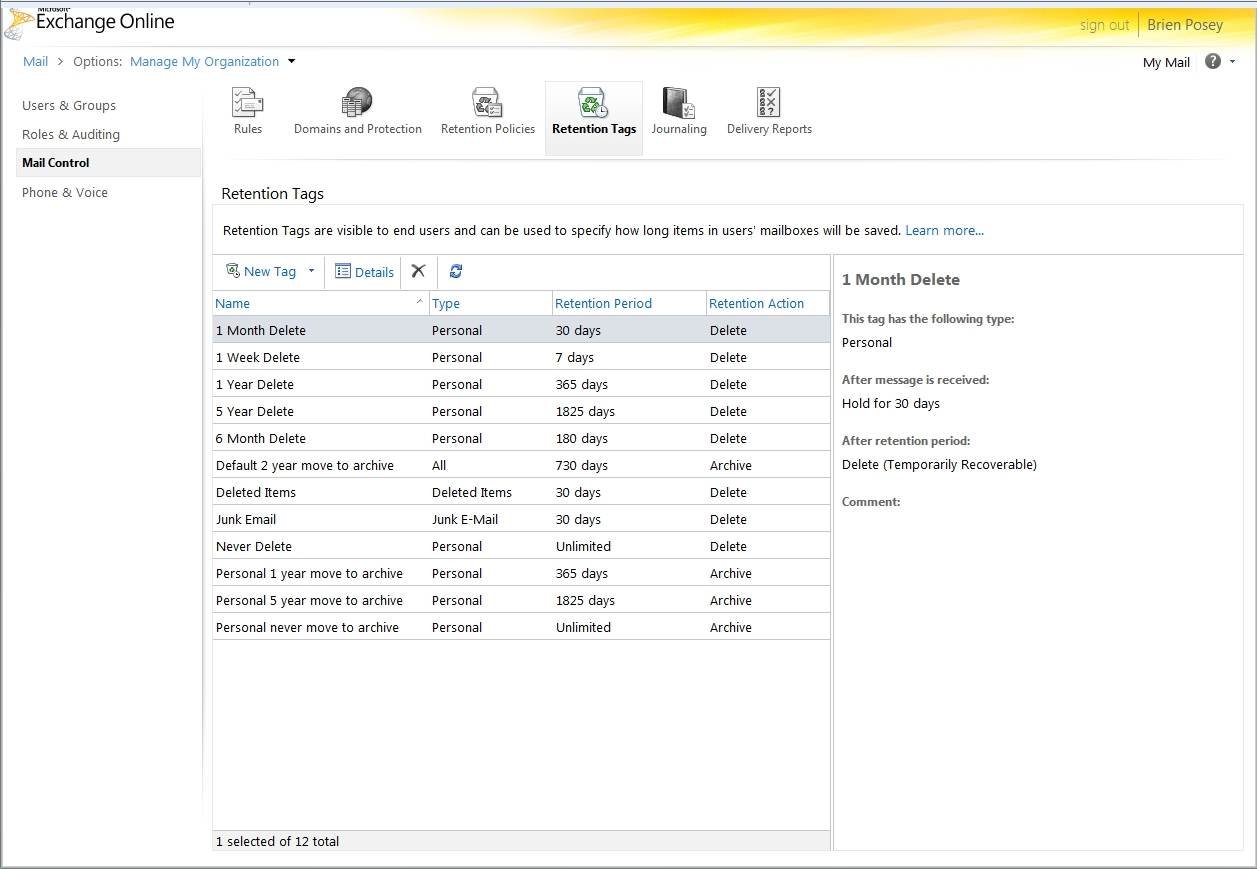
- Automated Policies: Administrators deploy Retention Policies and Retention Tags that automatically evaluate message ages and movement criteria, transferring items to the archive without requiring user intervention.
Storage Capacities and Automatic Expanding
Storage limits vary significantly depending on the specific Microsoft 365 license assigned to the user. For instance, Exchange Online Plan 1 licenses typically provide a standard 50 GB storage limit for both primary and archive mailboxes. In contrast, Exchange Online Plan 2 licenses—and higher-tier compliance bundles—often provide a 50 GB primary mailbox paired with an initially 100 GB archive mailbox.
To accommodate enterprises with massive data accumulation rates, Microsoft 365 includes a feature called Auto-expanding archiving. When enabled, this feature provides additional storage space in the archive mailbox incrementally. As storage approaches capacity, the system automatically provisions more space, scaling up to a virtually unlimited capacity depending on the licensing tier and organizational configuration.
Licensing Requirements and Eligibility
Deploying archiving capabilities across a Microsoft 365 tenant necessitates a careful review of licensing structures. Not all Microsoft 365 subscription tiers include the same level of archiving functionality or automated retention features.
Organizations must map their compliance requirements against the capabilities of their current subscriptions. The table below outlines the general relationship between standard Microsoft 365 licenses and email archiving capabilities.
| License Tier | Default Archive Size | Auto-Expanding Archive Support | Automated Retention & Litigation Hold |
|---|---|---|---|
| Microsoft 365 Business Basic / Standard | Dependent on add-on / Plan 1 | Varies by configuration | Basic retention tags supported |
| Microsoft 365 Enterprise E1 | 50 GB | Requires Plan 2 or add-on | Standard retention policies |
| Microsoft 365 Enterprise E3 | 100 GB | Supported | Full litigation hold and eDiscovery |
| Microsoft 365 Enterprise E5 | 100 GB | Supported | Advanced compliance and automated labeling |
Organizations utilizing lower-tier plans often need to purchase Exchange Online Archiving as an independent add-on license to unlock secondary storage for users who require extended retention capabilities.
Compliance, Litigation Holds, and eDiscovery
Email archiving in Microsoft 365 extends far beyond simple storage management; it serves as a cornerstone for legal discovery and corporate compliance frameworks. When regulatory bodies or internal investigations require the preservation of communications, standard deletion habits can introduce severe legal and financial risks.
Litigation Hold and In-Place Hold
Administrators can place an archive mailbox on Litigation Hold or Retention Hold. When a hold is active, users can continue to delete or modify items in their primary or archive mailboxes, but Exchange Online retains copies of those deleted or altered items in a secure system folder called the Purges folder. This prevents permanent data loss, ensuring that even if an employee attempts to purge incriminating or sensitive emails, a forensic copy remains accessible to authorized compliance officers.
Integration with Microsoft Purview
Modern Microsoft 365 compliance tools are managed primarily through the Microsoft Purview compliance portal. Purview unifies data governance, risk management, and compliance solutions. Within Purview, compliance administrators can perform the following tasks:
- Content Search: Query archived mailboxes across the entire organization using complex keyword criteria, sender/recipient filters, and date ranges.
- eDiscovery (Standard/Premium): Collect, review, analyze, and export archived email data pertinent to legal cases or audits.
- Retention Labels: Apply granular, immutable retention rules that dictate how long specific categories of emails must remain unalterable within the archive before final disposition.
Operational Benefits of Email Archiving
Implementing a structured email archiving strategy yields substantial operational, financial, and technical advantages for IT administrators and business leaders alike.
Enhanced System Performance and Client Responsibilities
When primary mailboxes become overburdened with gigabytes of historical correspondence, email client performance frequently degrades. Synchronization times increase, search indexing slows down, and application crashes become more frequent, particularly in heavy desktop environments like Outlook. By migrating historical data to an online archive, the active primary mailbox remains lean and responsive.
Reduced Reliance on Local PST Files
Prior to cloud-based archiving, many organizations permitted users to export old emails to Personal Storage Table (.pst) files stored on local hard drives or network shares. PST files are notoriously fragile, prone to corruption, difficult to back up centrally, and completely invisible to organizational eDiscovery tools. Centralized Microsoft 365 archiving eliminates the business dependency on PST files, bringing all corporate communications under a unified, secure management umbrella.
Business Continuity and Disaster Recovery
Because archives reside within Microsoft's resilient cloud infrastructure, data is protected by enterprise-grade redundancy, geographic replication, and high-availability frameworks. In the event of a local hardware failure or device replacement, users simply re-authenticate to their Microsoft 365 account, and their entire archive synchronizes seamlessly without manual data restoration procedures.
Common Challenges and Mitigation Strategies
While Microsoft 365 archiving offers robust capabilities, administrators frequently encounter specific operational hurdles during deployment and ongoing management.
Network Bandwidth and Initial Synchronization
When an organization first enables archiving and applies policies that migrate years of legacy email from primary mailboxes to online archives, a massive volume of data transfers across the network simultaneously. This initial synchronization can saturate corporate internet connections and impact bandwidth for other business-critical applications.
- Mitigation: Administrators should stage archive rollouts by department or priority group rather than executing a tenant-wide deployment simultaneously. Furthermore, configuring background throttling policies can help manage bandwidth consumption during peak business hours.
User Adoption and Training Confusion
End-users accustomed to a single inbox folder tree may experience confusion when introduced to a separate archive mailbox structure. Issues often arise regarding where to save specific messages, how search behaviors differ between primary and archive stores, and why certain folders do not synchronize identically to mobile devices.
- Mitigation: IT departments must provide clear documentation and internal training sessions explaining the visual indicators of archive mailboxes in Outlook clients and mobile apps. Establishing clear guidelines on whether users should manually file items or rely entirely on automated policies prevents user friction.
Licensing Misalignment and Cost Management
Deploying advanced compliance and auto-expanding features requires higher-tier licensing or specific add-ons. Organizations that fail to audit their user base accurately often overspend on unnecessary enterprise licenses or under-license users, resulting in compliance gaps.
- Mitigation: Conduct a thorough audit of user roles, regulatory exposure, and storage consumption metrics to assign appropriate licensing tiers precisely where needed.
Frequently Asked Questions
What is the difference between deleting an email and archiving it in Microsoft 365?
Deleting an email removes it from its active folder, moving it to the Deleted Items folder or purging it entirely depending on user actions and retention settings. Archiving moves the email to a separate, long-term storage container (the Online Archive) where it remains searchable and accessible while freeing up storage space in the primary mailbox.
Does an archive mailbox count against the primary mailbox storage quota?
No. The Online Archive is a separate storage container hosted alongside the primary mailbox. It maintains its own independent storage quota, which is determined by the user's assigned Microsoft 365 license tier.
Can users access their Microsoft 365 archive offline?
Offline access depends on the email client configuration. In Outlook desktop applications, users can configure offline settings (e.g., keeping mail offline for 12 months), which caches a portion of the archive locally. However, Outlook on the Web (OWA) requires an active internet connection to query the online archive container directly.
What happens to an archive mailbox when a user leaves the organization?
When an employee departs, their Microsoft 365 account is typically converted to a shared mailbox or retained as an inactive mailbox. If the account is placed on litigation hold before deletion, the archive mailbox and its contents are preserved indefinitely for compliance and legal discovery purposes without requiring an active user license, subject to specific Microsoft retention guidelines.
Conclusion and Next Actions
Implementing an archive strategy within Microsoft 365 is essential for maintaining optimal email performance, controlling storage costs, and satisfying rigorous legal compliance standards. IT administrators should begin by auditing current mailbox consumption across the tenant, verifying license allocations against business requirements, and defining clear retention policies in the Microsoft Purview compliance portal. By establishing automated archiving rules and educating users on proper data management, organizations can secure their communications infrastructure and ensure long-term operational resilience.