Adobe Photoshop in the browser is a streamlined yet powerful version of the industry-standard image editing software, accessible directly via a web browser at photoshop.adobe.com. It allows Creative Cloud subscribers to open, edit, and save PSD files without installing the full desktop application, leveraging cloud processing and modern web technologies to handle complex design tasks.
The transition of Adobe Photoshop from a strictly local, hardware-dependent application to a versatile, web-accessible platform marks a significant milestone in the evolution of creative software. By 2026, Photoshop on the web has matured into a robust environment that balances the heavy-duty processing of its desktop counterpart with the portability of a cloud-based service. This guide explores the technical foundations, core features, and practical applications of using Adobe Photoshop in your browser.
The Evolution of Photoshop for the Web
For decades, Photoshop was synonymous with high-end hardware requirements. The shift to the browser began as a response to the growing need for mobility and collaboration. Adobe utilized WebAssembly (Wasm) and WebGL—technologies that allow browsers to execute complex code at near-native speeds—to port the core C++ engine of Photoshop into a web environment.
In 2026, the web version is no longer a "lite" experiment. It serves as a bridge for designers who need to make quick edits on the go, social media managers working on non-specialized hardware like Chromebooks, and teams requiring real-time collaborative feedback. While it does not replace the desktop version for high-end 3D rendering or massive multi-gigabyte print files, it handles the vast majority of standard photo manipulation and UI/UX design tasks with impressive fluidness.
System Requirements and Browser Compatibility
Accessing Photoshop in the browser requires more than just a basic internet connection. Because the application processes high-resolution imagery and complex layers, your local hardware and browser choice play a critical role in performance.
Supported Browsers
As of 2026, Adobe officially supports the following browsers for the best experience:
- Google Chrome: Version 102 or later is generally required, with the latest updates recommended for optimal WebAssembly performance.
- Microsoft Edge: Since it is based on the Chromium engine, Edge offers full compatibility and often integrates well with Windows-based hardware acceleration.
- Mozilla Firefox: Support has improved significantly, though some advanced GPU-accelerated features may occasionally lag behind Chromium-based browsers.
Hardware Prerequisites
While the cloud does much of the heavy lifting, your local machine must be able to render the interface and manage the browser's memory usage:
- RAM: A minimum of 4GB is required, but 8GB or more is strongly recommended for working with files that have more than ten layers.
- GPU: A modern graphics processor with WebGL 2.0 support is essential. The browser uses your GPU to handle zooming, rotating, and rendering high-speed visual adjustments.
- Internet Connection: A stable connection with at least 5-10 Mbps download/upload speed is necessary for opening and saving files to the Creative Cloud seamlessly.
Core Features and Tools in the Web Version
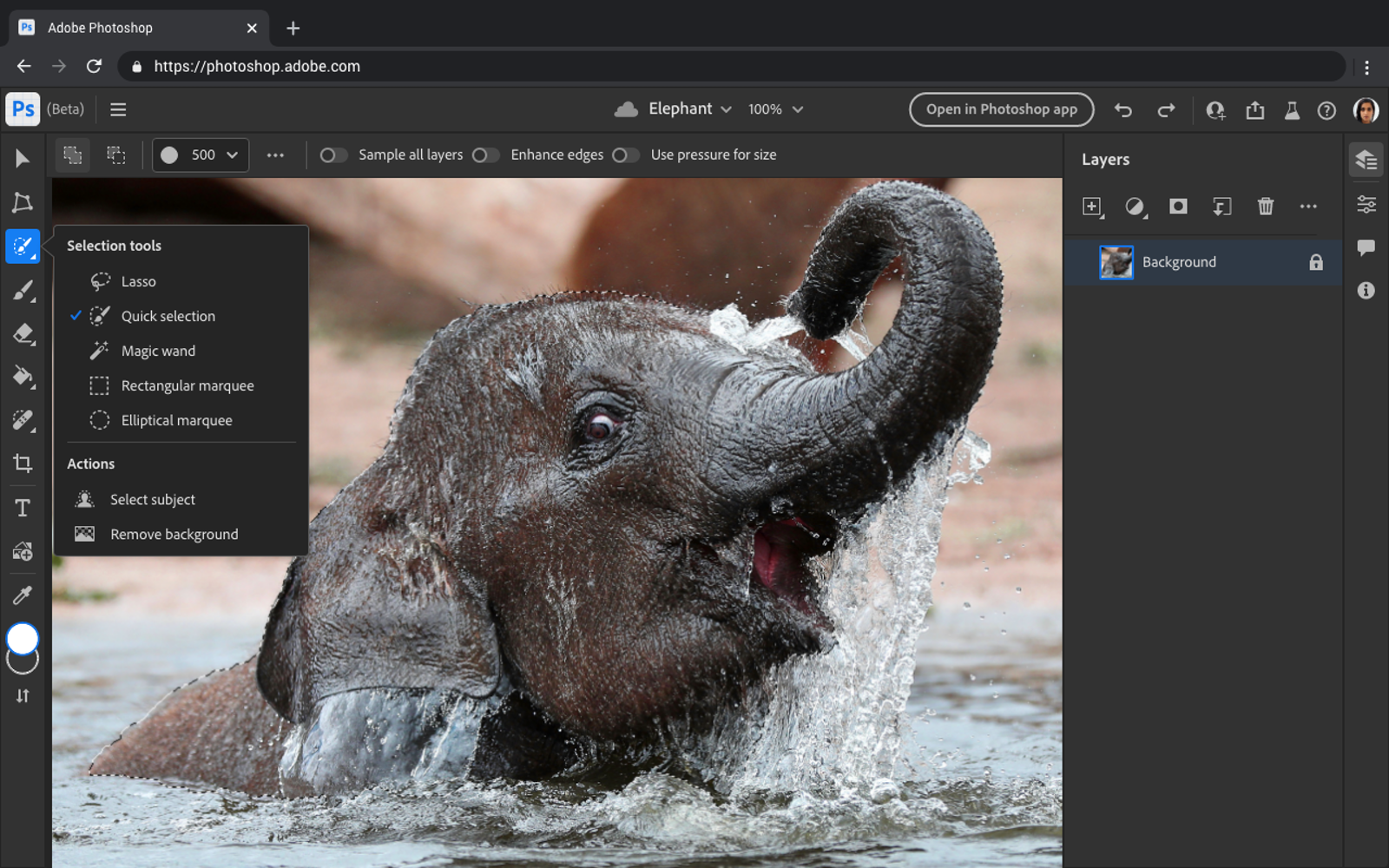
The interface of Photoshop on the web will feel familiar to long-time users, though it has been decluttered to prioritize the most frequently used tools. The toolbar is located on the left, while layers and properties panels are on the right.
The Power of Adobe Firefly and Generative AI
By 2026, Adobe's Firefly AI has been deeply integrated into the web experience. Tools like Generative Fill and Generative Expand allow users to add or remove elements from an image using simple text prompts. These features are particularly effective in the browser because the heavy AI computation happens on Adobe's remote servers, meaning a low-powered laptop can perform complex edits that would have previously required a workstation.
Essential Editing Tools
The browser version includes a comprehensive set of "standard" Photoshop tools:
- Selection Tools: Including the Object Selection Tool, Lasso, and Magic Wand. The "Select Subject" feature uses AI to identify and mask complex subjects (like hair or fur) with a single click.
- Retouching: The Spot Healing Brush, Clone Stamp, and Dodge/Burn tools are available for detailed photo restoration.
- Adjustment Layers: Users can apply non-destructive edits such as Curves, Levels, Hue/Saturation, and Color Balance.
- Text and Vector Shapes: Full support for Adobe Fonts and vector-based shapes ensures that designs remain crisp regardless of zoom level.
Comparing Photoshop: Web vs. Desktop vs. iPad
To determine if the browser version is right for your project, it is helpful to understand how it sits within the broader Adobe ecosystem.
| Feature | Photoshop Web | Photoshop Desktop | Photoshop iPad |
|---|---|---|---|
| Accessibility | Any modern browser | Windows/macOS install | iPadOS App |
| AI Features | Full Generative Fill/Expand | Full + Advanced Local AI | Partial / Cloud-based |
| Offline Mode | Very Limited (Requires Sync) | Full Support | Full Support |
| Complex Filters | Core Filters (Blur, Sharpen) | Full Library + 3rd Party | Core Filters |
| Automation | Basic Actions | Actions, Scripts, Plugins | Not Supported |
| File Handling | Cloud-first (PSD, JPEG, PNG) | Full File System Access | Cloud + Local Files |
| Price | Included in CC Subscription | Included in CC Subscription | Included in CC Subscription |
Workflow and Collaboration
One of the primary advantages of using Photoshop in the browser is the ease of collaboration. Traditional design workflows often involve exporting a file, emailing it, receiving feedback, and then reopening the source file.
Shared Links for Review
In the web version, you can generate a "Review Link." Stakeholders can view the design in their own browsers—even if they do not have a Creative Cloud subscription—and leave pinned comments directly on the canvas. These comments sync in real-time, allowing the designer to see feedback exactly where it applies.
Seamless Cloud Syncing
Photoshop on the web operates primarily with Cloud Documents (.psdc). When you open a file on the web, you are working on a version stored in Adobe's cloud. If you realize you need a specific desktop-only feature (like advanced CMYK color separations for print), you can click "Open in Desktop App." The file will close in the browser and automatically launch on your computer, picking up exactly where you left off.
Common Use Cases for the Browser Version
While professional photographers might still prefer the desktop version for high-volume RAW processing, the browser version has carved out several specific niches:
- Social Media Content Creation: Quickly cropping images, removing backgrounds, and adding text overlays for Instagram or LinkedIn.
- Education and Students: Providing a low-friction way for students to learn design principles on school-issued Chromebooks or shared computers.
- Marketing and Non-Designers: Allowing team members who aren't full-time designers to make small text changes or swap out images in templates created by the design lead.
- Emergency Edits: Being able to fix a typo or adjust a color from a hotel business center or a friend's laptop when your primary machine isn't available.
Performance Optimization and Troubleshooting
To ensure the smoothest experience while editing in a browser, consider the following technical adjustments:
Enabling Hardware Acceleration
Most modern browsers have hardware acceleration enabled by default. If Photoshop feels sluggish, navigate to your browser settings (e.g., chrome://settings/system) and ensure "Use graphics acceleration when available" is toggled on. Without this, the CPU must handle all the visual rendering, which is significantly slower.
Managing Browser Cache and Extensions
Large browser caches or conflicting extensions (like ad blockers or "dark mode" forced-color themes) can interfere with the Photoshop interface. If you encounter UI glitches, try opening Photoshop in an Incognito or Private window to see if an extension is causing the issue. Clearing your browser cache specifically for adobe.com can also resolve loading hangs.
Dealing with Large Files
If a PSD contains hundreds of layers or is larger than 2GB, the browser version may struggle to maintain a high frame rate. In these cases, flattening unnecessary groups or reducing the document's DPI (if intended for web use only) can significantly improve responsiveness.
Pricing and Access
Adobe Photoshop in the browser is not a standalone product; it is included as part of several Creative Cloud plans. As of 2026, these include:
- Photoshop Single App Plan: Includes the desktop app, web version, and iPad version.
- Photography Plan: A more affordable tier aimed at photographers, including Lightroom and Photoshop (Web/Desktop/iPad).
- All Apps Plan: Full access to the entire Adobe suite.
Adobe occasionally offers a "freemium" trial model for the web version in certain regions, allowing users to test basic tools before committing to a subscription, but full access to the AI tools and PSD saving generally requires an active plan. More information can be found on the official Adobe Creative Cloud pricing page.
Frequently Asked Questions
Can I use Photoshop in the browser for free?
Adobe typically requires an active Creative Cloud subscription to use Photoshop on the web. However, Adobe has historically offered limited-time trials or "web-only" introductory versions in specific markets. You can check your eligibility by logging in with an Adobe ID at photoshop.adobe.com.
Does the web version support RAW files?
Yes, Photoshop on the web can open many RAW file formats via Adobe Camera Raw integration. However, for high-volume RAW editing and advanced color grading, Adobe Lightroom or the desktop version of Photoshop remains the preferred tool due to the higher memory overhead of RAW processing.
Is my data safe in the cloud?
Adobe uses industry-standard encryption for files stored in Creative Cloud. When editing in the browser, your data is synced frequently to prevent loss in case of a browser crash. For sensitive corporate projects, Adobe provides enterprise-grade security controls through its Creative Cloud for Teams and Enterprise plans.
Can I use my existing Photoshop plugins?
Currently, the browser version does not support standard .8bf plugins or desktop-based extensions. It relies on built-in tools and Adobe's cloud-based AI features. If your workflow relies heavily on third-party plugins like Nik Collection or Topaz Labs, you will still need to use the desktop application.
Can I work offline in the browser?
Photoshop in the browser is designed primarily for online use. While you can continue to edit a file if your connection momentarily drops, you generally need an active internet connection to load the application, access AI features, and sync your changes back to the cloud.
Next Steps for Users
If you are ready to start using Adobe Photoshop in the browser, the best first step is to visit photoshop.adobe.com and log in with your Adobe credentials. Begin by uploading a simple JPEG or opening an existing Cloud Document to familiarize yourself with the interface.
For those transitioning from desktop, focus on learning the shortcuts; many familiar commands like Ctrl/Cmd + J for duplicating a layer and Spacebar for the Hand tool work exactly the same in the browser. As you become comfortable, explore the Generative AI tools to see how they can speed up your masking and compositing workflows.