You can annotate PDFs for free using built-in system tools like Microsoft Edge and macOS Preview, or via specialized desktop applications such as Adobe Acrobat Reader and PDF-XChange Editor. For quick, installation-free tasks, online platforms like PDF24 and I Love PDF provide robust annotation features, including highlighting, comments, and digital signatures, through any modern web browser.
Annotation is more than just "drawing" on a digital document; it is the cornerstone of collaborative workflows, academic research, and paperless administrative processing. In 2026, the landscape of free PDF tools has matured significantly, moving beyond simple highlights to include AI-assisted summarization and cross-platform synchronization. Whether you are a student marking up a textbook, a lawyer reviewing a contract, or a creative professional providing feedback on a design brief, understanding the specific capabilities of free tools allows you to maintain a professional output without the burden of expensive monthly subscriptions.
Built-In Operating System Tools: No Download Required
For many users, the best tool for PDF annotation is already installed on their computer. Modern operating systems have integrated PDF engines that handle basic to intermediate annotation tasks with high efficiency and no additional cost.
Microsoft Edge (Windows, macOS, Linux)
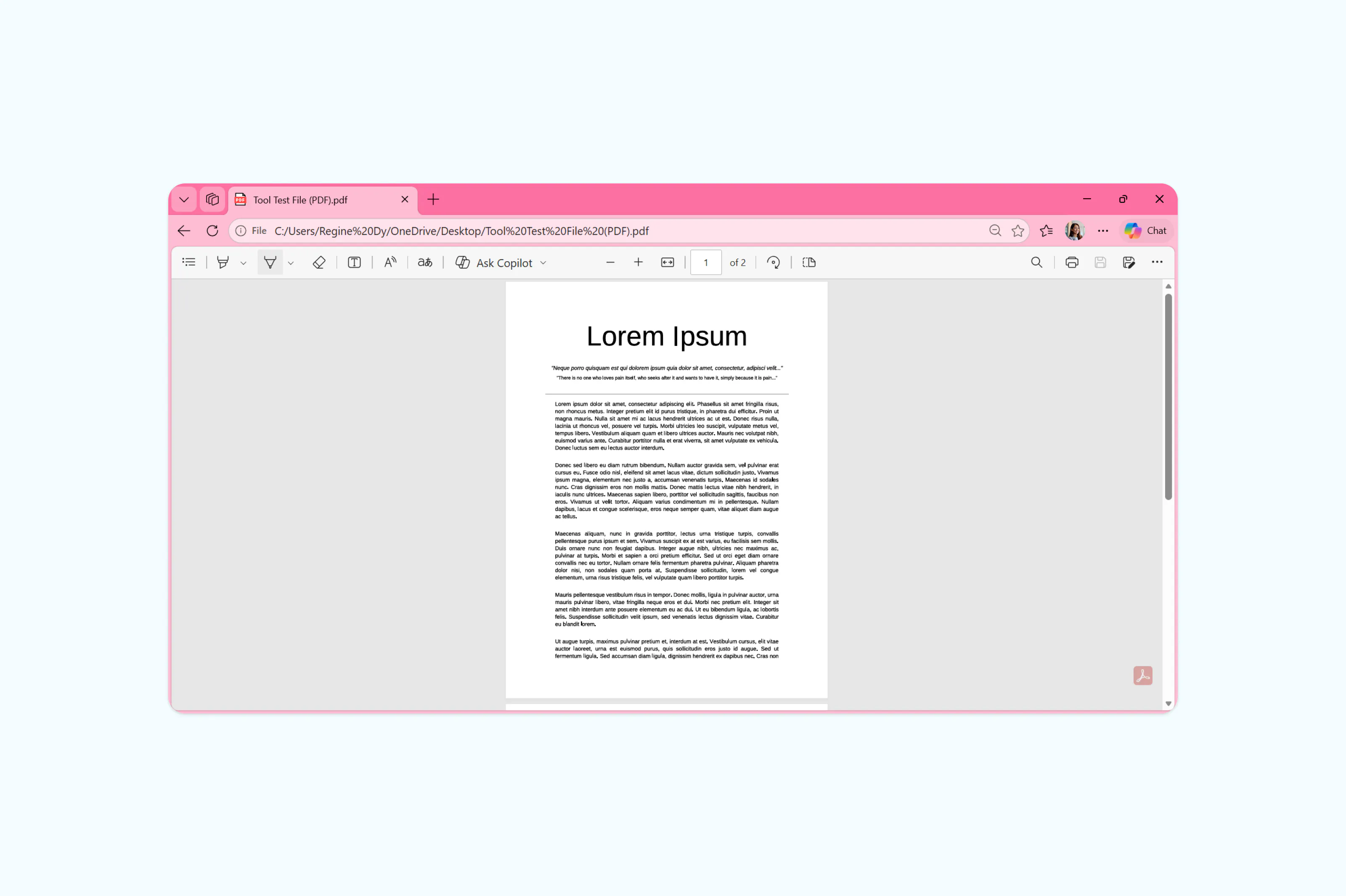
As of 2026, Microsoft Edge remains one of the most powerful "hidden" PDF annotators available. Because it is built on the Chromium engine, it handles PDF rendering with high fidelity.
- Key Features: Edge provides a dedicated PDF toolbar that appears automatically when a file is opened. Users can access a variety of "Draw" tools with adjustable thickness and transparency, which are particularly effective on touchscreen devices or with a stylus. The "Highlight" tool offers several colors and the ability to snap to text, ensuring clean lines.
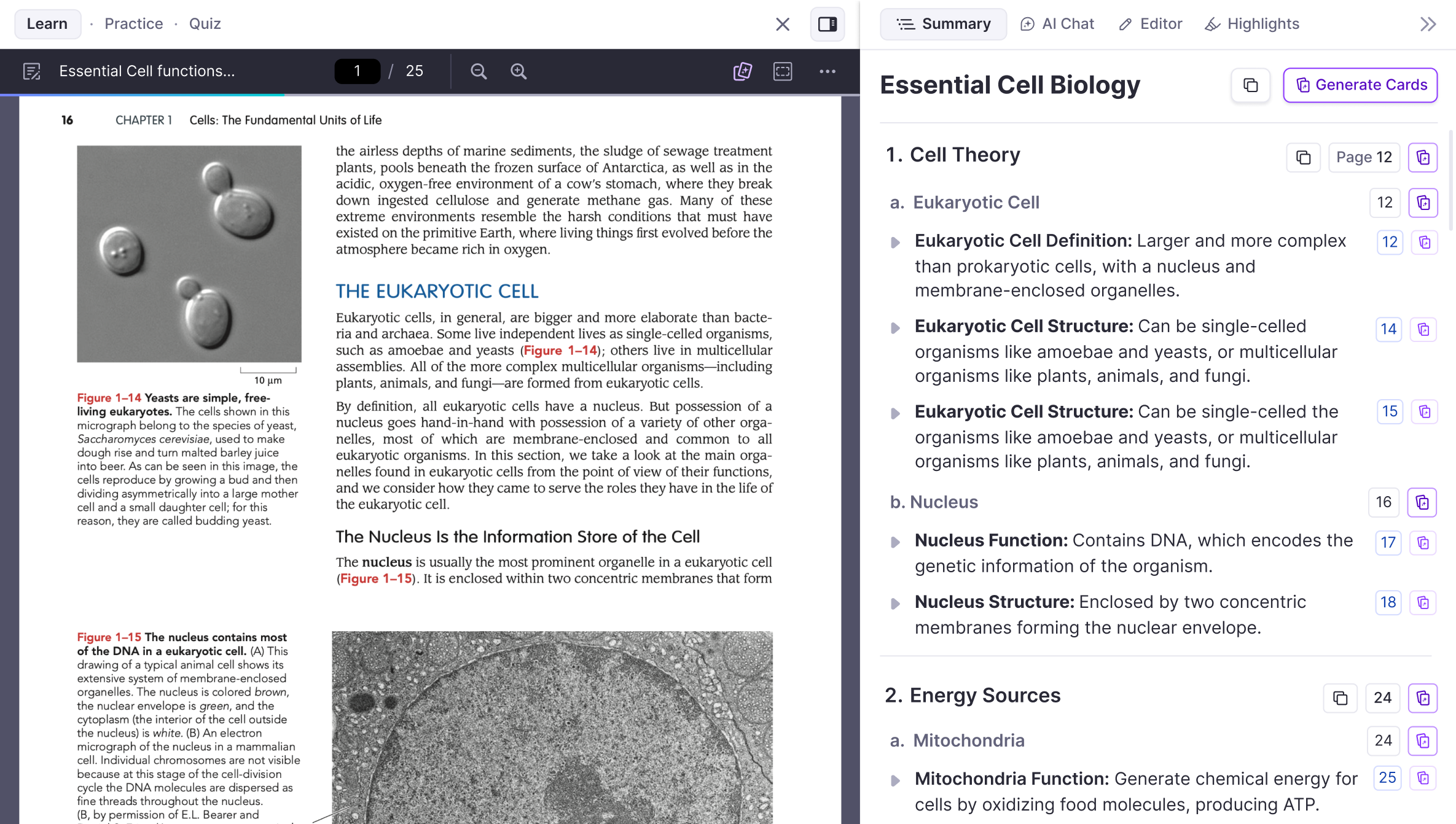
- AI Integration: Edge now incorporates Copilot natively within the PDF viewer. This allows users to highlight a passage and immediately ask for a summary, an explanation of complex terms, or a translation, which can then be saved as a sticky note.
- When to Use It: Edge is ideal for quick reviews where you need to sign a document or highlight key sections of a web-downloaded report without opening a secondary application.
macOS Preview (Apple Ecosystem)
For Mac users, Preview is a sophisticated tool that often rivals paid software for standard annotation needs. It is built directly into the macOS framework, making it incredibly fast.
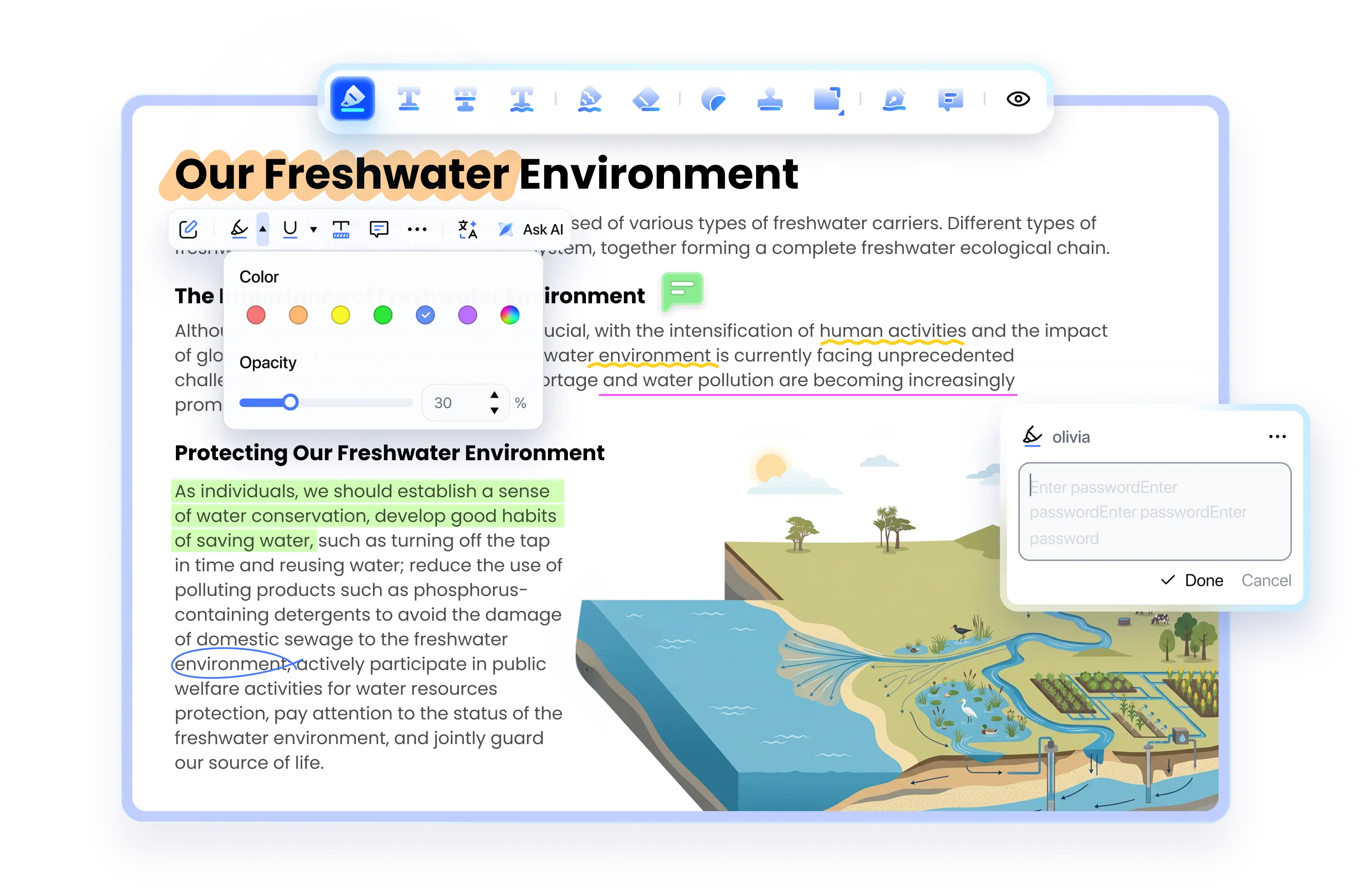
- The Markup Toolbar: By clicking the small "Pen" icon, users reveal a comprehensive suite of tools. This includes text boxes, shapes (with "intelligent" sketching that smooths out hand-drawn circles and arrows), and a highly regarded signature tool.
- Signature Capture: Preview allows you to sign a piece of paper and hold it up to your Mac’s camera, or use your iPhone/iPad as a signature pad. Once captured, the signature is stored securely and can be placed on any PDF.
- Note Management: Preview creates a sidebar of all annotations, allowing users to jump directly to specific comments—a feature often reserved for premium software in other ecosystems.
Leading Free Desktop Software for Advanced Annotation
When your needs move beyond simple highlights to include file merging, advanced form filling, or complex feedback loops, dedicated desktop software provides a more stable and feature-rich environment.
Adobe Acrobat Reader (Free Version)
While Adobe is known for its paid Pro version, the free "Reader" version remains the industry standard for viewing and basic annotation. It ensures that the annotations you make are compliant with global PDF standards (ISO 32000).
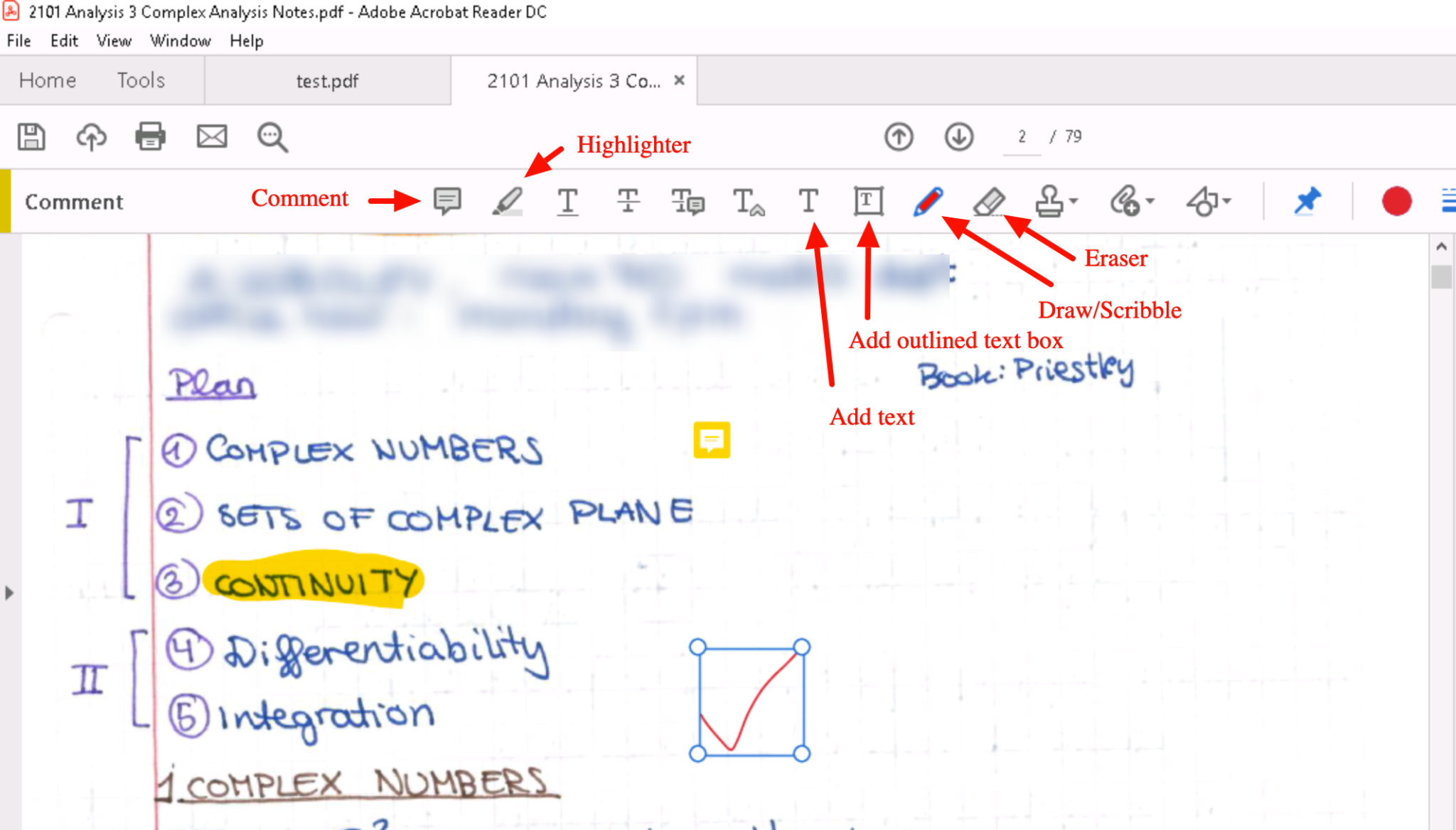
- Commenting and Sticky Notes: Adobe’s commenting system is the most robust in terms of compatibility. If you add a sticky note in Reader, it is guaranteed to appear correctly in any other professional PDF software.
- Fill & Sign: This tool allows you to add text to non-interactive forms and apply a saved signature. In 2026, Adobe has streamlined this process with "Cloud-fill" suggestions based on your profile.
- Limitation Awareness: It is important to note that the free version of Adobe Reader does not allow for editing existing text or permanent redaction. It is strictly for adding information on top of the existing document.
PDF-XChange Editor (Windows)
For Windows users, PDF-XChange Editor is frequently cited by power users as the most capable free PDF tool. While there is a paid "Pro" version, the free version includes a staggering array of features.
- Extensive Toolset: Unlike many free tools, PDF-XChange allows for "Typewriter" mode, callouts, and even basic measurement tools (useful for architects and engineers).
- Customization: You can customize the entire interface to mimic your workflow, creating shortcuts for the specific colors and pen weights you use most frequently.
- Performance: It is significantly lighter on system resources than Adobe, making it the preferred choice for older hardware or exceptionally large files (500+ pages).
Browser-Based Online PDF Annotators
Online tools are perfect for users who cannot install software on their machines, such as those using Chromebooks or restricted corporate laptops. By 2026, these tools have improved their privacy protocols, though caution is still advised for sensitive data.
PDF24 Tools
PDF24 is a unique, free-of-charge project from Germany that offers a massive suite of PDF utilities. Unlike many competitors, it does not impose "per-day" limits or hide features behind a paywall.
- Feature Set: Their online annotator allows for text insertion, image overlays, and freehand drawing.
- Privacy Focus: PDF24 emphasizes data security, stating that files are deleted from their servers shortly after processing. They also offer a "Desktop" version of their online tools for those who want the same interface but prefer local processing for security.
I Love PDF / Smallpdf
These are the "giants" of the online PDF world. They offer extremely polished user interfaces that prioritize ease of use over deep technical features.
- User Experience: Both platforms use a drag-and-drop system. Annotating involves selecting a tool (like a square or a text box) and clicking where you want it to appear.
- Cloud Connectivity: In 2026, these services are deeply integrated with Google Drive and Dropbox, allowing you to annotate a file and save it back to your cloud storage in seconds.
- Usage Limits: Be aware that most "freemium" online tools limit you to 1–3 tasks per hour unless you subscribe.
Comparison of Top Free PDF Annotation Tools
The following table compares the most popular free options based on their 2026 feature sets and accessibility.
| Tool | Platform | Best For | Standout Free Feature |
|---|---|---|---|
| Microsoft Edge | Windows/Mac/Linux | Quick Reading | Native AI Summaries & Smooth Drawing |
| macOS Preview | macOS | Apple Users | Mobile-Linked Signature Capture |
| Adobe Reader | Windows/Mac | Professional Standard | Guaranteed Industry Compatibility |
| PDF-XChange | Windows | Power Users | Measurement Tools & High Speed |
| PDF24 | Web/Windows | Privacy & Variety | No Task Limits or Watermarks |
| Xodo | Web/Mobile | Multi-Device Sync | Excellent Touch-Screen Support |
Technical Considerations: Annotation vs. Editing
A common point of confusion is the difference between annotating a PDF and editing a PDF.
- Annotation: This involves adding an "overlay" layer to the document. The original text and layout remain untouched. This is almost always free.
- Editing: This involves modifying the actual PDF code to change existing text, move images, or delete pages. This feature is typically restricted to paid "Pro" software, though some tools like LibreOffice Draw offer a free (though sometimes visually inconsistent) way to edit PDF text.
When using free tools, you should focus on annotation (sticky notes, highlights, drawings) to ensure the document remains readable and professional across different platforms.
Security and Privacy in 2026
When you use a "free" tool, it is essential to understand the trade-offs. In 2026, data privacy is a significant concern.
- Local Processing: Tools like macOS Preview, Microsoft Edge, and the desktop versions of Adobe and PDF-XChange process your data on your computer. Your files are never uploaded to the internet, making them safe for sensitive financial or medical documents.
- Cloud Processing: Online tools like I Love PDF require you to upload your document to their servers. While reputable companies use encryption and delete files after a set period (usually 1-2 hours), you should avoid uploading highly confidential or legally privileged documents to free web-based services.
- Open Source Alternatives: If privacy is your primary concern, look for open-source tools like Okular or Skim. These tools are maintained by the community and are transparent about how they handle data.
Step-by-Step: Annotating a PDF in Microsoft Edge
Since Microsoft Edge is available on almost all platforms, here is the standard workflow for 2026:
- Open the File: Right-click your PDF and select "Open With" > "Microsoft Edge."
- Select a Tool: At the top of the window, you will see a toolbar. Click "Draw" (the pen icon) to start writing. Click the arrow next to it to change colors or thickness.
- Highlight Text: Click the "Highlight" icon. You can choose to highlight "Only Text" (which snaps the color to the letters) or use "Freehand" mode.
- Add a Note: Right-click anywhere on the document and select "Add Comment." Type your text and click the checkmark.
- Save Your Changes: Click the "Save" (disk) icon in the top right. If you want to keep the original file clean, click "Save As" to create a new version with your annotations.
Frequently Asked Questions
Can I remove watermarks from a PDF for free?
Most reputable free annotators do not add watermarks to your documents. If a tool adds a watermark, it is usually a "trial" version of a paid product. To avoid watermarks, use Microsoft Edge, macOS Preview, or PDF24, as these are genuinely free for annotation tasks.
Is it safe to annotate legal documents with free online tools?
For legal or sensitive documents, it is best to use local software like Adobe Acrobat Reader or macOS Preview. While online tools are generally secure, local software ensures that the document never leaves your device, which is the gold standard for data privacy and compliance with regulations like GDPR.
How do I annotate a PDF on a smartphone or tablet?
For mobile devices, Xodo and Adobe Acrobat Reader are the leading free apps. On iPhones and iPads, the built-in "Markup" tool (available via the Files app) is excellent. These apps allow you to use your finger or a stylus to draw and sign documents directly on the screen.
Why can't I highlight text in some PDFs?
If you cannot highlight text, the PDF is likely a "scanned" image rather than a text-based document. To highlight it, you would first need to run OCR (Optical Character Recognition) on the file. Tools like PDF24 offer free online OCR that converts images back into selectable text.
Can I flatten my annotations so they can't be changed?
Yes. "Flattening" a PDF merges the annotation layer with the background layer. Most free tools like PDF24 or the "Print to PDF" function in Windows and macOS allow you to save a flattened version, which prevents others from easily moving or deleting your notes.
Final Recommendation
For the average user in 2026, Microsoft Edge is the most efficient choice for quick annotations due to its speed and integrated AI features. If you are on a Mac, Preview remains the superior option for its deep integration with the Apple ecosystem and signature tools. However, for users who need a permanent, feature-rich desktop solution on Windows, PDF-XChange Editor provides the most power without a price tag. Always remember to use local software for sensitive files and reserve online web-tools for non-confidential, one-off tasks.