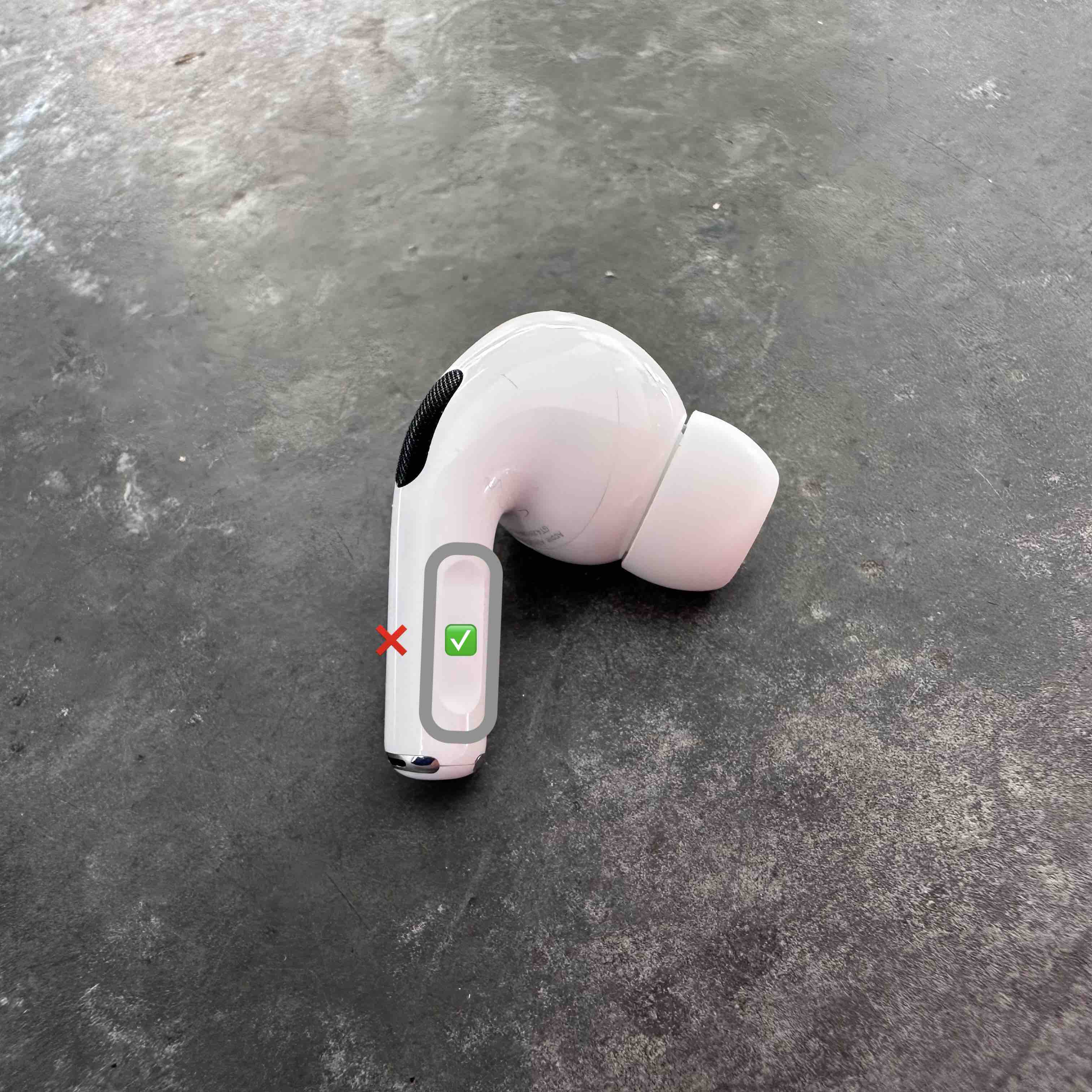
To control the volume on your AirPods Max, rotate the Digital Crown located on the top of the right ear cup. Turning the crown clockwise (toward the front) increases the volume, while turning it counter-clockwise (toward the back) decreases it. Alternatively, you can adjust the volume via the Control Center on your connected iPhone, iPad, or Mac, or by using Siri voice commands.
The AirPods Max represents Apple’s pinnacle of personal audio engineering, blending high-fidelity sound with the seamless integration of the Apple ecosystem. Unlike the touch-sensitive stems found on the AirPods Pro or the capacitive surfaces of many competing over-ear headphones, the AirPods Max utilizes a physical tactile interface: the Digital Crown. Borrowed from the Apple Watch design language, this mechanism offers precise, granular control over your listening experience.
In this guide, we will explore every facet of AirPods Max volume control, from physical adjustments and software customization to troubleshooting and advanced hearing safety features.
The Mechanics of the Digital Crown
The Digital Crown is the primary physical interface for the AirPods Max. Positioned at the top of the right ear cup, it is crafted from stainless steel and provides a weighted, mechanical feel that distinguishes it from the plastic buttons found on many other headphones.
Precise Volume Gradation
One of the key benefits of the Digital Crown is the level of precision it offers. While many Bluetooth headphones adjust volume in fixed "steps" that can sometimes feel too loud or too quiet, the AirPods Max Digital Crown allows for incredibly fine increments. As you rotate the crown, you will feel subtle haptic vibrations (if enabled) and hear a faint clicking sound in the earcups, providing sensory feedback that corresponds to the volume change.
Changing the Rotation Direction
By default, rotating the crown toward the front of your head increases the volume. However, Apple allows users to reverse this orientation to suit their personal preference or handedness.
To change the rotation direction:
- Ensure your AirPods Max are connected to your iPhone or iPad.
- Open Settings.
- Tap on Bluetooth.
- Tap the "i" icon next to your AirPods Max.
- Scroll down to the Digital Crown section.
- Select Increase Volume by Rotating and choose between Front to Back or Back to Front.
This customization is particularly useful for users who find the default "scroll up" motion counter-intuitive or for those who frequently adjust their headphones while wearing gloves.
Controlling Volume via Connected Devices
While the Digital Crown is the most direct method, the Apple ecosystem provides multiple software-based avenues to manage your AirPods Max volume. This is essential for situations where you might not want to reach for the headset itself, such as during a workout or while working at a desk.
iPhone and iPad Control Center
The Control Center is the fastest way to manage volume on iOS and iPadOS. By swiping down from the top-right corner of the screen, you can access the volume slider.
- Long-press the Volume Slider: This opens an expanded view where you can see the precise volume level.
- Noise Control Access: From this expanded view, you can also toggle between Active Noise Cancellation (ANC), Transparency mode, and Off, which significantly impacts how you perceive the volume of your environment.
Apple Watch Integration
If you are an Apple Watch user, your watch becomes a remote control for your AirPods Max the moment audio begins playing.
- Open the Now Playing app on your Apple Watch.
- Rotate the Apple Watch Digital Crown to adjust the volume of the AirPods Max.
- This synchronization is near-instantaneous and provides a highly convenient way to manage sound levels during transit.
macOS Volume Management
On a Mac, you can control the AirPods Max volume using the dedicated volume keys on the Magic Keyboard or via the Menu Bar.
- Sound Icon: Click the Sound icon in the menu bar and drag the slider for your AirPods Max.
- Control Center: Click the Control Center icon (the two toggle switches) in the top right of the macOS menu bar to see a simplified volume slider.
Using Siri for Hands-Free Volume Adjustment
For a completely hands-free experience, Siri is the most efficient tool for volume control. Because the AirPods Max features an array of beamforming microphones, Siri can accurately pick up your voice even in noisy environments.
Common Siri Commands
- "Hey Siri, turn up the volume." (Increases volume by approximately 10-15%).
- "Hey Siri, set the volume to 50 percent." (Sets a specific absolute level).
- "Hey Siri, stop the music if the volume gets too loud."
- "Hey Siri, lower the volume."
Using percentage-based commands is the most effective way to reach your desired listening level without multiple incremental requests.
Advanced Volume Features and Hearing Safety
In 2026, digital health and hearing safety are more integrated into the Apple experience than ever before. The AirPods Max works in tandem with iOS to ensure that high-volume listening does not lead to long-term hearing damage.
Headphone Safety and Decibel Monitoring
You can monitor the live decibel (dB) level of your AirPods Max through the Hearing module in the Control Center.
- Go to Settings > Control Center.
- Add Hearing (the ear icon).
- While listening to music, open Control Center and tap the Hearing icon.
- You will see a live meter showing the current dB level. Green indicates a safe level (typically below 80 dB), while yellow warns of potential long-term damage.
Reduce Loud Sounds
The "Reduce Loud Sounds" feature acts as a system-level limiter. This prevents the volume from exceeding a specific decibel threshold, regardless of how far you turn the Digital Crown.
- Navigate to Settings > Sounds & Haptics > Headphone Safety.
- Toggle on Reduce Loud Sounds.
- Set the slider to your preferred limit (e.g., 85 decibels, which is roughly the sound of a loud restaurant).
Sound Check
If you find that different songs in your library have wildly different volume levels, enable Sound Check. This feature normalizes the volume across all tracks in Apple Music, preventing sudden jumps in loudness that might force you to constantly adjust the Digital Crown.
- Go to Settings > Music > Sound Check and toggle it on.
Volume Control Comparison Table
| Method | Best For | Precision | Requirements |
|---|---|---|---|
| Digital Crown | Immediate, tactile adjustment | Extremely High | Physical access to headset |
| iPhone Control Center | Visual confirmation of levels | High | Unlocked iPhone nearby |
| Siri Voice Commands | Hands-free operation | Moderate | Internet/On-device Siri |
| Apple Watch | On-the-go adjustments | High | Watch paired to same iCloud |
| Mac Menu Bar | Desktop productivity | High | macOS connection |
| Keyboard Shortcuts | Rapid muting/unmuting | Low (Stepped) | Connected Mac/iPad Keyboard |
Troubleshooting AirPods Max Volume Issues
Occasionally, you may encounter issues where the volume control does not behave as expected. Below are the most common technical hurdles and their solutions.
The Digital Crown is Unresponsive
If rotating the crown does not change the volume, the issue is often mechanical or sensor-related.
- Debris: Small particles of dust or skin oils can enter the gap around the crown. Use a dry, lint-free cloth or a soft-bristled brush to gently clean the area.
- Firmware Glitch: Ensure your AirPods Max are running the latest firmware. This happens automatically when the headphones are charging and near your iPhone.
- Restart the Headphones: Press and hold the Noise Control button and the Digital Crown simultaneously until the LED on the bottom of the right ear cup flashes amber, then release. This performs a soft reset.
Volume is Too Low Even at Maximum
If your volume feels capped despite the slider being at 100%, check the following:
- Headphone Accommodations: Go to Settings > Accessibility > Audio/Visual > Headphone Accommodations. If this is on, it may be boosting specific frequencies while lowering the overall gain.
- Ear Detection: If the "Automatic Head Detection" sensors are dirty, the AirPods Max may think they aren't fully on your head, leading to reduced volume or paused audio. Wipe the sensors inside the ear cups with a dry cloth.
- Source Material: Some apps (like professional video editors or high-fidelity music players) have their own internal gain stages. Ensure the app-specific volume is also turned up.
Imbalanced Volume (One Ear Louder)
If the audio feels shifted to the left or right, it is likely an accessibility setting rather than a hardware failure.
- Navigate to Settings > Accessibility > Audio/Visual.
- Check the Balance slider. It should be centered exactly at 0.00.
Condensation and Sensor Issues
AirPods Max are known to accumulate moisture inside the ear cups during long listening sessions due to the aluminum construction. This moisture can sometimes interfere with the sensors that communicate Digital Crown movements to the processor. If you experience erratic volume jumps, remove the magnetic ear cushions and check for tiny droplets on the driver housing. Wipe them away and let the headphones air-dry.
Expert Tips for Optimal Volume Management
To get the most out of your AirPods Max volume control, consider these "pro" configurations:
- Enable Haptics: Ensure that you have tactile feedback enabled. This makes it easier to "feel" how much you are turning the volume up without looking at a screen.
- Use Transparency Mode Wisely: If you are adjusting volume because you need to hear someone speaking, don't just turn the volume down—press the Noise Control button to enter Transparency mode. This uses the external microphones to pipe in ambient sound, which is more effective than simply lowering the music volume.
- Personalized Spatial Audio: In 2026, Spatial Audio has become the standard. Ensure you have performed the "Ear Scan" in your iPhone settings. This calibrates the soundstage to your specific ear shape, which often results in a "fuller" sound that requires less raw volume to feel immersive.
Frequently Asked Questions
Can I click the Digital Crown to mute the audio?
No, clicking the Digital Crown once will pause or play your audio. To effectively "mute," you must either rotate the crown quickly to zero or pause the playback. There is currently no dedicated "Mute" toggle for the physical crown, though you can mute your microphone during calls by pressing the Digital Crown once.
Why does my volume change automatically when I walk into a noisy room?
This is likely due to Adaptive Audio or Personalized Volume. These features, introduced in later versions of iOS, use machine learning to understand your environmental preferences and adjust the volume or noise cancellation levels dynamically. You can disable this in the AirPods Max settings menu under "Audio."
Can I control the volume of the AirPods Max using an Android device?
Yes, but you are limited to the physical Digital Crown or the volume buttons on the Android device itself. You will lose access to Siri, the Control Center integration, and the ability to customize the rotation direction of the crown.
Is there a way to lock the volume so it doesn't accidentally change?
There is no "lock" for the physical Digital Crown. However, you can set a Hard Limit using the "Reduce Loud Sounds" feature in the Headphone Safety settings. This ensures that even if the crown is bumped or turned accidentally, the volume will not exceed a safe threshold.
Does the volume level affect battery life?
Yes. Listening at 100% volume with Active Noise Cancellation enabled will drain the battery faster than listening at 50% volume. Apple’s official 20-hour battery life rating is typically based on 50% volume with ANC on.
Recommendation for Users
To maximize the lifespan and functionality of your AirPods Max volume controls, we recommend a "clean and check" routine. Every few weeks, use a microfiber cloth to wipe down the Digital Crown to prevent oil buildup, which can lead to "ghost scrolling" or unresponsiveness. Furthermore, always keep your Headphone Safety settings active at 85dB; this ensures you can enjoy the high-fidelity capabilities of the AirPods Max for years to come without compromising your auditory health.