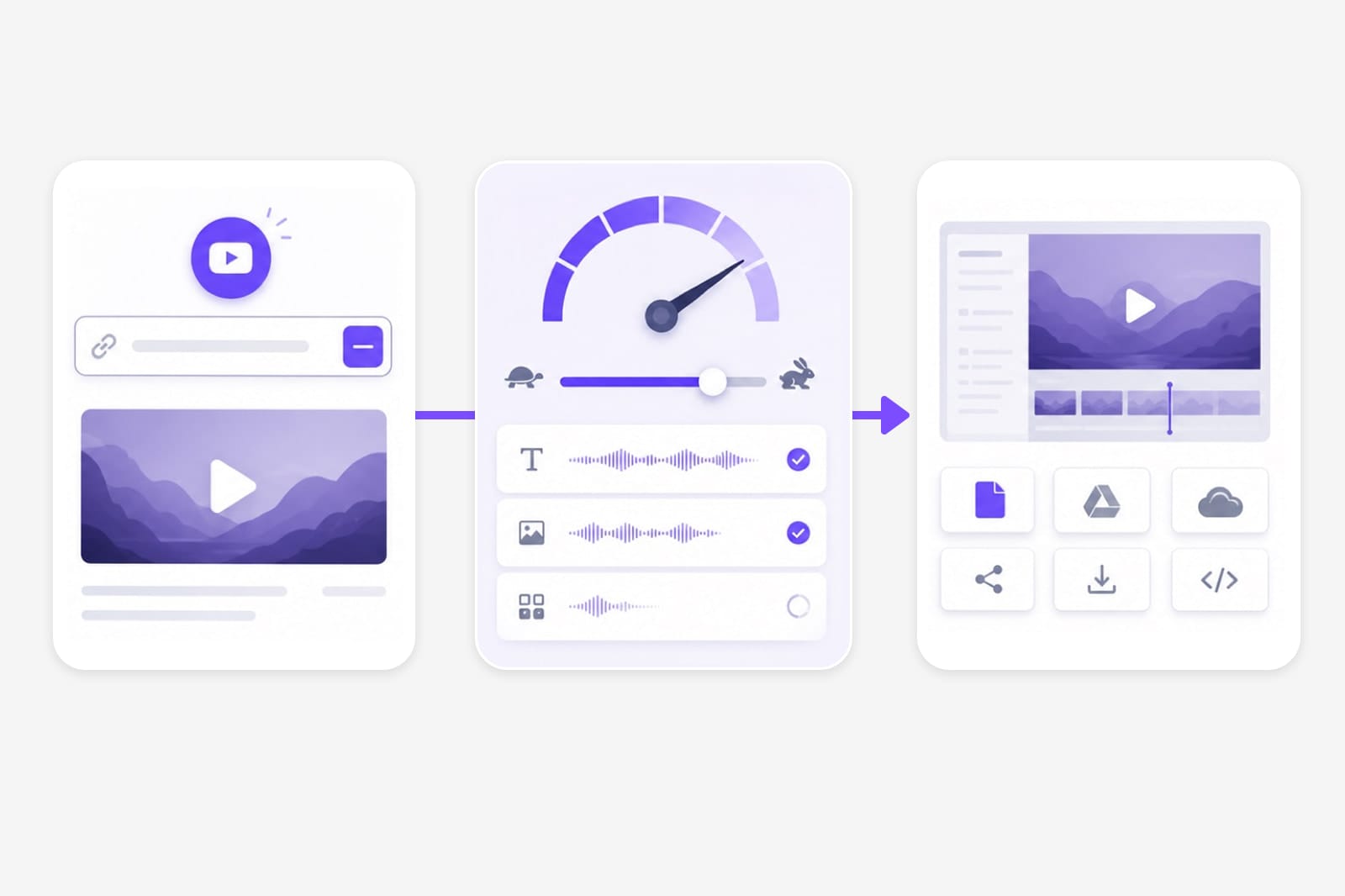
To adjust YouTube video speed, open the video you wish to watch and navigate to the Settings icon (the gear symbol). Select Playback speed from the menu. From there, you can choose a preset speed ranging from 0.25x to 2x, or select "Custom" on desktop browsers to set a specific increment.
Adjusting the playback speed of YouTube videos has become an essential skill for modern viewers. Whether you are a student trying to get through a long lecture, a professional watching a tutorial, or a language learner needing to hear pronunciations more clearly, controlling the tempo of your content is a powerful productivity tool. In 2026, YouTube continues to offer robust built-in controls across its web, mobile, and television platforms, while third-party tools provide even deeper customization for power users.
Why Adjust YouTube Playback Speed?
The ability to manipulate time within a video serves several distinct purposes. Understanding why you might need to change the speed can help you choose the right setting for your specific situation.
Increasing Efficiency for Learning
Many educational videos are recorded at a natural speaking pace, which can feel slow for viewers who are already familiar with the basics of a subject. By increasing the speed to 1.25x or 1.5x, you can consume the same amount of information in significantly less time. For example, a 20-minute video played at 1.5x takes only about 13 minutes to finish. This "speed-watching" technique is widely used by students and researchers to skim through long-form content.
Slowing Down for Technical Mastery
Conversely, slowing a video down to 0.75x or 0.5x is invaluable for learning complex physical tasks. Musicians often slow down performances to see finger placements on a guitar or piano. Similarly, software developers might slow down a coding tutorial to follow along with intricate syntax changes that happen quickly on screen. Slowing down also aids in transcription and language learning, allowing for better phonetic recognition of foreign words.
Accessibility and Cognitive Preferences
For individuals with ADHD or other neurodivergent traits, adjusting video speed can improve focus. Some find that a faster pace prevents their mind from wandering, while others require a slower pace to process auditory information effectively. YouTube’s inclusion of these features directly supports a more inclusive viewing experience.
How to Adjust YouTube Speed on Desktop (Web Browser)
The desktop version of YouTube offers the most granular control over playback speed, including keyboard shortcuts and custom increments that are not always as accessible on other devices.
Using the Settings Menu
- Open the Video: Navigate to the video you want to watch on the YouTube website.
- Access Settings: Click on the Settings icon (gear) located at the bottom right of the video player.
- Select Playback Speed: In the menu that appears, click on Playback speed. By default, this is set to "Normal."
- Choose a Preset: You will see a list of presets: 0.25x, 0.5x, 0.75x, Normal, 1.25x, 1.5x, 1.75x, and 2x.
- Set a Custom Speed: At the top right of the "Playback speed" sub-menu, click the Custom link. This opens a slider that allows you to adjust the speed in 0.05x increments, giving you much more control than the standard presets.
Mastering Keyboard Shortcuts
For power users, using mouse clicks is inefficient. YouTube has built-in keyboard shortcuts that allow you to change the speed instantly without opening any menus.
- Increase Speed: Press Shift + . (the period key). Each press increases the speed by 0.25x (up to 2.0x).
- Decrease Speed: Press Shift + , (the comma key). Each press decreases the speed by 0.25x (down to 0.25x).
These shortcuts are particularly useful when you need to toggle speeds frequently—for example, speeding through an introduction and slowing down for the core content.
Adjusting Playback Speed on Mobile Devices (Android and iOS)
The YouTube app for smartphones and tablets provides a streamlined version of the speed controls. While you lose the keyboard shortcuts, the interface is designed for quick touch access.
Steps for Android and iPhone
- Tap the Video: While the video is playing, tap anywhere on the video player to reveal the overlay controls.
- Open Settings: Tap the Settings icon (gear) in the top right corner. (Note: On some versions of the app, this may be represented by three vertical dots).
- Playback Speed: Tap on Playback speed from the list of options.
- Select Speed: Choose your desired speed. Unlike the desktop version, the mobile app typically lacks the "Custom" slider, limiting you to the standard presets between 0.25x and 2.0x.
Long-Press Shortcut
A relatively recent feature in the mobile app is the "2x" shortcut. If you press and hold anywhere on the video player while a video is playing, the speed will automatically jump to 2.0x. Once you release your finger, the video returns to its previous playback speed. This is ideal for quickly skipping through ads or uninteresting segments of a video.
Modifying Speed on Smart TVs and Gaming Consoles
Adjusting speed on a television interface is slightly more cumbersome due to the reliance on a remote control, but the functionality remains present in the official YouTube app for platforms like Roku, Apple TV, PlayStation 5, and Xbox Series X.
- Bring up the Menu: Press the Up or Select button on your remote to show the video player controls.
- Navigate to Settings: Use the directional pad to move to the Settings icon (gear) and press enter.
- Find Playback Speed: Look for the Playback speed option in the list.
- Adjust: Select your preferred speed. Note that on many TV apps, the options are more limited (often excluding the 0.25x or custom options) to ensure the hardware can handle the processing requirements of the video.
Advanced Methods: Extensions and Console Hacks
If the native 2x limit is not enough, or if you want global controls across all video sites, advanced methods can bypass YouTube's standard UI limitations.
Browser Extensions
Extensions like Video Speed Controller (available for Chrome and Firefox) allow you to increase speeds up to 10x or higher. These extensions add a small overlay to the top left corner of the video.
- Benefits: Granular control (0.1x increments), global shortcuts, and the ability to "save" your preferred speed across different videos.
- Caution: Extremely high speeds (above 3x) may lead to audio distortion or video buffering issues as your hardware struggles to decode frames fast enough.
Using the JavaScript Console
If you do not want to install an extension, you can manually override the playback speed using your browser's developer tools.
- Right-click on the video page and select Inspect.
- Go to the Console tab.
- Type the following code and press Enter:
document.getElementsByTagName("video")[0].playbackRate = 3.0; - You can replace "3.0" with any number you want. This directly interacts with the HTML5 video element's properties.
The Technical Mechanics of YouTube Playback Speed
A common question is why voices don't sound like "chipmunks" when you speed up a video. This is due to a digital signal processing technique called Time-Stretching.
Audio Resampling vs. Time-Stretching
In the era of analog tape, speeding up playback also increased the pitch because the frequency of the sound waves was physically compressed. YouTube uses sophisticated algorithms to decouple tempo from pitch. The software slices the audio into tiny "grains" and overlaps them (when speeding up) or repeats them (when slowing down) while maintaining the original frequency of the sound. This ensures that a creator’s voice remains recognizable and natural, even at 2x speed.
Hardware Impact
Changing playback speed increases the workload on your device’s CPU and GPU. At 2x speed, your device must decode twice as many frames per second. If you are on an older device or have a weak internet connection, you may experience "stuttering" or dropped frames when using high speeds. To mitigate this, consider lowering the video resolution (e.g., from 4K to 1080p) when watching at higher playback speeds.
Comparison of Playback Speed Features by Platform
The following table summarizes the availability of speed features across different ways to access YouTube as of 2026.
| Feature | Desktop (Web) | Mobile App (App) | Smart TV / Console | Browser Extension |
|---|---|---|---|---|
| Preset Speeds (0.25x - 2x) | Yes | Yes | Yes | Yes |
| Custom Increments | Yes (0.05x steps) | No | No | Yes (0.01x steps) |
| Keyboard Shortcuts | Yes (Shift + . / ,) | No | No | Yes (Customizable) |
| Speeds Above 2.0x | Via Console only | No | No | Yes (Up to 16x) |
| Long-Press for 2x | No | Yes | No | No |
| Audio Pitch Correction | Yes | Yes | Yes | Yes |
Troubleshooting Common Playback Speed Issues
While adjusting speed is usually straightforward, certain factors can prevent the feature from working correctly.
- Outdated Browser or App: If you don't see the "Playback speed" option, ensure your YouTube app or web browser is updated to the latest version. Legacy versions sometimes lose compatibility with new player features.
- Specific Ad Formats: You generally cannot adjust the speed of advertisements. The setting will only appear or become functional once the actual video content begins.
- Hardware Acceleration: If the video becomes choppy at high speeds, check your browser settings and ensure Hardware Acceleration is toggled ON. This allows the browser to use your graphics card to help with video decoding.
- Unsupported Content: Occasionally, certain premium or live-streamed content may have restricted playback controls during the "Live" phase. Once the stream becomes a VOD (Video on Demand), full speed controls are usually restored.
Frequently Asked Questions
Does watching at 2x speed affect YouTube's watch time metrics?
YouTube's analytics calculate "watch time" based on the actual duration the viewer spent watching, not the length of the video segment consumed. If you watch a 10-minute video at 2x speed, it only counts as 5 minutes of watch time for the creator's analytics.
Can I set a default playback speed for all videos?
Natively, YouTube does not offer a setting to "always play at 1.5x." However, several browser extensions and third-party mobile clients (like ReVanced) allow you to set a persistent playback speed that applies to every video you open.
Why is 2x the maximum speed on the official app?
The 2x limit is a balance between user experience and technical stability. Above 2x, most human speech becomes difficult to comprehend without significant mental effort, and the data processing requirements for high-resolution video (like 4K or 8K) can cause many mobile devices to overheat or crash.
Does changing the speed use more data?
No, changing the playback speed does not significantly increase data usage for the video itself. You are still downloading the same number of bits; you are simply processing and displaying them faster. However, because you are finishing videos faster, you might end up watching more videos in a single session, which would lead to higher overall data consumption.
Can I adjust the speed on YouTube Music?
Yes, the YouTube Music app and web player also offer playback speed controls, though they are primarily used for podcasts rather than music tracks. For music, these controls are often hidden in the "Related" or "Settings" menus within the player.
Practical Recommendation for 2026
To maximize your efficiency, start by increasing your playback speed to 1.25x. This is a subtle change that most people adapt to within seconds. Once you are comfortable, move to 1.5x. Save the 2x speed for content where the visual information is more important than the nuances of the audio, or for speakers who are exceptionally slow. For technical tutorials, keep your hand near the Shift + , shortcut so you can instantly slow down when the instructor reaches a critical step.