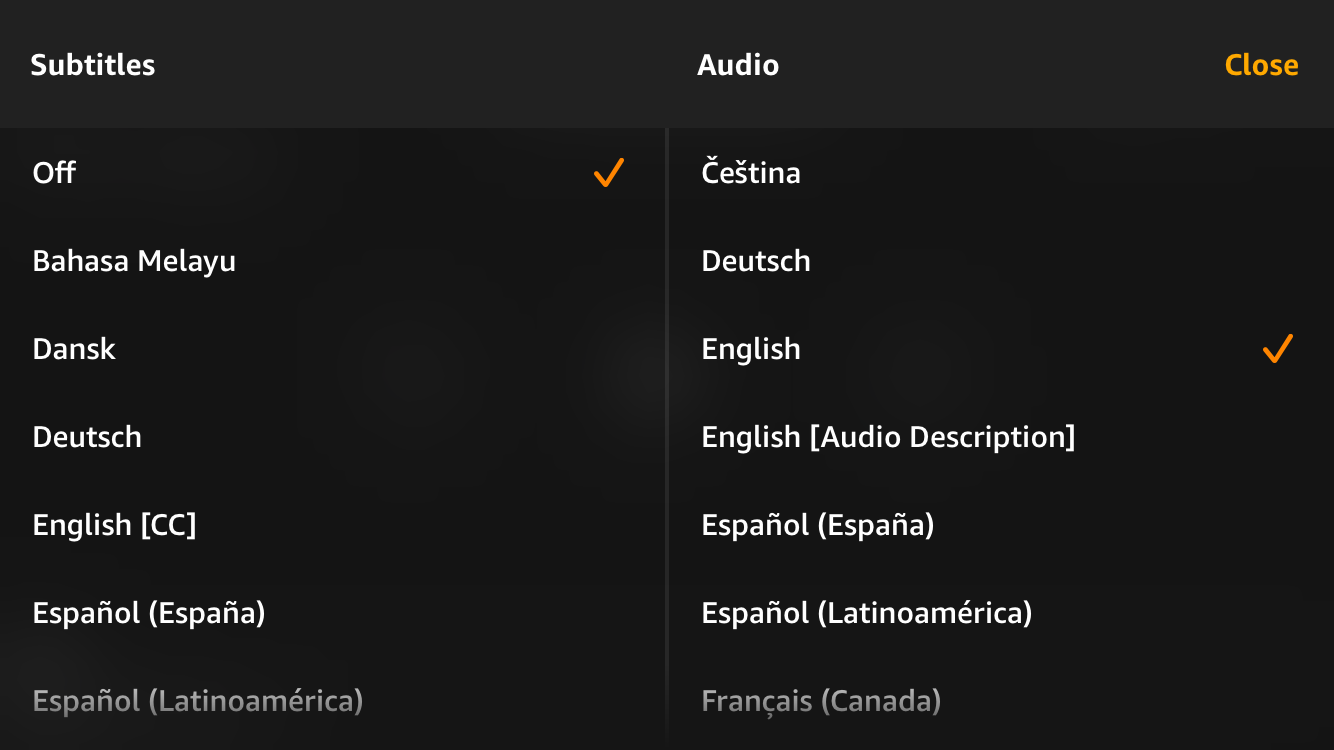
To manage subtitles on Amazon Prime Video, select the "Subtitles and Audio" icon (represented by a speech bubble) during playback. This menu allows you to toggle captions on or off, choose from available languages, and adjust text formatting. Subtitle availability depends on the specific title's licensing and the device’s accessibility settings.
Amazon Prime Video has evolved into one of the most sophisticated streaming ecosystems globally, offering a vast library of original content, licensed films, and live sports. As of 2026, the platform continues to refine its user interface to cater to a global audience, making accessibility features like subtitles and closed captions more intuitive than ever. Whether you are watching a foreign language film, managing a hearing impairment, or simply trying to catch dialogue in a noisy environment, understanding how Amazon handles subtitles is essential for an optimal viewing experience.
Understanding the Difference: Subtitles vs. Closed Captions (CC)
While often used interchangeably, "subtitles" and "closed captions" serve distinct purposes within the Amazon Video ecosystem. It is important to distinguish between the two, as they provide different levels of detail.
Subtitles (Standard)
Standard subtitles are primarily designed for viewers who can hear the audio but do not understand the language being spoken. They typically provide a text translation of the dialogue only. On Amazon Prime Video, these are often labeled by the language name (e.g., "English," "French," "Spanish"). They assume the viewer can hear the background music, sound effects, and the tone of the speaker's voice.
Closed Captions (CC) and SDH
Closed Captions (CC) or Subtitles for the Deaf and Hard of Hearing (SDH) go beyond dialogue. They include critical non-speech information such as [eerie music playing], [door slams], or [loud explosion]. These are a legal requirement for much of the content streamed in the United States, governed by the Federal Communications Commission (FCC) guidelines for IP-delivered video programming.
On Amazon Video, you will frequently see the "CC" icon next to a title’s description. This indicates that the content supports these descriptive text tracks, ensuring that the viewing experience is inclusive for everyone, regardless of hearing ability.
How to Enable and Manage Subtitles Across Devices
Amazon Video is available on a massive array of hardware, from proprietary Fire TV sticks to third-party game consoles and mobile devices. While the core functionality remains the same, the path to the subtitle menu varies slightly by platform.
On Web Browsers (PC and Mac)
When watching on a computer via a web browser, the process is the most direct.
- Start playing the video you wish to watch.
- Move your cursor to bring up the playback overlay.
- Click the Speech Bubble icon located in the upper right-hand corner of the screen.
- Select your preferred language under the "Subtitles" column. To turn them off, simply select "Off."
On Fire TV and Fire Stick Devices
As Amazon’s native hardware, Fire TV devices offer integrated control via the Alexa Voice Remote.
- Press the Play/Pause button or the Select (center) button during playback to bring up the menu.
- Use the directional pad to navigate to the Subtitles icon.
- Select the desired language.
- If you have an Alexa-enabled remote, you can also say, "Alexa, turn on subtitles" or "Alexa, set subtitles to Spanish."
On Smart TVs and Game Consoles (Roku, Apple TV, PlayStation, Xbox)
Most modern Smart TV apps and consoles follow a similar logic, though the UI layout may differ.
- Press the Up or Down button on your remote while the video is playing to show the "Options" or "Subtitles and Audio" menu.
- Navigate to the subtitle selection.
- On Apple TV, you can swipe down on the remote touch surface to access the audio and subtitle settings bar at the top of the screen.
On Mobile Devices (iOS and Android)
The mobile app interface is designed for touch interactions.
- Tap the screen once while the video is playing.
- Tap the Speech Bubble icon at the top right of the screen.
- Choose your language and tap "Close" or "Done" to return to the film.
Customizing Subtitle Appearance
Amazon Video offers significant flexibility in how subtitles look. This is crucial for viewers with visual impairments or those who find default white text difficult to read against bright backgrounds. In 2026, these customization options are largely synced across your Amazon account, meaning changes made on one device may carry over to others.
Key Customization Features
- Text Size: You can choose from several sizes, ranging from "Small" to "Extra Large."
- Text Color: While white is standard, you can switch to yellow, green, or cyan for better contrast.
- Background and Window: You can add a black or translucent box behind the text (Background) or a larger box covering a portion of the screen (Window) to ensure the text doesn't blend into the movie scenery.
- Font Style: Amazon provides multiple font choices, including Serif, Sans Serif, and Monospaced options.
How to Change These Settings
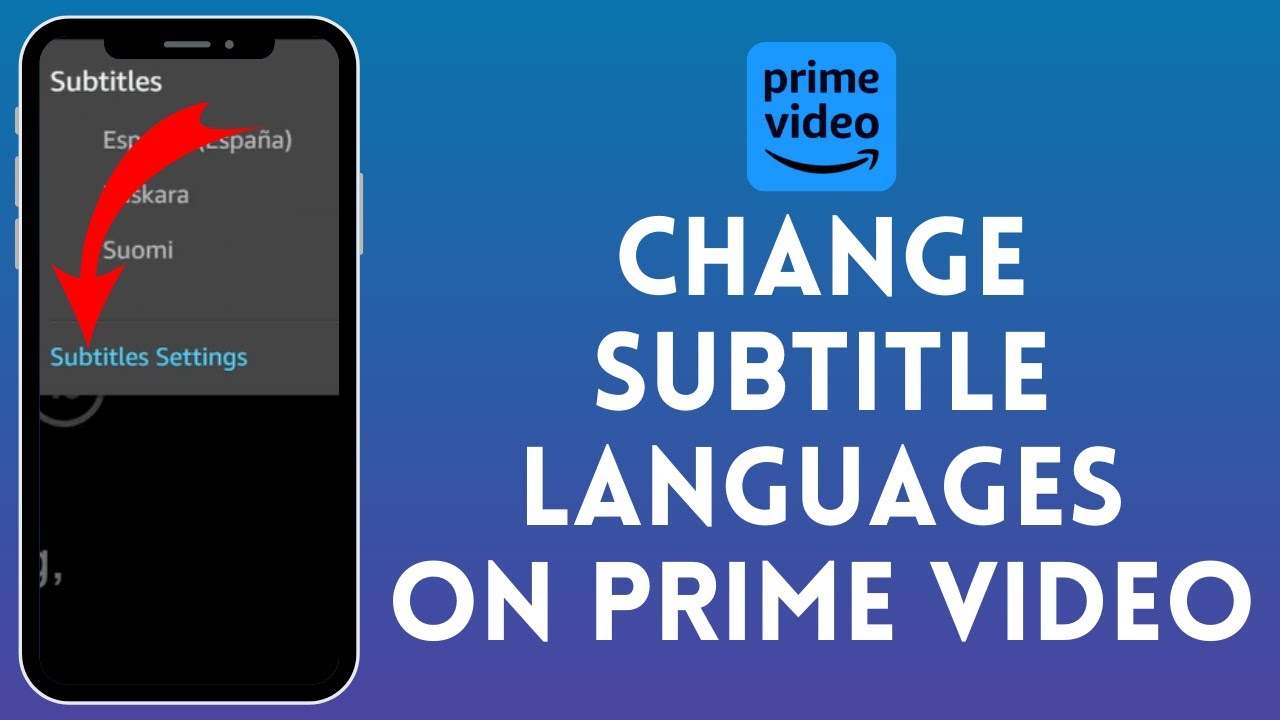
On most devices, the customization menu is located within the same "Subtitles and Audio" menu under a section labeled Subtitle Settings or Edit Presets. If you are using a web browser, you can click "Subtitle Settings" inside the subtitle selection window to adjust these parameters in real-time.
Technical Specifications for Content Creators (Amazon Video Direct)
If you are an independent filmmaker or content provider using Amazon Video Direct (AVD) to publish your work, subtitles are not just an option—they are often a requirement. Amazon maintains strict technical standards to ensure captions are legible and properly synchronized.
| Feature | Requirement / Standard |
|---|---|
| Supported Formats | .SRT, .SCC, .TTML, .DFXP, .SAMI |
| Character Encoding | UTF-8 (for international characters) |
| Frame Rate | Must match the source video (e.g., 23.976, 25, or 29.97 fps) |
| Closed Captioning Law | Must meet FCC 47 CFR 79.1 standards for US content |
| Positioning | Should not obscure important visual elements or on-screen graphics |
For creators, the most common format is the SubRip (.srt) file because of its simplicity and wide compatibility. However, for broadcast-quality content, Scenarist Closed Caption (.scc) files are preferred because they support advanced positioning and formatting metadata.
Troubleshooting Common Subtitle Issues
Despite Amazon’s robust infrastructure, users occasionally encounter glitches. Here is how to resolve the most frequent problems.
Subtitles are Out of Sync
If the text appears before or after the dialogue, it is usually a buffering or cache issue.
- Solution: Pause the video for 10 seconds and press play. If that fails, restart the app. On a web browser, refreshing the page (F5) often re-syncs the audio and text tracks.
Subtitles Keep Turning On Automatically
This usually happens because "Closed Captioning" is enabled at the system level of your device rather than just within the Prime Video app.
- Solution: Check your Smart TV or Fire TV's accessibility settings. If "Closed Captions" is toggled "On" in the main device menu, Amazon will override your in-app preferences and show them every time.
Missing Subtitle Options
Not every movie on Amazon has subtitles for every language.
- Solution: Check the "Details" page of the movie or show before clicking play. Look for the "Subtitles" or "CC" icon. If your language isn't listed there, it is not available for that specific title due to licensing restrictions.
Text is Too Small or Hard to Read
If the default settings are illegible on a large 4K screen or a small mobile device:
- Solution: Navigate to the "Subtitle Settings" during playback and increase the text size to "Large" or "Extra Large." Adding a "Drop Shadow" or a black "Background" box can also significantly improve readability against complex visual backgrounds.
Accessibility and "Forced Narratives"
A specialized type of subtitle you may encounter on Amazon is the Forced Narrative (FN). These are subtitles that appear automatically, even if you have subtitles turned off. They are used to translate "foreign" dialogue in an otherwise English-language film (e.g., when a character in an American spy thriller speaks Russian for two minutes).
Amazon’s system handles these through a separate "Forced" track. If you find that these translations are missing, ensure that your subtitle settings are not set to a specific language that might be overriding the "Automatic" or "Forced" behavior of the player.
Frequently Asked Questions
Why can't I find subtitles for the movie I just rented?
Subtitle availability is determined by the studio that provided the content to Amazon. While most major releases include English CC, older or niche titles may lack comprehensive subtitle support. Always verify the "Languages" and "Subtitles" section on the product detail page before purchasing or renting.
How do I change the subtitle language on a mobile device?
While the video is playing, tap the screen once to reveal the controls. Tap the speech bubble icon in the top right corner. A menu will appear allowing you to select from all available audio and subtitle languages. Select your choice and tap "Close" to resume.
Can I use external subtitle files (.srt) with Amazon Prime Video?
On official Amazon apps (Smart TV, Mobile, Fire Stick), you cannot upload your own subtitle files. You are limited to the tracks provided by Amazon. However, some third-party browser extensions allow for "side-loading" subtitles on the web version of Prime Video, though these are not officially supported and may violate terms of service.
Are subtitles available for live sports on Amazon?
Yes, Amazon provides Closed Captions for live events, including "Thursday Night Football." Because these are generated in real-time, there may be a slight delay (2–5 seconds) between the spoken word and the text appearing on the screen. This is a technical limitation of live stenography.
What does "SDH" stand for in the subtitle menu?
SDH stands for "Subtitles for the Deaf and Hard of Hearing." Unlike standard subtitles, SDH includes descriptions of non-speech elements, such as music cues and sound effects, providing a more complete auditory-to-visual translation.
Can I set different subtitle preferences for different profiles?
Yes. As of 2026, Amazon Prime Video profiles maintain individual accessibility settings. If one family member requires large yellow text and another prefers small white text, those settings will stay saved to their respective profiles across all shared devices.
Practical Recommendation
To ensure the best experience, we recommend configuring your "Subtitle Presets" on the Amazon website under the "Subtitles" tab. Settings configured here serve as the global default for your account. For most viewers, a Medium text size with a Black Background at 50% Opacity provides the best balance between readability and preserving the cinematic quality of the video. If you frequently watch content in a language you are learning, consider enabling subtitles in that language rather than your native one to improve immersion and vocabulary retention.