Adding a signature to Gmail is a straightforward yet essential process that establishes professional credibility, provides necessary contact information, and ensures brand consistency across your digital communications. Whether you are setting up your email signature for the first time on a desktop computer, configuring a mobile application on iOS or Android, or managing multiple accounts, creating a clean and effective email sign-off requires careful attention to built-in formatting options and platform-specific constraints.
Introduction to Gmail Signatures
An email signature is a block of text, images, and links that automatically appears at the bottom of outgoing email messages. In modern digital correspondence, it serves as a digital business card, offering recipients an immediate way to verify your identity, find alternative communication channels, and review professional credentials.
While Gmail allows for extensive customization—including rich text formatting, hyperlinks, and embedded images—setting up a signature differs significantly depending on whether you are using a web browser on a desktop computer or the official Gmail mobile application. Furthermore, mobile applications often do not sync signatures automatically with your desktop settings, requiring separate configuration for each device you use to send mail.
Prerequisites and System Requirements
Before you begin configuring your signature, you must ensure your environment meets the necessary access requirements and technical parameters:
- Account Access: You must have a Google Account with an active Gmail inbox (either a standard consumer
@gmail.comaddress or an organizational Google Workspace account). - Supported Platforms: Configuration can be completed via any modern web browser (Google Chrome, Mozilla Firefox, Apple Safari, or Microsoft Edge) or through the native Gmail mobile applications for iOS and Android.
- Administrator Permissions (Workspace Only): If you are using a Google Workspace account managed by an organization, your domain administrator may have enforced specific signature policies or disabled certain formatting options. If your organization enforces a standardized company-wide signature, individual user settings may be restricted or overridden.
Adding a Signature on Desktop (Web Browser)
The desktop version of Gmail offers the most robust editor for creating and formatting email signatures. It supports rich text tools, font selection, text size adjustments, text color modification, hyperlinks, and image insertion.
Step-by-Step Configuration Process
- Open your preferred web browser, navigate to Gmail, and log in to your account.
- In the top-right corner of the interface, click on the Settings icon (represented by a gear).
- In the quick settings panel that slides out from the right, click on the button labeled See all settings.
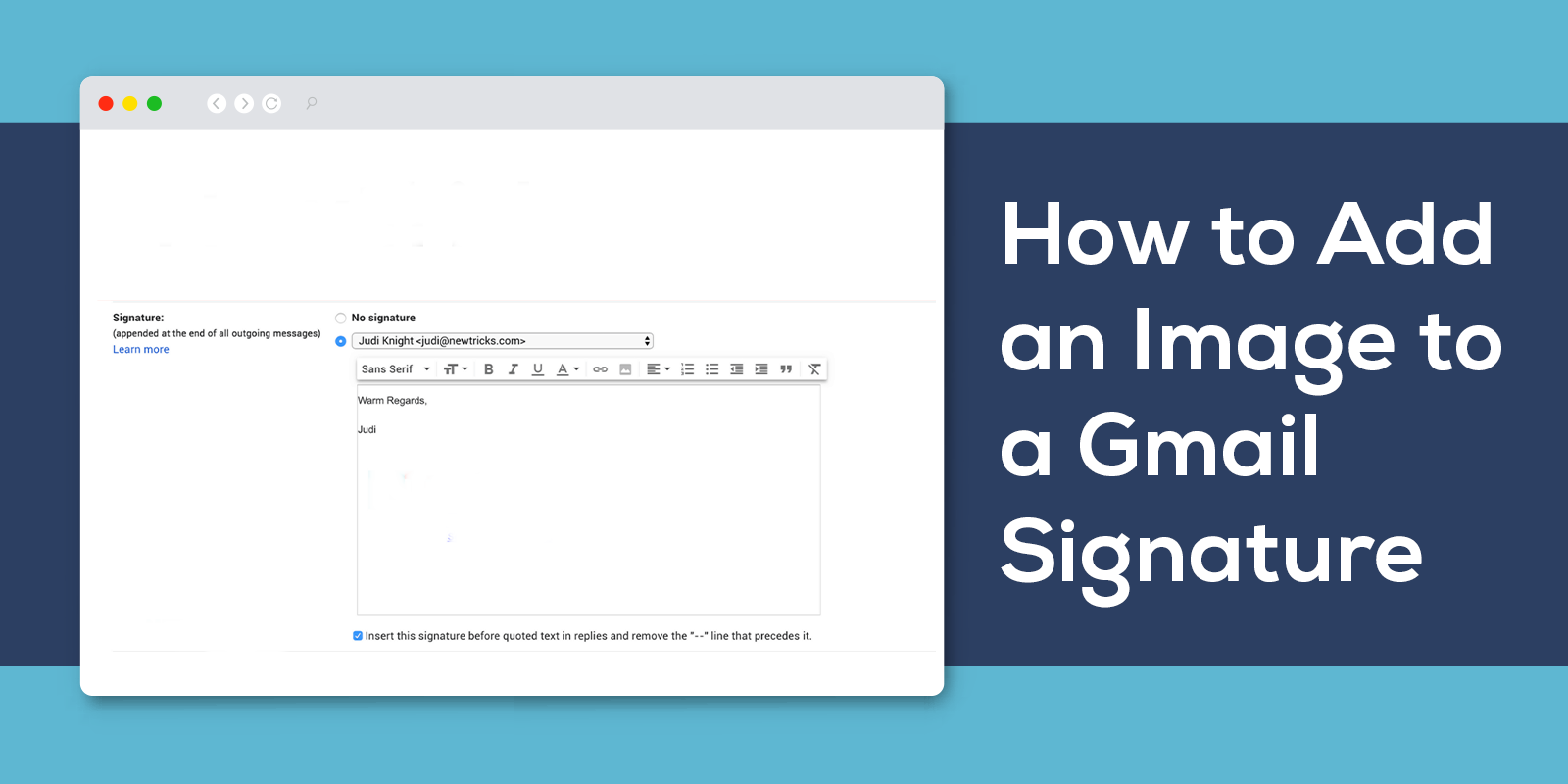
- You will land on the General tab. Scroll down vertically through the options until you locate the section titled Signature.
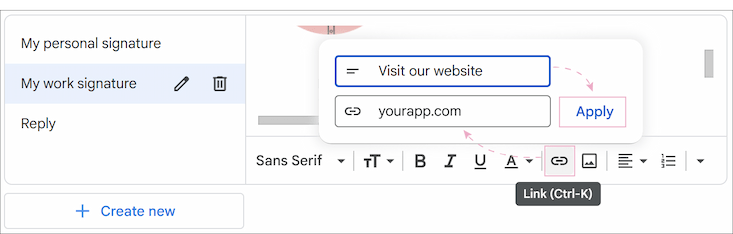
- Click the + Create new button. A small dialog box will appear prompting you to enter a name for your signature (for example, "Professional" or "Personal"). Enter a recognizable name and click Create.
- In the text editing box to the right, compose your signature. You can use the built-in toolbar to adjust formatting, insert web links via the chain icon, or upload images using the image icon.
- Below the signature text box, locate the Signature defaults dropdown menus. Here, you can assign your newly created signature separately for New emails use and On reply/forward use.
- Scroll to the very bottom of the page and click the Save Changes button to apply your new configuration.
Managing Multiple Signatures
Gmail allows you to create multiple signatures within a single account. This is particularly useful if you need to alternate between a formal corporate signature, a casual personal sign-off, or a brief mobile-optimized layout.
To add another signature, simply click + Create new again within the settings menu and repeat the creation process. When composing an email, you can manually switch between your configured signatures by clicking the pen icon at the bottom of the compose window.
Setting Up Signatures on Mobile Devices
Mobile email management requires separate attention because the Gmail applications for iOS and Android handle signatures independently from the web browser interface. If you configure a signature on your desktop computer, it will not automatically populate inside the mobile app.
Configuring on Android Devices
- Open the Gmail app on your Android phone or tablet.
- Tap the three horizontal lines (menu icon) in the top-left corner of the screen.
- Scroll down to the bottom of the menu and tap Settings.
- If you have multiple accounts configured, select the specific Google Account where you want to add the signature.
- Scroll down to the Mobile signature setting and tap it.
- Type your desired signature text into the prompt box. Note that mobile apps generally support plain text only and do not allow advanced image embedding or complex rich-text styling directly within the app editor.
- Tap OK to save your changes.
Configuring on iOS (iPhone and iPad) Devices
- Open the Gmail app on your iOS device.
- Tap the menu icon (three lines) in the top-left corner.
- Scroll to the bottom and select Settings.
- Choose the specific email account you wish to edit.
- Tap on Signature settings.
- Toggle the Mobile Signature switch to the active (on) position.
- Enter or paste your signature text into the provided field. Changes save automatically as you exit the menu.
Feature and Platform Comparison
To better understand how signature capabilities differ across various access methods, review the comparison table below.
| Feature / Capability | Gmail Web (Desktop) | Gmail Android App | Gmail iOS App |
|---|---|---|---|
| Rich Text Formatting | Fully Supported (Fonts, Colors, Sizes) | Limited / Plain Text | Limited / Plain Text |
| Image Embedding | Supported (Upload, URL, Drive) | Not Supported Natively | Not Supported Natively |
| Hyperlinks | Fully Supported | Supported via Device Clipboard | Supported via Device Clipboard |
| Multiple Signatures | Supported (Per Account) | Single Mobile Signature | Single Mobile Signature |
| Automatic Syncing | N/A (Primary Source) | Does not sync with desktop | Does not sync with desktop |
Best Practices for Professional Email Signatures
Designing an effective email signature involves balancing visual appeal with technical constraints. A poorly optimized signature can load slowly, break on mobile devices, or look cluttered.
- Keep It Concise: Limit your signature to essential information: your full name, job title, company name, direct contact phone number, and a link to your official website or professional profile.
- Ensure Mobile Responsiveness: Many recipients read emails on mobile devices. Avoid excessively wide images or multi-column layouts that fail to scale on smaller screens.
- Limit Image Sizes: If you include a company logo or headshot, ensure the file size is small and hosted on a reliable server or inserted as a properly scaled inline image to prevent long loading times.
- Test Before Sending: Always send a test email to an alternative account to verify that links function correctly, images render properly, and text formatting appears as intended across different email clients.
Troubleshooting Common Issues
Even with careful setup, users occasionally encounter technical glitches when managing Gmail signatures.
Signature Disappearing on Replies
If your signature only appears on brand new messages and vanishes when you reply or forward an email, check your default settings. Navigate back to Settings > See all settings > General, and look at the Signature defaults section. Ensure that you have explicitly selected your signature from the dropdown menu under the On reply/forward use parameter.
Images Broken or Not Displaying
If images in your signature appear as broken attachment icons or blank boxes, the issue is typically related to image hosting. Ensure that embedded images are not overly large and that your browser security settings are not blocking external content. For best results, upload images directly through the Gmail signature editor interface rather than hotlinking them from unsecure external servers.
Workspace Policy Restrictions
If the signature option is greyed out or you are unable to save changes on a corporate account, your Google Workspace administrator likely enforces a centralized email signature policy using third-party deployment tools or native organizational units. Contact your IT department for assistance if company policy mandates a specific template.
Frequently Asked Questions
Can I use HTML and CSS in my Gmail signature?
Yes, the desktop web version of Gmail supports pasting pre-formatted HTML and CSS directly into the signature text box. You can design your signature in an external HTML editor or browser inspection tool and copy-paste the rendered output into Gmail, though complex stylesheets may be stripped by strict email client rendering engines.
Why doesn't my desktop signature appear on my phone?
Gmail mobile applications do not synchronize signature data from the web version. Each platform operates its own local settings, meaning you must manually input your signature inside the Android or iOS Gmail app settings menu.
How many signatures can I have in Gmail?
Google allows you to create multiple distinct signatures for a single email address on the desktop version. This allows you to select different sign-offs dynamically depending on the context of the conversation.
Can I include social media icons in my signature?
Yes. You can insert small image icons into your signature editor and hyperlink each icon to your respective professional social media profiles, such as LinkedIn or X (formerly Twitter).
What is the ideal image size for a Gmail signature?
To ensure fast loading times and prevent layout distortion on mobile screens, keep profile pictures or company logos under 100 pixels in height and width, and maintain a file size under 10 kilobytes when possible.
Conclusion
Configuring an email signature in Gmail is an essential step toward establishing a polished, professional digital presence. By understanding the differences between desktop and mobile setup requirements, adhering to design best practices, and ensuring your contact details are accurate, you can maintain consistent and reliable communication across all your correspondence. Regularly review your signature details to ensure links and phone numbers remain current as your professional circumstances evolve.