Putting an iPhone 15 Pro Max into recovery mode requires a precise sequence of physical button presses combined with a wired connection to a Mac or Windows computer. This state forces the device's bootloader—known as iBoot—to bypass normal iOS startup routines and look for an external computer running Finder or iTunes to restore or update the operating system.
When an iPhone 15 Pro Max encounters severe software corruption, enters a persistent boot loop, or fails to update or restore through standard wireless methods, recovery mode serves as a primary diagnostic and repair mechanism. Because Apple replaced the traditional Lightning connector with a USB-C port on the iPhone 15 lineup, ensuring you use a compatible data-transfer cable is just as critical as timing your button presses correctly. This comprehensive, technical walkthrough details every prerequisite, hardware specification, and operational action required to successfully execute recovery mode on your device.
Understanding Recovery Mode on the iPhone 15 Pro Max
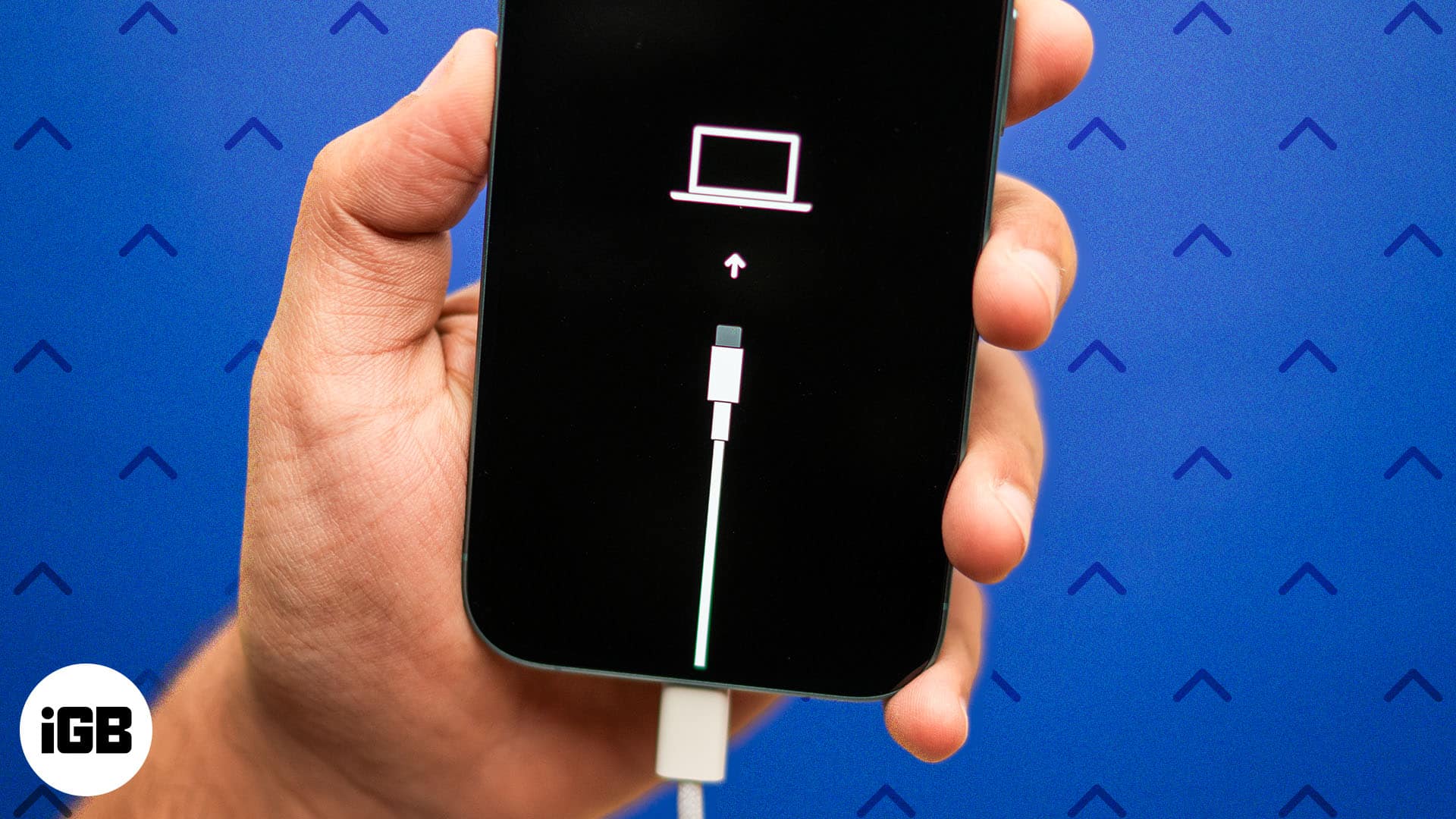
Recovery mode is a fail-safe routine built into the device’s hardware-level bootrom. When you trigger recovery mode, the iPhone displays a graphic showing a cable pointing toward a computer or the traditional iTunes logo, depending on the software version.
Unlike DFU (Device Firmware Update) mode—which loads a low-level environment without initializing the operating system or the screen—recovery mode loads the iBoot interface. This interface allows macOS or Windows machines to interact directly with the device partitions, verify cryptographic signatures, and push clean software images.
Why You Might Need Recovery Mode
- Corrupted iOS Updates: An interrupted over-the-air (OTA) update can leave system files missing or unreadable, preventing the phone from clearing the Apple logo during startup.
- Boot Loops: When a device continuously restarts without reaching the lock screen, normal diagnostic tools are inaccessible, leaving recovery mode as the primary bridge to a computer.
- Forgotten Passcodes: Multiple incorrect passcode attempts can lock a device permanently, requiring a complete factory reset through a recovery routine.
- Downgrading or Re-flashing: Advanced troubleshooting often requires clearing the NAND flash memory completely to eliminate persistent software anomalies.
Prerequisites and Necessary Equipment
Before initiating the sequence, you must gather the correct hardware and software tools. A failure at this preparation stage is the most common reason users fail to enter recovery mode.
Hardware Requirements
- iPhone 15 Pro Max: Charged to at least 30% to prevent unexpected shutdowns during a restore procedure.
- Host Computer: A Mac running macOS Catalina or later (which uses Finder for device management), or a Windows PC running Windows 10 or 11 with the Apple Devices app or the latest version of iTunes installed.
- Data-Capable USB-C Cable: You must use a cable that supports data transfer, not a charge-only cable. The braided USB-C cable included in the box with the iPhone 15 Pro Max natively supports data transfer and is ideal for this task.
Software Requirements
- Ensure your host computer's operating system is fully updated.
- If using a Windows PC, verify that the Apple Mobile Device USB Driver is functioning correctly in the Device Manager.
- Disable third-party antivirus software temporarily if it interferes with USB communication protocols.
| Component | Minimum Specification | Recommended Specification |
|---|---|---|
| Host Operating System | macOS 10.15 / Windows 10 | macOS Sonoma or Sequoia / Windows 11 |
| Connection Cable | USB-C to USB-C (Data Rate: USB 2.0 or higher) | Apple Original Braided USB-C Cable |
| Device Battery Level | 20% charge | 50% or higher charge |
| Management Software | Finder / iTunes / Apple Devices App | Latest version of Finder or Apple Devices App |
Pre-Flight Checks and Data Security
Entering recovery mode to update your software preserves your user data. However, if recovery mode is being used to restore a completely unresponsive device, all local data will be erased unless a recent backup exists in iCloud or on a local computer.
- Verify Backups: Confirm whether your photos, messages, and app data are synced to iCloud or backed up locally.
- Disconnect Hubs: Plug the USB-C cable directly into a port on the computer rather than using an unpowered USB hub, as hubs can cause intermittent connection drops during the handshake phase.
- Check for Liquid Detection: Ensure the USB-C port on your iPhone 15 Pro Max is free of lint, moisture, and debris. Modern iPhones will display a liquid-detection warning or fail data handshakes if moisture is present in the port.
The 10-Step Guide to Entering Recovery Mode
The button-timing sequence requires quick execution. Read through all ten steps once before attempting the physical maneuver.
Step 1: Connect the Host Computer
Power on your Mac or Windows PC. Open Finder (on a Mac) or the Apple Devices app/iTunes (on a PC). Leave the window open and visible.
Step 2: Attach the USB-C Cable to the Computer
Plug one end of your data-capable USB-C cable into a vacant USB-C or USB-A port on your computer. Leave the other end free for the moment.
Step 3: Prepare the iPhone 15 Pro Max
Ensure your iPhone is powered on or in its unresponsive state. If the screen is completely black, check whether it responds to being plugged in; however, you can perform this sequence regardless of whether the screen is lit or frozen on the Apple logo.
Step 4: Press and Quickly Release Volume Up
Locate the Volume Up button on the left edge of the iPhone 15 Pro Max. Press it down firmly and release it immediately. Do not hold it.
Step 5: Press and Quickly Release Volume Down
Immediately after releasing the Volume Up button, press the Volume Down button on the left edge and release it immediately. Again, do not hold this button.
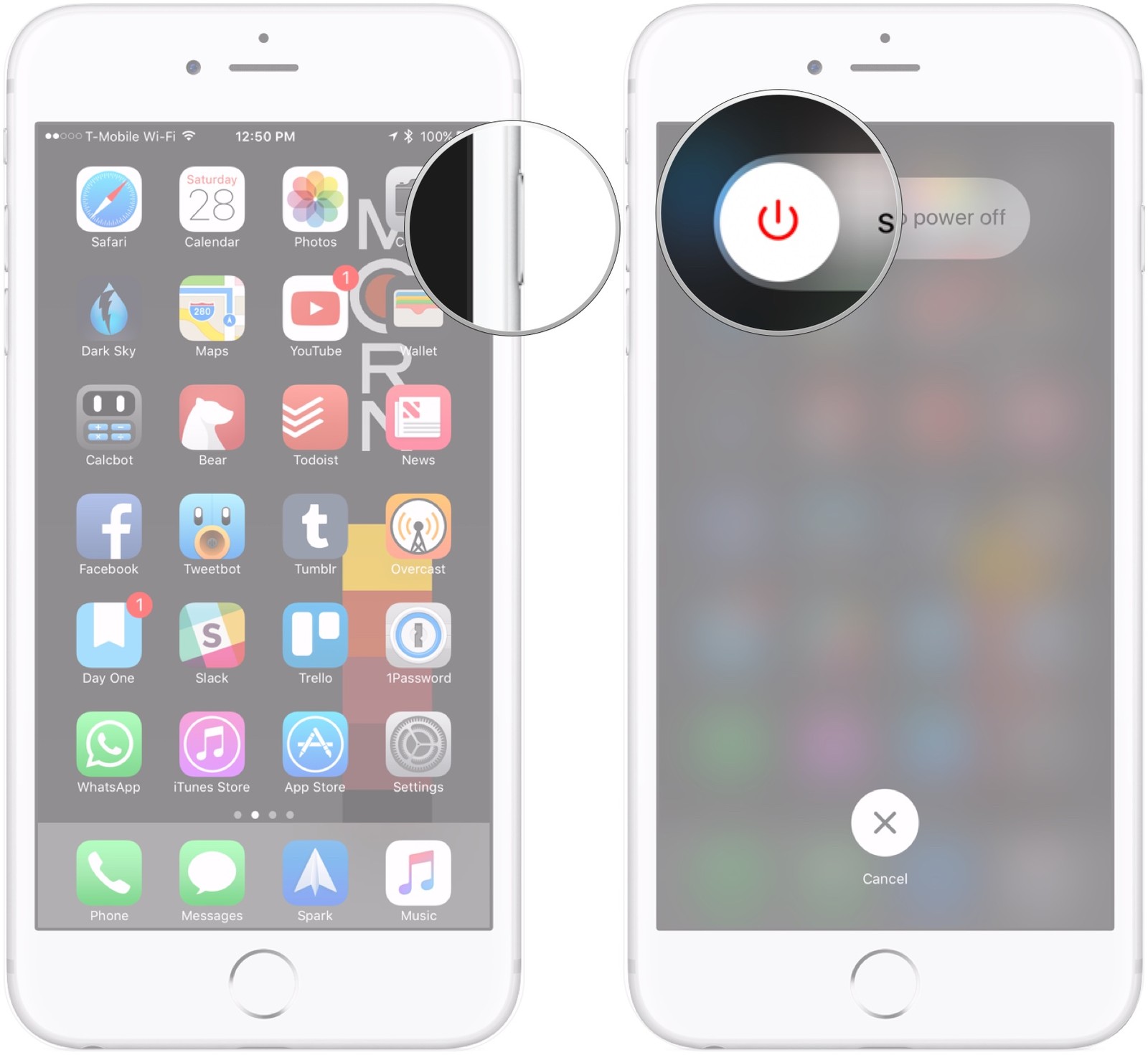
Step 6: Press and Hold the Side Button
Press and hold the Side button (located on the right edge of the device). Do not let go of the Side button when the screen goes black or when the Apple logo appears.
Step 7: Continue Holding Through the Apple Logo
Keep holding the Side button down continuously. The screen will turn black as the device reboots, and the Apple logo will appear. Maintain pressure on the Side button.
Step 8: Observe the Recovery Mode Screen
Keep holding the Side button past the Apple logo until the graphic changes to display a cable pointing toward a computer (or an iTunes icon with a cable). Once this recovery mode screen appears, you can release the Side button.
Step 9: Establish the Computer Connection
Plug the free end of the USB-C cable into the USB-C port at the bottom of your iPhone 15 Pro Max.
(Note: While steps 1 through 8 can technically be performed with the phone already plugged in, connecting the cable right as recovery mode engages helps bypass USB handshake timeouts on certain Windows configurations.)
Step 10: Confirm Connection in Finder or iTunes
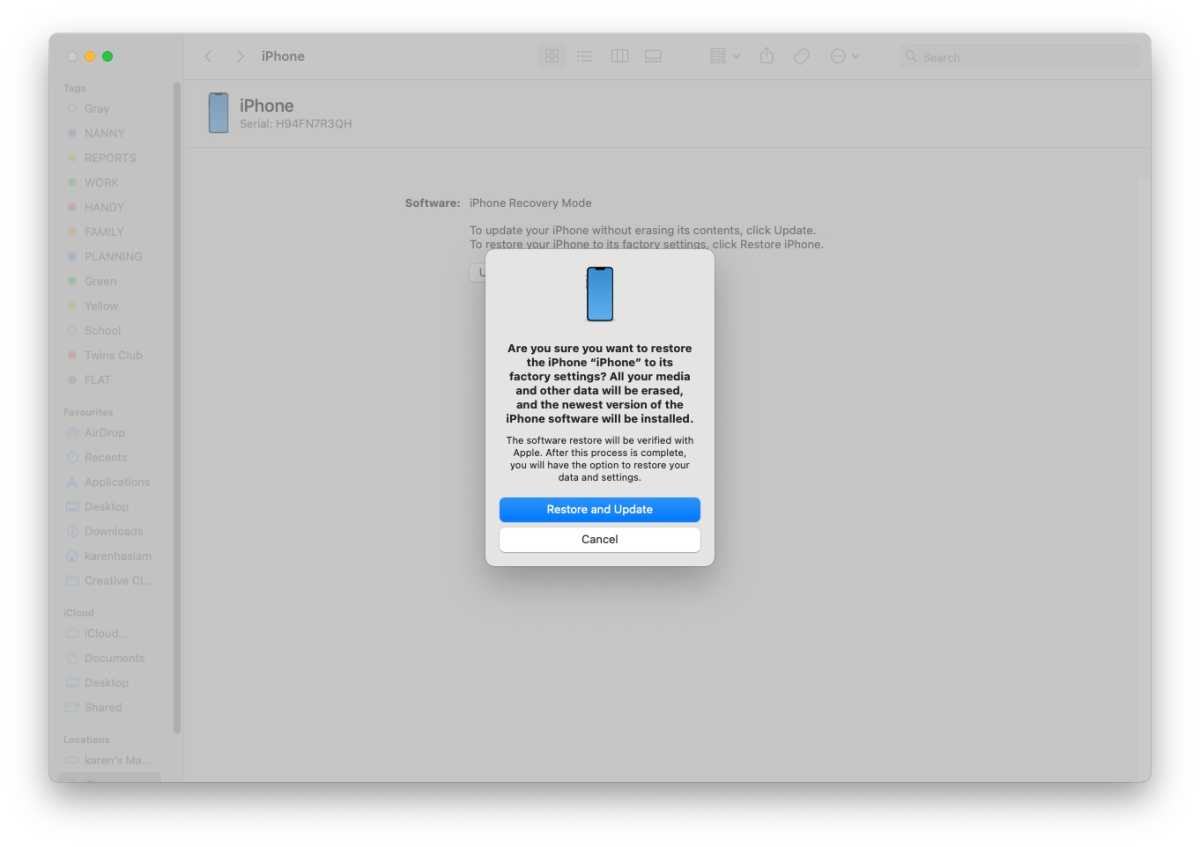
Look at your computer screen. A prompt should appear within Finder, iTunes, or the Apple Devices app stating: "There is a problem with the iPhone that requires it to be updated or restored." You have successfully placed your iPhone 15 Pro Max into recovery mode.
Verification and Interacting with the Device
Once the recovery mode prompt appears on your computer, you must decide how to proceed based on your diagnostic goals.
Interpreting Computer Prompts
- Update: The computer attempts to reinstall iOS without erasing your personal data. This is the preferred first step for resolving boot loops or failed updates.
- Restore: The computer erases the entire device, downloads the latest signed firmware image from Apple's servers, and installs a clean version of iOS. Use this option if software corruption is severe or if you are preparing the device for disposal.
Troubleshooting Failed Attempts
If your iPhone restarts normally into the home screen instead of entering recovery mode, the button-timing window was likely too slow.
- Ensure you are clicking Volume Up, then Volume Down, then holding the Side button in a rapid, fluid motion without pausing.
- Verify that your USB-C cable supports data transfer by testing it with another data-transfer application.
- If Windows fails to recognize the device in recovery mode, open the Device Manager, locate "Apple Mobile Device Recovery Device," right-click to update the driver, and point it to the Apple software directory.
Exiting Recovery Mode Without Restoring
If you entered recovery mode by mistake or wish to abort the troubleshooting process without losing data, you can force the iPhone 15 Pro Max to exit recovery mode and boot normally.
- Unplug the USB-C cable from the iPhone 15 Pro Max.
- Press and hold the Side button for approximately 10 to 15 seconds.
- Continue holding until the recovery graphic disappears, the screen goes black, and the Apple logo appears on the display.
- Release the Side button and allow the phone to finish booting into your normal lock screen.
(Note: If the underlying software corruption that forced the phone into recovery mode in the first place remains unresolved, the device will likely loop back into recovery mode or the Apple logo upon reboot.)
Frequently Asked Questions
Can I put an iPhone 15 Pro Max into recovery mode if the screen is completely broken?
Yes. Recovery mode is a hardware-level boot state controlled by the device's chip and bootrom. Even if the OLED display is shattered or unresponsive to touch, you can complete the button sequence. Once connected to a computer, Finder or the Apple Devices app will recognize that a device in recovery mode is attached, allowing you to initiate a restore.
Will putting my iPhone 15 Pro Max into recovery mode delete my photos?
If you select the Update option when prompted by your computer, your data, photos, and settings will be preserved while the operating system files are repaired. However, if you choose the Restore option, or if the update fails and forces a factory reset, local data will be erased. Always check your iCloud backup status before proceeding with system-level interventions.
Why won't my Windows PC recognize my iPhone 15 Pro Max in recovery mode?
Windows PCs occasionally fail to load the necessary Apple Mobile Device USB drivers automatically. To fix this, ensure you downloaded iTunes or the Apple Devices app directly from the official Microsoft Store rather than a third-party mirror. Additionally, try switching from a USB-A port to a native USB-C port on your computer, or swap out the cable to guarantee it supports data synchronization.
How do I know if my USB-C cable supports data transfer?
Many generic USB-C cables included with cheap accessories, desk lamps, or battery banks are wired strictly for power delivery and lack the internal data lines (D+ and D-) required to communicate with a computer. To avoid connectivity issues, use the original braided USB-C cable that came inside the retail box of your iPhone 15 Pro Max, or purchase a certified USB-IF data cable.
Summary and Next Actions
Successfully placing your iPhone 15 Pro Max into recovery mode is a reliable method for overcoming stubborn software errors, failed updates, and boot loops. By meticulously executing the sequence—Volume Up, Volume Down, and holding the Side button—while utilizing a verified data cable and a modern computer, you can bridge the gap between an unresponsive handset and a fully restored device. Proceed with an Update to preserve your files, or choose a Restore if a clean slate is required to restore system stability.