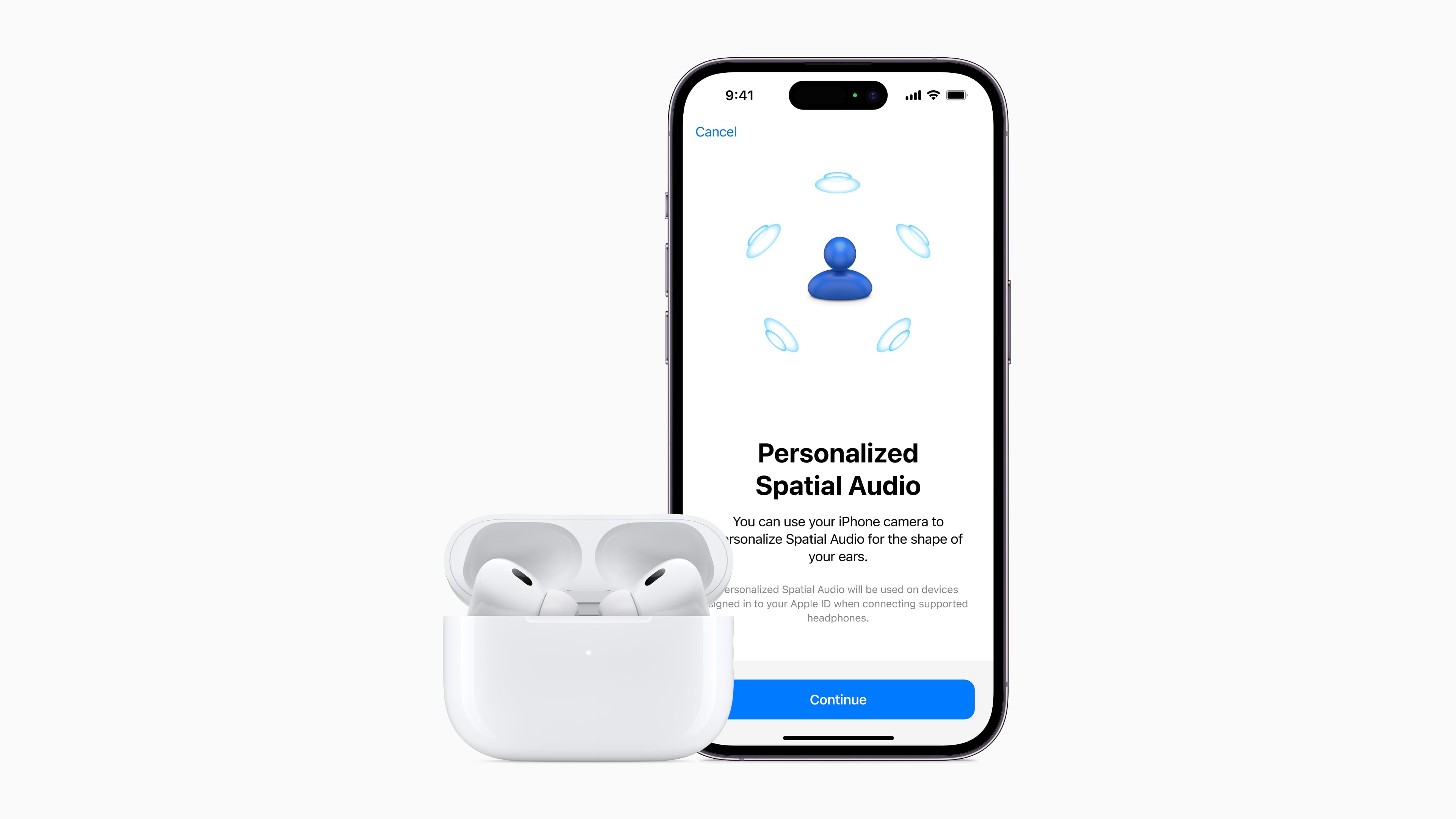
Apple AirPods Pro Spatial Audio creates a three-dimensional soundscape by using directional audio filters, dynamic head tracking, and object-based sound formats like Dolby Atmos. By adjusting sound frequencies sent to each ear, AirPods Pro simulate sound sources placed statically or moving dynamically around your physical environment.
Understanding Spatial Audio on AirPods Pro
Spatial Audio transforms standard headphone audio from a traditional left-and-right stereo channel layout into a multi-channel, 360-degree acoustic space. Rather than hearing music or soundtrack audio piped directly inside your head, Spatial Audio projects acoustic elements so they seem to originate from specific directions around you—front, behind, beside, and even overhead.
The Mechanics of 3D Sound
At its core, spatialization relies on complex psychoacoustic algorithms. Human ears determine where a sound originates in the real world by processing tiny differences in arrival time (interaural time difference) and volume (interaural level difference) between the left and right ear. Additionally, the outer structure of your ear (the pinna) modifies sound waves depending on their elevation and angle of approach.
Spatial Audio on AirPods Pro simulates these auditory cues in real time:
- Directional Filters: Frequency responses are continually modified to mimic how sound waves reflect off your head and torso.
- Virtual Channel Positioning: Multi-channel surround streams (5.1, 7.1, or Dolby Atmos objects) are positioned in virtual space surrounding the listener.
- Real-time Processing: The Apple-designed H1 chip (in AirPods Pro 1st Generation) or H2 chip (in AirPods Pro 2nd Generation) performs real-time audio computation to maintain high-fidelity audio output without perceptible latency.
Dolby Atmos vs. Spatialize Stereo
It is important to distinguish between native spatial content and simulated spatial sound:
- Native Spatial Audio (Dolby Atmos / Multi-Channel): Content specifically mixed for Dolby Atmos or multi-channel surround sound contains precise metadata detailing where sound objects belong in 3D space. When played on AirPods Pro, the system decodes this metadata directly, presenting an accurate spatial mix masterfully produced in the studio.
- Spatialize Stereo: For classic 2-channel stereo tracks, iOS and macOS use real-time audio processing to extract directional elements and project them into a virtual soundstage. While this adds depth and width to older or standard stereo recordings, it relies on algorithmic prediction rather than native multi-channel studio metadata.
- Spatial Audio Processing
- Source Content
- Native Dolby Atmos / Surround: Precise Object Mapping
- Standard 2-Channel Stereo: Algorithmic "Spatialize" Track
- Hardware Sensors & Processing
- Gyroscope & Accelerometer: Tracks Head Orientation
- Apple H1 / H2 Chip Processing: Real-Time HRTF Filters
- Output Experience
- Fixed or Dynamic Head-Tracked 3D Audio directly in AirPods Pro
- Source Content
Dynamic Head Tracking
Dynamic Head Tracking utilizes built-in motion sensors—specifically accelerometers and gyroscopes—located inside both the AirPods Pro earbuds and the host device (such as an iPhone or iPad).
When you turn your head to the left while watching a film on an iPad placed directly in front of you, the audio anchors itself to the screen. The dialogue that was centered in both ears shifts toward your right ear, exactly as acoustic sound would behave if an actor were physically standing in front of you. This constant reorientation prevents the soundfield from rotating with your skull, creating a fixed acoustic anchor point within your room.
Personalized Spatial Audio and HRTF
Introduced in iOS 16, Personalized Spatial Audio takes spatial sound tailored precision a step further. Everyone has uniquely shaped ears, heads, and cartilage structures. These unique physical features alter sound frequencies before they reach the eardrum—a acoustic phenomenon known as a Head-Related Transfer Function (HRTF).
Using the TrueDepth camera system on compatible iPhones, Personalized Spatial Audio scans the geometry of your face and both ears. The operating system constructs a custom mathematical HRTF profile linked to your Apple ID. This custom profile fine-tunes how directional filters process Spatial Audio across all supported devices connected to your Apple account, resulting in sharper sound localization, clearer sound separation, and reduced audio phase distortion.
Device Requirements and Supported Hardware
To experience Spatial Audio on AirPods Pro, specific hardware and software combinations are required. Not all playback hardware or streaming applications support every level of spatial rendering.
Supported Earbuds and Headphones
Apple’s Spatial Audio framework works across several audio devices containing Apple silicon:
- AirPods Pro (1st Generation): Powered by the H1 chip; supports Fixed Spatial Audio, Dynamic Head Tracking, and Personalized Spatial Audio.
- AirPods Pro (2nd Generation - Lightning and USB-C): Powered by the H2 chip; features enhanced acoustic rendering, improved head-tracking responsiveness, and updated high-bandwidth transmission capabilities.
- Other Compatible Devices: AirPods (3rd and 4th Generations), AirPods Max, Beats Fit Pro, and Beats Studio Pro.
Host Hardware and Operating System Requirements
Spatial Audio and Dynamic Head Tracking require sufficient processing power from the host transmitter device. You can review detailed compatibility notes on Apple Support. Standard compatibility specifications include:
| Device Category | Minimum Hardware | Minimum OS Version | Notes |
|---|---|---|---|
| iPhone | iPhone 7 or later | iOS 14.0+ (iOS 16+ for Personalized HRTF) | Requires iPhone with TrueDepth camera for setup |
| iPad | iPad Pro 12.9" (3rd gen+), iPad Pro 11", iPad Air (3rd gen+), iPad (6th gen+), iPad mini (5th gen+) | iPadOS 14.0+ | Dynamic head tracking anchors sound to iPad screen position |
| Mac | Apple Silicon Macs (M1/M2/M3/M4 series) or select Intel models (2018 or later laptops) | macOS Monterey (12.0)+ | Built-in speakers on recent MacBooks also support Spatial Audio |
| Apple TV | Apple TV 4K (all generations) | tvOS 15.0+ | Supports system-wide head tracking and home theater spatial sound |
Streaming Services and App Support
Spatial Audio capabilities depend heavily on the media player and stream format provided by individual software applications:
- Apple Music: Offers native Dolby Atmos tracks marked with a spatial badge. Automatically delivers spatial mixes on AirPods Pro.
- Apple TV App / Apple TV+: Supports full multi-channel, 5.1, 7.1, and Dolby Atmos audio with dynamic head tracking.
- Third-Party Video Streaming: Services such as Netflix, Disney+, Max, Amazon Prime Video, and Hulu support spatialized surround sound when playing back content available in 5.1, 7.1, or Dolby Atmos formats via supported iOS/macOS apps.
- YouTube: Supports Spatial Audio rendering primarily through multi-channel formats or standard 2-channel tracks using "Spatialize Stereo."
Step-by-Step Setup and Configuration Guide
Configuring Spatial Audio on your AirPods Pro requires pairing your earbuds correctly and adjusting settings within iOS, iPadOS, macOS, or tvOS.
- Pair AirPods Pro to iOS Device (iOS 16+)
- Scan Face & Ears via TrueDepth Camera (Personalization)
- Open Control Center & Press-and-Hold Volume Slider
- Select Audio Mode: [Off] | [Fixed] | [Head Tracked]
How to Turn On Spatial Audio on iPhone or iPad
- Ensure your AirPods Pro are connected to your iPhone or iPad and placed in your ears.
- Swipe down from the top-right corner of your screen (or swipe up from the bottom on devices with a Home button) to open Control Center.
- Press and hold the Volume Slider.
- Tap the Spatial Audio (or Spatialize Stereo) icon in the lower-right corner.
- Select your preferred operating mode:
- Off: Disables all spatial processing, returning to standard stereo.
- Fixed: Enables 3D spatial sound processing without locking sound orientation to your head movements.
- Head Tracked: Enables 3D spatial sound and actively tracks head orientation relative to your host device.
How to Set Up Personalized Spatial Audio
To configure a custom Head-Related Transfer Function profile using your iPhone's TrueDepth camera:
- Put your AirPods Pro in your ears and ensure they are connected to your iPhone.
- Open Settings on your iPhone.
- Tap the name of your AirPods Pro near the top of the main Settings menu.
- Scroll down to Personalized Spatial Audio and select Personalize Spatial Audio...
- Tap Continue to start the spatial capture wizard.
- Follow the on-screen camera prompts:
- Position your face directly in front of the TrueDepth camera frame and move your head slowly in a circle to capture your front profile.
- Move the phone to capture your right ear structure until an auditory tone confirms capture.
- Move the phone to capture your left ear structure until the second tone confirms completion.
- Tap Done. Your profile will automatically sync across all Mac, iPad, and Apple TV devices signed into the same Apple ID.
Enabling Spatial Audio on macOS
- Connect your AirPods Pro to your Mac and insert them into your ears.
- Click the Control Center icon in the upper-right corner of the macOS menu bar.
- Click Sound, then select your AirPods Pro.
- Choose your desired output mode under the Spatial Audio sub-menu: Off, Fixed, or Head Tracked.
Configuring Spatial Audio on Apple TV 4K
- Put on your AirPods Pro while sitting in front of your Apple TV 4K.
- Press and hold the TV/Control Center button on your Siri Remote to open the sidebar.
- Select the AirPods Pro icon.
- Toggle Spatial Audio between Off, Fixed, or Head Tracked.
Technical Comparison of Spatial Modes
To determine which spatial mode best fits your listening conditions, consider how each configuration processes incoming audio streams:
| Mode Feature | Off (Standard Stereo) | Fixed Spatial Audio | Head Tracked Spatial Audio | Spatialize Stereo |
|---|---|---|---|---|
| Acoustic Soundstage | Traditional left/right ear channel split | Expanded 360° virtual sound field | Expanded 360° virtual sound field anchored to screen | Simulated 3D separation from 2-channel audio |
| Motion Tracking | Disabled | Disabled | Active (uses gyroscopes & accelerometers) | Optional (Fixed or Head Tracked) |
| Ideal Content | High-fidelity stereo music, podcasts | Music while walking, running, or working out | Movies, TV shows, stationary video watching | Older stereo movies, non-Atmos streaming tracks |
| Processing Overhead | Low (maximum battery life) | Moderate | High (maximum sensor & DSP utilization) | Moderate to High |
| Personalized HRTF Support | No | Yes | Yes | Yes |
Sound Quality, Real-World Performance, and Limitations
While Spatial Audio offers an elevated acoustic experience for home theater content and immersive music mixes, performance varies depending on source content quality, physical environment, and connection interfaces.
Music Listening vs. Cinematic Viewing
- Cinematic Audio: Spatial Audio excels when viewing movies and television shows mixed in Dolby Atmos or multi-channel surround formats. Center channel dialogue remains focused directly on the screen, while atmospheric environmental sounds (such as rain, overhead aircraft, or side sound effects) move realistically around the room.
- Music Reproduction: Experience with music tracks varies based on the sound engineering of the mix. Dolby Atmos tracks mixed thoughtfully from original multi-track recordings sound wide, detailed, and expressive. However, older stereo tracks converted automatically via Spatialize Stereo can sometimes sound reverberant, unnaturally hollow, or pushed back within the frequency spectrum.
Battery Drain and DSP Performance
Using real-time head tracking and digital signal processing (DSP) increases power usage on AirPods Pro.
- Standard Playback: AirPods Pro (2nd Generation) provide up to 6 hours of listening time with Active Noise Cancellation (ANC) turned on and Spatial Audio turned off.
- Spatial Audio Playback: Enabling Spatial Audio with Head Tracking reduces maximum listening time per charge to roughly 5.5 hours. Older AirPods Pro models show a similar proportional reduction in overall battery endurance.
Hardware Limitations and Non-Apple Compatibility
Spatial Audio relies heavily on proprietary protocols managed by Apple’s operating systems and custom audio silicon.
- Android and Windows PCs: When connected to non-Apple operating systems via standard Bluetooth profiles (A2DP), AirPods Pro function as high-quality Bluetooth headphones with Active Noise Cancellation and Transparency mode. However, Spatial Audio, Dynamic Head Tracking, and Personalized HRTF setups are unavailable on Android or Windows devices.
- Bandwidth Constraints: Standard Bluetooth audio transmission is constrained by available wireless bandwidth. While AirPods Pro handle spatial rendering effectively onboard, high-resolution audio streaming is compressed over Apple's AAC codec.
Troubleshooting Common AirPods Pro Spatial Audio Issues
If Spatial Audio is not functioning correctly, grayed out, or exhibiting unexpected audio dropouts, review these practical troubleshooting procedures.
- Spatial Audio Troubleshooting
- Feature Grayed Out / Disabled
- Check Mono Audio: Settings > Accessibility > Audio/Visual
- Check Content Stream: Ensure track is playing in 5.1/Atmos/Stereo
- Head Tracking Drifting / Uncentered
- Lock Head Position: Look straight at device for 5 seconds
- Reset Sensors: Place AirPods in case for 15 seconds
- Spatialization Missing on macOS / Apple TV
- Verify Apple ID: Ensure device shares main iCloud account
- Re-sync Profile: Turn Personalized Spatial Audio off and on
- Feature Grayed Out / Disabled
1. Spatial Audio Options Are Grayed Out or Unavailable
- Disable Mono Audio: Spatial Audio cannot render 3D positional sound if your device is forced to output a single mono channel. Navigate to Settings > Accessibility > Audio & Visual, and verify that Mono Audio is toggled Off.
- Verify Active Connection: Ensure both AirPods Pro are seated securely in your ears. Spatial Audio dynamically disables itself if proximity sensors detect that only one earbud is inserted.
2. Sound Field Drifts or Uncenters Unexpectedly
If sound centers off-axis or fails to follow head movements properly:
- Center Anchor Reset: Look straight ahead at your host device screen for 3 to 5 seconds. The motion tracking algorithms will automatically re-center the reference point.
- Reset AirPods Sensors: Return both AirPods Pro to their charging case, close the lid, wait 15 seconds, and place them back into your ears. This calibrates the internal gyroscopes and accelerometers.
3. Audio Sounds Muffled, Hollow, or Phase-Distorted
- Toggle Off Spatialize Stereo: Algorithmic stereo spatialization can cause phase cancellation on older acoustic recordings. Open Control Center, press and hold the Volume Slider, tap Spatial Audio, and switch from Spatialize Stereo back to Off.
- Reset Personalized HRTF Profile: If an ear scan was performed under poor lighting conditions, the generated HRTF profile might distort high frequencies. Go to Settings > AirPods Pro > Personalized Spatial Audio, tap Stop Using Personalized Spatial Audio, and scan your profile again in a well-lit room.
Frequently Asked Questions
Does Spatial Audio work on Android phones with AirPods Pro?
No. Spatial Audio and Dynamic Head Tracking rely on software frameworks embedded within iOS, iPadOS, macOS, and tvOS. When paired with an Android phone or Windows PC, AirPods Pro function as traditional stereo Bluetooth headphones.
What is the primary difference between Dolby Atmos and Spatial Audio?
Dolby Atmos is an object-based audio format used by studio engineers to place sound objects in a 3D grid. Spatial Audio is Apple's spatial rendering technology that decodes surround sound formats (including Dolby Atmos) and uses internal headphone sensors to project that sound dynamically around the listener.
Does Personalized Spatial Audio sync across all my Apple devices?
Yes. Once you capture your ear geometry using an iPhone with a TrueDepth camera running iOS 16 or later, your custom Head-Related Transfer Function profile automatically syncs to your Apple ID across your iPad, Mac, and Apple TV devices.
Why does Spatial Audio switch back to stereo automatically?
Spatial Audio automatically reverts to standard output if you switch to a media application that only supports standard mono sound, if you remove one AirPod Pro from your ear, or if Mono Audio is turned on within Accessibility settings.
Does turning off Spatial Audio increase battery life on AirPods Pro?
Yes. Disabling Dynamic Head Tracking and Spatial Audio processing reduces computational load on the internal H1 or H2 chip, extending total listening time by up to 30 minutes per full battery charge.
Recommended Next Steps
To get the best performance out of Spatial Audio on your AirPods Pro:
- Perform a TrueDepth Scan: Set up Personalized Spatial Audio on your iPhone running iOS 16 or later to build a custom HRTF acoustic profile tailored to your ears.
- Test Native Dolby Atmos Audio: Play a track tagged with the Dolby Atmos badge in Apple Music or watch a Dolby Atmos title on Apple TV+ to hear true multi-channel spatialization.
- Choose the Right Mode for Your Activity: Use Head Tracked mode when sitting down to watch movies or videos on a static screen. Switch to Fixed mode or Off when walking, exercising, or listening to standard stereo audio tracks.
EDITORIAL CATEGORY METADATA: