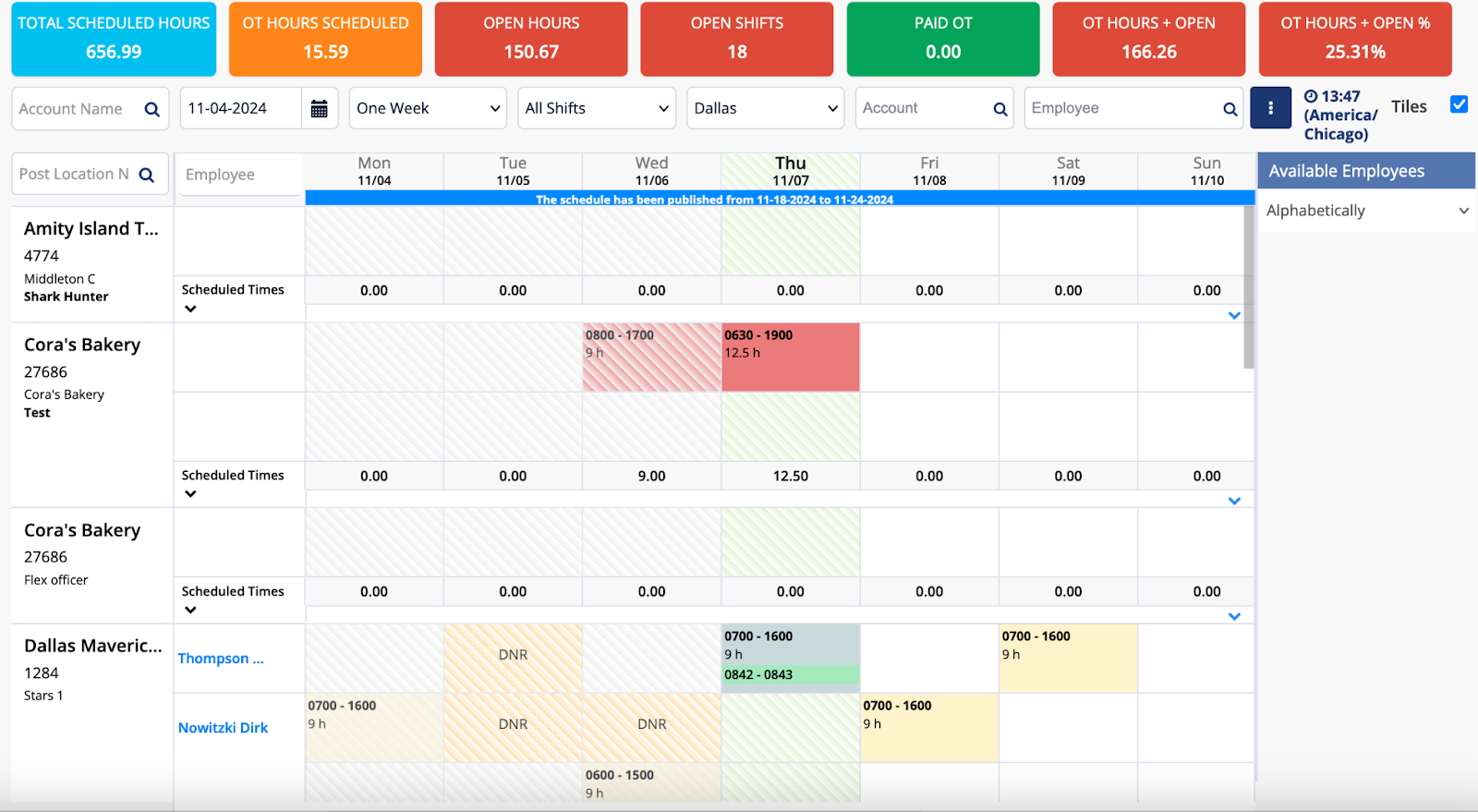
Managing your pool and spa environment requires precision and consistency to ensure water health, equipment longevity, and energy efficiency. The AquaLink schedule overview serves as the centralized dashboard for configuring the automated operation of pumps, heaters, lights, and sanitation systems. By understanding how to navigate and program these schedules, you can optimize your equipment performance while significantly reducing manual maintenance requirements.
Core Purpose of the AquaLink Scheduling System
At its heart, the AquaLink system—developed by Jandy and now part of the Fluidra group—acts as the central nervous system for residential swimming pools. The "schedule overview" is not merely a calendar of events; it is a complex logic controller that dictates when specific hardware components engage and for how long.
The primary objective of scheduling is to ensure that essential systems, such as filtration and sanitation, run during optimal windows. Filtration systems are typically scheduled to operate when debris accumulation is highest or to take advantage of utility off-peak pricing, where available. By centralizing these controls, the system eliminates the need for mechanical interlock timers, which are prone to drifting over time and failing during power fluctuations.
Prerequisites for Scheduling Your AquaLink System
Before you attempt to modify your schedule, you must ensure that your system is properly initialized. Scheduling requires a functional interface, typically accessed via the AquaLink mobile application or the physical wall-mounted controller.
System Readiness Checklist
- Connectivity: Ensure your AquaLink web-connect device has a stable internet connection. Scheduling via the cloud requires the server to communicate with your local equipment controller.
- Clock Synchronization: Verify that the system time is accurate. Because the schedule relies on time-based triggers, an incorrect clock will cause your equipment to operate during the wrong hours, potentially affecting water quality.
- Equipment Assignment: Ensure all devices (pumps, lights, valves) are correctly labeled in the device configuration menu. If a device is not assigned to a functional group, the schedule will not trigger it correctly.
- Firmware Version: Ensure your controller is running the latest firmware compatible with your hardware version. Outdated firmware can lead to synchronization errors where the schedule exists on the interface but fails to execute at the equipment pad.
Navigation and Interface Layout
The schedule overview screen is designed to be hierarchical. Users are generally presented with a list of "Equipment Items" (e.g., Filter Pump, Spa Heater, Pool Light) and their associated programmed states.
When you access the overview, you will see a list of active programs. Each entry typically contains:
- The Device Name: The hardware being controlled.
- The Cycle Type: Whether the operation is a "Daily," "Weekly," or "One-Time" event.
- Start and End Times: The precise window of operation.
- Status: Whether the program is currently enabled or disabled.
Understanding this interface is critical because the AquaLink system follows a strict priority logic. If two schedules conflict—for example, if a "Filter Pump" is scheduled to turn off while a "Spa Mode" is scheduled to turn on—the system must have a hierarchy to determine which command takes precedence. In most Jandy AquaLink configurations, manual overrides or high-priority modes (like "Service Mode") will temporarily suppress automated schedules.
Step-by-Step Guide to Programming Schedules
To implement a new schedule, navigate through the "Programming" tab within the primary dashboard.
- Select the Device: Locate the item you wish to schedule, such as your primary variable-speed pump.
- Define the Program Type: Select "Daily" for consistent pool maintenance or "Manual" for intermittent requirements.
- Input Parameters: Use the slider or numeric keypad to set the "Start Time" and "Stop Time."
- Assign Days of the Week: Most residential systems use a seven-day cycle. Ensure that you have checked every box for the days the equipment is required to run.
- Verify and Save: Once configured, the system will prompt you to save. If you do not save the configuration to the internal memory of the controller, a power loss may revert the schedule to the previous state.
Table: Comparison of Scheduling Modes
| Mode Type | Best Used For | Key Advantage |
|---|---|---|
| Daily Cycle | Filtration & Sanitization | Ensures consistent water turnover. |
| Weekly Cycle | Cleaning cycles & specific events | Allows for weekend-only maintenance. |
| One-Time Event | Parties or service visits | Does not impact permanent settings. |
| Manual Override | Immediate cleanup/heating | Bypasses all pre-existing schedules. |
Managing Conflicts and Priorities
One of the most common issues users face is the "skipped schedule." This occurs when multiple programs overlap. For example, if you have a schedule for a solar heater to run only when the filter pump is active, but your pump is scheduled to turn off at 4:00 PM, the solar heater will terminate prematurely.
To avoid this, use the "Schedule Overview" to visualize the timeline of your equipment. If your controller supports it, look for a "Timeline View" rather than a "List View." This visual representation allows you to see if your pump run-time covers the necessary windows for your auxiliary equipment, such as booster pumps for cleaners or UV sanitizers.
Troubleshooting Schedule Failures
If your equipment is not responding to the scheduled times, follow this systematic troubleshooting path before contacting a service technician:
- Check the "Mode" Status: Is your system in "Service Mode"? If it is, the controller ignores all automated schedules. Toggle the system back to "Auto" mode.
- Verify Auxiliary Assignments: Sometimes, a firmware update or power surge can reset the association between a label and a physical relay. Check if the "Filter Pump" label is still linked to the relay that physically controls the pump motor.
- Review Timezone Settings: Occasionally, the cloud server may experience a timezone drift. Check if the "System Time" reflects your local time, including adjustments for Daylight Saving Time.
- Power Cycles: A hard reset of the power center (turning off the main breaker to the pool equipment for 30 seconds) can often clear temporary logic locks that prevent schedules from firing.
The Impact of Variable-Speed Pumps
Since 2021, the integration of Variable-Speed Pumps (VSPs) has made the AquaLink schedule overview more complex. Unlike single-speed pumps that simply turn "On" or "Off," VSPs have multiple "Speed Settings" (RPMs).
When scheduling a VSP, the overview will not just show an on/off time, but a set of RPM variables. It is considered best practice to set your "Filter Pump" schedule to run at a lower, energy-efficient speed for longer durations, while scheduling "High Speed" bursts only when skimming or heavy chemical dosing is required. Ensure your schedule overview clearly distinguishes between these speed profiles to prevent the motor from running at an inefficient RPM during standard filtration cycles.
Best Practices for Seasonal Scheduling
Pool owners should treat their schedule as a dynamic entity that changes throughout the year.
- Summer Peak: Increase filtration hours to account for higher sunlight exposure and increased bather load, which consume sanitizer rapidly.
- Winter Hibernation: Reduce filtration run times, but do not turn them off entirely if you live in a climate where freezing is a risk. Instead, use the AquaLink "Freeze Protection" feature, which overrides schedules to run the pump when ambient temperatures reach a critical threshold.
- Utility Awareness: Many regional utility providers in 2026 offer Time-of-Use (TOU) rates. Check your local energy provider's website to see if electricity costs vary by time of day. If so, adjust your AquaLink schedule to run high-consumption items like heaters and cleaners during the "Off-Peak" hours to minimize monthly expenses.
Safety and Professional Advice
While navigating the AquaLink schedule overview is a user-level task, always prioritize safety when interacting with pool equipment. The pool pad contains high-voltage electrical components. Never remove the faceplate of the control panel or attempt to rewire relays if you are not qualified to do so. If the controller interface is physically cracked, shows signs of moisture inside the housing, or displays an error code that does not resolve after a power cycle, contact a professional pool automation technician.
Furthermore, verify that your insurance policy covers automated equipment damage caused by power surges or software failure. Proper documentation of your settings can be helpful in the event of an insurance claim.
Frequently Asked Questions
1. Can I control my AquaLink schedule from my smartphone?
Yes. Providing your AquaLink unit is connected to your local network, the official app allows for full remote access to your schedule overview, enabling you to add, modify, or delete programs from anywhere.
2. Why does my pool light turn on at the wrong time?
This is typically due to a discrepancy between the controller's internal clock and the actual time, or a "Dual Program" conflict where two schedules are telling the light to behave differently. Check the list of active programs for the specific light relay.
3. Will my schedules be deleted if the power goes out?
Most modern AquaLink controllers feature battery backup for their internal clock and non-volatile memory (NVM) for settings. Your schedules should remain saved, though a prolonged power outage may require you to confirm the time settings once power is restored.
4. What is "Freeze Protection" in the schedule settings?
Freeze Protection is a safety override. When an external air temperature sensor detects temperatures near freezing, the system will automatically activate the pumps to keep water moving through the pipes, preventing ice formation that could burst the plumbing.
5. How many schedules can I add to one device?
The limit depends on the specific model of your AquaLink controller. Most newer systems allow for multiple programs per relay, but keep the number limited to avoid logic conflicts and make it easier to manage the overview screen.
Next Steps for Optimized Operation
To begin mastering your AquaLink system, perform a "System Audit" this weekend. Log into your interface, navigate to the schedule overview, and delete any programs that are no longer relevant to your current season. If you are uncertain about a specific program, disable it rather than deleting it; this allows you to re-enable it easily if you find that it was actually necessary for a specific piece of equipment. By streamlining your schedule, you ensure that your pool operates only when necessary, saving both energy and equipment life.