To activate 2-Step Verification (2FA) on your Google Account, navigate to your Google Account settings, select the Security tab, and click on 2-Step Verification under the "How you sign in to Google" section. Follow the on-screen instructions to add a backup method, such as a mobile device for Google Prompts, an authenticator app, or a physical security key.
In 2026, the digital landscape remains heavily targeted by sophisticated phishing schemes, AI-driven credential-stuffing attacks, and automated hacking attempts. Relying solely on a password—no matter how complex—is no longer considered a sufficient security posture. Google's 2-Step Verification (2SV) serves as the primary defense mechanism for billions of users, ensuring that even if a password is stolen, an unauthorized actor cannot access your emails, documents, or sensitive personal data without a physical second factor.
Understanding the Necessity of 2-Step Verification
The concept of two-factor authentication (2FA) is built on three pillars of identity: something you know (your password), something you have (your phone or a physical key), and something you are (biometrics like fingerprints or facial recognition). By enabling 2SV on your Google Account, you require at least two of these pillars to grant access.
By 2026, Google has shifted many accounts toward Passkeys, which technically integrate the "second factor" into the initial login process via device-level biometrics. However, 2FA remains the essential fallback and a secondary layer for legacy systems and high-security environments. Without it, your account is vulnerable to remote attacks that can occur while you sleep, often originating from jurisdictions where legal recourse is impossible.
Prerequisites for Enabling 2FA
Before beginning the activation process, ensure you have the necessary components ready. Attempting to set up 2FA without proper backups can lead to accidental account lockout, which is a common hurdle for many users.
- A Reliable Mobile Device: Most users utilize their smartphones as the primary second factor. Ensure your phone is updated to the latest OS version for maximum compatibility with Google Services.
- A Secondary Recovery Method: Do not rely on a single device. You should have a backup phone number, an alternative email address, or a set of printed backup codes.
- Account Access: You must be able to log into your Google Account with your current password. If you have forgotten your password, you must complete the account recovery process before you can modify security settings.
- Internet Connectivity: A stable connection is required to sync your account settings across Google’s servers and to verify the initial 2FA setup.
Step-by-Step Guide to Activating 2-Step Verification
Follow these detailed steps to secure your account. The interface in 2026 remains streamlined, focusing on the "Security Checkup" ecosystem.
Step 1: Accessing Your Security Settings
Navigate to the Google Account portal. On the left-hand navigation pane (or the top menu on mobile), select the Security tab. This area is the central hub for all privacy and protection settings associated with your identity.
Step 2: Initiating 2-Step Verification
Scroll down to the section titled How you sign in to Google. Look for the status of 2-Step Verification. If it is listed as "Off," click on the arrow to proceed. You will be prompted to re-enter your password to verify that the authorized account holder is making these sensitive changes.
Step 3: Choosing Your Primary Method
Google will present several options for your second step. In 2026, the preferred methods are ranked by security level:
- Google Prompts: This is the default and most convenient method. When you sign in on a new device, a notification appears on your existing phone asking, "Is it you trying to sign in?" You simply tap "Yes" to approve.
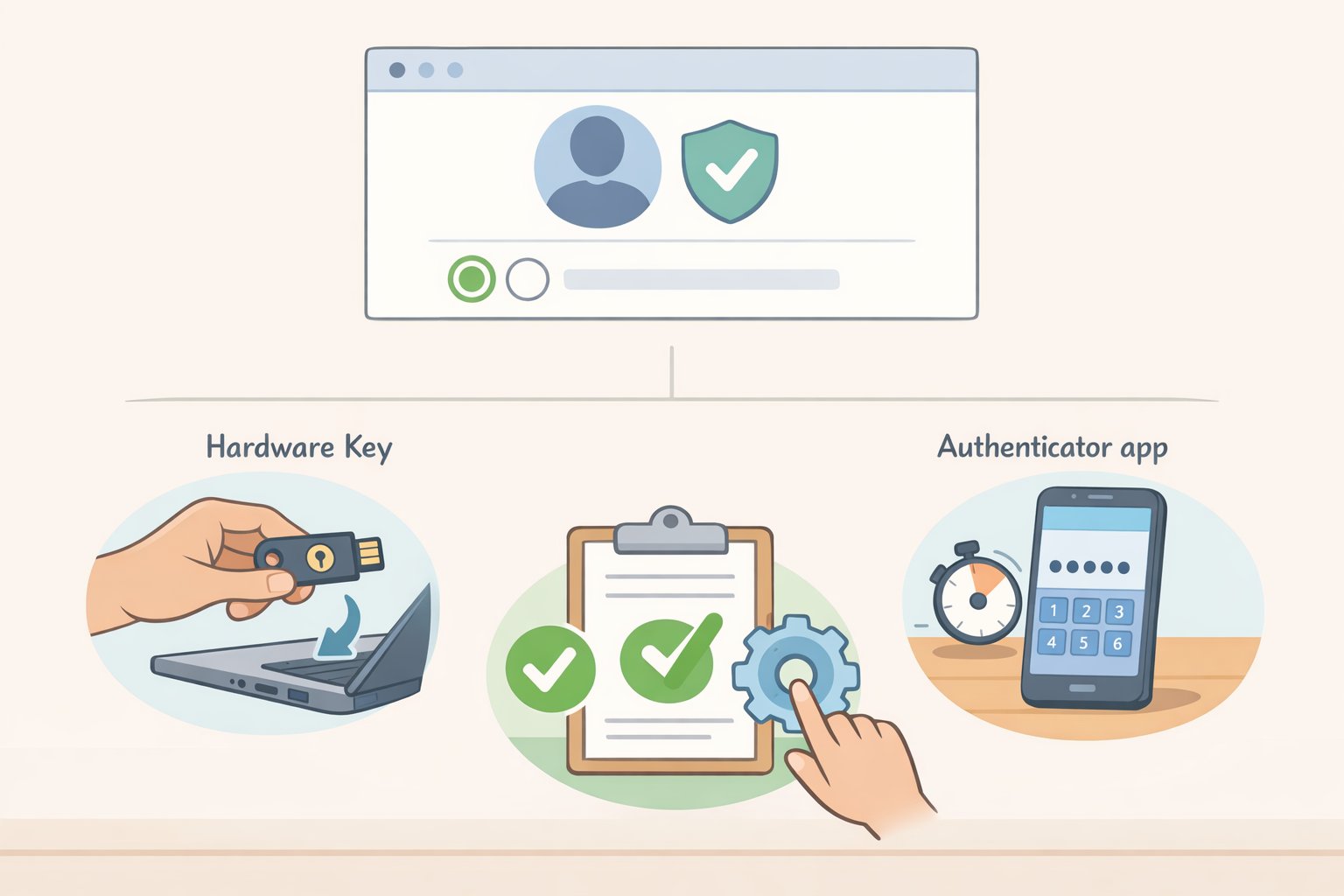
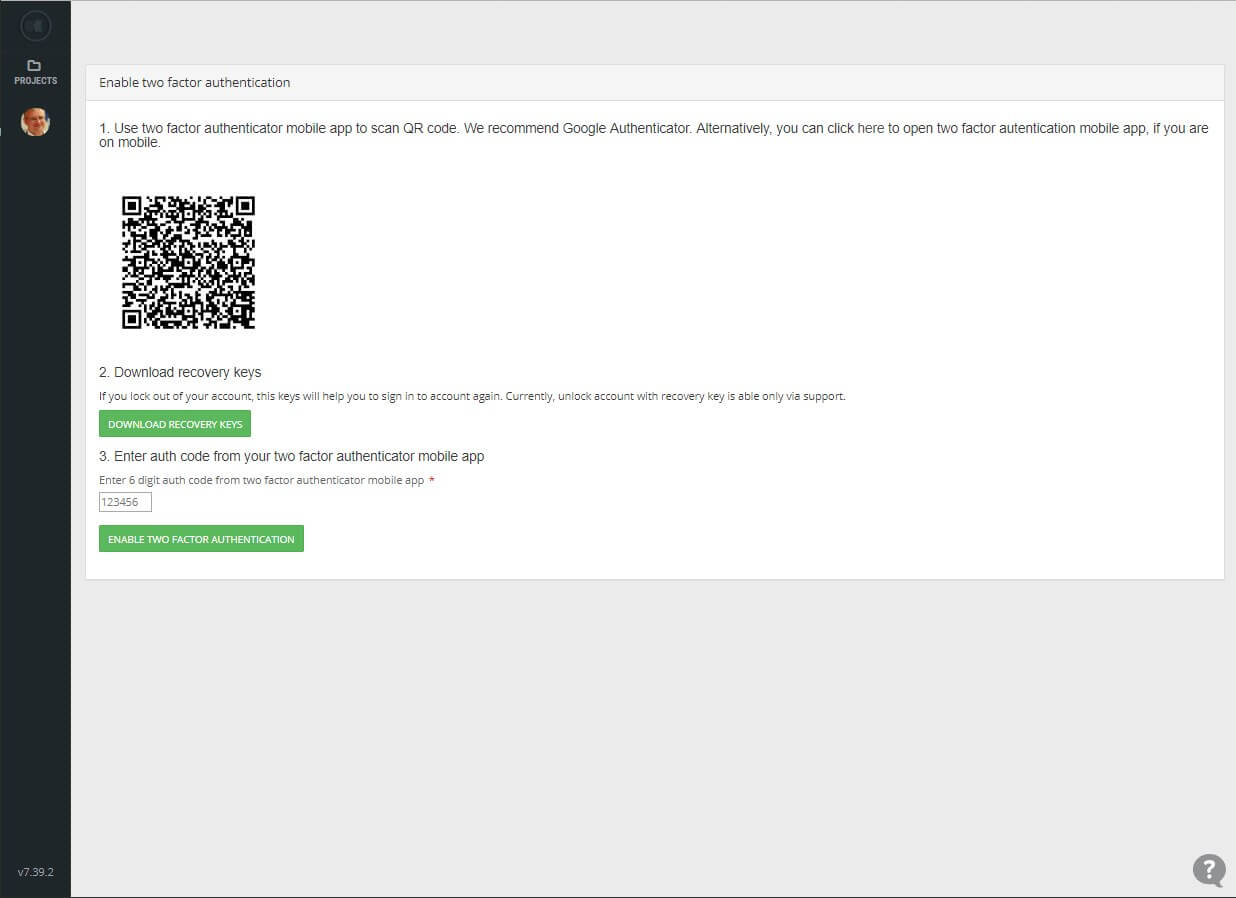
- Authenticator App: Applications like Google Authenticator or specialized third-party managers generate a time-based one-time password (TOTP). This is highly effective because it works even when your phone is offline or has no cellular service.
- Security Keys: These are physical USB, NFC, or Bluetooth devices (such as a YubiKey). They offer the highest level of protection against phishing because they require a physical hardware handshake that remote hackers cannot replicate.
Step 4: Configuring Backup Methods
Once your primary method is active, Google will urge you to set up a backup. Do not skip this step. If you lose your primary phone and do not have a backup method, recovering your account can take several days or may even be impossible if identity cannot be verified.
- Backup Codes: Google generates a list of ten 8-digit codes. Print these out or save them in a secure, offline location like a physical safe. Each code can be used once to log in if your phone is unavailable.
- Backup Phone Number: A secondary number that can receive SMS codes. While less secure than prompts or apps due to the risk of "SIM swapping," it is better than having no backup at all.
Comparing 2FA Methods for Google Accounts
Choosing the right method depends on your threat model and your daily habits. The table below outlines the trade-offs between the most common 2FA implementations available in 2026.
| Method | Security Level | Convenience | Works Offline? | Resistance to Phishing |
|---|---|---|---|---|
| Google Prompts | High | Excellent | No | High |
| Security Keys (FIDO2) | Maximum | Moderate | Yes | Maximum |
| Authenticator App | High | Good | Yes | High |
| Backup Codes | High | Low | Yes | High |
| SMS/Text Codes | Moderate | High | No | Low |
The Role of Passkeys in 2026
It is important to distinguish between traditional 2FA and Passkeys. By 2026, Google has integrated Passkeys as the standard for passwordless logins. A Passkey allows you to sign in using your device's screen lock (fingerprint, face scan, or PIN).
When you use a Passkey, you are essentially performing a multi-factor authentication in a single step, as the "something you have" (your device) and "something you are" (biometrics) are verified simultaneously. Even if you use Passkeys, you should keep 2-Step Verification enabled as a fallback for when you need to sign in on a device that does not support your Passkey or when performing high-risk account changes.
Troubleshooting Common 2FA Issues
Even with a robust setup, technical hurdles can occur. Understanding how to resolve these quickly ensures you aren't locked out of critical services like Gmail or Google Drive.
Delay in Receiving SMS Codes
If you rely on SMS and the code does not arrive, check your signal strength or airplane mode settings. In 2026, carriers often filter short-code messages as spam. If the delay persists, try the "Resend" option or switch to an Authenticator app, which does not rely on cellular networks.
Lost or Stolen Device
If you lose the device used for Google Prompts, immediately log into your Google Account from a "Trusted Device" (like your home computer) and remove the lost phone from your account's device list. This revokes its ability to approve logins. You can then use your printed Backup Codes to re-establish 2FA on a new device.
Authenticator App Not Working
The most common issue with TOTP apps is time desynchronization. The codes are generated based on the current time. If your phone's clock is off by even a minute, the codes will be rejected. Go to the Authenticator app settings and select "Time correction for codes" to sync with Google’s servers.
Advanced Protection Program for High-Risk Users
For users who are at a higher risk of targeted attacks—such as journalists, activists, or business executives—Google offers the Advanced Protection Program.
This program mandates the use of physical security keys and restricts third-party app access to your data. It significantly increases the friction of signing in but provides the most rigorous security available in the consumer market. If you activate this, 2FA is no longer optional; it is a hard requirement for every login attempt on an unrecognized device.
Frequently Asked Questions
Can I turn off 2-Step Verification after enabling it?
Yes, you can disable 2-Step Verification by returning to the Security tab in your Google Account settings. However, doing so significantly increases your risk profile. Google may also restrict access to certain high-security features or YouTube monetization if 2SV is disabled. It is highly recommended to leave it active and instead use "Trusted Devices" to reduce the frequency of prompts.
What happens if I lose my phone and my backup codes?
If you lose all your second factors, you will need to go through the Account Recovery process. Google will ask a series of questions to verify your identity, which may include providing a previous password, verifying a recovery email, or answering security questions. This process can take several days as Google’s security team (or automated systems) must ensure a hacker isn't trying to social-engineer their way into your account.
Are physical security keys worth the cost in 2026?
For most users, Google Prompts or an Authenticator app provides sufficient security. However, physical keys are the only method that is virtually immune to phishing. Since they require a hardware handshake with the genuine Google URL, a fake phishing site cannot intercept the 2FA token. If you handle sensitive financial or professional data, the investment in a FIDO2-compliant key is a prudent one.
Does 2-Step Verification cost money?
No, Google does not charge for the 2-Step Verification service itself. However, depending on your mobile carrier's plan, you may incur standard text messaging or data charges if you choose to receive codes via SMS or use data for Google Prompts. Using an Authenticator app or a physical security key avoids these carrier-related costs entirely.
Do I need to enter a code every time I sign in?
No. When you sign in on a device you use frequently, you can check the box "Don't ask again on this computer." Google will then remember that specific device. You will only be prompted for a second factor if you log in from a new device, an unrecognized browser, or after clearing your browser's cookies.
Final Recommendation
Securing your Google Account is an ongoing process rather than a one-time task. Beyond simply activating 2-Step Verification, you should perform a Google Security Checkup at least once every six months. This tool highlights which devices have access to your account and identifies any third-party apps with excessive permissions. By combining a strong Passkey or password with a physical or app-based second factor, you ensure that your digital identity remains protected against the evolving threats of 2026.