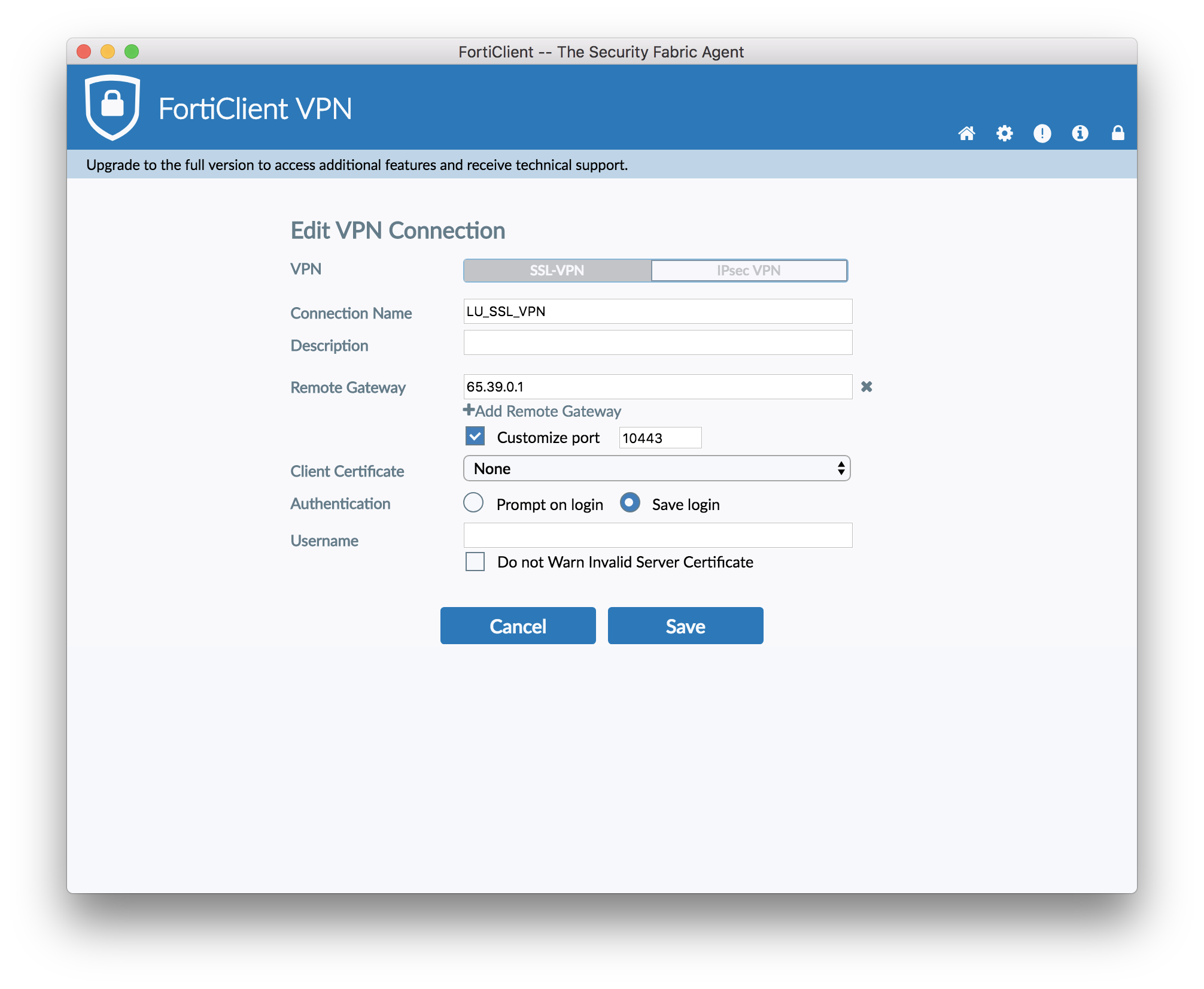
Fortinet FortiClient integrates enterprise endpoint protection, secure remote access VPN, Zero Trust Network Access (ZTNA), and Next-Generation Firewall (NGFW) telemetry into a single client agent. Managed centrally via FortiClient Enterprise Management Server (EMS), it bridges user devices and Fortinet Security Fabric to deliver comprehensive threat prevention, automated remediation, and policy enforcement across hybrid corporate networks.
The Role of FortiClient in Modern Enterprise Endpoint Security
In modern IT environments, remote and hybrid work models have rendered the traditional network perimeter obsolete. Enterprise endpoints—including laptops, desktops, and mobile devices—frequently operate outside internal network defenses, exposing organizations to advanced malware, credential theft, and unpatched vulnerabilities.
Fortinet FortiClient addresses this challenge by functioning as more than just a standalone antivirus application or remote access utility. It operates as an extensible security agent connected directly to the Fortinet Security Fabric. By pairing FortiClient with FortiGate Next-Generation Firewalls (NGFW) and FortiClient Enterprise Management Server (EMS), security teams achieve unified visibility, real-time threat intelligence sharing, and automated policy enforcement across both managed and unmanaged endpoints.
- FortiClient EMS / Security Fabric
- FortiClient Endpoint Agent
- ZTNA and Telemetry Sync with FortiGate NGFW Security Gateway
- IPsec/SSL VPN Tunnels with FortiGate NGFW Security Gateway
- FortiGate NGFW Security Gateway
- Protected Internal & Cloud Workloads
- FortiClient Endpoint Agent
Below is a technical breakdown of 17 foundational capabilities delivered by FortiClient across endpoint protection, firewall integration, VPN, and Zero Trust access control.
17 Essential Endpoint Protection, Firewall, and VPN Features
1. Secure SSL and IPsec VPN Remote Access
FortiClient provides encrypted remote connectivity using both Secure Sockets Layer (SSL) and Internet Protocol Security (IPsec) VPN protocols. It supports high-throughput encryption standards (AES-256), split-tunneling configurations to optimize bandwidth, and pre-logon VPN establishing secure connections before a user logs into Windows. This ensures remote workers maintain secure, authenticated access to corporate resources regardless of location.
2. Zero Trust Network Access (ZTNA) Agent Integration
Replacing legacy full-tunnel VPN dependencies, FortiClient serves as an inline ZTNA agent. It establishes encrypted ZTNA access proxies per application session rather than granting full network-level access. By evaluating device health, identity, and user context dynamically for every request, FortiClient enforces strict least-privilege access to on-premises and cloud-hosted applications.
3. Continuous Security Posture Assessment
FortiClient continuously audits host security metrics, evaluating operating system patch levels, firewall status, disk encryption, running processes, and registry flags. If an endpoint falls out of compliance—such as missing critical updates or having disabled security controls—FortiClient updates its telemetry to FortiGate and FortiClient EMS, triggering immediate conditional access restrictions.
4. Next-Generation Firewall (NGFW) Security Fabric Telemetry
Through real-time telemetry sharing, FortiClient feeds endpoint status, logged-in user identities, device fingerprints, and active threat logs directly into the FortiGate Security Fabric. This bidirectionally enables FortiGate firewalls to enforce network-level security policies based on user identity and device posture rather than static IP addresses alone.
5. AI-Powered Anti-Malware and Antivirus Protection
FortiClient incorporates Fortinet’s machine-learning-driven antivirus engine, capable of signature-based scanning alongside signatureless pattern analysis. Supported by real-time updates from FortiGuard Labs, the client halts known malware, trojans, spyware, and fileless attacks before execution on the host machine.
6. Behavioral Ransomware Protection and Remediation
To combat aggressive zero-day ransomware, FortiClient actively monitors process behaviors for unauthorized file modification and bulk encryption attempts. Upon detecting suspicious cryptographic activity, the agent immediately terminates the malicious process and restores affected local files using shadow copy backups created by the FortiClient anti-ransomware engine.
7. Endpoint Application Firewall
FortiClient features a localized application firewall that controls inbound and outbound network traffic for specific applications installed on the endpoint. Administrators can construct rules blocking unauthorized applications (such as peer-to-peer software or unauthorized remote desktop utilities) from initiating external socket connections, neutralizing potential data exfiltration vectors.
8. Web Filtering and URL Classification
Utilizing FortiGuard’s cloud database of billions of categorized URLs, FortiClient enforces web safety policies directly on the host browser, whether the device is connected to the corporate LAN or a public Wi-Fi network. It blocks malicious domains, phishing sites, and adult or non-work-related web categories, preventing web-borne infections and compliance violations.
9. Application Vulnerability Management and Automated Patching
Unpatched third-party software remains a top entry point for enterprise breaches. FortiClient performs scheduled and on-demand vulnerability scans across operating systems and third-party software (e.g., web browsers, runtime libraries, productivity suites). When managed by FortiClient EMS, administrators can deploy silent vulnerability patches across thousands of endpoints remotely.
10. Integrated Cloud and On-Premises Sandboxing
When FortiClient encounters unknown, unrated, or executable files containing non-deterministic code, it submits the file to FortiSandbox (cloud-hosted or on-premises appliance). FortiSandbox executes the payload in an isolated hypervisor environment, analyzes behavioral indicators, generates a threat rating, and updates FortiClient and FortiGate definitions globally within minutes.
11. Endpoint Detection and Response (EDR) Telemetry Integration
For enterprise environments requiring deep forensically visible monitoring, FortiClient interfaces directly with FortiEDR engines. It collects real-time process execution events, file system access records, and network connections, feeding structured event logs to central Security Operations Center (SOC) platforms to facilitate active threat hunting and root-cause analysis.
12. USB and Removable Media Device Control
To prevent physical data leaks and malware propagation via removable media, FortiClient incorporates granular USB and peripheral device control policies. System administrators can block unauthorized USB storage devices completely, set volume access to read-only, or enforce hardware encryption mandates based on vendor ID, product ID, or serial numbers.
13. Automated Endpoint Quarantine and Isolation
When a high-severity threat or active compromise is detected on an endpoint, FortiClient—either independently or via instructions from FortiGate or FortiClient EMS—can isolate the compromised host from the network. Network interface cards are restricted from communicating with peer devices or external internet addresses while maintaining a management socket to EMS for incident response.
14. Centralized Deployment and Policy Management via FortiClient EMS
Managing thousands of enterprise endpoints manually is unfeasible. FortiClient EMS provides centralized installer generation, active directory directory structure mapping, profile deployment, and policy enforcement. Security teams configure global security profiles once and push updates dynamically across Windows, macOS, Linux, iOS, and Android endpoints.
15. Dynamic Identity-Based Enforcement (FSSO Integration)
By integrating with Fortinet Single Sign-On (FSSO) and Active Directory, FortiClient authenticates user identities and correlates domain logons with dynamic host IP addresses. FortiGate firewalls leverage this mapping to enforce identity-based firewall rules, ensuring user privilege policies follow employees regardless of network access point or VLAN migration.
16. Localized Host Intrusion Prevention System (HIPS)
FortiClient includes a host-based intrusion prevention engine designed to detect and intercept network-level exploit attempts, buffer overflows, and memory injection tactics targeted directly at local application ports. This layer of defense shields endpoints against lateral movement attempts originated by compromised hosts on shared local networks.
17. Multi-Factor Authentication (MFA) Integration with FortiToken
To secure remote connections against credential theft, FortiClient natively integrates with FortiToken, FortiAuthenticator, and third-party SAML 2.0 Identity Providers (IdPs) like Azure Active Directory (Microsoft Entra ID) and Okta. Remote access VPN and ZTNA connections can require time-based one-time passwords (TOTP) or push notifications prior to tunnel negotiation.
Architectural Comparison of FortiClient Deployment Modes
FortiClient is deployed across varying feature tiers depending on enterprise requirements, ranging from basic VPN remote access to complete Zero Trust and Endpoint Protection capabilities.
| Feature / Capability | FortiClient VPN (Standalone / Free) | FortiClient ZTNA Profile | FortiClient EPP Profile (Complete Edition) |
|---|---|---|---|
| Central Management | Manual / Unmanaged | Managed via FortiClient EMS | Managed via FortiClient EMS / FortiCloud |
| IPsec & SSL VPN | Included | Included | Included |
| ZTNA Posture Check & Agent | Not Supported | Supported | Supported |
| Antivirus & Ransomware Shield | Not Supported | Optional / Minimal | Supported (AI Engine & Remediation) |
| Vulnerability Scanning & Patching | Not Supported | Supported | Supported |
| Web Filtering & App Firewall | Not Supported | Supported | Supported |
| Sandbox Cloud Integration | Not Supported | Supported | Supported |
| Automated Host Quarantine | Not Supported | Supported | Supported |
| Target Deployment Scenario | Basic Remote Workers | Hybrid Workforce ZTNA Access | Enterprise Endpoint Security Standard |
System Requirements and Prerequisites for Enterprise Rollout
Successfully deploying FortiClient across an enterprise network requires proper infrastructure sizing, administrative credentials, and baseline system permissions.
| PRE-DEPLOYMENT CHECKLIST |
|---|
| [ ] Supported Operating System (Windows 10/11, macOS 12+, Linux, iOS, Android) |
| [ ] Active FortiClient EMS Instance (On-Premises or FortiClient EMS Cloud) |
| [ ] Firewall Port Rules (TCP 8013 for EMS management connection) |
| [ ] Valid Enterprise FortiClient Fabric Agent License |
| [ ] Domain Administrative Privileges for Silent MSI/PKG Software Deployment |
Supported Operating Systems
- Microsoft Windows: Windows 10, Windows 11, and Windows Server 2016/2019/2022 (64-bit editions).
- Apple macOS: macOS 12 (Monterey), macOS 13 (Ventura), macOS 14 (Sonoma), and newer versions running on Intel or Apple Silicon architectures.
- Linux Distributions: Ubuntu, Red Hat Enterprise Linux (RHEL), CentOS, and Fedora distributions (64-bit).
- Mobile Platforms: Apple iOS/iPadOS and Android (available via official application stores for ZTNA and VPN functionality).
Network Port and Communication Requirements
For managed deployments using FortiClient EMS, network firewalls and local client firewalls must allow key connection pathways:
- TCP Port 8013: Used for secure communication and telemetry synchronization between FortiClient agents and FortiClient EMS.
- UDP/TCP Ports 500 / 4500: Required for IPsec VPN negotiation and NAT Traversal.
- TCP Port 443: Default listening port for SSL VPN access, ZTNA Access Proxies, and HTTPS console connections.
- UDP Port 53: Required for DNS lookup operations during ZTNA proxy mapping and Web Filtering queries.
Step-by-Step Guide: Deploying and Configuring FortiClient via EMS
The following steps outline the operational workflow for deploying FortiClient across enterprise endpoints using FortiClient EMS and connecting clients to a FortiGate firewall.
- Step 1: Configure EMS Profiles
- Define AV, ZTNA, Web Filter, and Vulnerability Scan policies in FortiClient EMS.
- Step 2: Generate Installer Package
- Build a custom pre-configured deployment installer (MSI/PKG) in EMS.
- Step 3: Distribute to Host Endpoints
- Push installer via Group Policy (GPO), Microsoft Intune, or Jamf Pro.
- Step 4: Establish Fabric Telemetry Connection
- Client auto-connects to EMS and registers telemetry with FortiGate NGFW.
- Step 5: Verify ZTNA & Firewall Enforcements
- Confirm host posture compliance and active application access proxying.
Step 1: Create Endpoint Profiles in FortiClient EMS
- Log in to the FortiClient EMS Console.
- Navigate to Endpoint Profiles > Manage Profiles.
- Select Add Profile and configure the desired security modules:
- Enable Malware Protection and set the real-time protection engine to block threats.
- Enable Zero Trust Telemetry and specify the IP/FQDN of the managing FortiClient EMS server.
- Enable Vulnerability Scan and define weekly automated patch schedules for third-party software.
- Enable Web Filter and configure FortiGuard URL category blocking rules.
Step 2: Build a Custom FortiClient Installation Package
- Navigate to Deployment Packages > Manage Packages in EMS.
- Click Add Package and select the target FortiClient version (e.g., FortiClient 7.x).
- Select the pre-configured Endpoint Profile created in Step 1.
- Embed EMS connection keys into the installer package to enable automatic post-installation registration.
- Export the customized installer file (
.msifor Windows or.pkgfor macOS).
Step 3: Silent Software Deployment Across Enterprise Endpoints
Deploy the exported package using your organization's Endpoint Management platform (such as Microsoft Intune, SCCM, or Jamf Pro).
For Microsoft Intune or Windows command line deployment, execute the silent installation command:
msiexec.exe /i "FortiClient.msi" /qn /norestart
For macOS environments managed via MDM, push the .pkg along with a System Extension payload granting full disk access and network monitoring permissions required by FortiClient engines.
Step 4: Pair FortiClient Telemetry with FortiGate NGFW
- Log in to the FortiGate GUI.
- Navigate to Security Fabric > Fabric Connectors.
- Select FortiClient EMS and click Edit.
- Enter the primary IP address or FQDN of the FortiClient EMS instance and enter the listening port (default:
8013). - Click Apply and accept the TLS/SSL security certificate presented by EMS.
- Verify under Security Fabric > Asset Management that connected FortiClient endpoints appear with host telemetry status.
Troubleshooting Common FortiClient Connectivity and Policy Issues
During initial deployment or ongoing operational management, network administrators may encounter client errors involving VPN connection drops, ZTNA proxy denials, or telemetry sync failures.
Issue 1: FortiClient Cannot Register to Enterprise Management Server (EMS)
- Symptom: FortiClient displays a yellow exclamation mark or states "Not Managed by EMS."
- Root Cause: Network firewalls blocking TCP Port 8013, incorrect EMS certificate trust, or invalid management keys.
- Resolution:
- Verify host connectivity to EMS using PowerShell or Terminal:
Test-NetConnection -ComputerName ems.company.com -Port 8013 - Confirm that the root SSL certificate of FortiClient EMS is imported into the endpoint's trusted system certificate store.
- Re-enter the EMS registration key directly within the FortiClient client GUI under Settings > Register to EMS.
- Verify host connectivity to EMS using PowerShell or Terminal:
Issue 2: SSL VPN Connection Halts at 40% or 98%
- Symptom: Remote users experience connection hangs during authentication at 40% or 98% complete.
- Root Cause: A progress halt at 40% indicates authentication failures or multi-factor authentication timeouts. A halt at 98% typically indicates IP assignment errors, driver bound failures, or TAP adapter issues.
- Resolution:
- For 40% hangs: Verify user group permissions, check user passwords, and confirm RADIUS/SAML server responses on FortiGate.
- For 98% hangs: Open Windows Device Manager, expand Network Adapters, right-click the Fortinet Virtual Ethernet Adapter, and select Enable Device or reinstall the Virtual Network Adapter driver.
- Clear client-side DNS caches using command line:
ipconfig /flushdns
Issue 3: ZTNA Application Access Denied Due to Compliance Failure
- Symptom: User cannot reach an internal web application via ZTNA access proxy, receiving a "403 Forbidden - Device non-compliant" page.
- Root Cause: Endpoint failed host posture evaluation (e.g., outdated Windows update, disabled antivirus, or missing patch).
- Resolution:
- Open FortiClient, select Zero Trust Telemetry, and view the Compliance Status summary.
- Review failing posture criteria (e.g., missing critical KB updates or disabled real-time AV protection).
- Remediate host conditions locally (e.g., enable real-time antivirus protection or execute pending operating system updates).
- Force a telemetry resynchronization by clicking Re-evaluate Posture inside FortiClient.
Frequently Asked Questions
What is the difference between FortiClient standalone VPN and FortiClient Fabric Agent?
The free standalone FortiClient VPN client provides basic IPsec and SSL VPN tunnel establishment without central management or advanced security features. The fully licensed FortiClient Fabric Agent integrates with FortiClient EMS, adding ZTNA posture checks, AI-driven malware protection, web filtering, vulnerability patching, and Security Fabric telemetry integration.
Does FortiClient replace traditional host antivirus software?
Yes. In its complete managed deployment profile, FortiClient incorporates an AI-driven anti-malware and antivirus engine backed by FortiGuard Labs. It provides real-time threat prevention, web filtering, application control, host intrusion detection, and ransomware mitigation, allowing organizations to eliminate third-party standalone antivirus software.
How does FortiClient enforce Zero Trust Network Access (ZTNA)?
FortiClient verifies host security posture and user identity continuously. When a user requests access to an internal application, FortiClient establishes an encrypted TLS session to an inline ZTNA Access Proxy on the FortiGate firewall. The firewall checks the real-time health score provided by FortiClient before granting access to that specific application session.
Can FortiClient run alongside non-Fortinet firewalls?
Yes. While maximum value is achieved when integrated into the Fortinet Security Fabric alongside FortiGate firewalls, FortiClient's endpoint protection features—such as antivirus scanning, vulnerability patching, device control, and web filtering—function independently when managed by FortiClient EMS.
How does FortiClient handle ransomware attacks on an unmanaged network?
FortiClient features a localized behavioral anti-ransomware module. If an endpoint encounters malicious encryption activity while offline or connected to an unmanaged public Wi-Fi network, FortiClient automatically terminates the offending process and restores modified files using local shadow copy backups created before the process execution.
Practical Recommendations for IT Security Teams
To maximize operational effectiveness and secure host endpoints against evolving cyber threats, enterprise security teams should follow these strategic deployment practices:
- Transition from Full-Tunnel VPN to ZTNA: Migrate remote access architectures away from legacy full-tunnel VPN implementations toward application-specific ZTNA proxies to reduce lateral movement risk across corporate assets.
- Mandate Centralized Management via EMS: Avoid unmanaged client installations. Deploy FortiClient Enterprise Management Server (EMS) in cloud or on-premises environments to enforce consistent baseline policies and maintain dynamic patch management.
- Enforce Dynamic Quarantine Rules: Configure FortiGate and EMS automation rules to isolate non-compliant endpoints from local network segments automatically until required security patches or software updates are successfully installed.
- Enforce MFA Across All Access Vectors: Protect all IPsec VPN, SSL VPN, and ZTNA configurations using Multi-Factor Authentication (MFA) connected via SAML or FortiToken to prevent access credential compromise.