Integrating Ubuntu with Microsoft Active Directory allows organizations to centrally manage user accounts, apply group policies, and streamline authentication across heterogeneous Linux and Windows environments using native protocols or specialized management tools like SSSD.
Introduction to Active Directory and Ubuntu Integration
In modern enterprise environments, maintaining a centralized identity and access management (IAM) infrastructure is critical for security, compliance, and administrative efficiency. While Microsoft Active Directory (AD) has long been the gold standard for Windows-centric networks, Linux distributions like Ubuntu Server and Ubuntu Desktop frequently coexist in enterprise data centers and developer workstations. Bridging these two distinct ecosystems ensures that system administrators do not have to manage local user accounts manually on every Ubuntu instance. Instead, organizations can leverage their existing AD domain controllers to authenticate Linux users, manage SSH access, and enforce security policies.
Historically, joining a Linux machine to an Active Directory domain required complex configurations involving Samba, Kerberos, and Winbind. While these components remain powerful, modern Ubuntu releases streamline this process significantly through the System Security Services Daemon (SSSD). SSSD provides a robust, secure, and production-tested framework for connecting Linux clients to directory services, caching credentials for offline authentication, and handling complex multi-domain environments seamlessly.
Successfully integrating Ubuntu into an Active Directory domain requires a thorough understanding of networking prerequisites, DNS resolution, time synchronization, and package management. This comprehensive guide explores the technical architecture behind Ubuntu-AD integration, examines the primary methods available for joining a domain, details step-by-step implementation procedures, and addresses ongoing maintenance and troubleshooting strategies.
Understanding the Architectural Prerequisites
Before attempting to join an Ubuntu machine to an Active Directory domain, administrators must satisfy several foundational networking and system requirements. Overlooking these prerequisites is the single most common cause of domain join failures and authentication errors.
Network and DNS Configuration
Active Directory relies heavily on Domain Name System (DNS) for locating domain controllers, Kerberos key distribution centers (KDCs), and Global Catalog servers. The Ubuntu machine must be configured to use the Active Directory domain controllers as its primary DNS servers, or corporate DNS infrastructure must possess conditional forwarders that resolve the AD domain name accurately.
To verify DNS functionality, the Ubuntu host must be able to perform forward and reverse lookups of the domain controller. Furthermore, the local hostname of the Ubuntu system should be properly configured in /etc/hosts and /etc/hostname. It is generally recommended to use a fully qualified domain name (FQDN) for the Ubuntu host, ensuring that reverse lookups from the domain controller return the correct IP address.
Time Synchronization
Kerberos, the core authentication protocol utilized by Active Directory, is extremely sensitive to clock drift. If the system time on the Ubuntu client differs from the system time on the Active Directory domain controller by more than five minutes, authentication requests will fail with ticket expiration or timestamp validation errors.
Modern Ubuntu releases utilize systemd-timesyncd by default to manage Network Time Protocol (NTP) synchronization. Administrators must ensure that the Ubuntu client points to a reliable time source—ideally the Active Directory domain controller itself or an authoritative corporate NTP server—before initiating the domain join process.
Primary Integration Methods: SSSD vs. Winbind
When planning an Ubuntu-AD integration project, administrators typically choose between two primary backend mechanisms: SSSD (System Security Services Daemon) and Winbind (part of the Samba suite). Understanding their architectural differences helps organizations select the right tool for their operational needs.
| Feature / Capability | SSSD (System Security Services Daemon) | Winbind (Samba Suite) |
|---|---|---|
| Primary Use Case | POSIX identity provider, Kerberos authentication, and SSH access. | File/print server integration, advanced Windows ACL support, NT/LM auth. |
| Offline Authentication | Excellent credential caching with configurable expiration policies. | Supported, but historically more complex to configure reliably. |
| Configuration Complexity | Moderate; clean configuration files (sssd.conf). |
Can be complex due to interplay with smb.conf and Kerberos. |
| Resource Footprint | Generally lightweight; optimized for identity caching. | Heavier, especially if running full Samba file-sharing services. |
| Best Suited For | Standard Linux servers, developer VMs, and cloud instances. | Ubuntu systems acting as file servers sharing data with Windows clients. |
For most enterprise scenarios where the goal is simply user authentication and centralized access control, SSSD is the recommended approach due to its reliability, security posture, and native integration with modern Ubuntu PAM (Pluggable Authentication Modules) stacks.
Step-by-Step Implementation Guide Using SSSD and Realmd
The most efficient and officially supported method to join an Ubuntu machine to an Active Directory domain involves using realmd, a D-Bus service that configures discovery and enrollment in identity providers, working in tandem with SSSD.
Step 1: Install Required Packages
First, update the local package repository index to ensure all package definitions are current. Then, install realmd, sssd, sssd-tools, samba-common-bin, adcli, and krb5-user.
sudo apt update sudo apt install realmd sssd sssd-tools samba-common-bin adcli krb5-user
During the installation of krb5-user, the installer may prompt for the default Kerberos realm. Enter your Active Directory domain name in uppercase letters (e.g., CORP.EXAMPLE.COM), although realmd can often auto-discover these parameters during the join phase.
Step 2: Discover the Active Directory Domain
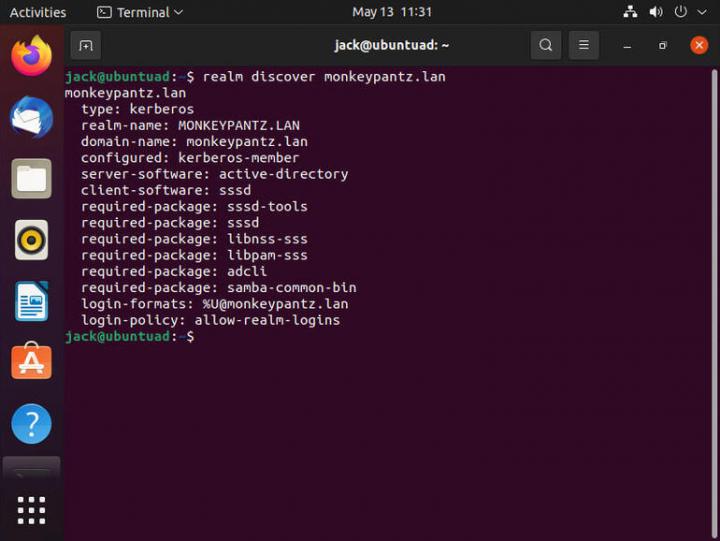
Verify that the Ubuntu host can successfully discover the Active Directory domain and identify its capabilities using the realm discover command. Replace corp.example.com with your actual Active Directory domain name.
sudo realm discover corp.example.com
This command queries the network via DNS and LDAP, returning detailed information about the domain, including the realm name, the dominant sign-in method, server software, and the configured client software (typically sssd). If this command fails, check your DNS settings and ensure ports 389 (LDAP), 636 (LDAPS), 88 (Kerberos), and 445 (SMB) are open on any intervening firewalls.
Step 3: Join the Ubuntu Host to the Domain
Once discovery succeeds, use the realm join command to enroll the Ubuntu machine into the Active Directory domain. You will need administrative credentials for the Active Directory domain (such as a Domain Admin account or an account delegated rights to join computers to the domain).
sudo realm join --user=administrator corp.example.com
The system will prompt for the administrative password. Upon successful authentication, adcli creates a computer account object in the Active Directory container (by default, in the Computers container or OU), configures /etc/sssd/sssd.conf, updates /etc/pam.d/ configuration files to enable automatic home directory creation upon first login, and restarts the SSSD service.
Step 4: Verify SSSD Configuration and Permissions
After joining the domain, inspect /etc/sssd/sssd.conf to ensure the parameters align with organizational security policies. A standard configuration resembles the following structure:
[active-directory] services = nss, pam domain_realm = corp.example.com realms = CORP.EXAMPLE.COM [domain/corp.example.com] id_provider = ad access_provider = ad use_fully_qualified_names = False fallback_homedir = /home/%u@%d default_shell = /bin/bash
Ensure that the permissions on /etc/sssd/sssd.conf are strictly restricted to root (chmod 600), as the file may contain sensitive caching parameters or keytab references.
Configuring User Access and Authorization Controls
Simply joining the domain allows any valid Active Directory user to authenticate against the Ubuntu host by default. In enterprise environments, this represents a significant security risk. Administrators must implement strict access controls to limit which users or security groups are permitted to log in.
Managing Access via SSSD
The simplest way to restrict access is by modifying /etc/sssd/sssd.conf to include an access provider rule. For example, administrators can restrict login access exclusively to members of a specific Active Directory security group, such as Linux-Admins:
[domain/corp.example.com] access_provider = ad ad_gpo_access_control = permissive
Alternatively, administrators can use the realm permit command to control access dynamically without manually editing configuration files:
sudo realm permit -g "Linux-Admins"
To revoke access for all users except specific groups or individual accounts, use the realm deny command followed by realm permit for authorized entities.
Automatic Home Directory Creation
When an Active Directory user logs into an Ubuntu system for the first time, their local home directory (/home/username) does not exist by default. To automate the creation of home directories upon initial login, Ubuntu utilizes pam_mkhomedir.
Verify that pam-auth-update includes the mobile home directory creation module:
sudo pam-auth-update --enable mkhomedir
This configuration ensures that when a domain user authenticates successfully via SSH or graphical console, a corresponding home directory with appropriate permissions is generated dynamically using skeleton files from /etc/skel.
Troubleshooting Common Integration Issues
Even with careful planning, administrators may encounter operational hurdles when integrating Ubuntu with Active Directory. Systematic troubleshooting methodologies help isolate and resolve these issues efficiently.
Authentication Failures and Kerberos Errors
If users are unable to authenticate, verify that the local system clock is synchronized. Run timedatectl status to inspect NTP synchronization. If the clock is drifting, force a manual sync or restart the time synchronization service:
sudo systemctl restart systemd-timesyncd
Next, check the SSSD logs located in /var/log/sssd/. Increasing the debug level in /etc/sssd/sssd.conf by setting debug_level = 5 under the [domain/...] section provides granular visibility into LDAP queries, Kerberos ticket acquisition, and credential caching issues. Remember to lower the debug level after troubleshooting to prevent excessive disk I/O and log bloat.
Stale Machine Accounts and Trust Relationships
Active Directory domain controllers maintain a secure channel with joined client computers, rotating computer account passwords automatically every 30 days. If an Ubuntu machine is disconnected from the network for an extended period, or if the trust relationship breaks, authentication will fail.
Administrators can test the validity of the trust relationship using the adcli tool:
sudo adcli test-join --domain=corp.example.com
If the test fails, re-establishing the secure channel can often be accomplished by re-running the realm join command or using net ads join if utilizing Samba/Winbind components.
Frequently Asked Questions
Can I log into Ubuntu using my short Active Directory username instead of my fully qualified name?
Yes. By default, modern configurations of SSSD using realmd set use_fully_qualified_names = False. This allows users to type their standard sAMAccountName (e.g., jdoe) rather than the fully qualified principal name (jdoe@corp.example.com), provided there are no naming collisions across trusted domains.
How do I grant sudo privileges to specific Active Directory groups?
You can assign sudo privileges to an AD group by adding an entry to the /etc/sudoers.d/ directory. For example, create a file named /etc/sudoers.d/linux-admins containing the following line: %Linux-Admins ALL=(ALL:ALL) ALL. Ensure the group name matches the exact spelling and casing used in Active Directory.
What happens to authenticated sessions if the Ubuntu machine loses connection to the Active Directory domain controllers?
SSSD includes robust credential caching mechanisms. If a user has successfully logged into the Ubuntu machine at least once while connected to the network, SSSD caches their authentication hashes. When the network is offline, SSSD validates subsequent login attempts against this local cache, allowing uninterrupted offline access.
Is it possible to integrate Ubuntu Desktop with Active Directory for graphical login screens?
Yes. When realmd and SSSD are configured correctly on Ubuntu Desktop, the GNOME Display Manager (GDM) automatically recognizes the Active Directory provider. Users can select their domain account or type their credentials directly into the graphical login prompt.
Conclusion and Next Actions
Integrating Ubuntu systems with Microsoft Active Directory unifies identity management, enhances operational security, and simplifies administrative overhead across heterogeneous IT environments. By leveraging SSSD and realmd, administrators can establish robust authentication, automate home directory provisioning, and enforce granular access controls without cumbersome manual configurations. To proceed, audit your corporate network infrastructure, verify DNS and time synchronization parameters on target Ubuntu endpoints, and perform a pilot deployment in a non-production test environment before rolling out domain integration enterprise-wide.