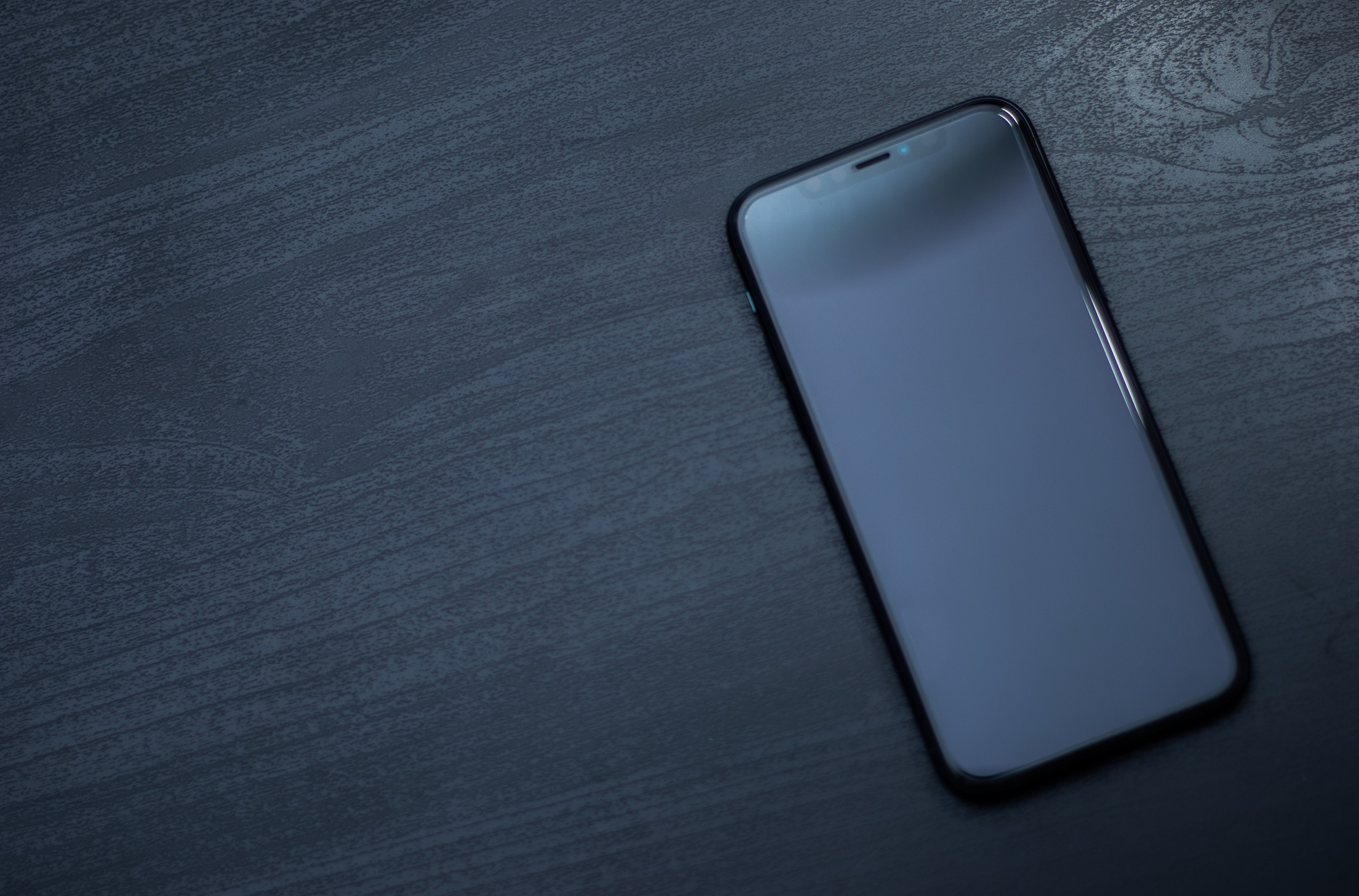
When your iPhone 15 displays a completely black screen while remaining powered on—evidenced by haptic feedback, notification sounds, ringing, or glowing faintly in a dark room—it is usually a software crash, a severe springboard freeze, or a temporary display handshake failure rather than permanent hardware destruction.
Understanding the "Black Screen But Still On" Phenomenon on iPhone 15
Encountering a black screen on a modern smartphone can be deeply unsettling, particularly with an advanced flagship device like the iPhone 15, iPhone 15 Plus, iPhone 15 Pro, or iPhone 15 Pro Max. However, separating a hardware failure from a software glitch is the first step toward a successful resolution.
What Does "Still On" Actually Mean?
An iPhone 15 operates via a complex architecture combining hardware (the OLED panel, display driver IC, logic board, and battery) and software (iOS). When the screen stays dark, but the device is "still on," it means:
- The application processor and operating system are running normally in the background.
- The display controller has crashed or lost its communication pipeline with the system-on-chip (SoC).
- The OLED panel is receiving power, but no image signal is being transmitted or rendered.
Common Symptoms Accompanying the Black Screen
To confirm your iPhone 15 is truly operational beneath the blank display, check for these diagnostic indicators:
- Audio cues: Plugging the device into a power source triggers the characteristic charging chime. Siri responds to voice commands (such as "Hey Siri") or long-pressing the side button.
- Haptic feedback: Toggling the Action Button or flipping the Ring/Silent switch on the side of the iPhone 15 Pro models produces a distinct vibration.
- Connectivity: The phone connects to a known Wi-Fi network, receives incoming phone calls (the phone rings or vibrates, even if you cannot swipe to answer), and pairs with connected Bluetooth accessories like Apple Watch or AirPods.
Phase 1: Immediate Diagnostic Checks and Basic Prerequisites
Before attempting advanced resets, rule out simple external factors that mimic a severe system failure.
Battery Depletion and Power Delivery
A completely drained battery can cause irregular power states where the phone registers as connected to a charger but lacks enough charge to initialize the display backlight and OLED driver.
- Connect your iPhone 15 to a certified USB-C power adapter (preferably an Apple 20W brick or higher) using an authenticated USB-C cable. Avoid low-quality or damaged cables.
- Allow the device to remain undisturbed on the charger for a minimum of 20 to 30 minutes.
- Look for the low-battery graphic; if the screen remains entirely black, proceed to hardware-level resets.
Assessing Physical and Liquid Damage
OLED screens are sensitive to blunt force and moisture intrusion. If the iPhone 15 experienced a drop or liquid exposure shortly before the black screen occurred:
- Inspect the chassis for dents or micro-fractures along the aluminum or titanium frame.
- Check the SIM tray slot (on regional models equipped with physical trays) for the Liquid Contact Indicator (LCI) status. A red or pink indicator signals internal liquid contact, which can short-circuit display lines while leaving the main logic board operational.
Phase 2: Step-by-Step Hardware Solutions
If the iPhone 15 is unresponsive to touch and the display remains dark despite having sufficient battery charge, a forced restart is the primary method to clear the system cache and reinitialize the display driver.
Performing a Force Restart on iPhone 15 Models
The button combination for forcing an iPhone 15 to restart differs from traditional older models with home buttons. Follow this sequence precisely:
- Press and quickly release the Volume Up button. Press it down firmly and release it immediately.
- Press and quickly release the Volume Down button. Press it down firmly and release it immediately.
- Press and hold the Side Button (Power button). Keep holding the button down, ignoring any shutdown sliders that would normally appear (as the screen is black, you won't see them anyway).
- Release the Side Button. Continue holding until the screen turns off completely (if it was glowing faintly) and the Apple logo appears on the display. This process can take anywhere from 10 to 20 seconds.
| Action Sequence | Button Pressed | Duration / Timing | Expected Response |
|---|---|---|---|
| Step 1 | Volume Up | Quick press and release | Prepares system interrupt flag |
| Step 2 | Volume Down | Quick press and release | Clears system interrupt flag |
| Step 3 | Side Button | Hold for 10–20 seconds | Bypasses frozen SpringBoard |
| Step 4 | Release | Upon Apple Logo appearance | Successful system reboot |
Phase 3: Advanced Recovery Using a Computer
If a force restart fails to restore the display, the iOS operating system may be corrupted or stuck in a boot loop that requires external intervention via a macOS or Windows computer.
Preparing Your Computer and Tools
- Ensure you have a Mac running the latest version of macOS, or a Windows PC with the Apple Devices app or iTunes installed.
- Connect your iPhone 15 to the computer using an official USB-C cable.
Entering Recovery Mode with a Black Screen
Even when the screen is black, you can place an iPhone 15 into Recovery Mode to reinstall iOS without losing personal data.
- Connect the iPhone 15 to your computer.
- Quickly press and release the Volume Up button.
- Quickly press and release the Volume Down button.
- Press and hold the Side Button. Do not release it when the screen stays black; keep holding it down even as the Apple logo appears and until the computer connection icon (a cable pointing to a computer) appears on the screen. (Note: On a black screen, you will not see the visual cue, but your computer will recognize the device).
- Open Finder (on Mac) or the Apple Devices app/iTunes (on Windows).
- A prompt will appear stating that there is a problem with the iPhone that requires it to be updated or restored.
Choosing Between "Update" and "Restore"
- Update: Select this option first. The computer will download and reinstall iOS on your iPhone 15 without erasing your personal data, photos, or app settings. This resolves corrupt system files causing the black screen.
- Restore: If the update option fails, a full restore will wipe the device and install a fresh copy of iOS. Use this only if you maintain an active iCloud or local computer backup.
Phase 4: Hardware Failures and Professional Repair Options
When software troubleshooting, force restarts, and recovery mode updates fail to resolve the black screen, the root cause is almost invariably hardware-related.
Common Hardware Culprits in iPhone 15 Black Screens
- OLED Panel Damage: Internal organic light-emitting diode layers can fracture from drops without shattering the external glass front.
- Display Flex Cable Disconnection: The delicate ribbon cables connecting the screen assembly to the logic board can dislodge during a sharp impact.
- Display Driver IC Failure: The integrated circuit responsible for translating digital video data into visual voltage signals on the screen can burn out.
Evaluating Repair Costs and Warranty Status
- Standard Apple Warranty: If your iPhone 15 was purchased within the last year and exhibits no external signs of abuse, manufacturing defects are covered under the standard Apple Limited Warranty at zero cost.
- AppleCare+: If you purchased AppleCare+, accidental damage (including screen failure and internal component damage) is covered subject to a nominal service fee.
- Out-of-Warranty Repairs: Replacing an iPhone 15 display out of warranty involves premium component costs. Because Apple utilizes specialized calibration software to pair replacement displays with the phone's logic board (to preserve True Tone and Face ID functionality), authorized service centers or Apple Store Genius Bars are strongly recommended over third-party repair shops using unverified aftermarket parts.
Frequently Asked Questions
Why is my iPhone 15 ringing and vibrating if the screen is totally black?
This confirms that the device's main processor, baseband chip, and battery are fully functional, proving it is an issue with the display output, display driver, or software interface (SpringBoard) rather than a dead logic board.
Will a force restart delete my photos and messages?
No. A force restart simply cuts power momentarily and forces the hardware to reboot. It does not alter, delete, or modify any user data stored on the internal solid-state storage.
Can I fix an iPhone 15 black screen by letting the battery die completely?
While draining the battery completely used to resolve deep system freezes on older consumer electronics, modern power management integrated circuits on the iPhone 15 maintain reserve power states. A manual force restart is much more effective than waiting for the battery to drain naturally.
How do I know if my iPhone 15 screen is broken or just frozen?
If the screen remains completely black even after performing a successful force restart (where the phone vibrates or chimes upon rebooting), the physical display panel or internal flex connection is likely broken. If the Apple logo appears during a force restart, the screen is intact, and the issue was a temporary software freeze.
What should I do if my computer does not recognize my black-screened iPhone 15?
Ensure your computer's operating system and iTunes or Apple Devices apps are updated to the latest versions. Try using a different USB-C cable and plugging it into a different port on your computer, ensuring you complete the rapid button press sequence for Recovery Mode precisely.
Next Actions and Professional Guidance
If you have executed a formal force restart, attempted a recovery mode update via a computer, and verified that the battery is fully charged without regaining visual output, your next action should be booking an appointment at an Apple Store or an Apple Authorized Service Provider. Back up your data via iCloud if possible (using Siri voice commands or plugging it into a trusted computer), and bring valid proof of purchase to expedite warranty validation.