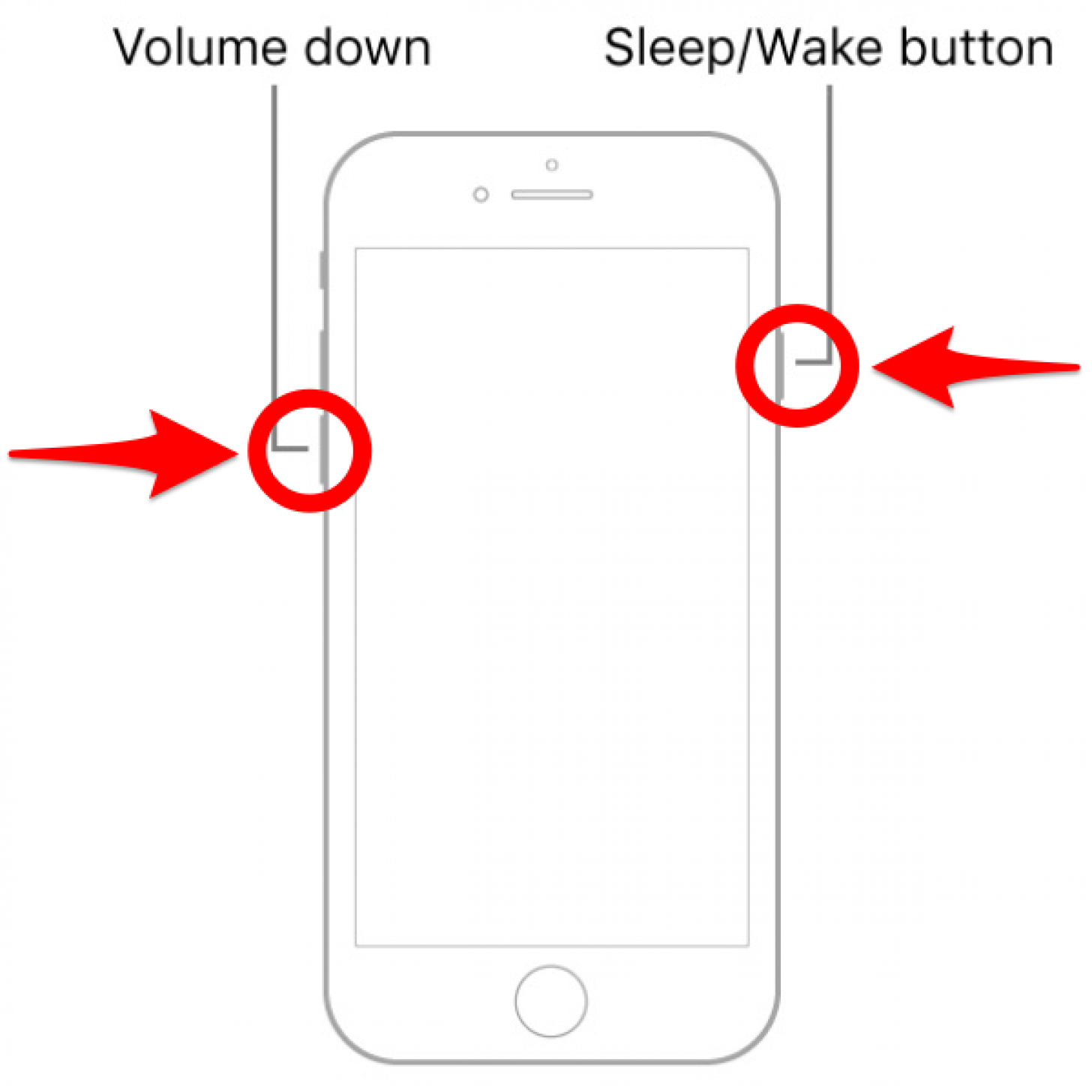
To force reboot an iPhone 6, press and hold the Home button and the Sleep/Wake (power) button simultaneously for at least 10 seconds until the screen turns black and the Apple logo reappears. This procedure is a non-destructive hardware interrupt that forces the device to power cycle without erasing your data, effectively resolving temporary software freezes or unresponsiveness.
Understanding the Force Reboot Mechanism
When an iPhone 6 becomes unresponsive—failing to respond to touch inputs, stuck on a loading screen, or frozen within an application—the standard "Slide to power off" menu is often inaccessible. In such scenarios, a force reboot (also known as a "hard reset" or "forced restart") becomes the primary recovery tool.
Unlike a standard power cycle, which relies on the operating system’s cooperative shutdown process, a force reboot bypasses the software layer. By holding down the Home and Sleep/Wake buttons, you are physically signaling the power management integrated circuit to cut power to the processor and memory, followed by an immediate signal to restart the system. This is a hardware-level override that provides a clean slate for the operating system (iOS) to load again.
It is important to emphasize that this process is designed specifically to recover a device from a frozen state. It does not delete personal files, photos, messages, or app data because it does not involve the file system's deletion or formatting protocols. It simply clears the temporary memory (RAM) and triggers the boot sequence from scratch.
Prerequisites and Safety Precautions
Before performing a force reboot, ensure the following conditions are met:
- Physical Integrity: Ensure the Home button and the Sleep/Wake button are physically operational. If the buttons are jammed or damaged, this method will not work.
- Battery Power: While a force reboot can often trigger a restart even when a phone appears "dead," it requires a minimum residual charge. If the battery is completely depleted, the device will not restart. In such cases, plug the iPhone 6 into a certified wall charger for at least 30 minutes before attempting the procedure again.
- Avoid During Updates: Never perform a force reboot while the device is in the middle of a software update (firmware installation), as this can potentially corrupt the operating system files, leading to a "boot loop" or the need for a full DFU (Device Firmware Update) restore via a computer.
Step-by-Step Procedure for the iPhone 6
The following steps are universal for the iPhone 6 and iPhone 6 Plus series.
- Locate the Buttons: Identify the Sleep/Wake button, which is located on the right side of the iPhone 6, and the Home button, located at the bottom center of the front display.
- Press Simultaneously: Press and hold both buttons at the exact same time. Do not release them when the "Slide to power off" slider appears on the screen; continue holding.
- The Blackout Phase: Continue holding until the screen goes completely black. This usually takes between 8 and 12 seconds.
- The Apple Logo: As soon as the white Apple logo appears on the black background, immediately release both buttons.
- Wait for Boot: Allow the device to finish its startup process. You may be prompted to enter your passcode once the lock screen appears, as the device requires this to re-enable full encryption access.
Why Your iPhone 6 Might Need a Reboot
Understanding why your device freezes can help prevent the need for frequent reboots. The iPhone 6, while a robust piece of hardware, has technical limitations when running modern software versions. Common triggers for freezing include:
- Memory Exhaustion: Running too many background processes or memory-intensive applications can cause the iOS to hang.
- Software Bugs: Corrupted temporary cache files can cause the UI to stop responding.
- Hardware Bottlenecks: As the internal components age, they may struggle to handle the high demands of newer background services, leading to "hanging" states.
Comparison of Restart Methods
It is helpful to distinguish between a standard restart, a force reboot, and a factory reset to ensure you are choosing the right solution for your specific issue.
| Feature | Standard Restart | Force Reboot | Factory Reset |
|---|---|---|---|
| Purpose | General troubleshooting | Resolving frozen screens | Preparing for sale or repair |
| Data Loss | None | None | All data deleted |
| Input Method | Slider on screen | Button combination | Settings menu or iTunes |
| Speed | Moderate | Fast | Slow (requires restore) |
Troubleshooting: When the Force Reboot Fails
If your iPhone 6 remains unresponsive after a successful force reboot, or if it remains stuck on the Apple logo, the issue may be deeper than a temporary software glitch.
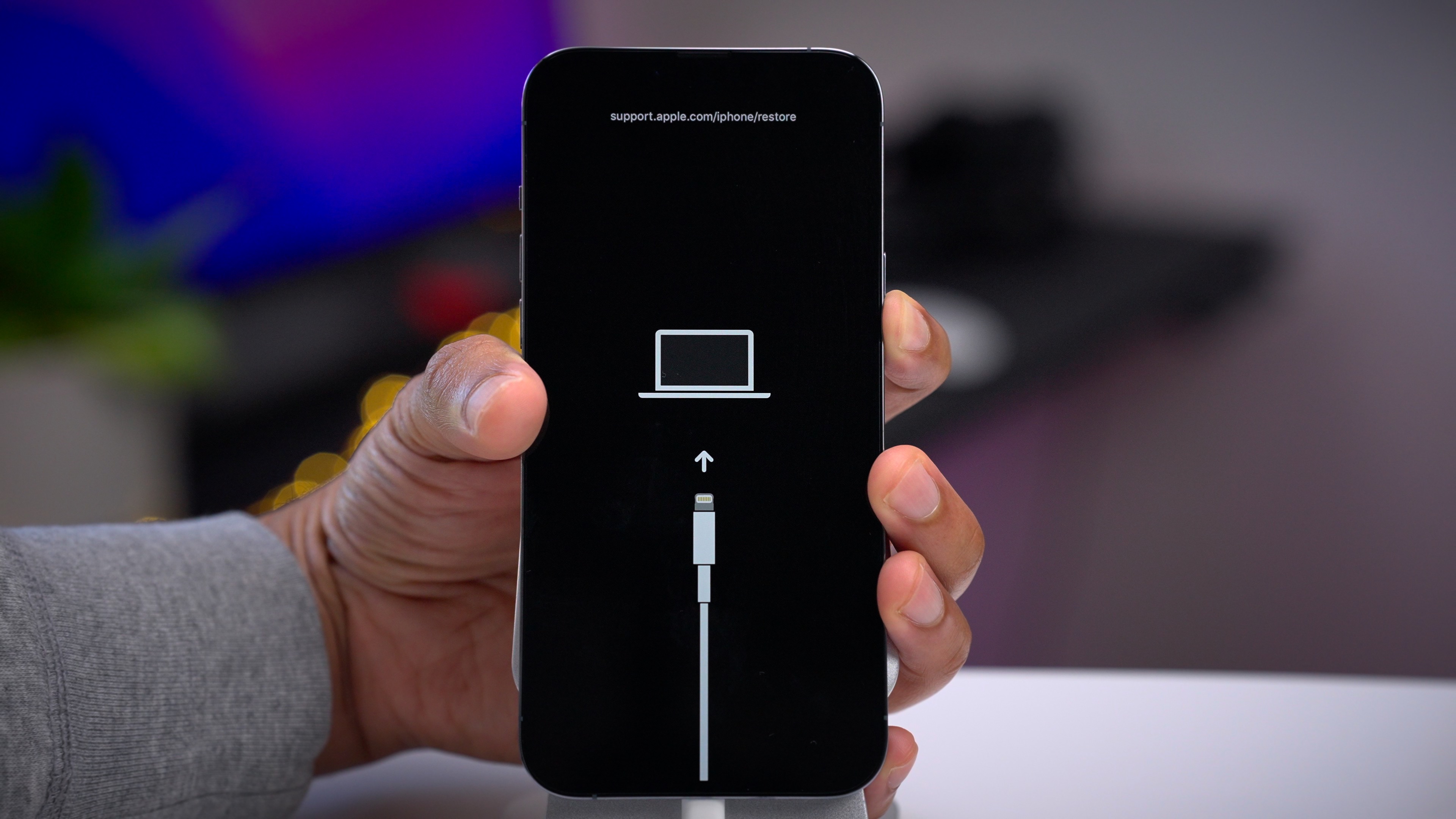
Persistent Boot Loop If the device constantly shows the Apple logo and turns off, it may be stuck in a boot loop. This often indicates a conflict between the system partition and the installed hardware. At this stage, connect the device to a computer running the latest version of Finder or iTunes. If the computer recognizes the device, you may need to initiate a "Restore" to reinstall the iOS software, which will resolve persistent software corruption.
Display Failures If you hear the phone vibrate or notice it heating up, but the screen remains dark even after a force reboot, the problem may be a disconnected or failed display assembly rather than a software crash. In such instances, professional diagnostic service is required.
Battery Degradation If your iPhone 6 only restarts when plugged into a power source, the battery is likely reaching the end of its life cycle and can no longer provide the necessary peak voltage required for booting. Replacing the battery is the definitive solution in these cases.
Frequently Asked Questions
Will a force reboot erase my photos or messages? No. A force reboot is a hardware-level command to restart the power circuit. It does not access or modify the user partition of the storage where your photos, messages, and app data are saved. Your data remains completely intact.
How long should I hold the buttons? You should hold the buttons for a minimum of 10 seconds. You are looking for the transition from the current frozen state to the black screen and finally the appearance of the Apple logo. Do not release the buttons until you see the logo.
Can I use this method if my screen is totally black? Yes. If your phone is frozen with a black screen, the force reboot is the correct procedure to initiate a power cycle. Ensure your device has some charge first, as a black screen can also simply indicate a completely drained battery.
Does this damage the hardware? Performing a force reboot occasionally is safe and does not damage the hardware. However, it should not be performed as a matter of regular maintenance. Only use it when the device is genuinely unresponsive. Constant, unnecessary force reboots can, in rare cases, interrupt background write operations, which could lead to minor file system errors.
What if the buttons on my iPhone 6 are broken? If your Home button or Sleep/Wake button is physically damaged, you cannot perform a manual force reboot. You may need to wait for the battery to fully drain, which will cause the device to shut down, and then charge it to initiate a fresh startup. Alternatively, a repair technician can temporarily connect a functioning assembly to bridge the connection.
Final Recommendation
The force reboot is a reliable, "first-line" defense for a frozen iPhone 6. If you find yourself needing to perform this action frequently—more than once or twice a month—it is a strong indicator that your device is struggling with its current software environment or that the hardware is experiencing resource exhaustion.
If the problem persists, take a backup of your data using iCloud or a local computer, and consider performing a clean restoration of the device. If the device continues to freeze after a fresh installation, the issue is likely rooted in the physical aging of the logic board or internal storage components, at which point you may consider hardware professional assessment or device retirement.