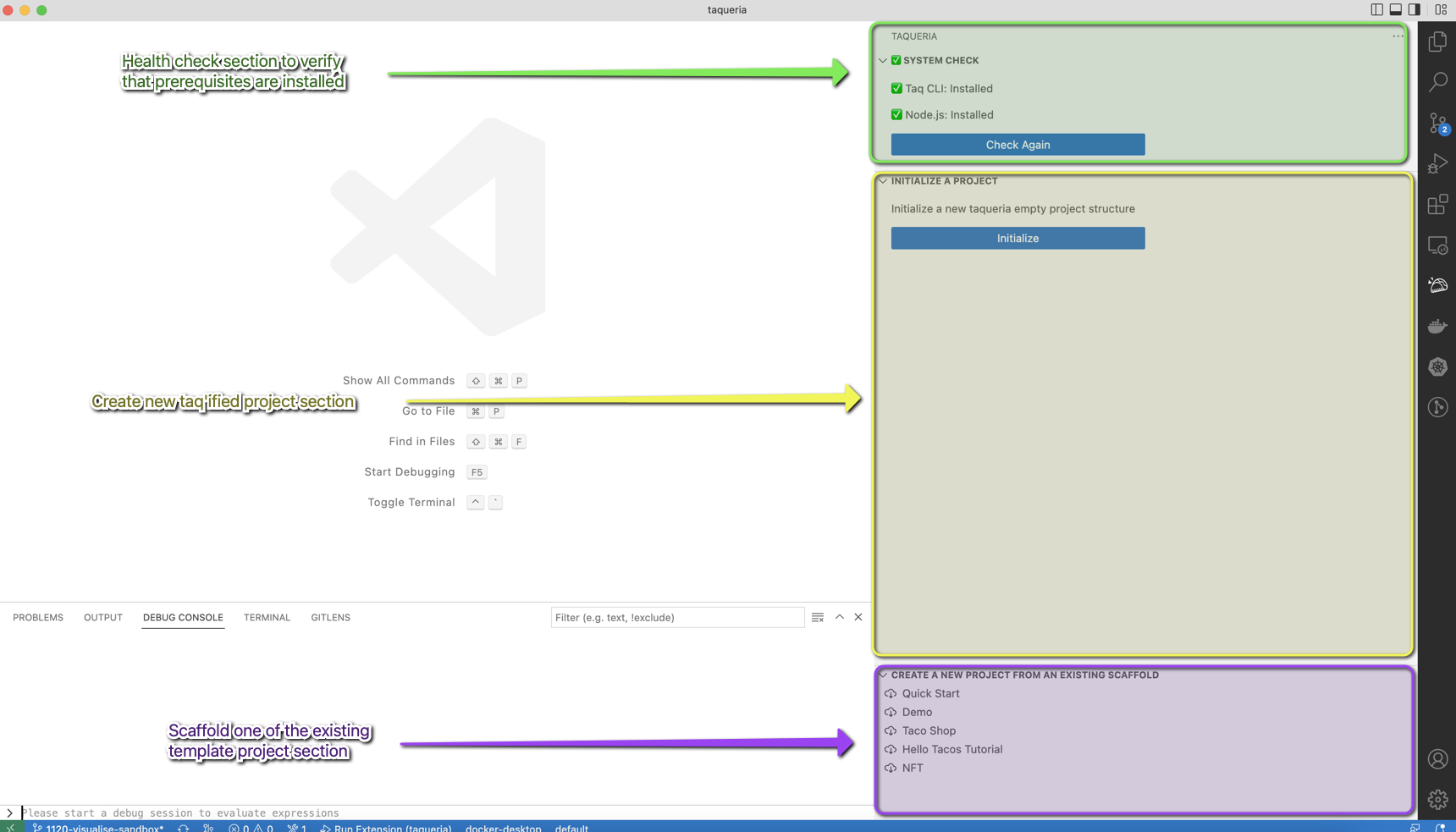
Visual Studio Code extension development is the process of building custom plugins to enhance the functionality, appearance, and workflow of the VS Code editor. Using Node.js and TypeScript or JavaScript, developers leverage the VS Code API to contribute commands, themes, language support, and complex UI integrations. This ecosystem allows for deep customization, turning the editor into a specialized environment for virtually any programming language or specialized dev-ops task.
The Evolution of the VS Code Ecosystem in 2026
By 2026, Visual Studio Code has solidified its position as the most widely used code editor globally. Its extension architecture remains its greatest strength, built on a philosophy of performance and stability. Unlike older plugin systems that could easily crash the main editor, VS Code runs extensions in a separate Extension Host process. This architectural decision ensures that even if a complex extension consumes significant CPU or encounters a memory leak, the primary user interface remains responsive.
The current landscape of development has shifted heavily toward Web Extensions and AI-integrated capabilities. Developers are no longer just building simple snippets; they are creating sophisticated integrations that leverage the VS Code Language Model API and GitHub Copilot extensions to provide context-aware assistance. Understanding how to navigate this ecosystem is essential for any developer looking to improve their own productivity or contribute to the broader community.
Essential Prerequisites for Extension Development
Before writing your first line of extension code, you must establish a specific development environment. Because VS Code is built on Electron, the extension environment is fundamentally rooted in the Node.js ecosystem.
Technical Requirements
- Node.js and npm/pnpm: As of 2026, ensure you are using a Long Term Support (LTS) version of Node.js. Most modern extension tooling relies on npm or pnpm for package management.
- TypeScript Proficiency: While JavaScript is supported, the VS Code API is natively typed. Using TypeScript is highly recommended because it provides superior IntelliSense, making the massive API surface area much easier to navigate.
- Git: Version control is mandatory for managing your source code and is often integrated into the publishing workflow.
- Yeoman and the VS Code Extension Generator: This is the industry-standard "scaffolding" tool. By running
yo code, you generate a boilerplate project with all the necessary configuration files, including testing suites and build scripts.
The Anatomy of a VS Code Extension
Every VS Code extension consists of several critical components that define how it interacts with the editor. Understanding these pieces is the first step toward successful development.
1. The Extension Manifest (package.json)
The package.json file is the brain of your extension. It does much more than just list dependencies. In the context of VS Code, it serves as the Manifest where you declare your extension's capabilities through Contribution Points. This allows VS Code to understand what your extension does without having to execute its code immediately, which saves memory.
Key fields in the manifest include:
engines: Specifies the minimum version of VS Code required.activationEvents: Defines the specific triggers that will start your extension (e.g., opening a specific file type or executing a command).contributes: This is where you register commands, menus, keybindings, views (like those in the Sidebar), and themes.
2. The Main Entry Point
Usually located in src/extension.ts, this file contains the logic that runs when your extension is activated. It must export two primary functions:
activate(): This is called when your activation event occurs. Here, you register providers, commands, and other long-lived resources.deactivate(): This provides a hook for cleanup, such as closing socket connections or killing child processes, ensuring your extension doesn't leave a footprint after it stops.
3. The VS Code API
Your extension interacts with the editor through the vscode namespace. This API provides access to the text editor, terminal, file system, and UI elements like the Status Bar and Information Messages.
Core Concepts: Contribution Points and Activation Events
One of the most common mistakes beginners make is trying to run code the moment the editor opens. This is generally discouraged to maintain editor performance. Instead, VS Code uses a "lazy loading" approach based on two concepts.
Activation Events
Activation events tell VS Code: "Don't wake up my extension until this happens." Common events include:
onLanguage:python: Activates when a Python file is opened.onCommand:extension.sayHello: Activates when a specific command is invoked.onFileSystem:sftp: Activates when a specific file system scheme is accessed.onStartupFinished: A delayed activation for background tasks that aren't time-critical.
Contribution Points
Contribution points are static declarations in your package.json. By declaring these, VS Code can show your extension’s features in the UI (like a new icon in the Activity Bar) before your code has even loaded. This ensures that the user interface feels fast and responsive.
The Development Lifecycle
The workflow for creating an extension is highly optimized within VS Code itself.
- Scaffolding: Run
npx yo codeto create your project structure. - Coding: Use the
vscodeAPI to implement your features. TypeScript will help you find the right methods within thevscode.*namespace. - The Extension Development Host: When you press
F5, a new VS Code window opens. This is a "clean" instance of the editor that has your extension pre-installed. You can debug your code here using breakpoints just like any other Node.js application. - Logging and Output: Use
vscode.window.createOutputChannelto log information. This is vital for troubleshooting background processes without interrupting the user's workflow with pop-ups.
Advanced Integration: LSP and Webviews
For more complex extensions, standard API calls might not be enough. Two advanced features are frequently used in modern development.
Language Server Protocol (LSP)
If you are adding support for a new programming language, you shouldn't put the heavy parsing logic directly in the extension. Instead, you use the Language Server Protocol. This allows you to run a separate "Language Server" (potentially written in Rust, Go, or Python) that handles intensive tasks like autocomplete, "go to definition," and refactoring. The extension acts as a thin client that communicates with this server.
Webview API
Sometimes the native VS Code UI is too restrictive. The Webview API allows you to render a fully functional HTML/CSS/JavaScript environment inside a tab or a sidebar panel. This is often used for data visualizations, complex configuration screens, or interactive dashboards. However, Webviews are resource-intensive and should be used sparingly to avoid slowing down the user's machine.
Comparing Extension Architectures
To help you decide which path to take for your project, refer to the following comparison of common extension structures available in 2026.
| Extension Type | Primary Use Case | Technology Stack | Resource Intensity |
|---|---|---|---|
| Traditional Node Extension | Local tools, file system access, terminal integration. | Node.js, VS Code API | Moderate |
| Web Extension | VS Code for the Web (vscode.dev), GitHub Codespaces. | Browser-friendly JS/TS | Low |
| Language Server (LSP) | Advanced language support (linting, IntelliSense). | Any (often Node, Rust, or C#) | High (Separate process) |
| Theme/Snippet | Purely visual changes or code templates. | JSON / TextMate grammars | Negligible |
| AI Integration | Generative code, chat-based coding assistants. | VS Code Chat/Model API | Moderate (Network reliant) |
Testing and Quality Assurance
Testing a VS Code extension requires a specialized approach. Since extensions depend on the VS Code API, they cannot be tested with standard unit test runners like Jest in isolation.
Instead, you use the @vscode/test-electron or @vscode/test-web libraries. These libraries download a specific version of VS Code and run your tests inside an actual editor instance. This allows you to verify that your commands actually change the text in a buffer or that your sidebar views render correctly.
Key testing areas include:
- Integration Tests: Ensuring your extension interacts correctly with the editor's state.
- Version Compatibility: Testing against the "Stable" and "Insiders" builds of VS Code to ensure future updates won't break your tool.
- Performance Profiling: Ensuring your
activate()function completes in under 500ms to avoid "Extension Host Unresponsive" warnings.
Publishing to the Visual Studio Marketplace
Once your extension is ready, you must publish it to the Visual Studio Marketplace.
- Azure DevOps Account: You need an organization in Azure DevOps to manage your publisher identity.
- Personal Access Token (PAT): This token gives your CLI tool permission to upload files to your marketplace account.
vsceCLI: The "Visual Studio Code Extensions" command-line tool. Usevsce packageto create a.vsixfile for local distribution, orvsce publishto send it to the world.- Extension Manifest Review: Ensure your
README.md, icons, and categories are properly set. High-quality documentation is the single biggest factor in extension adoption.
Common Pitfalls to Avoid
Even experienced developers encounter hurdles when working with the VS Code API. Avoid these common mistakes:
- Synchronous File I/O: Never use
fs.readFileSync. It blocks the Extension Host. Always use thevscode.workspace.fsAPI, which is asynchronous and works across remote and web environments. - Overusing Notifications: Don't spam the user with "Information Messages." Use the Status Bar or Output Channels for non-critical background information.
- Hardcoding Paths: VS Code can run on Windows, macOS, Linux, and in browsers. Always use
Uri.joinPathinstead of string concatenation for file paths. - Ignoring Global State: Extensions are often restarted. Use
context.globalStateorcontext.workspaceStateto save user progress or configuration between sessions.
Frequently Asked Questions
Can I develop VS Code extensions on a tablet or in a browser?
Yes. By 2026, the vscode.dev environment fully supports Web Extension development. While you cannot use Node.js-specific modules (like child_process), you can build, test, and run extensions that utilize the browser-friendly portions of the VS Code API directly in your browser.
Do I need to pay to publish an extension?
No. Publishing to the Visual Studio Marketplace is currently free for developers. There are no hosting fees, though you must adhere to Microsoft's terms of service regarding security and content.
What is the difference between a Command and a Task?
A Command is a function triggered by the user (usually via the Command Palette or a button) to perform an action within the editor. A Task is specifically designed to integrate external build tools (like make, npm build, or gcc) into VS Code’s task runner UI, allowing for better management of background processes.
How do I handle different operating systems?
The VS Code API provides the vscode.env object, which tells you the current platform and UI kind (Desktop vs. Web). By using the built-in vscode.workspace.fs for file operations, the API handles the underlying differences in path formatting and URI schemes automatically.
Can I use React or Vue in my extension?
Only within a Webview. The core VS Code UI cannot be modified with React or Vue directly; you must use the contribution points for sidebars and menus. However, if you are building a complex dashboard inside a Webview, you can use any modern frontend framework you choose.
Practical Recommendation
If you are new to this field, start by creating a simple "Hello World" extension using the Yeoman generator. Focus on mastering the Command registration and Status Bar updates before moving into complex areas like the Language Server Protocol or Webviews. For those looking to build tools in 2026, prioritize making your extension Web-compatible, as this ensures it works across the desktop, GitHub Codespaces, and the web-based editor.