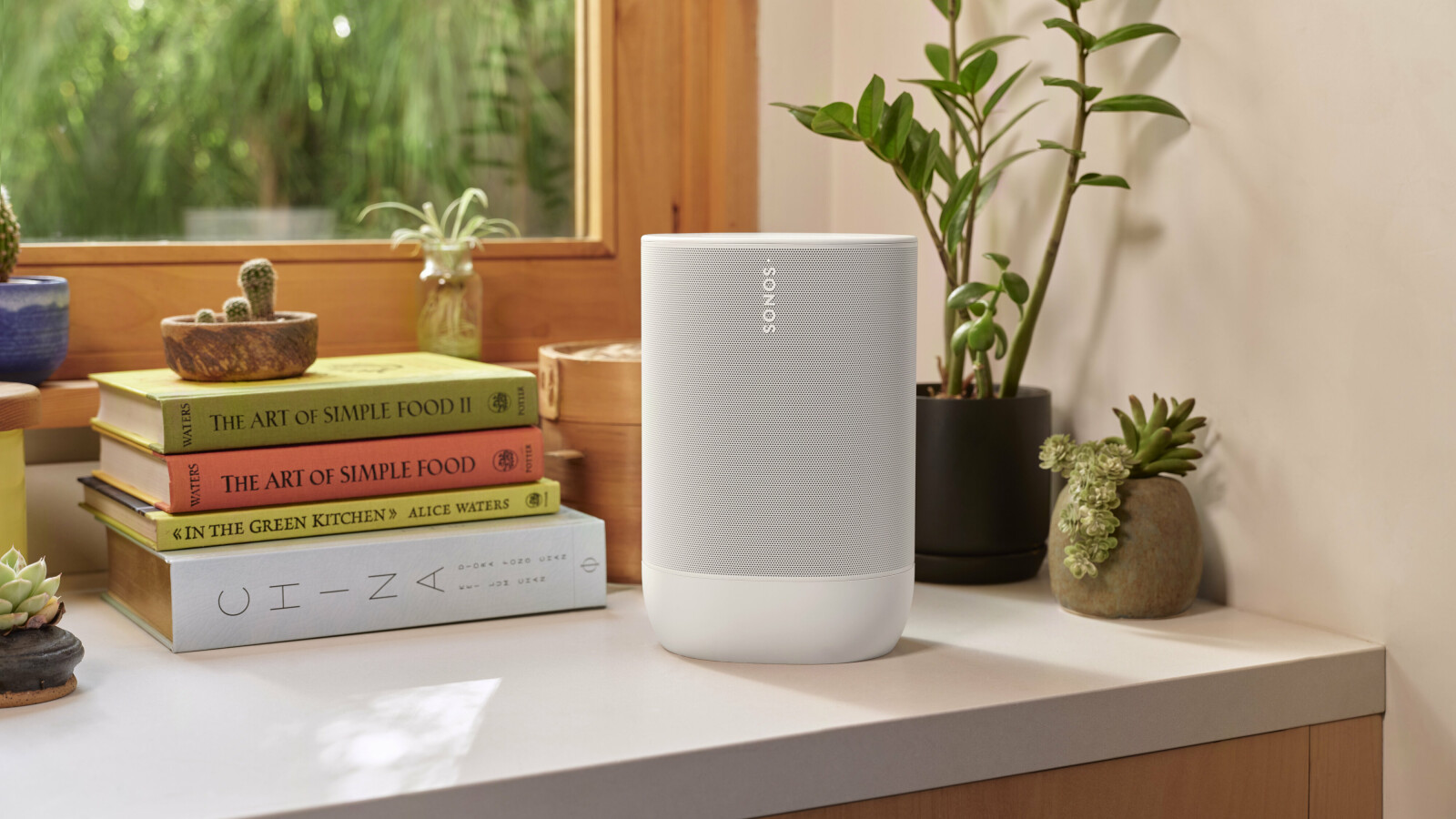
The Alexa skill Sonos integration allows users to control high-fidelity Sonos speakers using Amazon’s voice AI. By linking your Sonos and Amazon accounts and enabling the Sonos skill in the Alexa app, you can initiate music playback, adjust volume, and manage multi-room audio across your entire home using simple voice commands.
The integration between Amazon Alexa and Sonos represents one of the most successful partnerships in the smart home ecosystem. For over a decade, these two companies have refined how voice control interacts with premium audio hardware. In 2026, this integration has reached a level of maturity where voice commands are not just reactive but proactive, allowing for complex automation and seamless transitions between different audio zones.
Whether you own a Sonos speaker with built-in microphones, like the Era 300 or Move 2, or you are using an older Sonos Play:1 paired with an Echo Dot, the Sonos skill acts as the bridge. It translates Alexa's cloud-based intent into specific API calls that the Sonos hardware understands. This guide provides a comprehensive look at setting up, optimizing, and troubleshooting your Alexa-Sonos ecosystem.
Understanding the Architecture of the Sonos Alexa Skill
To effectively manage your system, it is helpful to understand how the integration works. The Sonos skill is not a standalone app; rather, it is a cloud-to-cloud interface. When you say, "Alexa, play music in the Kitchen," the Amazon Echo device (or the microphone on the Sonos speaker) sends that audio to Amazon’s servers. Amazon identifies the "Sonos" intent and communicates with the Sonos Cloud API. The Sonos Cloud then sends the instruction to the specific speaker in your home.
This architecture requires both your Amazon account and your Sonos account to be in constant synchronization. In 2026, this process is significantly faster than it was in the early days of the integration, with latency reduced to near-instantaneous levels thanks to improved edge computing and the widespread adoption of Wi-Fi 6E and Wi-Fi 7 in home networking.
Built-in Alexa vs. "Works with Alexa"
There are two primary ways Sonos interacts with Alexa:
- Built-in Alexa: Devices like the Sonos Arc, Beam (Gen 2), Era 100, and Era 300 have internal far-field microphone arrays. These devices act as their own Echo units. You speak directly to the speaker to trigger commands.
- Works with Alexa: Legacy or non-mic speakers like the Sonos Five, Sub, or older One SL do not have microphones. These require a separate Amazon Echo device to "hear" the command. You tell the Echo to play music on the Sonos speaker.
Hardware Requirements and Compatibility
Before initiating the integration, ensure your hardware meets the necessary standards for a stable connection. As of 2026, Sonos supports Alexa on almost all devices released within the last decade, though the experience is best on the S2 platform.
Supported Sonos Devices
- Era Series: Era 100, Era 300 (Full spatial audio support via voice).
- Soundbars: Arc, Arc Ultra, Beam (Gen 1 & 2), Ray.
- Portable: Move 2, Roam 2.
- Architectural & Components: Sonos Amp, Sonos Port.
- Legacy (via external Echo): Play:1, Play:3, Play:5 (Gen 2).
Network Prerequisites
A robust home network is the backbone of voice-controlled audio. Because the Alexa skill communicates via the cloud, any instability in your internet connection or local Wi-Fi will result in "I'm having trouble understanding right now" or delayed playback. It is highly recommended to use a mesh Wi-Fi system or have at least one Sonos component wired via Ethernet to create "SonosNet" (if using older S2 hardware) or to ensure high-speed backhaul for modern Era speakers.
Step-by-Step Guide: How to Integrate Alexa with Sonos
Setting up the integration involves both the Sonos app and the Amazon Alexa app. Follow these steps to ensure a clean handshake between the two services.
1. Preparation and Updates
Ensure both the Sonos app and the Amazon Alexa app are updated to the latest versions available in 2026. Log into your Sonos account and verify that all your speakers are visible and updated to the latest firmware. If your speakers are on the older S1 controller, you will have limited functionality compared to the modern S2 system.
2. Adding the Voice Assistant in the Sonos App
- Open the Sonos app on your mobile device.
- Navigate to Settings (the gear icon) and select Services & Voice.
- Under the "Voice" section, tap Add a Voice Assistant.
- Choose Amazon Alexa from the list of available assistants.
- The app will prompt you to select the specific speakers where you want to enable Alexa. Choose your compatible speakers.
- Tap Add Amazon Alexa and follow the prompt to "Connect your Amazon account."
3. Enabling the Sonos Skill in the Alexa App
After the Sonos app redirects you, the Alexa app will open.
- Tap Enable to Use.
- Enter your Sonos account credentials to authorize Amazon to control your speakers.
- Once authorized, Alexa will begin a process called Device Discovery. This can take up to 45 seconds. Alexa is searching your network for all Sonos components identified by the Sonos Cloud.
4. Room Assignment and Grouping
After discovery, you will see a list of your Sonos speakers in the Alexa app under the Devices tab. For the most intuitive experience, ensure the names in the Alexa app match the names in the Sonos app (e.g., "Living Room," "Master Bedroom").
Expert Tip: Create an Alexa Smart Home Group. If you add an Echo Dot and a Sonos Five to a group named "Office" and set the Sonos Five as the "Preferred Speaker," you can simply say "Alexa, play music" to the Dot, and it will automatically play through the Sonos speaker without you having to specify the room name.
Advanced Voice Commands and Capabilities
Once integrated, you can use a wide range of commands. In 2026, the natural language processing (NLP) of Alexa has improved, allowing for more conversational requests.
Music Control
- "Alexa, play [Artist/Song/Playlist] in the Kitchen."
- "Alexa, play [Station] on TuneIn."
- "Alexa, turn it up in the Living Room."
- "Alexa, what is playing in the Bedroom?"
Multi-Room Management
While you can group speakers in the Sonos app, you can also do it via voice.
- "Alexa, group the Kitchen and Dining Room."
- "Alexa, play music everywhere" (requires an "Everywhere" group to be set up in the Alexa app).
- "Alexa, stop music in the Guest Room."
TV Control (for Arc and Beam)
If your Sonos soundbar is connected to your TV via HDMI-ARC or eARC, Alexa can perform basic TV functions.
- "Alexa, turn on the TV."
- "Alexa, turn up the volume on the TV."
Managing Music Services and Default Players
One common frustration is Alexa playing music from a service you don't use. To fix this, you must set your default music service within the Alexa app, not the Sonos app.
- Open the Alexa app.
- Go to More > Settings > Music & Podcasts.
- Tap Default Services.
- Select your preferred provider (Spotify, Apple Music, Amazon Music, etc.) for Music, Artist/Genre Stations, and Podcasts.
Note that as of 2026, high-resolution audio and spatial audio (Dolby Atmos) are supported via the Alexa skill when using Amazon Music Unlimited or Apple Music on compatible Sonos hardware like the Era 300 or Arc.
Comparison of Voice Assistants on Sonos
Sonos is unique because it supports multiple voice assistants. You can often run Alexa alongside Sonos Voice Control (SVC).
| Feature | Amazon Alexa | Sonos Voice Control (SVC) | Google Assistant |
|---|---|---|---|
| Primary Focus | Smart Home & General Info | Local Music Control | Search & Google Ecosystem |
| Privacy | Cloud-based processing | On-device (Private) | Cloud-based processing |
| Music Services | Extensive (Spotify, Apple, etc.) | Limited (Sonos Radio, Amazon, etc.) | Standard (YouTube Music, Spotify) |
| Smart Home Control | Industry Leader | None | Strong |
| Wake Word | "Alexa" | "Hey Sonos" | "Hey Google" |
| Coexistence | Yes (with SVC) | Yes (with Alexa) | Limited/None |
Troubleshooting Common Integration Issues
Even with a mature integration, software updates or network changes can cause friction.
"I can't find a device named [Room Name]"
This usually occurs when there is a naming conflict or the discovery cache is stale.
- Solution: Go to the Alexa app, delete the specific Sonos device, and run "Alexa, discover my devices" again. Ensure there isn't another smart home device (like a light bulb) with the exact same name.
The "Ducking" Problem
"Ducking" is when Sonos lowers its volume so Alexa can hear you. Sometimes, the volume stays low even after the command is finished.
- Solution: This is often a sync issue. Restarting the speaker with the built-in microphone usually resets the ducking threshold. You can also toggle the "Microphone" button on the physical speaker off and on.
Music Stops Unexpectedly
This is frequently related to the music service's stream limits.
- Solution: Most music services only allow one active stream per account. If someone starts playing Spotify on their phone while Alexa is streaming Spotify to your Sonos, the Sonos stream will cut out. Consider a family plan if multiple people use the system.
Skill Needs Re-linking
Periodically, OAuth tokens expire for security. If Alexa says, "Your Sonos skill needs attention," you must go to the Alexa app, disable the Sonos skill, and then re-enable it to refresh the link.
The Coexistence of Sonos Voice Control and Alexa
A significant development in recent years is the ability to run Sonos Voice Control (SVC) and Amazon Alexa on the same speaker simultaneously. This is the recommended setup for power users in 2026.
SVC is optimized for music commands and privacy. It processes your voice locally on the speaker. You can use "Hey Sonos" for music-specific tasks (like "Hey Sonos, group the Patio") and "Alexa" for smart home tasks (like "Alexa, lock the front door"). Because SVC does not go to the cloud for music playback commands, it is faster and does not require an active internet connection for basic volume and playback controls.
Privacy and Data Security Considerations
Using the Alexa skill means your voice requests are sent to Amazon’s cloud. For privacy-conscious users, it is important to know that you can manage your voice recordings.
- Microphone Disconnect: Most modern Sonos speakers have a physical switch or a capacitive button to disable the microphone. When the light is off, the speaker is physically incapable of "listening."
- Voice History: You can view and delete your voice history in the Alexa Privacy Settings on the Amazon website or in the Alexa app.
- 2026 Privacy Standards: Sonos and Amazon have implemented "Differential Privacy" techniques to ensure that even cloud-processed data is anonymized, but the fundamental trade-off between convenience and data sharing remains.
Frequently Asked Questions
Can I use Alexa to play music from my local library on Sonos? Directly, no. Alexa primarily triggers cloud-based streaming services. To play local files (NAS or computer) via voice, you are better off using Sonos Voice Control, which has direct access to your indexed local library, or by using the Sonos app manually.
Does the Sonos Alexa skill support Spotify Connect? Yes, but they are separate technologies. You can start a song via the Spotify app using Spotify Connect and then use Alexa voice commands to pause, skip, or adjust the volume. Alexa will recognize the metadata of the stream currently playing.
Why does Alexa keep saying "Sonos is offline" when the speakers are playing? This indicates a disconnect between the Alexa Cloud and the Sonos Cloud. It is rarely a local Wi-Fi issue if the speakers are playing music from the Sonos app. Disabling and re-enabling the Sonos skill in the Alexa app usually forces a cloud-sync refresh that resolves this.
Can I use Alexa on Sonos to make phone calls? As of 2026, Sonos does not support "Alexa Communications" (calling or messaging) or "Drop In" features. These features are exclusive to Amazon's own Echo hardware. However, you can use the "Announce" feature to send a one-way voice broadcast to your Sonos speakers.
Do I need an Amazon Echo to use Alexa on a Sonos Era 100? No. The Sonos Era 100 has built-in microphones and the necessary processing power to run Alexa natively. You only need the Alexa app on your phone to complete the initial account linking.
Final Recommendation
To get the most out of your Alexa skill Sonos integration, focus on the "Preferred Speaker" settings within the Alexa app. By assigning Sonos speakers as the default output for your Amazon Echo devices, you combine the superior microphone arrays of Echo hardware with the superior acoustic performance of Sonos. Additionally, if your hardware supports it, enable both Sonos Voice Control and Alexa to benefit from the speed of local music control and the vast smart-home capabilities of Amazon's ecosystem.