To retract an email in Office 365 (Microsoft 365), locate the message in your Sent Items folder, open it, and select Recall Message from the message ribbon or the "More Actions" menu. Success depends on whether the recipient is within your organization and if they have already opened the message.
The "Message Recall" feature in Microsoft 365 has undergone significant transformations over the years. As of 2026, the transition from the legacy client-side recall to the modern, cloud-based Exchange Online recall is complete. This shift has dramatically improved the success rate of retracting accidental or erroneous communications, though specific environmental conditions must still be met for the process to function effectively.
Prerequisites for a Successful Email Retraction
Before attempting to retract an email, it is essential to understand the technical infrastructure that supports this action. Message recall is not a universal "undo" button for the entire internet; it is a specific command sent through the Exchange server. In 2026, the vast majority of Microsoft 365 tenants use the cloud-based recall system, which operates independently of whether the sender’s Outlook client remains open.
For a retraction to be even theoretically possible, the following conditions must be met:
- Shared Environment: Both the sender and the recipient must be using a Microsoft 365 or Exchange account within the same organization. If you send an email to a Gmail, Yahoo, or iCloud address, the recall command will almost certainly fail because those external servers do not recognize the specific "Recall" instruction sent by Microsoft’s servers.
- Unread Status: Generally, once a recipient opens an email, the recall cannot "un-ring the bell." While the system may still attempt to delete the message, the content has already been viewed, rendering the retraction a matter of administrative cleanup rather than true secrecy.
- Mailbox Location: The message must reside in the recipient's Inbox. If an Inbox rule has moved the message to a subfolder or a PST file before the recall command arrives, the process may be interrupted.
Step-by-Step: Retracting Emails in Outlook for Windows
The process varies slightly depending on whether you are using the "Classic" Outlook interface or the "New" Outlook for Windows, which has become the standard for most corporate environments by 2026.
Using the New Outlook and Outlook on the Web (OWA)
In the modern interface, Microsoft has streamlined the recall process to ensure it happens on the server side immediately.
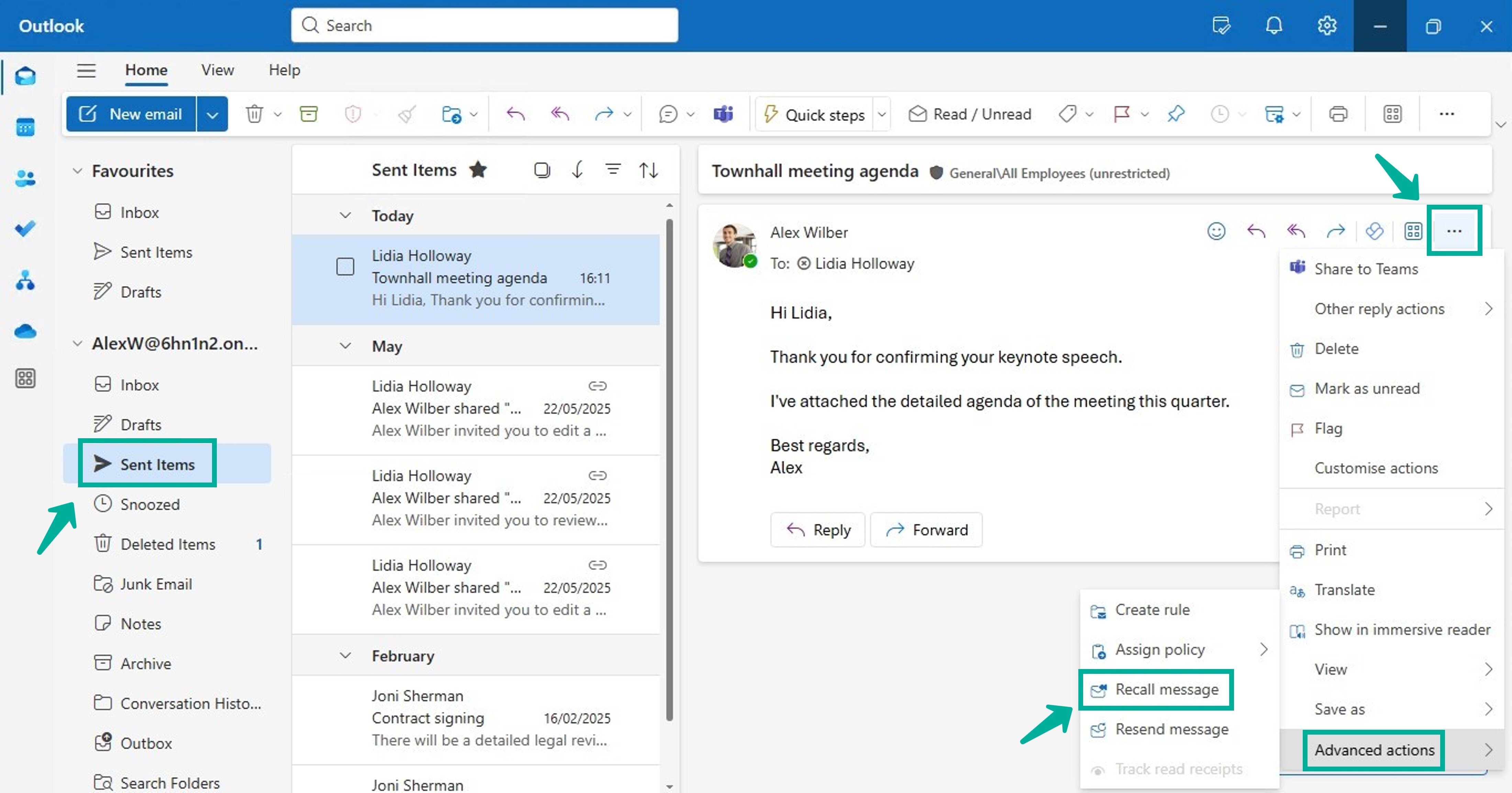
- Navigate to your Sent Items folder in the left-hand navigation pane.
- Double-click the message you wish to retract to open it in a new window, or select it to view it in the reading pane.
- In the top-right corner of the message header (near the "Reply" and "Forward" buttons), look for the More Actions (...) icon.
- Select Recall Message from the dropdown menu.
- A dialog box will appear. You will typically have two options:
- Delete unread copies of this message: This simply attempts to remove the email from the recipient's inbox.
- Delete unread copies and replace with a new message: This allows you to retract the original and immediately sends a corrected version.
- Ensure the box "Tell me if recall succeeds or fails for each recipient" is checked. This generates the Message Recall Report, a web-based summary of the retraction status.
Using Classic Outlook
If your organization still utilizes the legacy desktop client, the path is slightly different:
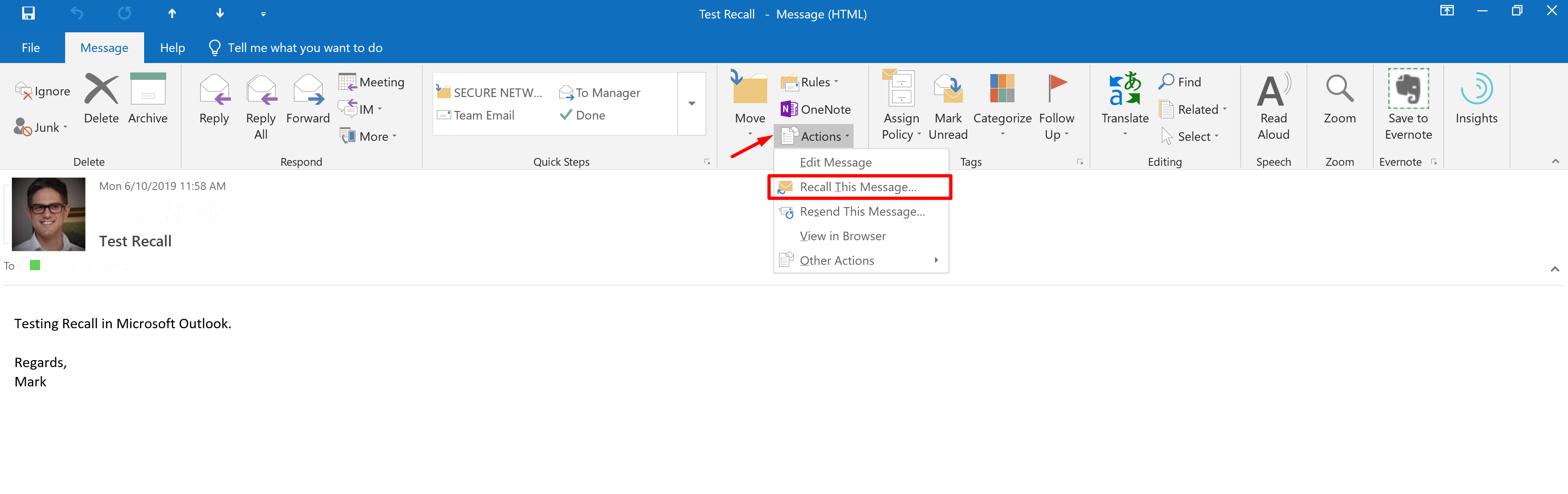
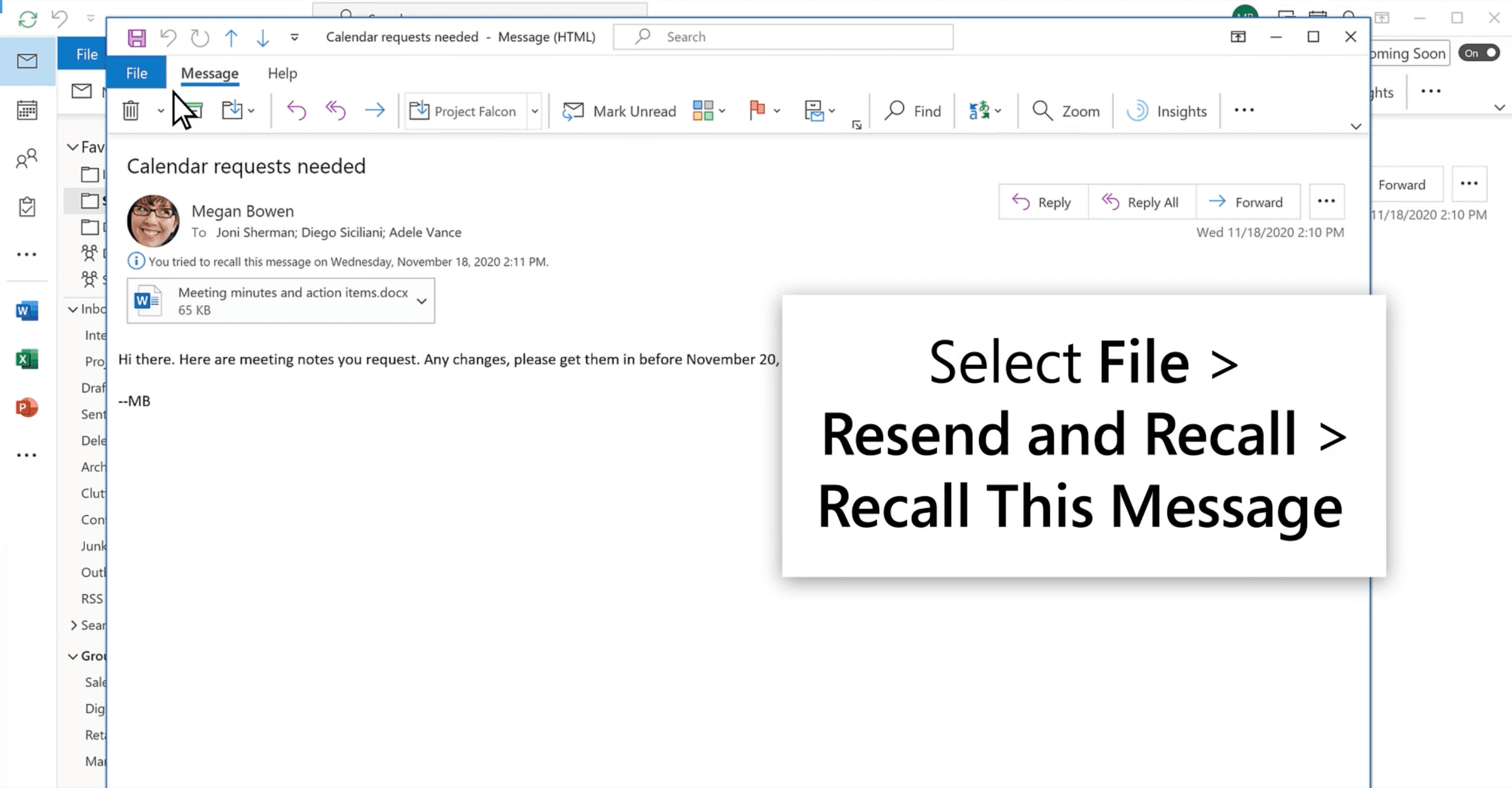
- Open the Sent Items folder.
- Double-click the message to open it in its own window.
- Navigate to the Message tab on the top ribbon.
- Locate the Move group. Click on Actions and then select Recall This Message.
- Choose between "Delete unread copies" or "Delete and replace."
- Click OK.
Understanding the Message Recall Report
One of the most significant advancements in the 2026 iteration of Microsoft 365 is the centralized Message Recall Report. In previous decades, users would receive a flurry of individual emails notifying them of success or failure for every single recipient. This was inefficient and often confusing for large distribution lists.
The modern report is a web-based dashboard accessible via a link sent to your inbox shortly after you initiate a recall. This report provides a real-time status update for every recipient. It categorizes results into:
- Recalled: The message was successfully removed before being read.
- Pending: The system is still attempting to reach the recipient's mailbox (common in cases of temporary connectivity issues).
- Failed: The message could not be recalled, usually because the recipient had already opened it or is using a third-party email service.
This transparency allows professionals to decide their next move—such as sending a manual apology or a follow-up clarification—without guessing who saw the original error.
Why Message Recall Often Fails
Despite the technical improvements, message recall is notoriously fickle. Understanding why it fails can help you manage expectations and prepare alternative strategies.
External Recipients
As mentioned, Microsoft 365 cannot control the servers of other providers. When you send a recall request to a recipient at another company or a personal email service, they may actually receive a second email stating "Sender would like to recall the message [Subject]." This often draws more attention to the original mistake rather than hiding it.
Mobile Devices and Cached Mode
Many users access email via mobile apps (like Apple Mail or Gmail app) or use Outlook in "Cached Exchange Mode." If a mobile device syncs the email before the recall command is processed, the user may see a notification of the original email. Even if the email is later deleted from the server, the notification or a cached snippet may remain on the device.
Shared Mailboxes and Delegates
If an email is sent to a shared mailbox where multiple people have "Read" permissions, any one of them opening the email will invalidate the recall for everyone else. Similarly, if a manager has a delegate who reads their mail, the delegate's action counts as the message being "Read," even if the manager hasn't seen it yet.
Proactive Solutions: The "Undo Send" Feature
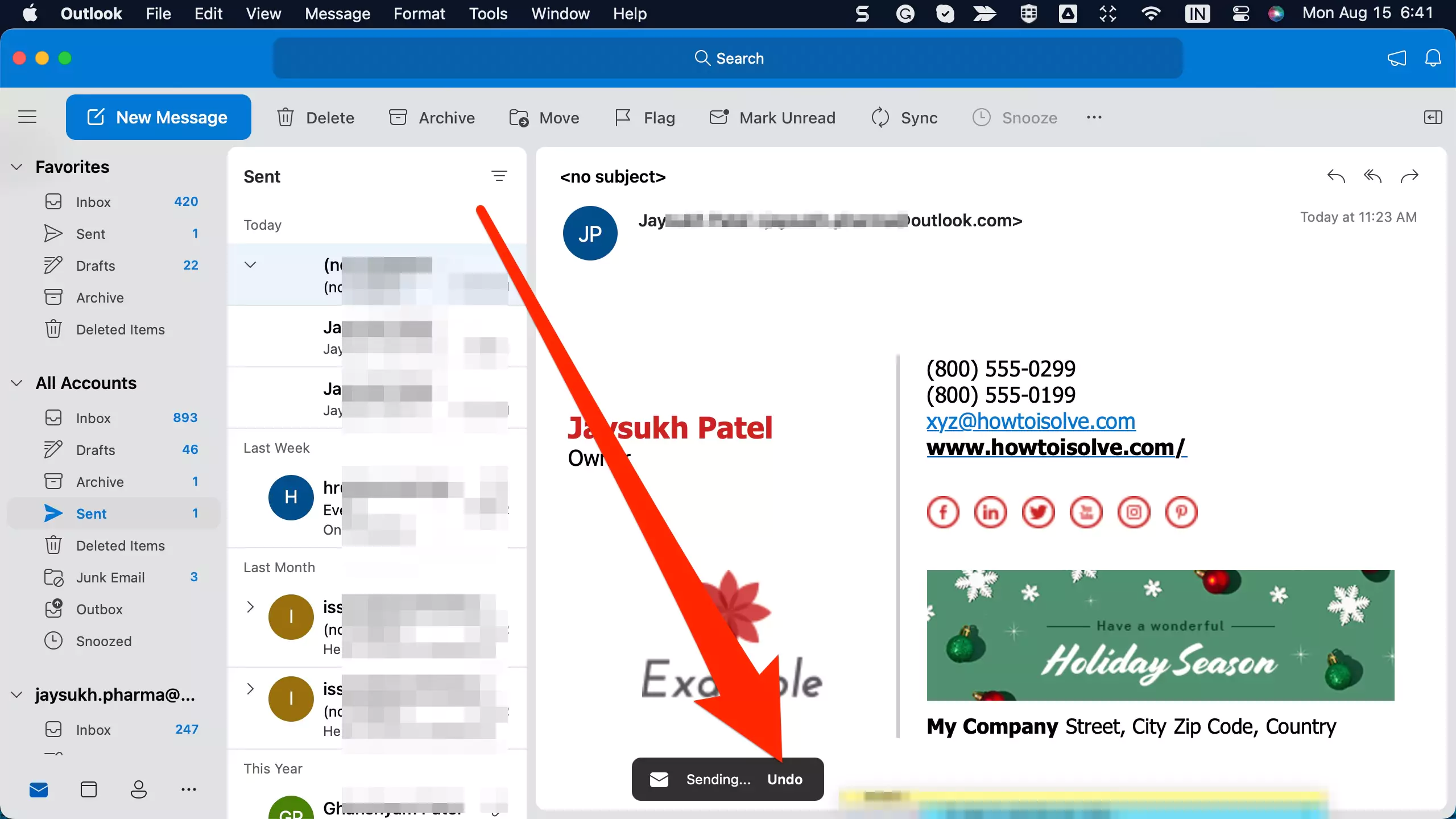
Given the limitations of post-delivery retraction, many users in 2026 rely on the Undo Send feature. This is a "buffer" period rather than a true recall. When you click "Send," the email is held in your Outbox for a predetermined number of seconds (usually 10 to 30) before actually being transmitted to the server.
To enable or adjust this in Microsoft 365:
- Go to Settings (the gear icon).
- Select Mail > Compose and reply.
- Scroll down to Undo send.
- Adjust the slider to your preferred delay (0 to 30 seconds).
- Click Save.
This feature is often more valuable than recall because it catches the "instant regret" moments—such as forgetting an attachment or noticing a typo the second you click the button—before the recipient’s server ever receives the data.
Comparison: Message Recall vs. Undo Send
| Feature | Message Recall | Undo Send (Delay) |
|---|---|---|
| Timing | After the email has been delivered. | Before the email is actually sent. |
| Success Rate | Variable (Highest within the same organization). | 100% (Within the delay window). |
| Recipient Awareness | May receive a "Recall" notification. | Recipient never knows the email existed. |
| Platform Support | Outlook (Win/Mac/Web), Exchange accounts. | Most modern web and desktop clients. |
| Primary Use Case | Large errors discovered minutes/hours later. | Small errors caught immediately after clicking send. |
Administrative Controls and Compliance
In a corporate environment, the ability to recall messages is governed by IT policies. Administrators using the Exchange Admin Center (EAC) can disable message recall for the entire organization or for specific groups.
Furthermore, legal discovery and compliance requirements may override a recall. If your organization is under a "Litigation Hold," every email sent and received is archived in a hidden area of the Exchange server (the Recoverable Items folder). Even if a sender successfully "recalls" a message and it disappears from the recipient's inbox, a copy remains available to compliance officers and legal teams. This is a critical distinction for professionals in regulated industries like finance, healthcare, or law.
Professional Best Practices
When an email error occurs, the technical solution of retraction should be weighed against professional etiquette. If you have sent a sensitive or highly erroneous email to a large group, a recall is appropriate. However, if the error is a minor typo or a missing attachment, a "Reply All" with the correction is often seen as more transparent and less disruptive.
If you must recall:
- Act Fast: The likelihood of success drops every second the email sits in an inbox.
- Monitor the Report: Don't assume it worked. Check the Message Recall Report to identify who still has the original message.
- Be Honest: If the recall fails for key stakeholders, a brief, direct follow-up explaining the error is better than hoping they didn't see it.
Frequently Asked Questions
1. Does the recipient know I tried to recall an email?
In many cases, yes. If the recall is successful in a modern Microsoft 365 environment, the message simply disappears. However, if the recipient is using an older client or an external service, they may receive a system message stating that you attempted to recall the message. This can sometimes create more curiosity about the original content.
2. Can I recall a message sent from my mobile phone?
As of 2026, the Outlook mobile app for iOS and Android supports initiating a recall, provided you are using a Microsoft 365 subscription. You would typically find this by tapping the "..." menu on a sent message. However, the success rates remain highest when the command is triggered via the Web or Desktop versions of Outlook.
3. Is there a time limit for recalling an email?
Technically, there is no hard-coded time limit (like "2 hours") for the cloud-based recall in Microsoft 365. You can attempt a recall days later. However, the practical time limit is whenever the recipient opens the mail. In a fast-paced work environment, this usually means the window for a successful recall is only a few minutes.
4. Why don't I see the "Recall Message" option?
The most common reason is that you are not using a Microsoft 365 or Exchange account. If your Outlook is configured with an IMAP or POP3 account (common for personal email like Gmail or Yahoo integrated into Outlook), the recall feature is not supported by the underlying protocol.
5. Can I recall an email that was already read?
By default, the system will not remove a message that has been marked as read. In some organizational configurations, an administrator can allow the "Recall" to delete read messages, but this is rare as it is generally considered a breach of standard communication etiquette and can be confusing for the recipient who finds a message they were in the middle of processing has vanished.
6. What happens if I recall a message sent to a distribution list?
The cloud-based recall system handles distribution lists quite well. It will attempt to recall the message from every individual member of that list. Your Message Recall Report will then provide a breakdown of success and failure for every member of that group, which is far more efficient than the old method of receiving hundreds of individual status emails.
Recommended Next Steps
If you find yourself frequently needing to retract emails, your first action should be to enable the Undo Send feature with a 30-second delay. This provides a safety net that catches the majority of common errors. For larger mistakes that require a formal retraction, always ensure you are using the New Outlook or Outlook on the Web to take advantage of the most reliable server-side recall features and the comprehensive Message Recall Report.
For IT administrators, it is recommended to review the Organization Settings in the Exchange Admin Center to ensure that "Cloud-based Message Recall" is enabled, as this provides a significantly better user experience and higher success rates than the legacy client-based system.