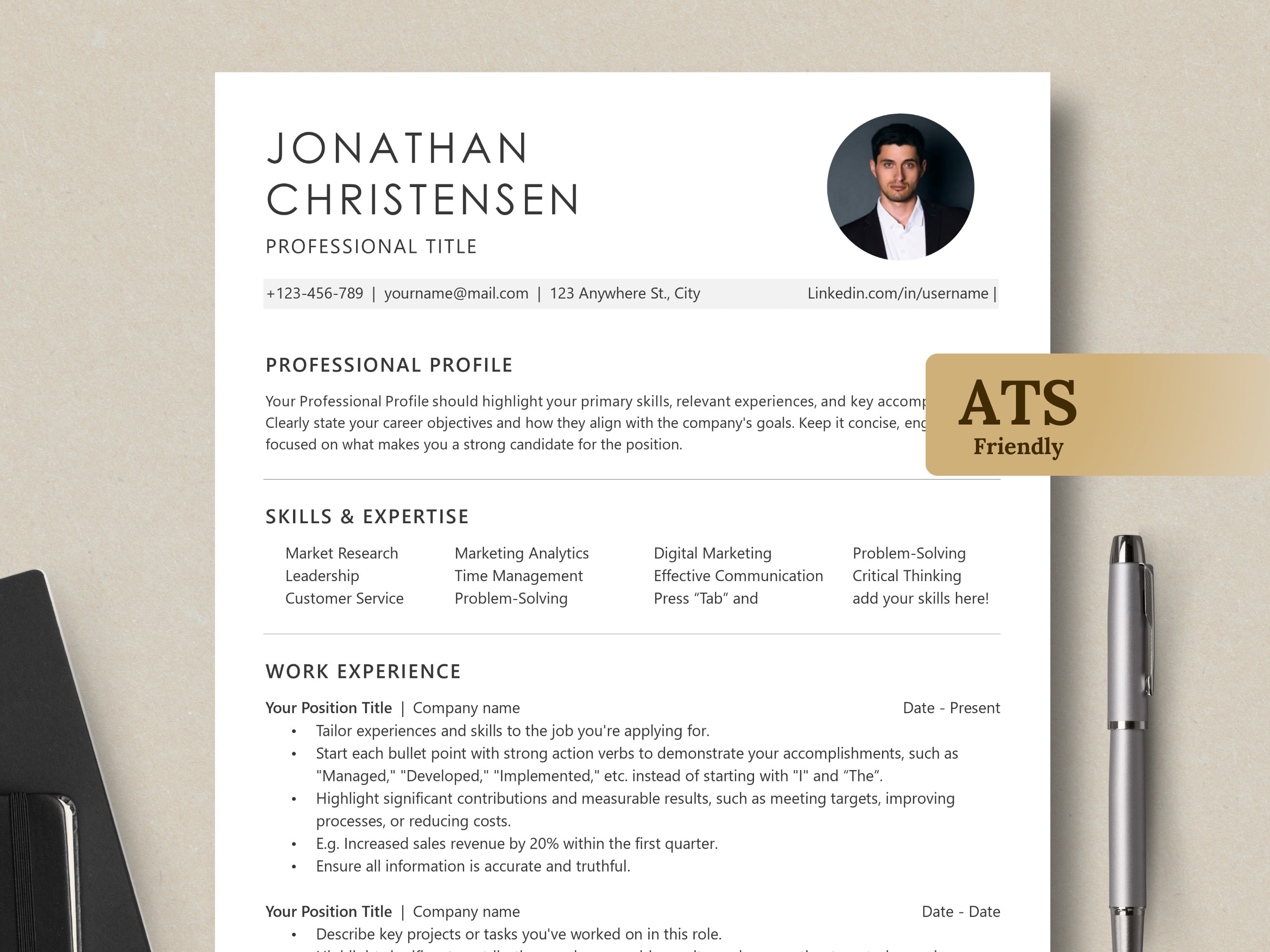
An ATS-friendly CV template is a document designed to pass through Applicant Tracking System (ATS) software without parsing errors, structural distortion, or missing data. It uses a clean, single-column layout, standard section titles, system fonts, and parseable file formats like Microsoft Word (.docx) or plain PDF, ensuring recruiters and parsing algorithms can extract and categorize your professional experience accurately.
Understanding Applicant Tracking Systems and Parsing Logic
Applicant Tracking Systems are software applications used by employers, human resources departments, and recruiters to collect, sort, scan, and rank job applications. Major enterprise platforms—such as Workday, iCIMS, Taleo, Greenhouse, Lever, and SAP SuccessFactors—process millions of resumes every year. Before a human hiring manager reads your CV, an ATS parser processes the binary or textual file, converts it into a structured candidate profile in a database, and evaluates it against specific job parameters.
Understanding the mechanics of document parsing is essential for designing an effective curriculum vitae.
Text Extraction vs. Visual Layout Rendering
When an ATS receives a file, it does not evaluate visual aesthetics, design flair, or color schemes. Instead, the parsing engine executes a text extraction routine. The software identifies structural markers, strips away visual formatting, and attempts to map pieces of text to predefined database fields:
- Contact Information: First name, last name, phone number, professional email address, location, and LinkedIn profile URL.
- Work History: Job titles, company names, employment dates (month and year), and bulleted achievement descriptions.
- Education: Degree names, field of study, institution name, and graduation year.
- Skills and Competencies: Hard skills, technical tools, certifications, languages, and core methodologies.
If the parser encounters complex visual elements—such as embedded graphics, floating text boxes, nested tables, or non-standard character encodings—it fails to sequence the text correctly. In severe cases, content within text boxes or table cells is discarded entirely, leaving the candidate profile incomplete and resulting in automated rejection during initial screening filters.
The Role of Natural Language Processing and Semantic Search
Modern ATS software utilizes Natural Language Processing (NLP) and machine learning algorithms to evaluate candidate relevance. Rather than relying solely on exact keyword matches, modern platforms use semantic search to recognize context, acronyms, and related terminology. For example, an engine trained in technical recruiting understands that "React.js," "Front-End Developer," and "JavaScript" belong to a common skill taxonomy.
However, semantic matching depends on predictable document hierarchy. If a multi-column layout causes a candidate's job title to merge with their list of skills or contact details during plain-text conversion, the NLP engine cannot accurately establish context, reducing the match score assigned to the profile.
Essential Formatting Rules for an ATS-Friendly Layout
Creating an ATS-friendly CV template requires prioritizing structural clarity over decorative design. The following core formatting rules ensure maximum compatibility across all major application tracking systems.
| Section | Content |
|---|---|
| [FULL NAME, CERTIFICATIONS] | Location | Phone Number | Professional Email | LinkedIn |
| PROFESSIONAL SUMMARY | Concise 3-4 sentence paragraph highlighting core value, domain expertise, and technical key competencies. |
| CORE COMPETENCIES | - Technical Skill 1 - Software Tool 2 - Methodology 3- Core Capability 4 - Framework 5 - Industry Standard |
| PROFESSIONAL EXPERIENCE | Job Title | Company Name | Location Month 20XX - Present- Action verb + specific context + quantified metric/impact.- Action verb + specific context + quantified metric/impact. |
| EDUCATION & CERTIFICATIONS | Degree Name - Major | Institution Name Graduation YearCertification Title | Issuing Body Year Earned |
Typography and Character Encoding
To ensure your document renders consistently across different operating systems and parsing tools, adhere strictly to standard typography guidelines:
- Use Universal System Fonts: Choose standard, pre-installed fonts such as Arial, Calibri, Helvetica, Georgia, Times New Roman, Tahoma, or Verdana. Custom web fonts (e.g., downloaded Google Fonts) or decorative script fonts often cause character encoding errors during file conversion.
- Maintain Standard Font Sizes: Set main body text between 10 pt and 12 pt. Use font sizes between 14 pt and 16 pt for H2 section headers, and 18 pt to 24 pt for your name in the H1 header.
- Avoid Non-Standard Symbols and Bullet Points: Use standard round bullets (
•) or simple square bullets. Custom bullet icons, graphic arrows, or special Unicode symbols can be translated into garbled text characters (e.g., `` or[?]), disrupting surrounding keywords.
Document Layout and Column Design
A single-column linear layout is the safest, most reliable structure for an ATS template.
While two-column designs are popular on visual portfolio sites, standard document parsers read text horizontally across the page, line by line from left to right. When processing a two-column CV, a parser may read across both columns simultaneously. This merges unrelated sentences from the left column directly into text from the right column, corrupting work history details and skill lists.
Margins should be set to standard dimensions—ideally 0.5 inches to 1.0 inch on all sides. Setting margins tighter than 0.5 inches can cause text truncation errors on specific parser drivers or when printed by recruiters.
Design Elements to Avoid
To prevent text extraction failures, avoid including the following visual elements in your primary application file:
- Floating Text Boxes: Text placed inside text boxes in Microsoft Word or Adobe InDesign is frequently ignored by parsing tools, rendering essential details invisible to the system.
- Tables for Alignment: Using tables to organize skills or work dates creates structural barriers. Parsers may read across table rows or drop contents entirely if table borders are complex.
- Headers and Footers: Do not place vital contact details (email, phone, address) inside the native Header or Footer margins of a Word document. Many parsing engines skip headers and footers to avoid repeating document titles.
- Graphic Skill Bars and Ratings: Visual progress indicators—such as 4 out of 5 stars or progress bars for software proficiency—cannot be interpreted by text parsers. They waste valuable page real estate without conveying parseable information.
- Embedded Images, Logos, and Charts: Photos, company logos, and infographics cannot be read by standard text extraction engines. Never embed your CV content as a flattened JPEG, PNG, or scanned PDF image.
Section-by-Section Structure for Optimal ATS Parsing
An ATS relies on predictable structural markers to divide a CV into logical sections. Using non-standard header names (such as "Where I've Been" instead of "Professional Experience") confuses the classification algorithm.
1. Contact Information Header
Position your contact details at the top of the main body of the document. Use standard clear labeling:
- Full Legal Name: Avoid nicknames; use the name matching your official employment records.
- Location: City, State/Province, and Postal Code (or Country for international roles). A full street address is unnecessary and presents privacy concerns.
- Phone Number: Include country code and standard formatting (e.g., +1-555-019-2831).
- Professional Email Address: Use a clean, professional address (e.g.,
firstname.lastname@email.com). - LinkedIn Profile URL: Customize your LinkedIn URL to remove random alphanumeric strings (e.g.,
linkedin.com/in/firstnamedescription).
2. Professional Summary or Profile
Replace outdated "Objective" statements with a targeted Professional Summary. This 3-to-4-sentence paragraph should introduce your core value proposition, key industry domains, primary technical competencies, and significant achievements.
Include core keywords from target job descriptions organically within this section. This guarantees that priority keywords appear near the top of the extracted document profile, improving relevance scoring.
3. Core Competencies and Skills Matrix
Create a dedicated "Skills" or "Core Competencies" section directly below the summary or work experience. Present these skills using a bulleted list or a clean, tab-separated layout without nested tables.
Divide skills logically into distinct categories where relevant:
- Technical Skills: Programming languages, software platforms, hardware tools, cloud infrastructure (e.g., Python, AWS, Salesforce, SQL).
- Methodologies and Frameworks: Industry frameworks, compliance standards, and operating methodologies (e.g., Agile/Scrum, ISO 9001, ITIL, Financial Modeling).
- Languages: Professional language proficiencies with standard fluency descriptors.
4. Professional Experience
Structure your employment history in reverse-chronological order—listing your most recent position first. This is the preferred format for both ATS parsers and human recruiters.
Each position entry must follow a consistent, logical syntax:
[Job Title] | [Company Name] – [City, State/Country][Start Month Year] – [End Month Year or Present]• Action verb combined with project scope and measurable result.• Action verb combined with specific technical tools used and business impact.
Standard Date Formatting: Use standardized date formats throughout the document. The safest formats are MM/YYYY - MM/YYYY (e.g., 03/2022 – 11/2025) or Month YYYY - Month YYYY (e.g., March 2022 – November 2025). Avoid using ambiguous numeric combinations like 03/04/22 or omitting months entirely (e.g., 2022 - 2025), as this disrupts precise work-duration calculations.
5. Education, Certifications, and Professional Development
List higher education degrees, specialized industry certifications, and relevant continuous training. Structure this section clearly:
- Degree Title: State the full degree name (e.g., Bachelor of Science in Mechanical Engineering) alongside standard abbreviations (BS).
- Institution Name: Full name of the college or university.
- Graduation Year: Include the year of completion. (If you graduated over 15 years ago, listing the year is optional if you wish to streamline your timeline).
- Certifications: List official certification titles, issuing organizations, and dates earned or expiration dates (e.g., Project Management Professional (PMP) – Project Management Institute, 2024).
File Format Compatibility: Word (.docx) vs. PDF
Choosing the correct file format is a critical final step in preserving document integrity.
- Application File
- .docx Format
- Highly compatible across legacy and modern ATS parsing engines.
- .pdf Format
- Preserves exact visual formatting for humans; requires selectable text.
- .docx Format
Microsoft Word (.docx)
The .docx format remains the standard for ATS processing. Word documents consist of XML-structured text layers that allow parsing tools to read and index content cleanly. Legacy ATS software (older iterations of Taleo or proprietary internal databases) rarely encounters parsing issues when reading .docx files.
Portable Document Format (.pdf)
PDFs preserve your exact document formatting across all devices, ensuring that human recruiters see the document precisely as designed. Modern ATS platforms process vector-based PDF files effortlessly.
However, you must verify that your PDF contains selectable, extractable text:
- Text-Based PDF (Correct): Created by exporting or saving directly from a word processor (Word, Google Docs, Pages). Text can be selected, highlighted, and copied with a cursor.
- Image-Based/Scanned PDF (Incorrect): Created by scanning a physical page or exporting graphics from image-editing software (Photoshop, Illustrator, Canva raster exports). The file contains only a flat image. Unless the ATS runs an advanced Optical Character Recognition (OCR) step, the system will read the file as completely blank.
Rule of Thumb: If the employer's application system specifically requests a particular file format, submit that exact format. If no preference is stated, a text-based PDF or standard .docx file is acceptable.
ATS Layout and Compatibility Matrix
The following table summarizes structural elements, their parsing success rates across major ATS engines, associated risks, and recommended best practices.
| Layout Element | Parsing Success Rate | Risk Level | Best Practice & Correct Implementation |
|---|---|---|---|
| Single-Column Text | 99% - 100% | Very Low | Use a linear top-to-bottom layout; keep all body text in the primary document flow. |
| Standard System Fonts | 98% - 100% | Low | Stick to Arial, Calibri, Georgia, or Helvetica (10–12pt body text). |
| Two-Column Layout | 40% - 65% | High | Avoid multi-column frames; text from left and right columns often merges incorrectly. |
| Tables for Alignment | 30% - 50% | High | Do not use tables to separate skills or dates. Use tabs or inline bullet points. |
| Text Boxes | 10% - 30% | Critical | Avoid entirely. Parsers frequently skip floating text containers entirely. |
| Headers & Footers Data | 20% - 40% | High | Place name and contact details inside the main document body, not in page margin headers. |
| Custom Bullet Graphics | 50% - 70% | Medium | Use standard round (•) or square bullets to prevent encoding substitution errors. |
| Image / Scanned PDFs | 0% - 15% | Critical | Always export via "Save As PDF" or "Print to PDF" from a word processor to retain selectable text. |
Step-by-Step Process to Build and Test Your ATS CV
Follow this operational workflow to build, optimize, and verify an ATS-friendly CV template.
- Step 1: Analyze Job Description
- Extract core skills, hard keywords, and job title taxonomy.
- Step 2: Configure Layout Geometry
- Set 0.75"-1.0" margins, single-column body, and universal fonts.
- Step 3: Draft Structured Content
- Use standard headers (Summary, Experience, Education, Skills).
- Step 4: Execute Text-Extraction Test
- Copy-paste content into Plain Text (.txt) to check reading sequence.
- Step 5: File Validation & Submission
- Save as .docx or text-based PDF; check selectable text.
Step 1: Scrape Target Job Descriptions for Skill Taxonomy
Before writing, gather 3 to 5 job descriptions for your target role. Identify recurring hard skills, tool requirements, software applications, and methodology keywords.
Pay attention to exact phrasing:
- If target listings consistently mention "Project Management Professional," include both the full phrase and the acronym "PMP."
- If listings ask for "Search Engine Optimization," write out "Search Engine Optimization (SEO)" at first mention to cover both search queries.
Step 2: Set Up Document Geometry and Style Hierarchy
Open Microsoft Word, Google Docs, or an equivalent document processor.
- Set page margins to 0.75 inches or 1.0 inch.
- Set default body font to Calibri or Arial, size 11 pt, with 1.15 line spacing and 6 pt spacing after paragraphs.
- Create H2 section headers using Bold, size 14 pt, in Dark Gray or Black.
- Disable custom header/footer text regions for primary contact details.
Step 3: Write Content Using Standard Heading Conventions
Draft your sections using standardized heading titles:
Professional SummaryCore CompetenciesProfessional ExperienceEducationCertifications & Training
Avoid creative or stylized headers such as "My Background," "Accomplishments," or "Where I've Excelled."
Step 4: Run the Plain-Text Verification Test
To verify that your template parses correctly without software, perform a plain-text conversion test:
- Open your completed CV file.
- Select all content (
Ctrl+AorCmd+A) and copy it. - Open a basic text editor like Notepad (Windows) or TextEdit (Mac, set to Plain Text mode).
- Paste the content into the blank text document.
Review the Output: Examine the plain text carefully. Are your job titles, employment dates, company names, and bullet points listed in a clear, logical sequence? If sentences from different sections overlap, or if contact details are missing, your original document contains layout elements (such as text boxes or tables) that must be removed.
Common ATS Optimization Pitfalls and How to Fix Them
Even well-formatted documents can trigger red flags if applicants use bad optimization tactics.
Pitfall 1: White-Text Keyword Stuffing
A lingering myth suggests that pasting invisible keywords (e.g., rendering text in white font against a white background) tricks the ATS into granting a 100% match score without human detection.
Why it fails: Modern ATS parsers strip away font color attributes during text extraction. All text is converted into plain black text for the recruiter's profile view. When human recruiters open the candidate profile, they will see blocks of contextless keywords at the bottom of the page. Most enterprise platforms actively flag hidden text tactics, resulting in immediate application rejection for fraud.
Pitfall 2: Using Creative, Internal Job Titles
Applying with non-standard job titles—such as "Coding Ninja," "Chief Happiness Officer," or internal company codes like "Software Engineer III - Band 6"—confuses classification algorithms.
How to fix it: Translate internal or unconventional titles into industry-standard equivalents. You can list the standardized functional title followed by the internal title in parentheses:
Senior Software Engineer (Software Engineer III) | Acme Corporation
Pitfall 3: Graphics and Skill-Rating Widgets
Adding progress bars, pie charts, or percentage indicators to reflect skill proficiency (e.g., "Python: 80%") creates multiple issues. Parsers cannot process graphic bars, and numeric percentages fail to convey concrete business context to hiring managers.
How to fix it: Replace visual bars with contextual descriptions of experience level or direct project achievements:
- Incorrect:
Python [████████░░] 80% - Correct:
Python: 5+ years experience building automated ETL pipelines and web services using Django and FastAPI.
Frequently Asked Questions
Can ATS read PDF CV templates?
Yes, modern ATS platforms read text-based PDF templates easily. However, the PDF must be exported directly from a word processor so the text layer remains selectable. Scanned PDFs or graphics exported from design tools like Photoshop or Illustrator lack a text layer and will fail parsing unless processed by OCR software.
Are multi-column CV templates ATS-friendly?
No. Multi-column CV templates carry a high risk of parsing failures. Most ATS parsers extract text horizontally across the page, line by line. This often merges text from the left and right columns into garbled sentences, confusing the candidate profile structure. Single-column layouts remain the safest choice.
How do I know if my CV template is ATS-compliant?
You can test compliance by opening your file, copying all text (Ctrl+A / Cmd+A), and pasting it into a plain-text editor like Notepad or TextEdit. If the text appears in a logical, readable order with all contact details, headers, dates, and bullet points intact, your template structure is ATS-compliant.
Should I put my contact details in the document header?
No. You should place your contact details inside the main body of the document at the very top. Many ATS parsing tools ignore native page headers and footers to avoid repeating document titles, which can cause the parser to miss your phone number, email address, or location.
Does an ATS automatically reject CVs without exact keyword matches?
Not necessarily. Modern ATS platforms use semantic search and Natural Language Processing (NLP) to evaluate overall candidate profiles based on skill families, related terms, and contextual experience. However, matching core skills, tool names, and job titles cleanly increases your match score and priority in recruiter search results.
Next Actions: Preparing Your Application Package
To maximize your application response rate, follow these immediate next actions:
- Download or Build a Single-Column Master Template: Create a baseline
.docxdocument configured with 0.75-inch margins, Arial or Calibri font, bold section headers, and standard round bullet points. - Build a Standardized Master Skill Repository: Compile a comprehensive, categorized list of your hard skills, technical proficiencies, software platforms, certifications, and industry domain terms.
- Tailor Your CV for Each Application: Before submitting an application, analyze the target job description. Ensure core keywords, functional job titles, and required certifications are integrated naturally into your Professional Summary and Work Experience sections.
- Perform a Plain-Text Conversion Verification: Run the plain-text copy-paste test prior to final submission to confirm that all text sequences cleanly and no structural content is missing.