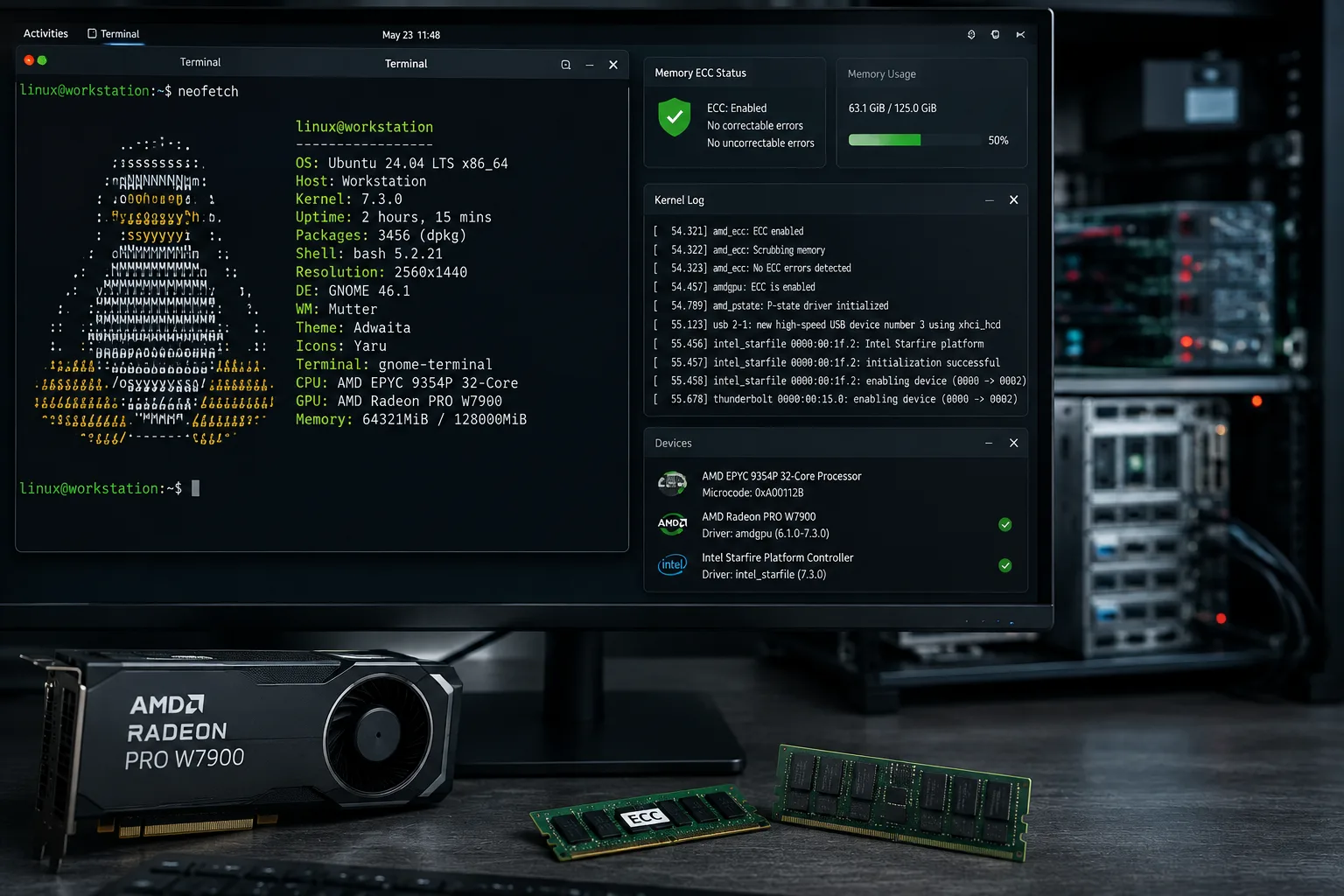
AMD graphics drivers for Linux are primarily integrated directly into the Linux kernel and the Mesa 3D graphics library, providing open-source, high-performance support for Radeon, FirePro, and Instinct GPUs without the need for manual, proprietary installations. By relying on the upstream kernel module 'amdgpu' and the 'RADV' or 'RadeonSI' drivers within Mesa, Linux users benefit from automatic updates, seamless system integration, and broad support for modern gaming and professional APIs like Vulkan and OpenGL.
The Architecture of AMD Linux Graphics
Unlike many operating systems that rely on monolithic, third-party binary blobs for hardware communication, Linux utilizes a bifurcated approach for graphics drivers. This strategy separates the "kernel-mode" driver (responsible for low-level hardware interaction, power management, and memory allocation) from the "user-space" driver (responsible for translating 3D API calls into instructions the GPU understands).
For AMD hardware, the amdgpu kernel driver serves as the foundation. This driver is maintained directly within the upstream Linux kernel source tree. Because it is part of the kernel, you do not need to download or install a separate driver package to get your hardware functional; if your kernel version supports your specific GPU architecture, the card will initialize automatically upon boot.
The user-space portion of this stack is provided by Mesa. Mesa is a massive open-source project that implements various graphics APIs, including OpenGL, OpenGL ES, and Vulkan. Within Mesa, AMD hardware is supported by two primary drivers:
- RadeonSI: Handles OpenGL rendering for modern GCN (Graphics Core Next) and RDNA architectures.
- RADV: A high-performance community-developed Vulkan driver, widely considered the gold standard for gaming performance on Linux.
Why You Don't Usually Need "Proprietary" Drivers
In the context of 2026, many new Linux users search for ways to install "the official AMD driver," often confusing the open-source stack with the proprietary "AMD Software: PRO" driver. While AMD does provide a proprietary driver package (AMDGPU-PRO), it is designed specifically for enterprise-grade workloads, such as certified CAD software or specific compute-heavy environments where vendor support contracts are required.
For 99% of desktop users—including gamers, content creators, and developers—the open-source driver stack is not just sufficient; it is superior. It offers better performance in the vast majority of gaming titles, integrates perfectly with the Wayland and X11 display protocols, and receives continuous performance optimizations through regular kernel and Mesa updates provided by your distribution’s package manager.
Key Components of the Stack
Understanding how these components interact helps in troubleshooting performance issues or choosing the right distribution.
- The Kernel (amdgpu): This handles the "hard" side of the graphics card. It interfaces with the physical silicon to manage thermals, clock speeds, and the direct memory access (DMA) required for the GPU to communicate with system RAM.
- Mesa (RADV/RadeonSI): This is where the magic happens. When you launch a game, it sends commands through a graphics API. Mesa intercepts these commands and compiles them into the machine code that the AMD GPU understands.
- LLVM/ACO: Within the Mesa stack, "compilers" are used to turn shader code into GPU instructions. ACO (AMD Compiler) is the industry-standard shader compiler for gaming on RADV, designed specifically to minimize frame stutters in games.
- Display Server/Compositor: Whether you are using Wayland (via Sway, GNOME, or KDE Plasma) or X11, the AMD driver exposes the hardware via the Direct Rendering Manager (DRM) subsystem, allowing your desktop to remain fluid and responsive.
Comparison: Open Source vs. Proprietary AMD Drivers
| Feature | Open-Source Stack (Mesa + Kernel) | AMDGPU-PRO (Proprietary) |
|---|---|---|
| Primary Use Case | Gaming, Desktop, General Compute | Professional CAD/Certified Apps |
| Performance | Optimized for Gaming/General Use | Optimized for Specific Enterprise Apps |
| Updates | Automatic via Distribution Updates | Manual/Periodic Installer Updates |
| Compatibility | Built-in to Kernel/Mesa | Limited to specific distro versions |
| Stability | High (Upstreamed) | Varies (Can be brittle on new kernels) |
Prerequisites and Best Practices
To ensure your AMD graphics card performs at its peak, your system needs to be aligned with the right software versions.
1. Keep Your Kernel Updated
Because the amdgpu driver lives in the kernel, newer AMD GPUs require newer kernels. If you purchase a brand-new, cutting-edge graphics card, ensure your Linux distribution is using a recent stable kernel (for example, kernel 6.x or newer in 2026). If you are on an "LTS" (Long Term Support) distribution like Debian or RHEL, you may need to enable "backports" or a specialized kernel repository to get hardware support for the latest generation of AMD silicon.
2. Firmware is Mandatory
While the driver is open-source, the hardware itself requires proprietary firmware "blobs" to operate the internal GPU processor. Ensure your distribution has the linux-firmware package installed. Without these blobs, the driver will fail to initialize the card, often resulting in a black screen or a "soft-locked" GPU.
3. Use Mesa from Repositories Do not attempt to compile Mesa from source unless you are an advanced user. Most mainstream distributions (Fedora, Arch, Ubuntu) provide very high-quality, up-to-date Mesa packages. If you require the absolute latest features (such as experimental ray tracing support), consider using a "rolling release" distribution or a Flatpak-based runtime, which decouples your graphics libraries from your base system.
Troubleshooting Common Issues
Despite the maturity of the AMD Linux stack, issues can occur. Follow these logical steps to diagnose problems:
- Black Screen on Boot: This is often a firmware issue. Boot into a recovery console and check
dmesg | grep amdgpu. Look for "firmware load failed" errors. This usually means yourlinux-firmwarepackage is outdated or missing. - Stuttering in Games: This is frequently caused by "shader compilation." Because Linux games often translate Windows DirectX commands to Vulkan (via Wine/Proton), the GPU must compile shaders on the fly. This settles down after you play a game for a few minutes and the shaders are cached on your disk.
- Low Performance: Run
glxinfo | grep "OpenGL renderer"to ensure your system is using the hardware-accelerated driver (e.g., "AMD Radeon RX 7900") and not the software-based "llvmpipe" (which runs graphics on your CPU).
The Role of Wine and Proton
It is impossible to discuss AMD graphics on Linux without mentioning Wine and Proton. These layers allow Windows games to communicate with your AMD driver. Because the AMD open-source driver adheres strictly to the Vulkan specification, it acts as a perfect target for the DXVK (DirectX to Vulkan) layer utilized by Proton. As a result, AMD cards often see performance parity—and sometimes even performance gains—compared to their Windows counterparts.
Frequently Asked Questions
1. Do I need to install AMD drivers like I do on Windows? No. AMD graphics drivers for Linux are included in the kernel. You do not need to visit the AMD support website to download an executable installer. Everything is managed automatically by your Linux distribution's update system.
2. Is my AMD card supported?
The amdgpu driver supports almost all Graphics Core Next (GCN) architectures and newer. If your card was released in the last decade, it is likely fully supported. Very old "TeraScale" cards (pre-2012) use the older radeon driver, which is still included but does not support modern Vulkan gaming.
3. Why do I see "AMDGPU-PRO" mentioned online? This is a proprietary driver suite provided by AMD. It is intended for industrial and professional workloads (like DaVinci Resolve or specific 3D CAD tools) that require "Certified" driver support. For gaming or general desktop use, it is almost always unnecessary and can cause system instability.
4. How do I check if my GPU is working correctly?
Open your terminal and type radeontop. This utility provides a real-time view of your GPU usage, memory clock, and temperature, directly reading from the driver data.
5. Are there any graphical control panels for AMD? While there is no "AMD Adrenalin" software for Linux, community tools like CoreCtrl provide an excellent graphical interface. It allows you to monitor your GPU, control fan curves, adjust power limits, and set per-application performance profiles.
Next Steps for Users
If you are currently setting up a new AMD system, your immediate next step is to ensure your distribution’s repository is fully updated. Verify that your hardware is being detected correctly by running lspci -k | grep -A 3 -E "(VGA|3D)". If you see kernel driver in use: amdgpu, you are already configured and ready to play. Focus your attention on keeping your system updated through your standard update manager, and explore tools like CoreCtrl if you desire finer control over power management or custom cooling profiles.