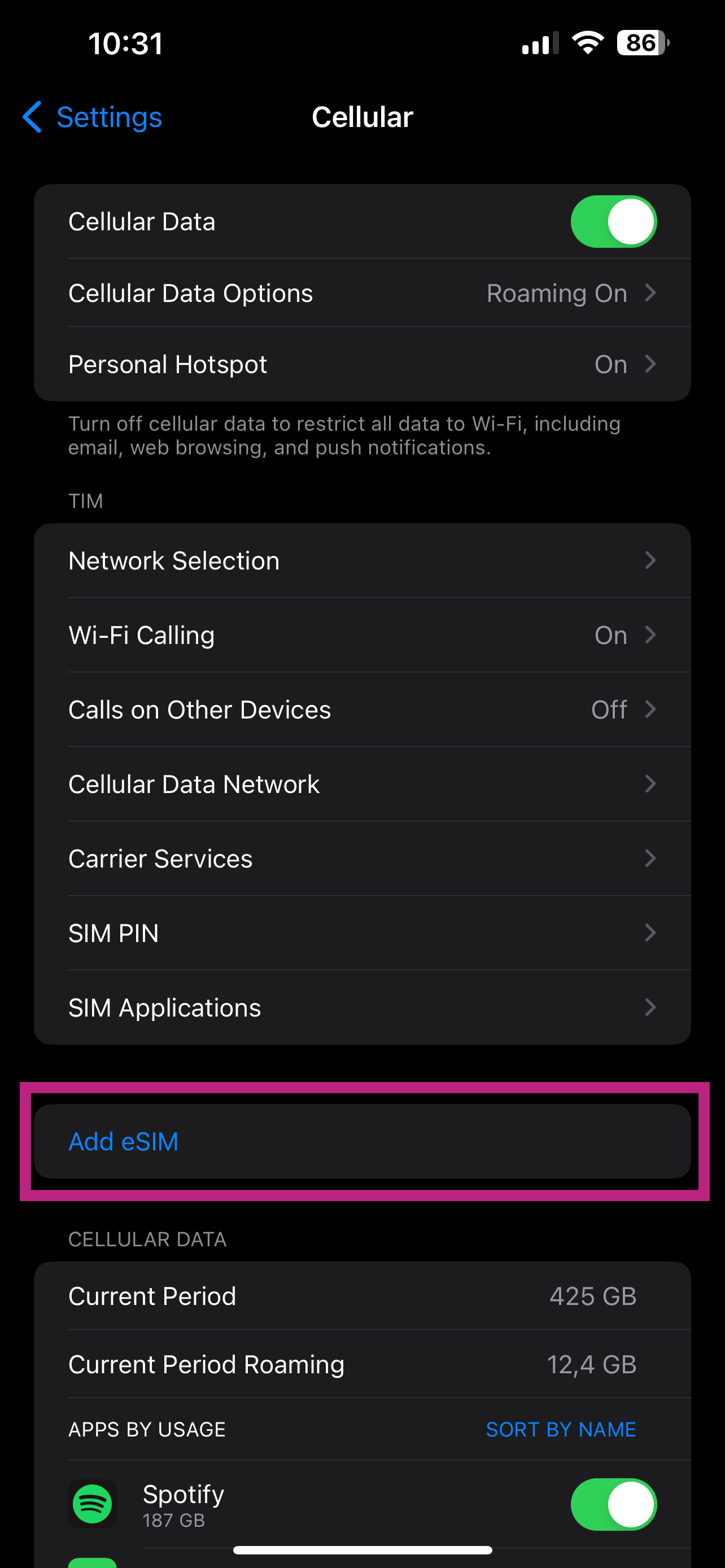
Activating an eSIM on an iPhone 13 is a straightforward process that allows you to use a cellular plan without a physical nano-SIM card. To activate, navigate to Settings > Cellular > Add eSIM, then choose to transfer from a nearby iPhone, use a QR code provided by your carrier, or utilize Carrier Activation if your provider assigned the plan digitally.
The iPhone 13 series, released in late 2021, represented a significant milestone in Apple’s hardware evolution. It was the first iPhone generation to support Dual eSIM, meaning you can have two eSIMs active at the same time, or one physical SIM and one eSIM. As we move through 2026, the transition toward eSIM-only environments has accelerated globally, making it essential for iPhone 13 owners—whether original purchasers or those using refurbished models—to understand the nuances of digital SIM management.
Understanding eSIM Technology on the iPhone 13
Before diving into the activation steps, it is vital to understand what makes the iPhone 13 unique compared to its predecessors. While the iPhone 11 and 12 supported eSIM, they required one of the two active lines to be a physical nano-SIM. The iPhone 13, iPhone 13 mini, iPhone 13 Pro, and iPhone 13 Pro Max allow for two active eSIMs simultaneously.
An eSIM (embedded SIM) is a global specification by the GSMA that enables remote SIM provisioning. Instead of a removable plastic card, the "SIM" is a small chip soldered directly onto the device's motherboard. This technology offers several advantages:
- Security: If your phone is stolen, a thief cannot remove the SIM card to prevent the device from being tracked.
- Convenience: You can switch carriers or add international data plans without waiting for a physical card to arrive in the mail.
- Space: Removing the SIM tray (in later US models) allows for more battery space or other components, though the iPhone 13 still retains its physical slot.
Prerequisites for eSIM Activation
To ensure a smooth activation process in 2026, verify that you meet the following requirements:
- Carrier Compatibility: Ensure your mobile service provider supports eSIM. Most major global carriers and many MVNOs (Mobile Virtual Network Operators) fully support iPhone eSIM provisioning.
- Unlocked Device: If you purchased your iPhone 13 through a carrier on a payment plan, it might be "carrier locked." You cannot add an eSIM from a different carrier until the device is unlocked. You can check this in Settings > General > About > Carrier Lock. It should say "No SIM restrictions."
- Stable Connection: You must be connected to a Wi-Fi network. The activation process requires an internet connection to communicate with the carrier's servers to download the eSIM profile.
- iOS Version: Ensure your iPhone 13 is updated to the latest available version of iOS. Apple frequently releases carrier bundle updates that improve eSIM stability and 5G performance.
Method 1: eSIM Carrier Activation
This is the most seamless method, often used when you purchase a new plan directly from a provider or upgrade your device. With Carrier Activation, the carrier assigns the eSIM to your iPhone 13 digitally using its unique EID (Embedded Identity Document) number.
How to complete Carrier Activation:
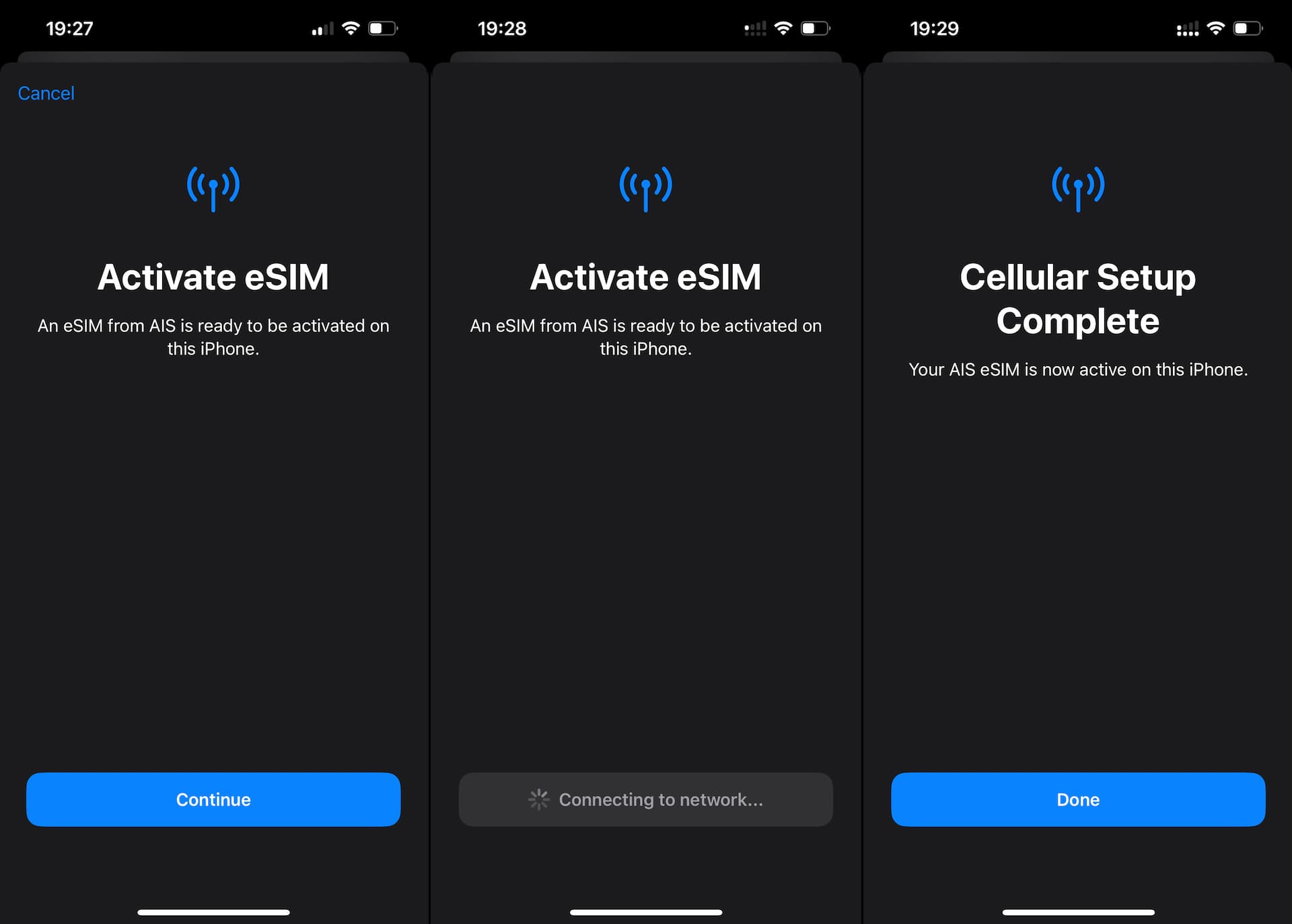
- The Notification: When you turn on your phone or after a carrier representative confirms the digital shipment, a notification should appear saying "Carrier Cellular Plan Ready to Be Installed."
- The Settings App: If you don't see the notification, open the Settings app.
- Installation: Tap on the "Carrier Cellular Plan Ready to Be Installed" banner at the top of the screen.
- Confirmation: Tap Continue at the bottom of the screen. Your iPhone will now communicate with the carrier network. This may take a few minutes.
- Testing: Once the status bar shows signal bars, make a test call to ensure the activation was successful.
Method 2: eSIM Quick Transfer (Moving from a previous iPhone)
If you are upgrading from an older iPhone (like an iPhone 11 or 12) to an iPhone 13, Apple’s "Quick Transfer" allows you to move your existing physical SIM or eSIM to the new device digitally.
Steps for Quick Transfer:
- Go to Settings > Cellular > Add eSIM on your iPhone 13.
- Select Transfer From Nearby iPhone.
- Ensure your old iPhone is nearby, unlocked, has Bluetooth turned on, and is running at least iOS 16.
- Follow the on-screen instructions. You may be asked to enter a verification code displayed on your new iPhone into the old one.
- Wait for completion: The cellular plan will deactivate on the old phone and activate on the iPhone 13. Note that if you are converting a physical SIM to an eSIM during this process, the physical SIM card will become permanently disabled.
Method 3: Using a QR Code
Many international travel eSIM providers or regional carriers provide a QR code via email or a physical card. This remains the most common method for adding secondary lines for data or travel.
Steps for QR Code Activation:
- Open the Camera app and scan the QR code provided by your carrier.
- When the Cellular Plan Detected notification appears, tap it.
- Tap Continue and then Add Cellular Plan.
- If prompted for a confirmation code to activate the eSIM, enter the number provided by your carrier (this is usually sent alongside the QR code).
Alternatively, you can go through Settings > Cellular > Add eSIM > Use QR Code. This opens a specialized scanning interface that is sometimes more reliable than the standard camera app for reading SIM profiles.
Method 4: Manual Entry
If your camera is not working or the QR code won't scan, you can enter the activation details manually. Your carrier must provide you with an SM-DP+ Address and an Activation Code.
- Navigate to Settings > Cellular > Add eSIM.
- Tap Use QR Code at the bottom of the screen.
- Tap Enter Details Manually at the bottom of the scanning window.
- Input the SM-DP+ Address and Activation Code exactly as provided. Leave the "Confirmation Code" blank unless your carrier specifically gave you one.
- Tap Next and follow the prompts to finish the setup.
Managing Your Dual SIM Settings
Once your eSIM is active, the iPhone 13 provides a robust interface for managing how your lines interact. This is particularly useful for users balancing a work number and a personal number.
Labeling Your Lines
In Settings > Cellular, tap on the number you want to change. Tap Cellular Plan Label and choose a label like "Primary," "Secondary," "Business," or "Travel." This helps you distinguish which line you are using when sending texts or making calls.
Setting Default Behaviors
- Default Voice Line: Choose which number is used by default when you call or text someone who isn't in your Contacts app.
- Cellular Data: Select which line provides your internet connection. We recommend turning on Allow Cellular Data Switching. This allows the phone to use the other line for data if you are on a voice call on a line that doesn't support simultaneous voice and data.
| Feature | Physical SIM + eSIM | Dual eSIM (iPhone 13 & Newer) |
|---|---|---|
| Active Lines | 2 | 2 |
| Stored Profiles | 1 Physical, 8+ eSIMs | 8+ eSIMs |
| Switching Speed | Moderate (Physical swap) | Instant (Software toggle) |
| Security | SIM can be removed | SIM is embedded/locked |
| Best Use Case | Legacy carriers | Travel and Privacy |
Troubleshooting Common iPhone 13 eSIM Issues
Even in 2026, technology can encounter glitches. Here is how to resolve the most frequent eSIM activation errors.
"Unable to Activate eSIM"
This error usually occurs when the device cannot reach the carrier’s activation server.
- Solution: Toggle Airplane Mode on and off. If that fails, ensure your Wi-Fi is stable. In rare cases, you may need to "Reset Network Settings" (Settings > General > Transfer or Reset iPhone > Reset > Reset Network Settings). Warning: This will erase your saved Wi-Fi passwords.
"No Service" After Activation
If the eSIM appears in your settings but shows "No Service," the provisioning might not be complete on the carrier's end.
- Solution: Restart your iPhone 13. This forces the device to re-handshake with the nearest cell tower. If the issue persists, contact your carrier and ask them to "re-resend the eSIM profile" or "refresh the EID registration."
Missing "Add eSIM" Button
If you don't see the option to add an eSIM, your device might have a hardware regional limitation.
- Note: iPhone 13 models sold in Mainland China, Hong Kong, and Macao (specifically the dual-physical SIM slot models) do not support eSIM. Check your model number in Settings > General > About.
The Security Benefits of eSIM in 2026
By 2026, digital security has become more complex. The iPhone 13’s eSIM provides a layer of protection that physical SIM cards cannot match. If your device is lost or stolen, an unauthorized user cannot simply pop out the SIM card to disconnect the device from the "Find My" network. The eSIM remains active and linked to the hardware until you, the owner, provide authentication to remove it.
Furthermore, "SIM Swapping"—a form of identity theft where a hacker social-engineers a carrier into moving your number to their device—is increasingly being mitigated by eSIM-only protocols that require on-device biometric verification (FaceID) before a transfer can be authorized.
Frequently Asked Questions
Can I use 5G on both eSIMs on my iPhone 13?
Yes. The iPhone 13 supports 5G on both active lines, whether you are using the Dual eSIM configuration or the Physical SIM + eSIM configuration. However, keep in mind that using two active lines on 5G may increase battery consumption compared to a single line.
How many eSIMs can I store on an iPhone 13?
While you can only have two lines active at once, you can store eight or more eSIM profiles on your iPhone 13. This allows you to keep various international data plans or secondary numbers stored in memory and toggle them on or off as needed via the Cellular settings menu.
What happens to my eSIM if I factory reset my iPhone?
When you reset your iPhone (Settings > General > Transfer or Reset iPhone > Erase All Content and Settings), you will be asked whether you want to Keep or Delete your eSIMs. If you plan on setting the phone up again for yourself, choose "Keep." If you are selling or trading in the device, choose "Delete."
Can I convert my physical SIM to an eSIM on the same iPhone 13?
Yes, provided your carrier supports it. Go to Settings > Cellular, tap on your physical SIM number, and look for the option Convert to eSIM. If the option is not there, you must contact your carrier to issue a new eSIM profile.
Does the iPhone 13 support eSIM for international travel?
Absolutely. In 2026, using travel-specific eSIM apps (such as Airalo, Holafly, or Nomad) is the standard for international roaming. You can download these apps, purchase a local data plan, and install the eSIM on your iPhone 13 before you even leave your home country.
Final Recommendation
When activating an eSIM on your iPhone 13, always prioritize Carrier Activation or Quick Transfer if available, as these methods minimize manual data entry and reduce the likelihood of errors. If you are using a travel eSIM, ensure you install it while you have a strong Wi-Fi connection to prevent the download from failing mid-way. Once activated, take a moment to label your lines clearly to avoid accidental roaming charges on your primary number.