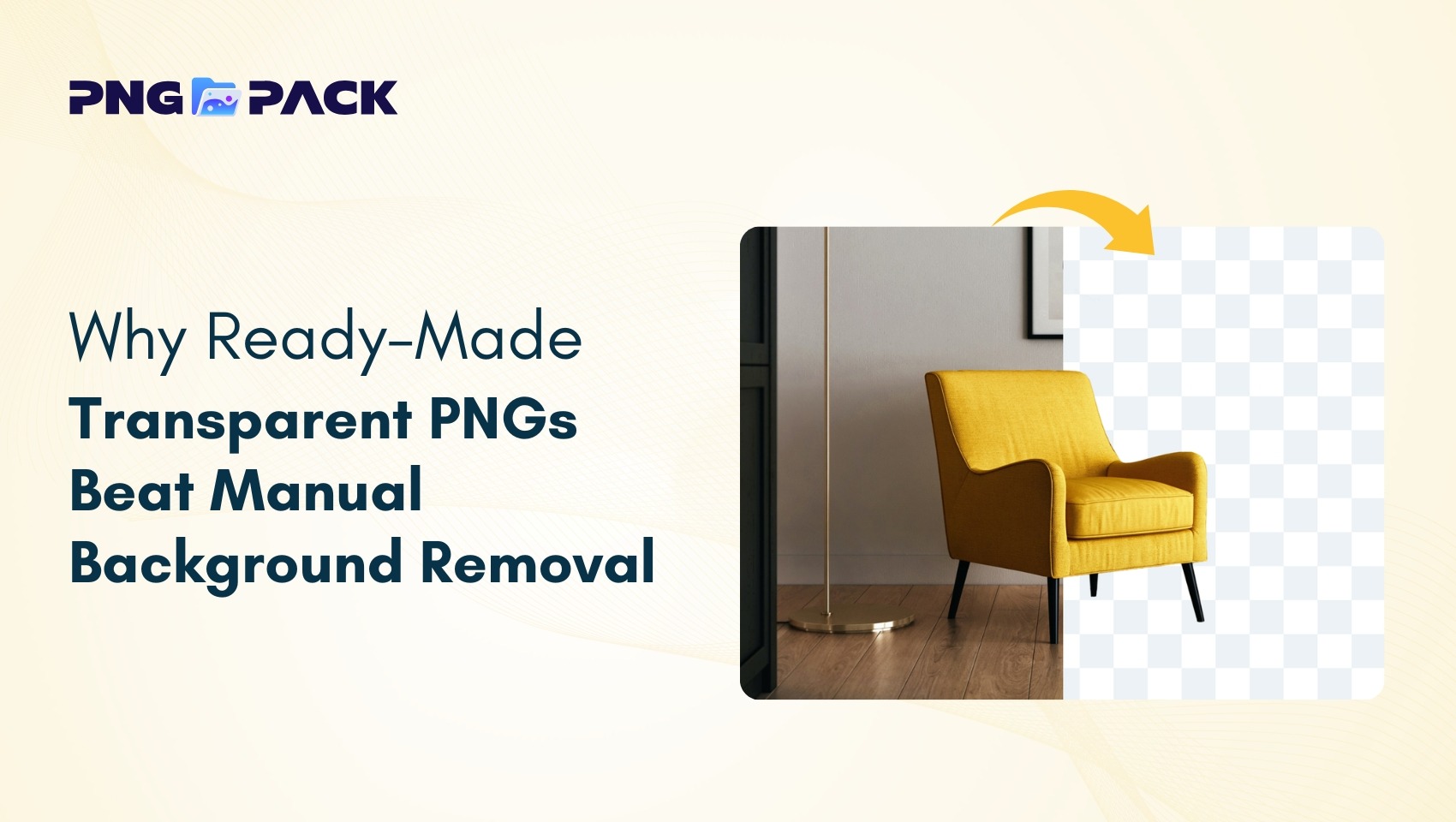
Yes, PNGs are transparent, provided the file is saved with an alpha channel that supports transparency data. Unlike formats such as JPEG, which require a solid background, the Portable Network Graphics (PNG) format was specifically designed to handle variable levels of transparency, allowing for complex edges, drop shadows, and semi-transparent design elements to be placed over any background.
The Technical Foundation of PNG Transparency
The core of PNG transparency lies in the alpha channel. In digital imaging, a standard color model consists of red, green, and blue (RGB) channels. The alpha channel acts as a fourth channel, dedicated entirely to defining the opacity of each pixel. This system allows a PNG to communicate not just what color a pixel is, but exactly how much of the background should show through that specific point.
There are two primary ways PNG files handle this: Binary Transparency (PNG-8) and Alpha Channel Transparency (PNG-32/Truecolor).
- Binary Transparency: Found in indexed-color PNGs, this is an "all-or-nothing" approach. A single color index is designated as transparent. A pixel is either fully opaque (100% visible) or fully transparent (0% visible). This is efficient for file size but prevents the creation of smooth, semi-transparent gradients.
- Alpha Channel Transparency: This is the hallmark of the PNG-32 format. It uses an 8-bit alpha channel, providing 256 levels of transparency. This allows for anti-aliasing on curved edges and soft-focus effects, such as drop shadows, which would otherwise appear jagged or "fringed" when placed on a colored background.
Why PNGs Differ from Other Image Formats
To understand the utility of a PNG, it is helpful to contrast it with other common image standards. Many users often confuse the capabilities of different file types, leading to issues where transparency is lost during saving or exporting.
Comparison of Common Image Formats
| Format | Transparency Support | Best Use Case |
|---|---|---|
| PNG | Yes (Full Alpha Support) | Web graphics, logos, icons, UI elements. |
| JPEG | No | Photographs, complex images with gradients. |
| GIF | Binary (1-bit) | Simple animations, very small icons. |
| WebP | Yes (Lossy and Lossless) | High-performance web optimization. |
| TIFF | Yes (Optional) | High-resolution print and archive storage. |
The JPEG format, while excellent for minimizing the file size of high-color photographs, completely ignores transparency. If you attempt to save an image with a transparent background as a JPEG, the software will automatically fill that space with a default color—usually white or black—thereby destroying the transparency data.
Prerequisites for Transparent PNG Creation
Creating a transparent PNG is not merely a matter of file conversion; it is a workflow that begins in your image editing software. Whether you are using industry-standard tools like Adobe Photoshop, free alternatives like GIMP, or web-based design platforms, the requirements remain constant:
- The Canvas Must Be Transparent: When you create a new document, you must select "Transparent" for the background contents rather than "White" or "Background Color."
- Layering Strategy: Any object you wish to remain transparent must exist on a layer separate from the background. If you flatten your image, the transparency is "baked" into the base layer, typically turning transparent areas into solid pixels.
- Export Settings: This is where most users encounter errors. You must select an export option that preserves the alpha channel. In many programs, this is labeled as "PNG-24" or "PNG-32." Selecting a simplified format may lead to the loss of transparency data.
Common Troubleshooting and Verification
If you believe you have saved a PNG correctly but find that it still shows a solid background, consider these common pitfalls:
- Viewing Environment: If you open a transparent PNG in a basic image viewer, some viewers render transparency as a white or black background by default. To verify the transparency, drag the file into a web browser or a professional design program like Adobe Illustrator or Figma; these environments typically use a checkerboard pattern to indicate a truly transparent area.
- Color Profile Conversion: Sometimes, converting an image from CMYK (designed for print) to RGB (designed for screens) can inadvertently cause the background to become opaque if not handled correctly. Always ensure your workspace is set to RGB before working on transparency.
- Web Compression Tools: If you are using an online tool to compress your PNGs to save bandwidth, ensure the tool supports "lossless" compression or specifically supports "RGBA." Some automated optimization scripts will strip the alpha channel to reduce file size.
Advanced Considerations: File Size vs. Quality
While the transparency of a PNG is a powerful feature, it comes at the cost of file size. Because PNG is a lossless format, it preserves every bit of data, which is ideal for graphic design but potentially detrimental to website performance.
If you are a web designer or developer, you are often tasked with balancing the need for transparency with the need for fast page loading. Modern web standards in 2026 suggest that for complex, full-screen imagery, developers should consider using formats like WebP or AVIF. These formats offer high-quality transparency at a fraction of the file size of a standard PNG. However, for simple icons, logos, or UI buttons, the PNG-24 remains the gold standard for compatibility and ease of use.
Expert Guidance on Workflow Optimization
To manage transparent assets effectively, follow these best practices to ensure your files remain portable and usable:
- Maintain Master Files: Always keep an editable version of your image (e.g., a PSD or XCF file) with layers intact. Never rely solely on the exported PNG as your "master" source.
- Clean Your Edges: When extracting objects from backgrounds, use "Refine Edge" or "Select and Mask" tools. These tools help transition the alpha channel smoothly, preventing "halo" effects where a thin line of the original background color remains visible against the new background.
- Use Metadata Consciously: If you are using these images for web projects, ensure that your file naming convention is clean and descriptive. Transparency often implies the asset is an element of a larger interface, and well-named files save hours of development time.
Frequently Asked Questions
Can I convert a JPEG to a transparent PNG? Yes, but you must first manually remove the background. Since JPEG files do not contain transparency data, simply changing the file extension or converting the format will not make the background transparent. You must use an image editor to delete or mask the background pixels before saving as a PNG.
Does every PNG have to be transparent? No. A PNG can have a solid background if you choose to include one. The format simply supports transparency, but it does not mandate it. Many photographs are saved as PNGs simply to take advantage of the lossless compression, even if the image is entirely opaque.
Why does my PNG look grainy or have jagged edges? This often happens if you used a format that only supports "binary" transparency (like GIF or some indexed PNG-8 files) or if your anti-aliasing settings were disabled during the export process. Ensure you are exporting to PNG-24 or PNG-32 to allow for smooth, semi-transparent edges.
Are there any browsers that don't support PNG transparency? In 2026, all major, modern web browsers—including Chrome, Firefox, Safari, and Edge—have full support for PNG-24 and PNG-32 transparency. Compatibility issues are essentially non-existent for modern web projects.
How do I make a PNG file smaller? If your PNG is too large, you can use specialized tools like TinyPNG or ImageOptim. These tools use sophisticated algorithms to reduce the number of colors in the image without significantly affecting the visual quality or the alpha channel data.
What is the difference between PNG-24 and PNG-32? Technically, they are very similar. Both use 24 bits for color. The "32" refers to the addition of an 8-bit alpha channel for transparency. In many software programs, selecting "PNG-24" will automatically include the alpha channel, effectively making it a 32-bit file.
Next Steps for Implementation
If you are currently working on a project involving transparency, the next step is to audit your asset library. Identify which images require transparency and which do not. For those that do, verify that they are saved in a 32-bit format. If you find your website performance lagging, run your transparent PNG assets through a modern compression tool or consider converting static, non-complex assets to WebP to maintain visual clarity while reducing overhead.