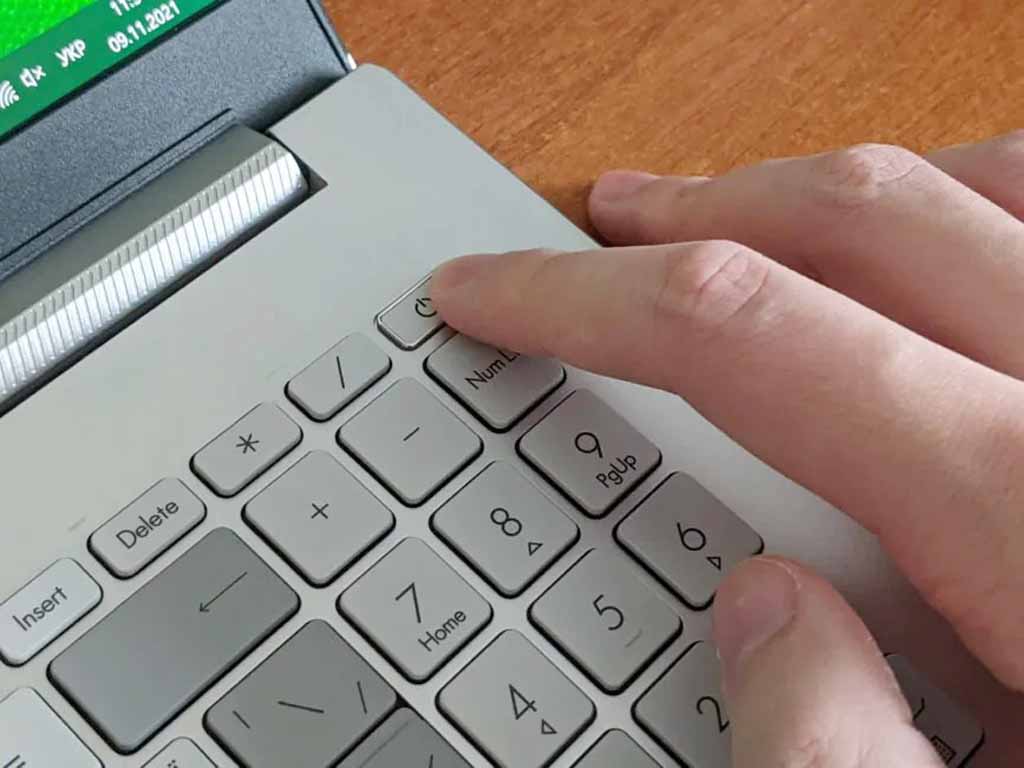
If your ASUS laptop won't turn on but the power lights are on, the issue is likely a frozen power state, a display failure, or a memory conflict. To fix it, perform a hard reset by disconnecting the power adapter and holding the power button for 40 seconds. This drains static electricity and forces a hardware reboot.
It is a frustrating scenario: you press the power button on your ASUS Vivobook, ROG, or Zenbook, and while the status LEDs or keyboard backlights glow, the screen remains stubbornly black. This state indicates that the motherboard is receiving power, but the system is failing to complete the Power-On Self-Test (POST) or is unable to output a signal to the display.
As of 2026, ASUS hardware architecture has become increasingly integrated, meaning many components like RAM and batteries are internal. However, the fundamental troubleshooting steps for power-delivery glitches and firmware hangs remain consistent across the latest models.
Understanding the "Black Screen with Lights" Phenomenon
When a laptop has active indicator lights but no screen activity, the device is technically "on" but not "functional." This discrepancy usually stems from one of four categories:
- Power Management Stalls: The laptop is stuck in a deep sleep or hibernation state from which the operating system cannot wake.
- Display Failures: The system has booted correctly, but the internal LCD panel, the backlight, or the display cable is malfunctioning.
- Hardware Handshake Errors: The BIOS/UEFI cannot verify a critical component, such as the RAM or the SSD, during the initial boot sequence.
- Peripheral Interference: An external USB device, docking station, or SD card is drawing too much power or confusing the boot priority.
Before assuming a hardware failure requires a costly professional repair, follow these systematic troubleshooting steps designed for ASUS laptops.
Step 1: The Hard Reset (Static Discharge)
The most effective solution for an ASUS laptop that won't turn on despite having lights is a Hard Reset. This process clears the "flea power" or residual static electricity stored in the capacitors on the motherboard, which can often prevent the BIOS from initiating the boot process.
How to Perform a Hard Reset on ASUS Laptops:
- Disconnect all peripherals: Remove USB mice, external hard drives, printers, and especially any docking stations.
- Unplug the AC Adapter: Ensure the laptop is not connected to a wall outlet.
- Identify your battery type:
- If you have an older model with a removable battery, slide the latches and remove the battery pack.
- If you have a modern model (Vivobook, ROG Zephyrus, Zenbook) with an internal battery, do not attempt to open the chassis yet.
- The 40-Second Rule: Press and hold the power button down continuously for 40 seconds. This duration is critical; it ensures that the motherboard's power management controller completely resets.
- Reconnect and Reboot: Plug the AC adapter back in (leave the removable battery out for now if applicable) and press the power button normally.
In many cases, the laptop will perform a longer-than-usual boot sequence as the BIOS recalibrates, eventually showing the ASUS logo.
Step 2: Diagnostic Testing of the Display
If the power lights are on and you can hear the cooling fans spinning, the laptop might actually be running, but the screen is failing to display an image.
Check the Brightness and Function Keys
It is possible the screen brightness has been turned down to zero or the "Display Off" hotkey was accidentally pressed. On most ASUS laptops, press the F7 key or Fn + F7 to toggle the display. Additionally, try increasing the brightness using the corresponding function keys (usually F5 or F6).
The "Graphics Driver Restart" Shortcut
If the issue is caused by a hung graphics driver within the Windows environment (even if you can't see the desktop), use the keyboard shortcut: Windows Key + Ctrl + Shift + B. You should hear a short beep, and the screen may flicker as the graphics subsystem attempts to restart.
Use an External Monitor
To determine if the problem is the internal LCD panel or the motherboard itself, connect the laptop to an external monitor or a TV using an HDMI or USB-C (DisplayPort) cable.
- If the external monitor shows your desktop, your laptop's internal screen or its internal EDP (Embedded DisplayPort) cable is likely damaged.
- If neither screen shows an image, the problem lies deeper in the motherboard, GPU, or RAM.
Step 3: Assessing ASUS LED Indicator Codes
ASUS laptops use specific LED patterns to communicate health status. Located usually on the side or the front lip of the device, these lights provide vital clues.
| LED Pattern | Meaning | Potential Solution |
|---|---|---|
| Solid White/Green | Power is on; system is active. | Likely a display or GPU issue. |
| Blinking White | System is in Sleep Mode. | Hold power button to force shutdown. |
| Solid Orange/Amber | Battery is charging. | Allow to charge for 30 minutes before booting. |
| Blinking Orange | Battery error or critical low power. | Check AC adapter connection or replace battery. |
| No Lights (While Plugged In) | No power reaching the board. | Inspect charger and DC-in jack for damage. |
Step 4: Reseating the Memory (RAM)
A loose or faulty RAM module is a common culprit for a "no-post" condition (where the lights are on but the system won't boot). If the BIOS cannot read the memory, it will halt the boot process immediately.
Note: This step is only applicable if your ASUS laptop has accessible RAM slots. Many Zenbooks and newer ultra-portables have soldered RAM that cannot be removed.
- Open the bottom panel: Remove the screws securing the base of the laptop.
- Locate the RAM: These are small rectangular modules held in by metal clips.
- Reseat: Gently pull the clips outward to pop the RAM up. Remove it, then firmly slide it back into the slot at a 30-degree angle and press down until it clicks.
- Test with one stick: If you have two RAM modules, try booting with only one at a time. This helps identify if a specific stick of RAM has failed.
Step 5: BIOS and CMOS Recovery
If the hardware is fine but the firmware (BIOS) is corrupted or stuck, the laptop will fail to initialize. In 2026, ASUS "Easy Mode" BIOS environments are robust, but they can still hang during an interrupted update.
Force BIOS Recovery
Some ASUS laptops have a built-in recovery routine. While the laptop is off, press and hold the F2 key and then press the power button. Keep holding F2 until you see the BIOS setup screen. If this works, select "Restore Defaults" (usually F9) and then "Save and Exit" (F10).
The CMOS Battery
Modern laptops often use the main battery to maintain BIOS settings, but some still have a dedicated "coin-cell" CMOS battery. If your laptop is several years old, a dead CMOS battery can cause boot failures. Replacing this requires a technician or advanced DIY skills to access the deep interior of the motherboard.
When to Seek Professional Repair
If you have performed a hard reset, tested with an external monitor, and reseated the RAM without success, you may be facing a component-level failure. In 2026, common hardware issues for ASUS laptops include:
- Blown MOSFETs: Small power-regulating components on the motherboard that can short-circuit.
- GPU Failure: Especially common in high-performance ROG (Republic of Gamers) models that have undergone significant heat cycles.
- BIOS Chip Corruption: Requiring a physical re-flashing of the chip using a specialized programmer.
If your device is still under the ASUS standard 12-month or extended warranty, do not attempt to disassemble the chassis beyond the RAM/SSD door, as this may void your coverage.
Summary Checklist for Troubleshooting
Before giving up, ensure you have checked the following:
- Is the charger providing the correct voltage? (Check for a green/white light on the charger brick if available).
- Have you removed all USB-C hubs and dongles?
- Did you hold the power button for a full 40 seconds?
- Is the "Caps Lock" light toggling when you press the key? (If yes, the system is on, and only the screen is broken).
Frequently Asked Questions
Why is my ASUS laptop light on but the screen is black?
This usually indicates that the laptop is in a "hang" state. The motherboard has power, but the software or firmware (BIOS) has stopped responding. This is frequently caused by a failed transition from sleep mode to active mode or a driver conflict.
Can a dead battery cause the screen not to turn on even when plugged in?
Yes. If the internal battery has a short circuit or has failed completely, it can interfere with the power rails on the motherboard. On some ASUS models, a faulty battery can prevent the laptop from booting even if the AC adapter is connected.
How do I fix the ASUS "Black Screen of Death" after an update?
Windows updates often include firmware or BIOS updates. If your laptop screen stays black after an update, the BIOS update might be in progress. Wait at least 15 minutes. If there is still no change, perform the 40-second hard reset to force the system to revert to the backup BIOS or complete the installation.
Does holding the power button for 40 seconds delete my data?
No. A hard reset only drains the electricity from the hardware components. It does not affect the data stored on your SSD or Hard Drive. It is a safe troubleshooting step for any electronic device.
My ASUS laptop fans are loud but the screen is black. What does this mean?
High fan speed during a black-screen event usually suggests the CPU is overheating or the BIOS is stuck in a loop. It can also indicate that the system has detected a hardware failure and is running the fans at maximum speed as a safety precaution.
Practical Recommendation
If your ASUS laptop is currently stuck with the lights on, your first and most successful action should be the 40-second power button hold. If that fails, connect the device to a TV via HDMI. This simple test will save you hours of troubleshooting by immediately identifying whether you are dealing with a "broken computer" or simply a "broken screen." For users in 2026, if these steps fail and your device is out of warranty, look for a repair shop that specializes in micro-soldering, as motherboard repairs are often more cost-effective than full replacements for the ASUS Zenbook and ROG series.