The 7zip package in the Arch Linux repository provides a command-line interface for the high-compression 7z file format, offering robust data archiving and extraction capabilities. Arch Linux users can install this utility directly via the official extra repository using the Pacman package manager, ensuring seamless integration with the system's rolling-release architecture and dependency management protocols.
Understanding 7zip within the Arch Linux Ecosystem
Arch Linux operates on a philosophy of simplicity and user-centric control. Unlike distribution models that bundle extensive pre-configured software suites, Arch provides a lean base, requiring users to select and install individual components as needed. Within this framework, 7zip—a powerful open-source archiver known for its high compression ratios and versatile format support—is treated as a standard utility.
In the Arch Linux official repositories, the package is typically maintained as p7zip. While the original Igor Pavlov 7zip source code has evolved into various branches, the Arch repository maintains the p7zip package to ensure compatibility with Unix-like file permissions and system structures. Understanding that you are interacting with p7zip rather than a direct binary port of the Windows-based .exe is essential for navigating technical documentation and utilizing command-line flags effectively.
Prerequisites for Installation
Before attempting to install software in Arch Linux, verify that your system is up to date. Arch Linux is a rolling-release distribution, meaning updates are frequent and critical for package integrity. Using stale package databases can lead to dependency conflicts or missing repository entries.
- System Update: Ensure your local package database is synchronized and your system is upgraded. Execute
sudo pacman -Syuto refresh repositories and upgrade installed packages. - Repository Access: Ensure your
pacman.conffile is correctly configured to include theextrarepository. By default, this is active on standard Arch installations. - Privileges: You must have root or sudo privileges, as installing packages modifies system directories like
/usr/binand/usr/lib.
Installation Steps via Pacman
The installation process is straightforward and relies on Pacman, the Arch package manager. Because p7zip resides in the official extra repository, you do not need to rely on the Arch User Repository (AUR) or third-party builds for standard usage.
Executing the Command
To install the package, open your terminal and run:
sudo pacman -S p7zip
Pacman will calculate the dependencies, fetch the compressed archive from a mirror, and extract the files. Once the process concludes, the 7z command becomes available in your system path. You can verify the installation by checking the version:
7z --help
If the command returns usage instructions, your installation is successful. If you encounter a "command not found" error, verify that your /usr/bin is in your $PATH variable, though this is rarely an issue in a default Arch configuration.
Managing Compressed Archives: Core Commands
Once installed, 7zip provides a versatile set of commands. While the syntax differs slightly from the familiar Windows interface, it follows standard Linux command-line conventions.
Common Operations
- Archiving Files: Use the
aflag to add files to an archive.7z a archive_name.7z /path/to/files - Extracting Files: Use the
xflag to extract files while preserving the directory structure.7z x archive_name.7z - Listing Contents: Use the
lflag to view the contents of an archive without extracting it.7z l archive_name.7z - Testing Integrity: Use the
tflag to verify that an archive is not corrupted.7z t archive_name.7z
Performance and Configuration Considerations
7zip is highly scalable, utilizing multi-threading to speed up compression tasks. By default, the Arch-provided p7zip will attempt to use all available CPU cores. If you are performing large backups on a machine where you also need to run other resource-intensive applications, you can limit the number of threads used by the utility.
Using the -m switch allows you to pass parameters to the compression method. For example, using -m0=lzma2 enables the LZMA2 algorithm, which is often faster and consumes less memory than standard LZMA.
Comparative Summary of Archiving Tools
The following table provides a quick reference for common tasks performed by 7zip versus alternative archiving tools available in the Arch repositories.
| Task | 7zip (p7zip) | Tar (GNU) | Zip (Info-ZIP) |
|---|---|---|---|
| Compression Ratio | Excellent | Moderate | Low |
| Speed | High | Very High | High |
| Unix Permissions | Partial | Excellent | Minimal |
| Best Usage | Large storage/archiving | System backups/pipes | Cross-platform sharing |
Troubleshooting Common Issues
While the package is generally stable, users may occasionally face issues related to file permissions, large file handling, or specific algorithm support.
Permission Denied
When extracting files that contain root-owned items or specific symbolic links, you may receive "Permission Denied" errors. Always ensure you are extracting to a directory where your user has write permissions. If you are extracting a system archive, you may need to use sudo to preserve original owner UID/GID mappings, though this should be done with caution.
Memory Exhaustion
When compressing very large files with high dictionary sizes, 7zip can consume significant amounts of RAM. If the application crashes, reduce the dictionary size using the -md flag or lower the compression level using the -mx flag (ranging from 0 to 9, where 9 is the highest compression).
Missing Formats
If you find that p7zip cannot open a specific archive type, ensure that you have not missed any complementary packages. In some cases, specific non-standard formats may require additional codec packages or the use of libarchive tools like bsdtar.
Security and Integrity in Arch Linux
Arch Linux provides the p7zip package as an officially signed binary. Always verify that your mirror is up to date to ensure you are receiving the latest security patches. While 7zip itself is a mature tool, always practice caution when extracting archives from untrusted sources. Use the 7z t (test) command before extracting unknown archives to ensure they do not contain malformed data or malicious path-traversal attempts.
Advanced Usage: Scripts and Automation
The power of 7zip on Arch Linux is best realized through shell scripting. Because the commands are standard, you can integrate them into cron jobs or systemd timers for automated backups.
A simple backup script might look like this:
#!/bin/bash
7z a -t7z -m0=lzma2 -mx=9 /backups/home_$(date +%Y-%m-%d).7z /home/user/documents
This command creates a high-compression 7z archive, timestamped by the date, containing your documents folder. Incorporating this into your workflow ensures data integrity and saves storage space over traditional uncompressed backups.
Frequently Asked Questions
1. Is p7zip the same as 7-Zip for Windows?
Yes and no. p7zip is the command-line port of the 7-Zip engine for POSIX systems. While it supports the same 7z compression algorithms and file formats, it does not include the graphical user interface (GUI) found on Windows, and it handles Unix-specific file attributes differently.
2. Why is it called p7zip instead of 7zip?
In the Arch Linux repositories, the name p7zip reflects the historical packaging of the Linux-native port. It is the official package name you must use with pacman to install the engine.
3. Can I use a GUI with 7zip on Arch?
Yes, if you prefer a graphical interface, you can install file managers like dolphin (KDE), nautilus (GNOME), or thunar (XFCE), which have built-in support for 7z archives through the p7zip backend. Ensure you have the corresponding "file-roller" or "ark" packages installed to bridge the GUI to the backend.
4. How do I password-protect an archive?
You can encrypt your archives using the -p flag followed by your password. For example: 7z a -p -mhe=on archive.7z files/. The -mhe=on flag ensures that the header of the archive is also encrypted, preventing others from seeing the filenames inside without the password.
5. Does 7zip support multi-part volumes?
Yes, you can split large archives into multiple volumes using the -v flag. For example, 7z a -v100m archive.7z files/ will create multiple 100MB volumes, which is highly useful for uploading large data sets to cloud storage or splitting files for physical media.
6. What should I do if the installation fails?
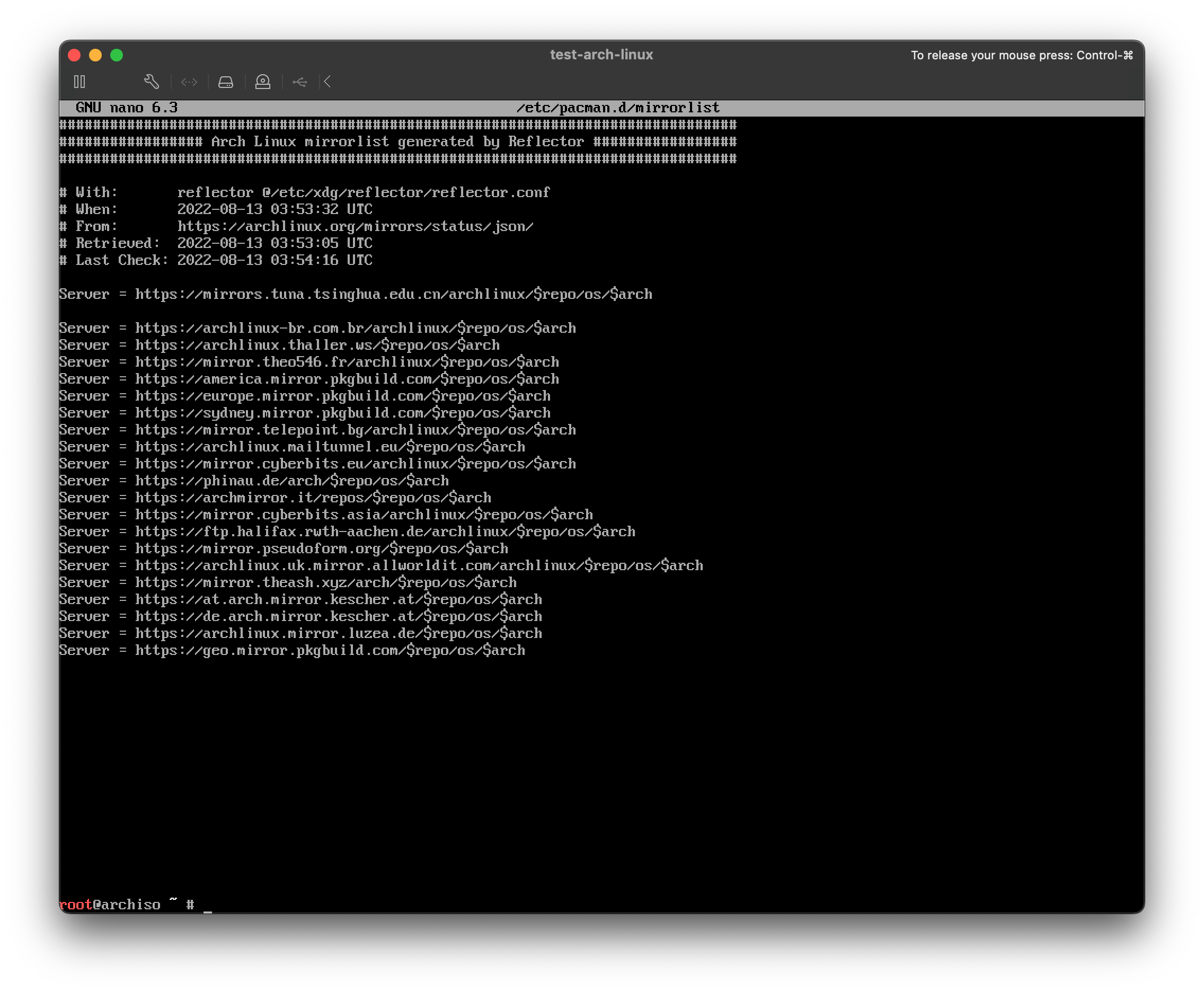
Check if your mirror list is current. Run sudo pacman -Syy to force a complete refresh of the database. If the error persists, check the Arch Linux status page or the official forums to see if there is a known issue with the current repository sync in your region.
Conclusion and Recommendations
The p7zip package in the Arch Linux repository remains the gold standard for command-line archiving. Its ability to provide high compression ratios, header encryption, and multi-part volume support makes it an indispensable tool for both casual users and system administrators. For most tasks, keep your system updated via pacman and utilize the p7zip package as it appears in the official extra repository, as this guarantees the highest level of stability and security. If your workflow involves massive amounts of data, invest time in learning the advanced switches, such as dictionary sizing and multi-threading, to optimize your system performance.