AMD monitor software refers primarily to the AMD Software: Adrenalin Edition, the unified suite designed to manage GPU performance, display color settings, and synchronization technologies like FreeSync. This software serves as the interface between your hardware and your visual output, providing the granular controls necessary to calibrate high-refresh-rate gaming, optimize color reproduction, and resolve common display compatibility issues.
Understanding the Role of AMD Software: Adrenalin Edition
For users with AMD Radeon graphics hardware, the Adrenalin Edition software is far more than a simple driver update utility. It is the command center for your display output. When you install this software, you are gaining access to the Display tab, which acts as the primary interface for "AMD monitor software" functions.
This software manages the communication protocol between the GPU and the monitor. This is particularly important because, unlike legacy graphics drivers that merely sent a signal to a screen, modern gaming monitors require a handshake process to enable variable refresh rates (VRR), high dynamic range (HDR) metadata, and custom color profiles. The software interprets these monitor-specific EDID (Extended Display Identification Data) packets to determine the optimal resolution, refresh rate, and pixel format for your specific panel.
Prerequisites for Optimal Software Functionality
Before attempting to configure your display, ensure your hardware environment meets the fundamental requirements for the software to function correctly. The Adrenalin Edition requires a compatible Radeon graphics card or an AMD processor with integrated Radeon Graphics.
- Hardware Connection: Ensure you are using a DisplayPort or HDMI cable that supports the bandwidth required by your monitor. For example, to utilize high refresh rates at 4K resolution, HDMI 2.1 or DisplayPort 1.4a cables are mandatory. Using an inferior cable is the most common reason users cannot find specific settings within the AMD software.
- Driver Integrity: Always perform a "Clean Install" if you are transitioning from a different GPU manufacturer or if you are troubleshooting persistent display glitches. The AMD cleanup utility ensures that residual registry entries from old drivers do not conflict with the current Adrenalin software.
- OS Compatibility: While the software is designed to operate seamlessly on Windows 10 and Windows 11, ensure your Windows update history is current. Windows display settings can sometimes override or conflict with AMD Software settings; having the latest OS build helps maintain consistency.
Navigating the Display Tab
Once the software is installed and your monitor is connected, the Display tab is where you will spend most of your time. This tab is categorized into several critical sub-sections:
Display Specifications and Scaling
The software provides a readout of your monitor’s maximum capabilities. If your monitor is advertised as a 165Hz display but the software defaults to 60Hz, navigate to the Display tab to manually adjust the refresh rate. Scaling options are also found here; if your monitor does not automatically fill the screen, you may need to adjust the "Scaling Mode" (often set to Preserve Aspect Ratio or Full Panel) to eliminate black bars.
AMD FreeSync Management
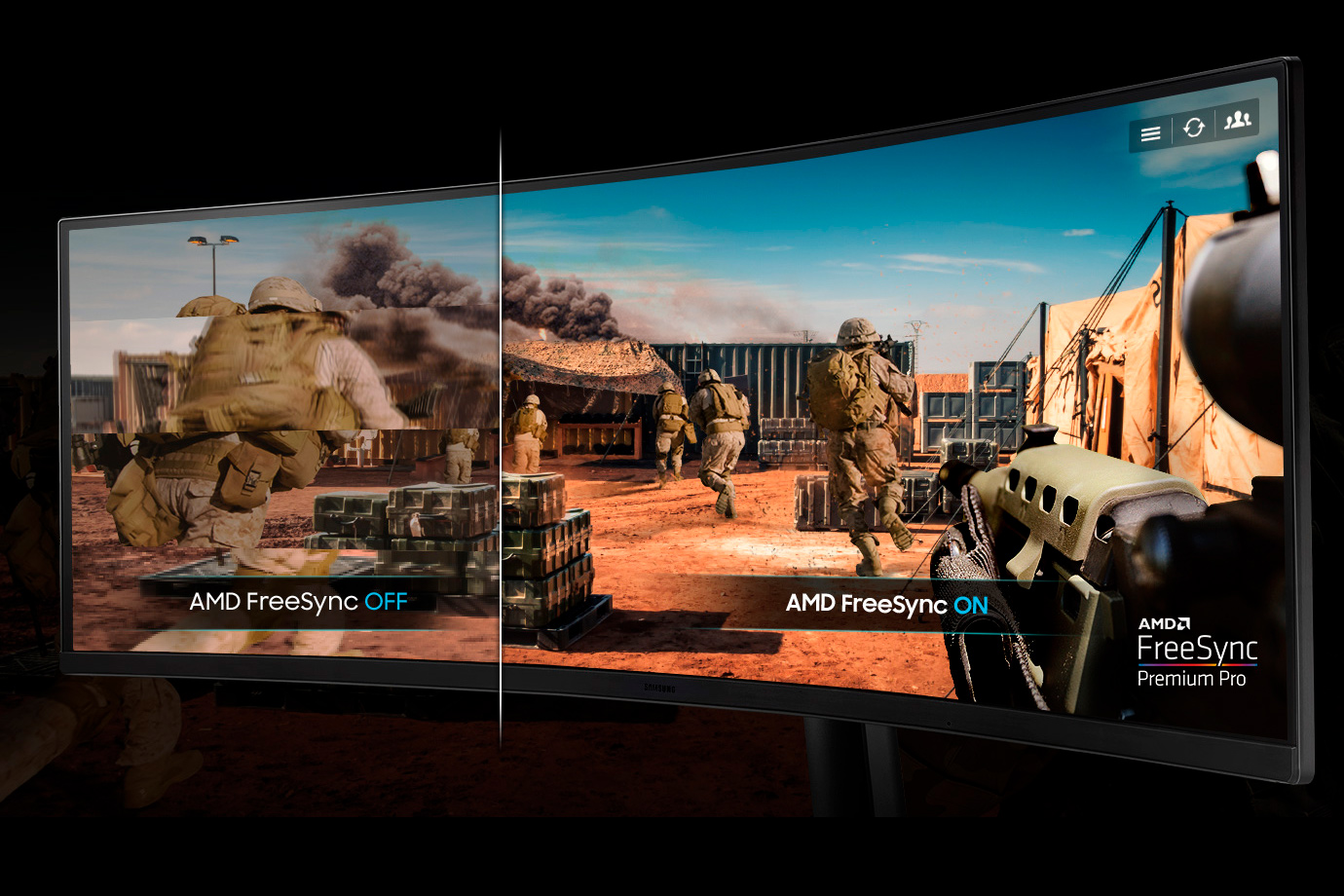
FreeSync is AMD’s proprietary implementation of adaptive synchronization. It eliminates screen tearing by matching the display’s refresh rate to the GPU's frame rate output. In the software, ensure this is toggled "On." Note that some monitors require you to enable "FreeSync" or "Adaptive Sync" in the monitor's physical On-Screen Display (OSD) menu before it will appear as an actionable option in the software.
Custom Color and Pixel Format
The software allows you to adjust temperature, hue, brightness, and contrast. For creative work or color-critical tasks, you can also modify the "Pixel Format." By default, some displays default to YCbCr 4:2:2 or 4:4:4. For PC use, setting this to "RGB 4:4:4 Pixel Format PC Standard (Full RGB)" is often recommended to ensure correct color depth and prevent washed-out blacks.
Comparison of Display Management Features
| Feature | Functionality | Primary Benefit |
|---|---|---|
| FreeSync | Dynamic Refresh Rate | Eliminates stutter and screen tearing. |
| Virtual Super Resolution | Downsampling higher resolution | Improved image clarity on lower-res monitors. |
| Color Temperature | Kelvin adjustment | Custom visual warmth/cooling for comfort. |
| Integer Scaling | Pixel-perfect upscaling | Keeps retro/pixel art sharp on high-res displays. |
| Display Color Enhancement | Saturation control | Increased vibrancy for specific gaming genres. |
Advanced Calibration and Troubleshooting
If you encounter issues such as flickering, black screens, or incorrect color reproduction, the solution often lies in the "Display" section of the software.
- Flickering: Often caused by the monitor hovering at the edge of its FreeSync range. Use the software to define a custom refresh rate range if the monitor is struggling to maintain a stable connection, or disable FreeSync to verify if the flicker is hardware-related.
- Color Wash-out: If the screen looks "grey" or "faded," check the Pixel Format. Changing it to "Full RGB" typically resolves this, as the software might be defaulting to a "Limited" (16-235) range intended for televisions rather than a PC monitor (0-255).
- Missing Resolution: If a custom resolution is not appearing, utilize the "Custom Resolutions" feature within the software. You can create a profile for specific monitor timings, although caution is advised as aggressive custom timings can lead to a black screen. Always ensure you have a backup display or a way to reset to factory defaults (via Safe Mode) if a custom timing fails.
Integrating HDR and Advanced Display Settings
As of 2026, High Dynamic Range (HDR) remains a significant focus for display technology. When a monitor is HDR-capable, the AMD software detects this automatically. You should verify that HDR is enabled within Windows, but the AMD software acts as the gatekeeper for the color space and bit depth.
When viewing HDR content, ensure your bit depth is set to 10-bit if your monitor supports it. This increases the color palette from 16.7 million colors to over one billion, significantly reducing color banding in gradients. If the screen appears overly bright or dark in HDR mode, the "HDR Calibration" tool in Windows, used in tandem with the AMD Software's color saturation settings, allows for fine-tuning the perceived luminance.
Frequently Asked Questions
1. Do I need to install separate drivers for my monitor? Generally, no. Most modern monitors use generic "Plug and Play" drivers provided by Windows. The AMD software communicates directly with the monitor's internal hardware via the graphics connection. You only need specific monitor drivers if you are using specialized hardware that requires unique color profiles or advanced OSD control software.
2. Why is the FreeSync option greyed out in the AMD software? This is almost always due to one of three reasons: the monitor is using a cable (like an older HDMI cable) that does not support the necessary data transfer, the setting is disabled in the monitor’s physical OSD menu, or the monitor is not officially FreeSync-certified (though some non-certified monitors work via "G-Sync Compatible" or manual toggles).
3. Does AMD monitor software impact gaming performance? The software overhead is negligible. Features like Radeon Chill or Image Sharpening can actually improve performance or perceived visual quality without taxing the GPU. However, features like Virtual Super Resolution (VSR) will reduce your frame rate, as the GPU is rendering at a higher resolution than your screen before downscaling it.
4. How do I reset my display settings if I made a mistake? If you have misconfigured a resolution or color setting that has resulted in a black screen, restart your computer and enter Windows Safe Mode. Once in Safe Mode, you can uninstall the AMD software or use the "Factory Reset" option found in the System tab of the software settings once you are back in a normal state.
5. Is the AMD software required for multi-monitor setups? It is highly recommended. The software allows you to manage "AMD Eyefinity," which lets you group multiple monitors into one large virtual display. Without the software, managing bezel compensation and window snapping across three or more monitors is significantly more difficult to achieve.
Final Recommendation for Users
To maximize the potential of your display, treat your AMD software not as a passive utility, but as an active tool. For the average user, setting the Pixel Format to Full RGB and enabling FreeSync (if available) provides the most immediate visual improvement. For power users, the Custom Resolution and Integer Scaling features remain underutilized tools that can transform how older content appears on high-resolution displays. Always verify that your display cables meet the specifications listed on your monitor’s data sheet before assuming a software setting is missing; hardware limitations are the most common bottleneck in modern visual configurations.