Adding documents to Google Drive is a fundamental task for managing your digital workflow, allowing you to centralize files for secure cloud storage, seamless synchronization across devices, and collaborative editing. Whether you are moving a single PDF from your desktop or migrating entire folders from an external hard drive, the process is designed to be intuitive, cross-platform, and highly integrated with the Google Workspace ecosystem.
Prerequisites and Preparation
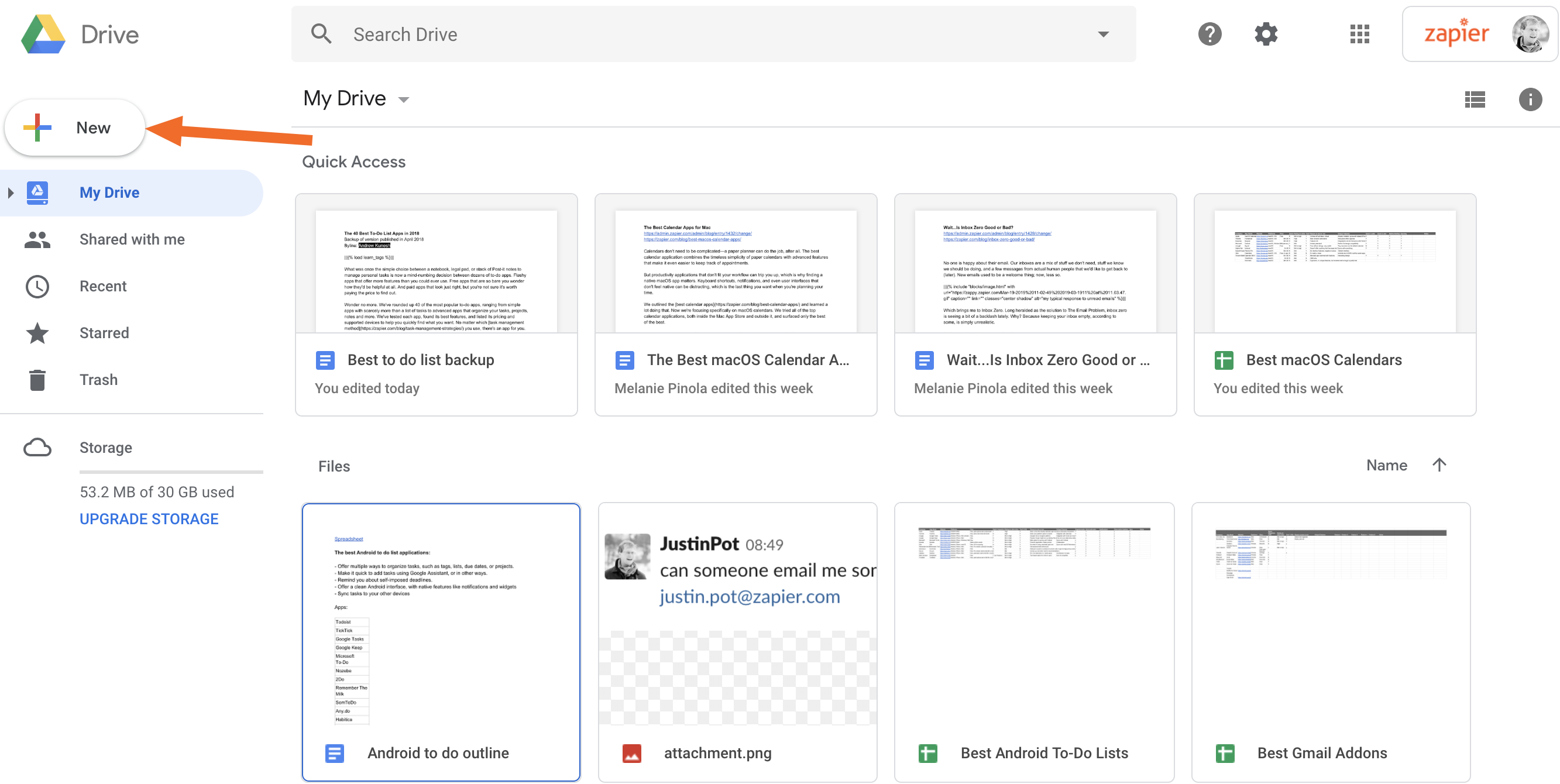
Before you begin uploading, ensure your Google account is active and that you have sufficient storage space available. By default, Google provides 15 GB of shared storage across Google Drive, Gmail, and Google Photos. You can verify your current usage by navigating to the "Storage" section on the left-hand sidebar of your Drive dashboard.
Additionally, consider the file format requirements. While Google Drive supports almost any file type, uploading specific formats—such as Microsoft Word, Excel, or PowerPoint—allows you to convert them into native Google Docs, Sheets, or Slides files. This conversion enables real-time collaboration and avoids the need for local desktop software to view or edit the content. Ensure your internet connection is stable, particularly when uploading large batches of high-resolution media or extensive document archives.
Methods for Uploading Documents
There are several ways to add documents to Google Drive depending on your hardware and software environment. Each method serves a slightly different workflow requirement.
1. Web Browser Upload (Drag-and-Drop)
The most direct method is via a modern web browser (Chrome, Edge, Firefox, or Safari).
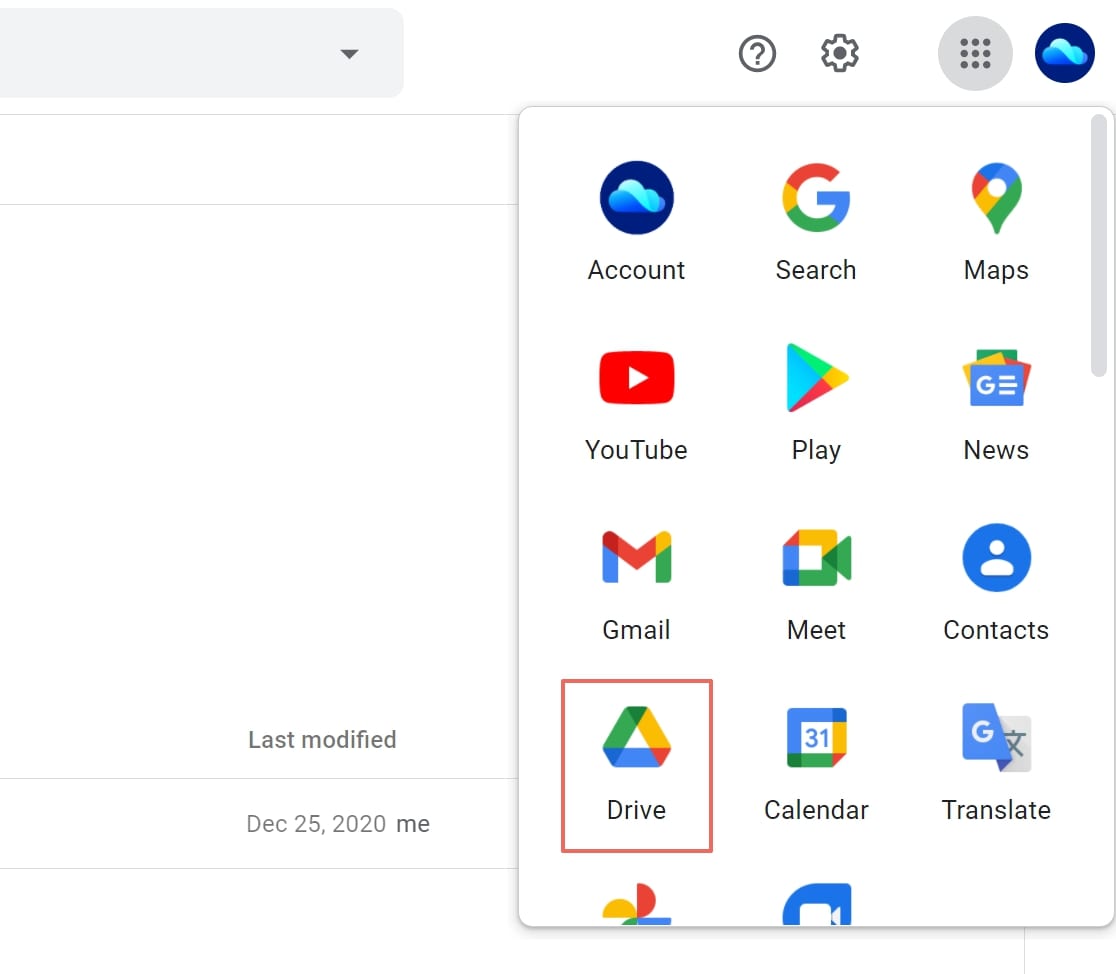
- Step 1: Log in to your Google account and navigate to drive.google.com.
- Step 2: Open the folder where you want to store your documents.
- Step 3: Locate the files on your computer.
- Step 4: Click and drag the files directly into the browser window.
- Step 5: Watch for the status indicator in the bottom right corner, which provides real-time feedback on the upload progress.
2. The "New" Button
If you prefer not to use drag-and-drop, the traditional interface provides a granular control method.
- Click the + New button in the top-left corner of the Drive interface.
- Select File upload to add single or multiple specific files.
- Select Folder upload to migrate an entire directory from your local machine to the cloud, maintaining the existing folder structure.
3. Google Drive for Desktop
For power users or those who work with files offline, installing Google Drive for Desktop is the most efficient solution. This application creates a virtual drive on your computer—appearing as a "G:" drive on Windows or a mountable volume on macOS. Any document you move into this drive automatically syncs to the cloud in the background. This eliminates the need to manually open a browser for every file transfer and ensures that your files are always backed up without active user intervention.
Comparison of Upload Methods
| Method | Best For | Offline Access | Sync Behavior |
|---|---|---|---|
| Web Browser | Ad-hoc, one-off uploads | No | Manual |
| "New" Button | Precise folder organization | No | Manual |
| Drive for Desktop | Bulk migration, constant work | Yes | Automatic |
Organizing Your Documents Effectively
Simply uploading files is only the first step. To maintain a functional digital workspace, you must implement a naming convention and folder hierarchy. Google Drive’s search functionality is powerful, utilizing optical character recognition (OCR) to scan the text inside images and PDFs, but a clean structure significantly improves retrieval times.
Create descriptive folder names such as "2026_Invoices" or "Project_Documentation_Phase_1." Use the "Star" feature to mark high-priority documents for quick access in the "Starred" tab. If you find your folder structure becoming too deep, rely on the "Search" bar, which supports filters by file type, owner, and modification date to narrow down results quickly.
Managing Conversion and Formatting
A critical aspect of adding documents is understanding the distinction between "Stored" files and "Managed" files.
- Stored files: If you upload a PDF or a
.docxfile and leave it as-is, it occupies storage space based on the original file size. You cannot edit it directly within the web interface; you must download it, edit it, and upload it again. - Managed files: If you configure your settings to "Convert uploads to Google Docs editor format," your files will be transformed into native formats. These files effectively take up zero additional storage space in your quota, and they allow for concurrent multi-user editing, version history tracking, and direct integration with other Google services.
Troubleshooting Common Issues
When documents fail to upload, the issue is rarely with the service itself and usually stems from connectivity or local system settings.
- File Size Limits: Google Drive has specific file size limits for individual files. While standard documents are rarely affected, high-resolution media or databases may hit these ceilings.
- Browser Cache: If the upload interface stops responding, clearing your browser cache and cookies can often resolve persistent display errors.
- Network Restrictions: If you are on a corporate or restricted network, the firewall may be blocking the upload protocols used by Drive. Verify your network permissions if you consistently receive "Network Error" prompts.
- Version Conflicts: If you are using Google Drive for Desktop and edit a file while offline, you may encounter a "Conflict" copy if another user edits the same file on the web. Always prioritize the cloud version if you are collaborating in a shared folder.
Security and Sharing Considerations
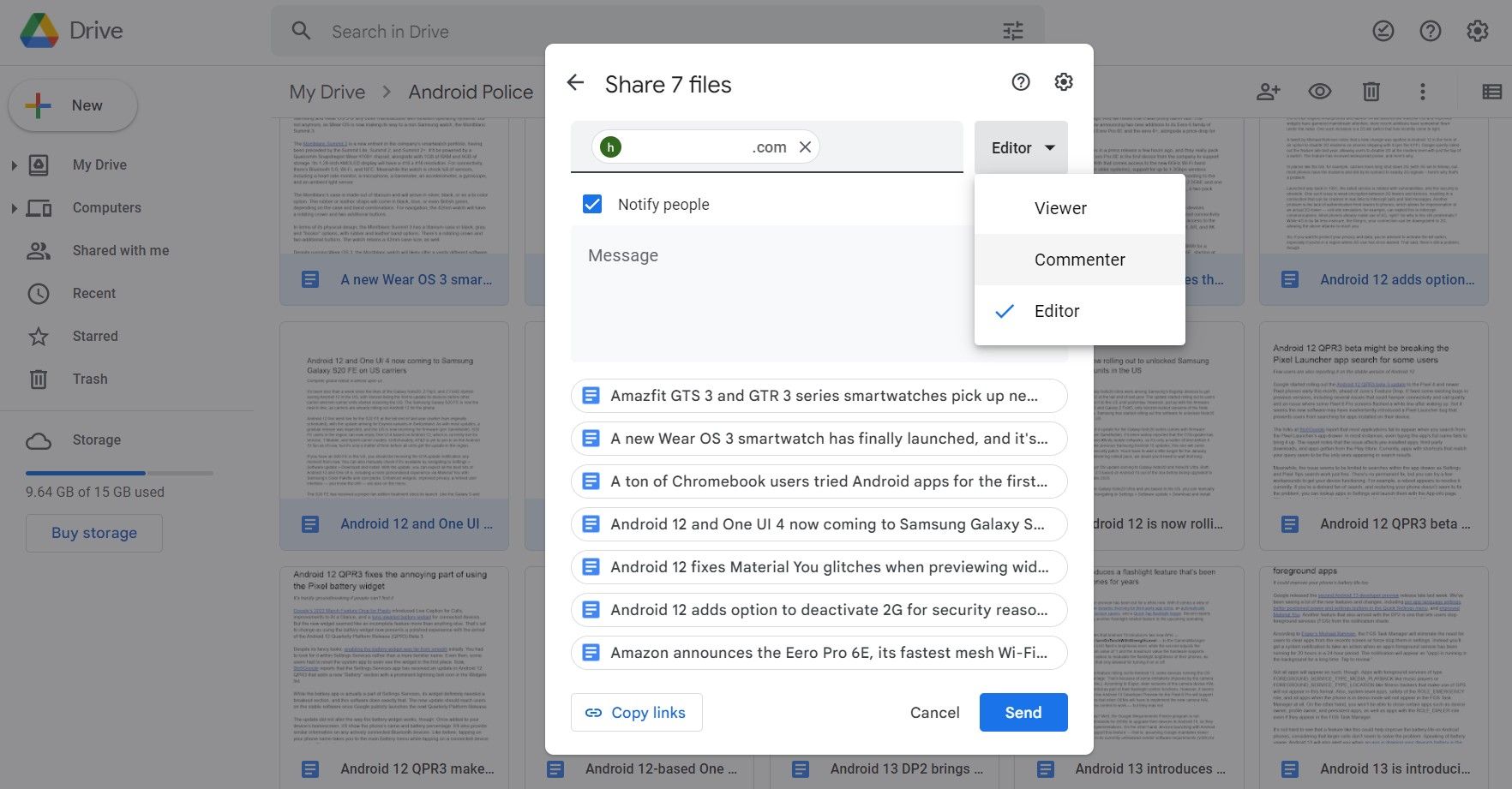
Adding documents to the cloud introduces an element of shared responsibility. Once a document is in Google Drive, you have granular control over who sees it. By default, documents are private. To share a document, click the "Share" button and enter the email address of the recipient.
You can set permissions to "Viewer," "Commenter," or "Editor." For highly sensitive documents, consider using the "Restrict access" feature, which prevents recipients from downloading, printing, or copying the content. If you are handling documents containing personally identifiable information (PII) or confidential business data, ensure that your account is protected by two-factor authentication (2FA) to prevent unauthorized access.
Frequently Asked Questions
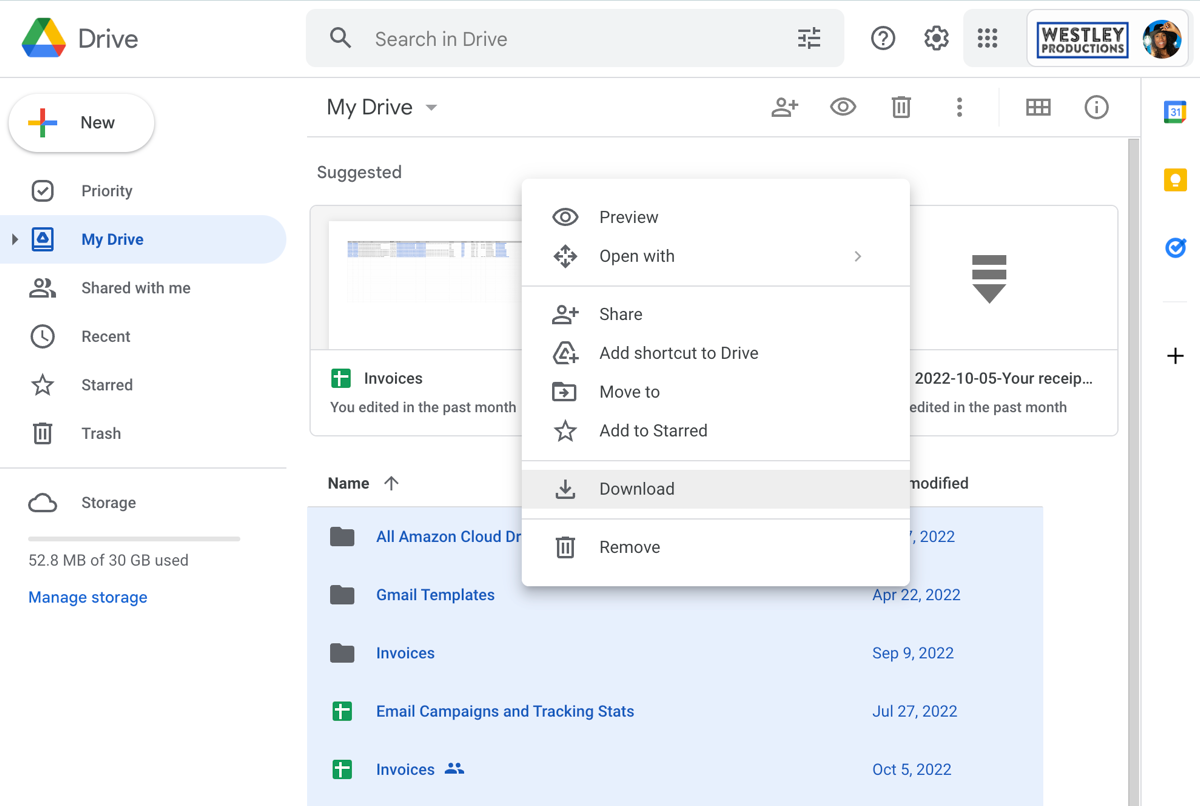
Can I upload password-protected documents to Google Drive? Yes, you can upload encrypted or password-protected files. However, Google Drive cannot scan the contents of these files for viruses or preview them within the browser. You must download the file to your local device and enter the password to open it.
Does uploading a file change its metadata? Generally, no. The file system metadata, such as "Date Created" and "Date Modified," remains largely tied to the original file. When you view the file properties in Google Drive, it will show the date it was uploaded to the cloud, but the internal file properties usually persist.
What happens if I exceed my Google Drive storage limit? If you reach your storage quota, you will no longer be able to upload new files or create new Google Docs, Sheets, or Slides. Additionally, your Gmail may stop receiving incoming messages, and your Google Photos will stop syncing. You will need to either delete unnecessary files or purchase additional storage through the Google One subscription service.
Can I use Google Drive to back up my entire computer? Yes, using the Google Drive for Desktop application, you can configure "My Computer" syncing. This allows you to select specific folders on your local hard drive—such as your Desktop, Documents, or Pictures folders—to automatically sync to the cloud in real-time.
Are there file type restrictions for uploads? Google Drive supports a vast array of file types, including images, PDFs, videos, and compressed archives (ZIP/RAR). While you can store almost any file, some binary formats or executable files may be scanned by Google’s security systems, which might flag or block files perceived as potential security risks.
Next Steps for Implementation
To begin, conduct a quick audit of the documents currently scattered across your local drives or external storage. Create a logical folder architecture in your Google Drive before performing a bulk move. If you frequently handle documents that require collaboration, enable the "Convert uploads" setting to ensure you are utilizing the full suite of Google’s editing tools. For those who manage large volumes of data, downloading the Google Drive for Desktop app will drastically streamline the process of keeping your cloud storage in sync with your local work environment. Start by moving one high-priority project folder today to test your workflow and ensure your settings align with your long-term organizational goals.