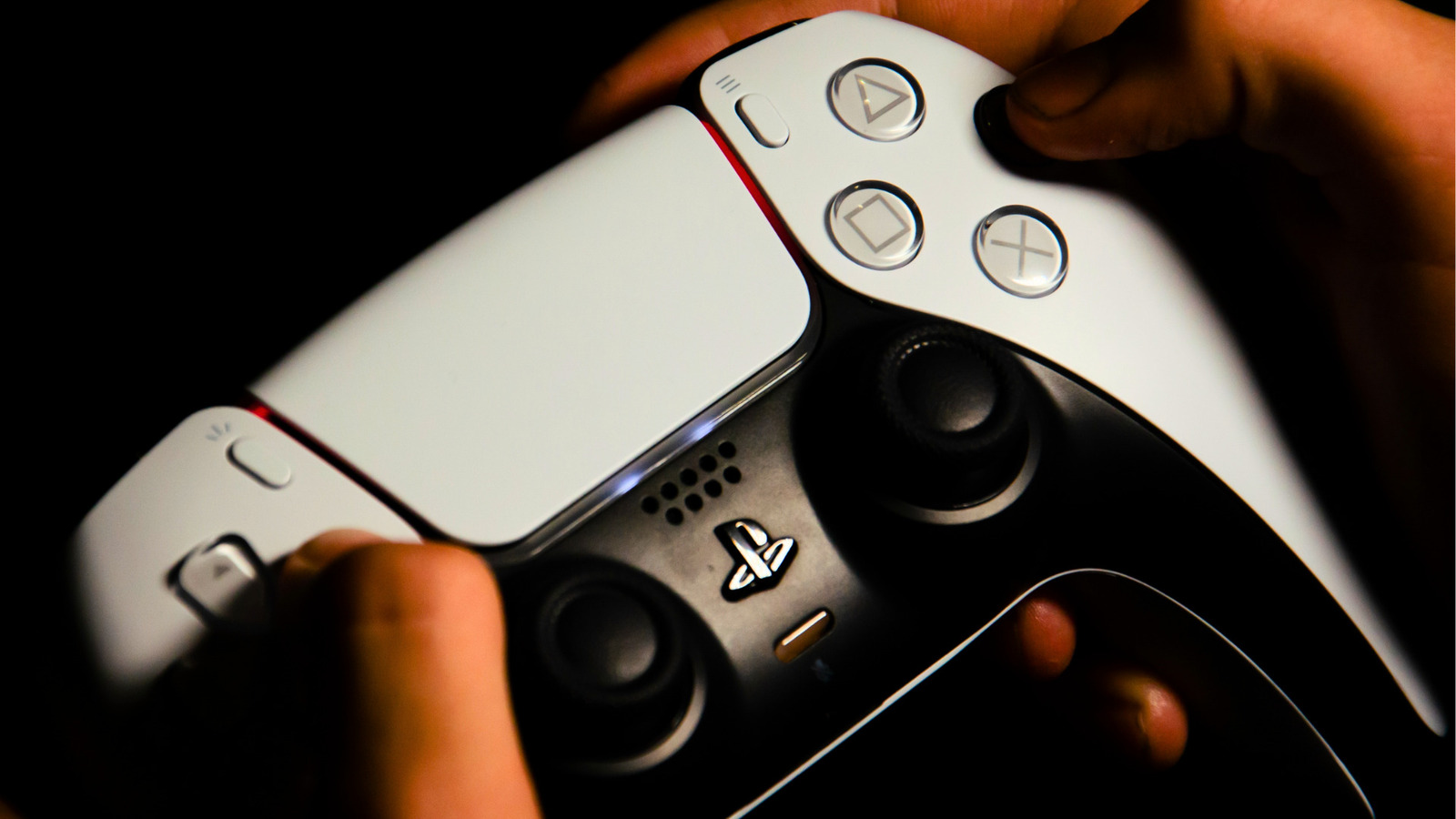
To fix PS5 DualSense charging issues, you must first identify if the problem stems from the USB cable, the console's Rest Mode settings, or a software glitch. Most issues are resolved by using the rear USB-A ports, resetting the controller via the rear pinhole, or adjusting power settings to remain active during sleep.
The PlayStation 5 DualSense controller is a sophisticated piece of hardware, featuring haptic feedback and adaptive triggers that demand significant power. However, as the console enters its sixth year of life in 2026, many users are encountering persistent charging hurdles. These range from the controller refusing to draw power in Rest Mode to physical wear on the USB-C port. Understanding the technical nuances of how the DualSense handshakes with the PS5 and external power sources is essential for a permanent fix.
1. Faulty or Incompatible USB-C Cables
The most frequent cause of charging failure is the use of a USB cable that does not meet the specific power delivery requirements of the DualSense. While USB-C is a universal standard, not all cables are created equal. Some cables are designed strictly for data transfer, while others are "charge-only" with low-gauge wiring that cannot provide the 1.5 Amps required by the controller.
Identifying Cable Incompatibility
Many third-party cables or older phone chargers use a standard that the PS5 console struggles to recognize during the initial "handshake." When you plug a controller in, the console and the controller communicate to determine the optimal voltage. If the cable lacks the necessary shielding or internal wiring to support this communication, the PS5 may default to a low-power state or refuse to charge the device entirely to protect the circuitry.
The Fix: Switch to a High-Speed Data Cable
To resolve this, ensure you are using the original USB-C to USB-A cable that came with the console. If that is lost, look for a "USB 3.1 Gen 2" or higher cable that supports both data and power. Cables labeled specifically for high-speed data transfer (5Gbps or higher) usually have the internal construction required to maintain a stable charge. Avoid using very long cables (over 10 feet) unless they are active cables, as voltage drop over long distances can prevent the battery from reaching a full charge.
2. Front USB Port Power Delivery Limitations
A known hardware quirk since the launch of the PlayStation 5 is the inconsistency of the front-facing USB-A port. In many hardware revisions, the front port provides slightly less stable power than the rear ports, especially when the console is under heavy load or in Rest Mode.
Why the Rear Ports are Superior
The rear USB-A ports on the PS5 are "SuperSpeed" (10Gbps) ports. Technically, these ports are tied more directly to the system's power management unit. Many users find that while the front port results in a "blinking gray" battery icon or no charge at all, the rear ports provide a steady, consistent flow of electricity.
The Fix: Move to the Rear Ports
Unplug your USB-C cable from the front of the console and move it to one of the two USB-A ports located on the back of the PS5. This simple change bypasses potential front-panel controller board issues. If you must use the front of the console, consider using the USB-C port (available on all standard and Slim models) with a USB-C to USB-C cable, as this port generally offers the most reliable power delivery specifications for the DualSense.
3. Rest Mode Configuration and Power Settings
A common frustration is finding your controller dead after leaving it plugged into a "sleeping" console. By default, the PS5 may be configured to cut power to its USB ports immediately after entering Rest Mode to save energy. In 2026, with increasing focus on "Eco Mode" firmware updates, these settings are more aggressive than ever.
Adjusting Power Supply Settings
If the PS5 does not provide power to the ports during Rest Mode, the controller cannot charge. This is not a hardware failure but a software configuration choice.
The Fix: Enable Continuous USB Power
- Navigate to the Settings menu (the gear icon) on your PS5 dashboard.
- Select System and then Power Saving.
- Choose Features Available in Rest Mode.
- Locate the option Supply Power to USB Ports.
- Change this setting from "Off" to either "Always" or "3 Hours."
The "3 Hours" setting is usually sufficient to fully charge a depleted DualSense while still allowing the console to enter a deep, low-power sleep state afterward. If your controller is still not charging, ensure that "Stay Connected to the Internet" is also enabled, as this keeps certain background power management systems active.
4. DualSense Internal Software Glitch
The DualSense is more than a passive peripheral; it contains its own firmware and a dedicated microcontroller. Occasionally, this software can "hang" or enter an error state where it no longer accepts a charge, even if the hardware is perfectly fine. This often manifests as the controller working while plugged in but immediately dying when disconnected, or showing an "orange blink" that quickly disappears.
The Hard Reset Procedure
A hard reset clears the controller’s temporary memory and forces the firmware to reboot. This does not delete your console data, but it does force the controller to re-handshake with the PS5.
The Fix: Use the Hidden Reset Button
- Turn off your PS5 console completely.
- Locate the small reset hole on the back of the controller, near the Sony logo and the L2 button.
- Use a paperclip or a SIM ejection tool to press and hold the button inside the hole for at least 5 seconds.
- Connect the controller to the PS5 using a verified USB-C cable.
- Press the PS button on the controller to re-pair it and initiate the charging sequence.
Additionally, always check for firmware updates by going to Settings > Accessories > Controllers > Wireless Controller Device Software. Keeping the controller updated ensures compatibility with the console’s latest power management protocols.
5. Port Obstructions and Physical Wear
Given that the PS5 has been on the market for years, physical wear and tear is a mounting issue. The USB-C port on the controller is a frequent point of failure due to the constant plugging and unplugging, or accidental drops while the cable is attached. Furthermore, dust and lint can accumulate inside the port, preventing the pins from making a clean electrical connection.
Inspecting for Debris
Even a tiny amount of pocket lint or household dust can prevent the USB-C plug from seating fully. If the plug feels "mushy" or doesn't "click" into place, there is likely an obstruction.
The Fix: Cleaning and Alternative Charging
Use a can of compressed air to blow out the port. If you see visible debris, use a non-conductive tool like a wooden toothpick or a plastic fine-point tool to gently scoop it out. Avoid using metal needles, as these can short the pins and permanently kill the controller.
If the internal pins are bent or the port is physically loose, the most cost-effective solution is often to stop using the USB-C port entirely. The DualSense features EXT ports (the metal contacts) on the bottom, near the headphone jack. Using a dedicated DualSense Charging Station (either the official Sony version or a reputable third-party brand) allows you to charge the controller via these contacts, bypassing the broken USB-C port entirely.
Comparison of Charging Methods
| Method | Connection Type | Reliability | Best For |
|---|---|---|---|
| Front USB-A Port | USB-A to USB-C | Medium | Quick sessions, data syncing |
| Rear USB-A Port | USB-A to USB-C | High | Reliable charging in Rest Mode |
| Front USB-C Port | USB-C to USB-C | Very High | Fastest charging, best power delivery |
| Charging Station | EXT / Bottom Pins | Highest | Avoiding USB-C port wear and tear |
| Wall Charger | USB-C | Variable | Charging without turning on the console |
Technical Requirements for External Chargers
If you choose to charge your PS5 controller using a wall outlet rather than the console, you must be mindful of the voltage and amperage. The DualSense is designed for a 5V input. Using a modern "Ultra Fast" GaN charger designed for high-wattage laptops can occasionally lead to issues if the charger's Power Delivery (PD) negotiation fails, though most high-quality chargers will safely downstep to 5V.
Ideally, use a 5V/1.5A or 5V/2.0A phone charger. Avoid "quick charge" blocks that do not specify 5V output, as higher voltages (9V or 12V) can damage the internal lithium-ion battery or the charging circuit if the protection fails.
Maintenance and Long-term Battery Health
To ensure your controller battery remains healthy through 2026 and beyond, follow these maintenance tips:
- Avoid Total Depletion: Lithium-ion batteries degrade faster when they are frequently drained to 0%. Try to plug the controller in when the system gives you the "low battery" warning.
- Temperature Control: Do not leave controllers in hot cars or near heater vents while charging. Heat is the primary enemy of battery longevity.
- Routine Cleaning: Monthly cleaning of the USB-C and EXT ports with compressed air prevents the buildup of conductive dust.
FAQ
Why is my PS5 controller blinking orange but not charging? An orange blink usually indicates the controller is in Rest Mode charging. If it blinks once and then stops, it usually means the battery is already full or the console has cut power to the USB ports. Check your "Power Saving" settings to ensure USB power is set to "Always" or "3 Hours."
Can I charge my PS5 controller with a phone charger? Yes, provided the charger outputs 5V. Most standard USB-A and USB-C phone chargers are compatible. However, avoid extremely cheap, unbranded chargers that may have poor voltage regulation, as they can cause the controller to overheat.
How do I know if my DualSense battery is dead? If the controller only works when plugged in and immediately turns off when the cable is removed, and you have already performed a hard reset, the lithium-ion battery has likely reached the end of its life cycle. At this point, the battery would need physical replacement.
Does the PS5 controller charge faster when the console is on? No, the charging speed is regulated by the controller's internal circuitry. It will draw the same 1.5A whether the console is fully powered on, in Rest Mode, or if you are using a compatible wall adapter.
Why does my controller stop charging at 80%? Some newer firmware versions include battery health features that may slow down or pause charging near the top of the capacity to extend the total lifespan of the battery. If your controller stays at three bars but doesn't seem to hit "100%" immediately, this is often a deliberate software protection measure.
Final Recommendation
If you have tried multiple cables and adjusted your Rest Mode settings but still face issues, the most reliable long-term solution is to invest in a DualSense Charging Station. By using the copper "EXT" contacts on the bottom of the controller, you bypass the most common failure points (the USB-C port and cable) and ensure a stable, dedicated power flow. This is particularly effective for older controllers where the USB-C port has become loose or obstructed over years of use.