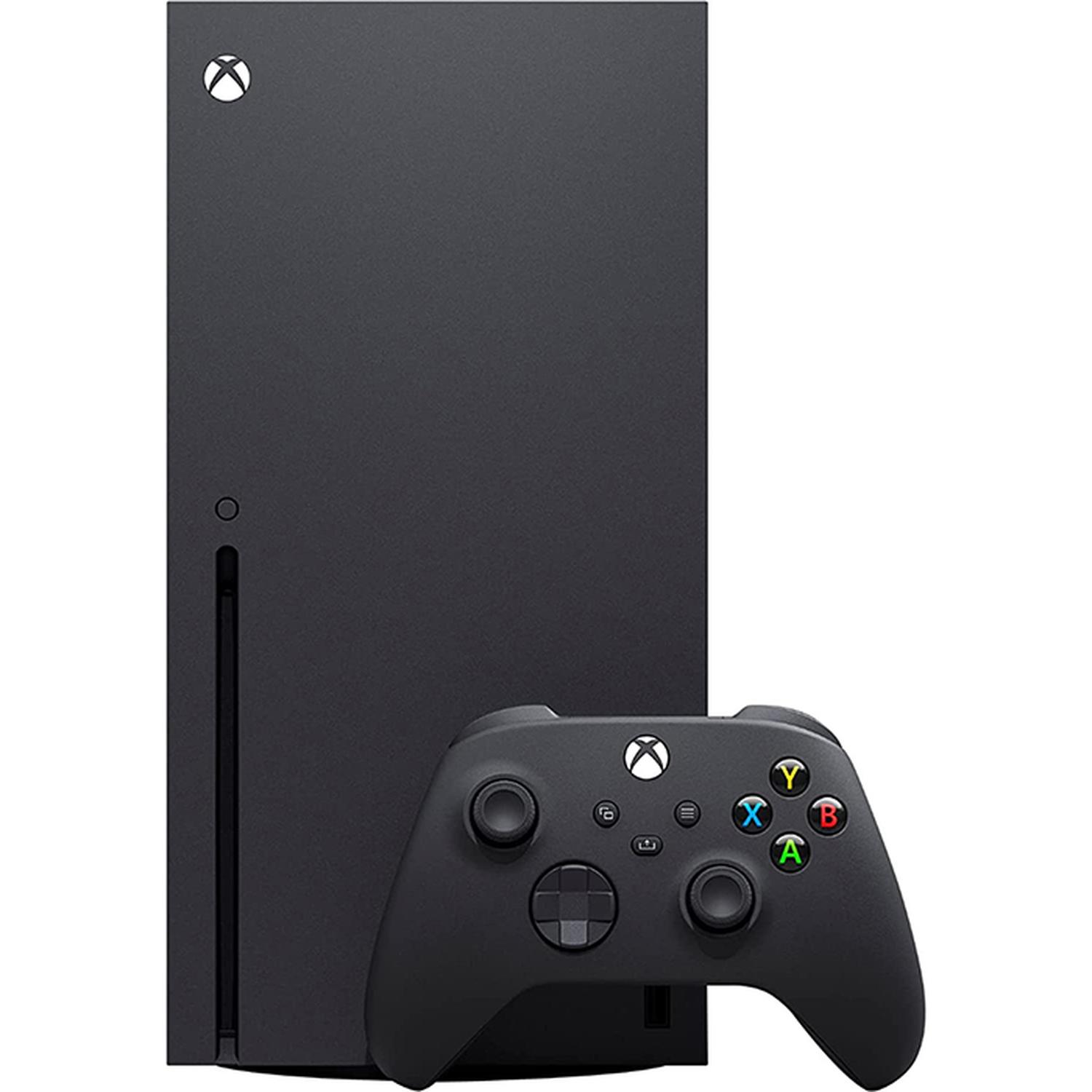
Achieving a 120 frames-per-second gaming experience on an Xbox console requires a specific combination of hardware capability, compatible display equipment, high-bandwidth connection cables, and software-level configuration settings. Meeting these prerequisites unlocks ultra-smooth visual motion and reduced input latency across supported titles on both Xbox Series X and Xbox Series S consoles.
The pursuit of high frame rate gaming has shifted from the realm of personal computers to modern living rooms, driven by hardware advancements in ninth-generation consoles. For years, console gaming remained locked at 30 or 60 frames per second to accommodate standard television refresh rates.
With the introduction of the Xbox Series X and Xbox Series S, Microsoft built hardware capable of outputting up to 120 frames per second at resolutions ranging from 1080p to 4K. However, simply owning a next-generation console does not automatically guarantee high-framerate gameplay. A chain of specific hardware components and correct software configurations must align to make 120 fps a reality.
Understanding Xbox Console Capabilities
Not all Xbox consoles possess the same hardware horsepower. Understanding the distinct capabilities of the Xbox Series X and Xbox Series S is the first step in setting up a high-framerate gaming environment. Older hardware iterations, such as the Xbox One, Xbox One S, and Xbox One X, are fundamentally limited to a maximum output of 60 frames per second and do not support 120 fps gaming modes.
Xbox Series X Capabilities
The Xbox Series X is engineered as Microsoft’s flagship high-performance console. Powered by a custom AMD Zen 2 CPU and RDNA 2 GPU architecture, the console targets native 4K resolution at 60 fps for demanding triple-A titles, but it also features a dedicated Performance Mode capability for many games.
In these performance modes, the console dynamically scales down internal rendering resolutions—often to 1440p or 1080p—to push frame rates up to the 120 fps threshold. Furthermore, the Series X can output a native 4K video signal at 120 Hz to a compatible display, ensuring that the system interface, media apps, and supporting games run with maximum visual fluidity.
Xbox Series S Capabilities
The Xbox Series S is designed as a compact, all-digital console targeting 1440p gaming at 60 fps. Despite its smaller physical footprint and scaled-down GPU compute units, the Series S fully supports 120 fps output.
Just like its larger counterpart, the Series S achieves high frame rates by lowering the internal rendering resolution of demanding titles. Many popular multiplayer games, such as Rocket League, Call of Duty: Warzone, and Fortnite, successfully run at 120 fps on the Xbox Series S, making it an accessible entry point for high-refresh-rate console gaming.
Hardware Requirements for 120 Hz and 120 FPS
Reaching 120 frames per second requires every link in your audio-video chain to support the high data throughput necessary for ultra-fast refresh rates. If a single component lacks the requisite technical specifications, the system will default to lower performance tiers.
[Xbox Series X/S] ---> [Ultra High Speed HDMI Cable] ---> [AV Receiver / Soundbar (Optional)] ---> [120Hz HDMI 2.1 Display]
Display Requirements: HDMI 2.1 and High Refresh Rates
The most critical bottleneck for high-framerate console gaming is the display device—whether that is a modern smart television or a gaming monitor.
- Refresh Rate: The display must natively support a refresh rate of at least 120 Hz. A standard 60 Hz television cannot physically display 120 individual frames per second, regardless of what the Xbox console is outputting.
- HDMI Version: While some 120 Hz monitors utilize DisplayPort or older HDMI 2.0 ports with compressed chroma subsampling, experiencing true 4K resolution at 120 fps with HDR (High Dynamic Range) enabled requires HDMI 2.1 ports. HDMI 2.1 provides a raw bandwidth capacity of up to 48 Gbps, vastly outstripping the 18 Gbps limit of standard HDMI 2.0 connections.
Cable Requirements: Ultra High Speed HDMI
The cable connecting your console to your display must match the bandwidth capabilities of the hardware.
- You must use the Ultra High Speed HDMI cable that is included in the box with your Xbox Series X.
- If you need a replacement or a longer run, ensure any aftermarket cable explicitly bears the "Ultra High Speed HDMI" certification label, signifying compliance with HDMI 2.1 standards up to 48 Gbps. Older HDMI 2.0 (High Speed) cables lack the physical copper throughput for uncompressed 4K/120Hz signals.
Audio Receivers and Pass-Through Bottlenecks
If you route your Xbox through an AV receiver or soundbar before connecting to your television, that intermediate device must also feature HDMI 2.1 pass-through capabilities. Passing an Xbox Series X signal through an older HDMI 2.0 audio receiver will strip away the 120 Hz signal, capping your display output at 60 Hz. Alternatively, users can connect the Xbox directly to the television via HDMI 2.1 and use eARC (Enhanced Audio Return Channel) to transmit audio down to the sound system.
Software Settings and Configuration on Xbox
Once the physical hardware is correctly connected, you must configure the software settings within the Xbox dashboard to enable high-refresh-rate output. By default, consoles sometimes prioritize maximum resolution over maximum refresh rate depending on detected EDID (Extended Display Identification Data) handshakes from the television.
Step-by-Step Configuration Guide
- Power on your Xbox console and press the Xbox button on your controller to open the guide.
- Navigate to Profile & system > Settings.
- Under the General tab, select TV & display options.
- In the Display column, verify that your Resolution is set appropriately (e.g., 4K UHD) and check the Refresh rate dropdown menu. Change this setting from 60 Hz to 120 Hz.
- If the 120 Hz option is grayed out or missing, uncheck the "Allow 4K" box temporarily or navigate to Video modes to verify that your television profile is configured correctly.
- Enable Variable Refresh Rate (VRR) and Auto Low Latency Mode (ALLM) in the Video modes menu if your television supports them. VRR synchronizes the display's refresh rate with the console's frame output, eliminating screen tearing when frame rates fluctuate below 120 fps.
Technical Comparison of Display and Cable Standards
Reviewing the technical specifications helps clarify why specific hardware components are mandatory for high-framerate console setups.
| Standard / Component | Maximum Bandwidth | Max Resolution @ 120 FPS | Key Technologies Supported |
|---|---|---|---|
| Standard HDMI (1.4) | 10.2 Gbps | 1080p @ 60 Hz | Basic HD video, ARC |
| High Speed HDMI (2.0) | 18.0 Gbps | 4K @ 60 Hz / 1440p @ 120 Hz (Compressed) | HDR10, HDCP 2.2 |
| Ultra High Speed HDMI (2.1) | 48.0 Gbps | 4K @ 120 Hz (Uncompressed) | VRR, ALLM, eARC, FRL |
| Xbox Series S | 40.0 Gbps (HDMI 2.1 output) | 1440p / 4K upscaling @ 120 Hz | VRR, ALLM, Hardware Ray Tracing |
| Xbox Series X | 48.0 Gbps (HDMI 2.1 output) | Native 4K @ 120 Hz | VRR, ALLM, Hardware Ray Tracing |
Game Support and Performance Trade-offs
Not every game on the Xbox ecosystem supports 120 fps. Game developers must explicitly optimize their software to unlock higher frame rate caps, often requiring sacrifices in graphical fidelity.
Visual and Performance Compromises
To achieve a stable 120 frames per second, developers must reduce the computational load on the console's CPU and GPU. Common compromises include:
- Resolution Scaling: Dropping from a native 4K rendering pipeline down to dynamic 1440p or 1080p.
- Graphical Settings: Lowering shadow quality, draw distances, anisotropic filtering, and particle density.
- Ray Tracing: Disabling real-time ray-traced reflections or lighting effects, as these operations consume massive amounts of GPU processing power.
Identifying Supported Titles
Players can check whether a specific game supports high frame rates by consulting the game's official patch notes or checking the optimized badges within the Xbox store. Additionally, enabling the built-in frame rate counter on compatible televisions or using the console's developer telemetry overlays can confirm whether a title is successfully hitting the 120 fps milestone.
Frequently Asked Questions
Do I need a 4K TV to play at 120 fps on Xbox?
No. You do not need a 4K television to experience 120 fps gaming. Many gaming monitors and televisions support 1080p or 1440p resolutions at a 120 Hz refresh rate. The Xbox Series X and Series S will automatically scale the output resolution to match your display's native capabilities while still delivering the smoothness of 120 frames per second.
Why is the 120 Hz option grayed out in my Xbox settings?
This typically occurs due to an incorrect HDMI cable, a television port that does not support HDMI 2.1, or EDID handshake issues. Ensure you are using the Ultra High Speed HDMI cable plugged into a designated HDMI 2.1 port on your TV. Additionally, some televisions require you to manually enable "Enhanced HDMI" or "PC Mode" in the TV's internal settings menu.
Does the Xbox Series S support 4K at 120 fps?
While the Xbox Series S is technically capable of outputting a 4K video signal at 120 Hz for dashboard navigation and media apps, games rendered on the Series S target lower resolutions—typically 1080p or 1440p—when running in 120 fps performance modes. True native 4K gaming at 120 fps is exclusive to the more powerful Xbox Series X hardware profile.
Will 120 fps work if I route my Xbox through a soundbar?
It will only work if your soundbar or AV receiver features HDMI 2.1 pass-through capabilities. If your audio equipment only supports HDMI 2.0, it will bottleneck the video signal to 60 Hz. To bypass this, connect the Xbox directly to your television's HDMI 2.1 port and route audio back to your sound system using the television's eARC (Enhanced Audio Return Channel) port.
How can I verify that my game is actually running at 120 fps?
Many modern televisions feature an internal info banner or gaming dashboard (such as the Game Bar on LG and Samsung TVs) that displays the real-time input refresh rate in hertz. If your TV confirms it is receiving a 120 Hz signal and the game has been patched by its developers to support a 120 fps mode, the game is running at that elevated frame rate.
Conclusion and Recommendations
Unlocking 120 frames per second on an Xbox Series X or Series S requires a harmonious setup of console hardware, certified Ultra High Speed cabling, and an HDMI 2.1-compatible high-refresh-rate display. Before purchasing new equipment, verify that your television or monitor natively supports 120 Hz input and that your games of choice offer performance mode optimizations. By systematically confirming each component in your video chain, you can successfully eliminate display bottlenecks and enjoy ultra-smooth, responsive gameplay.