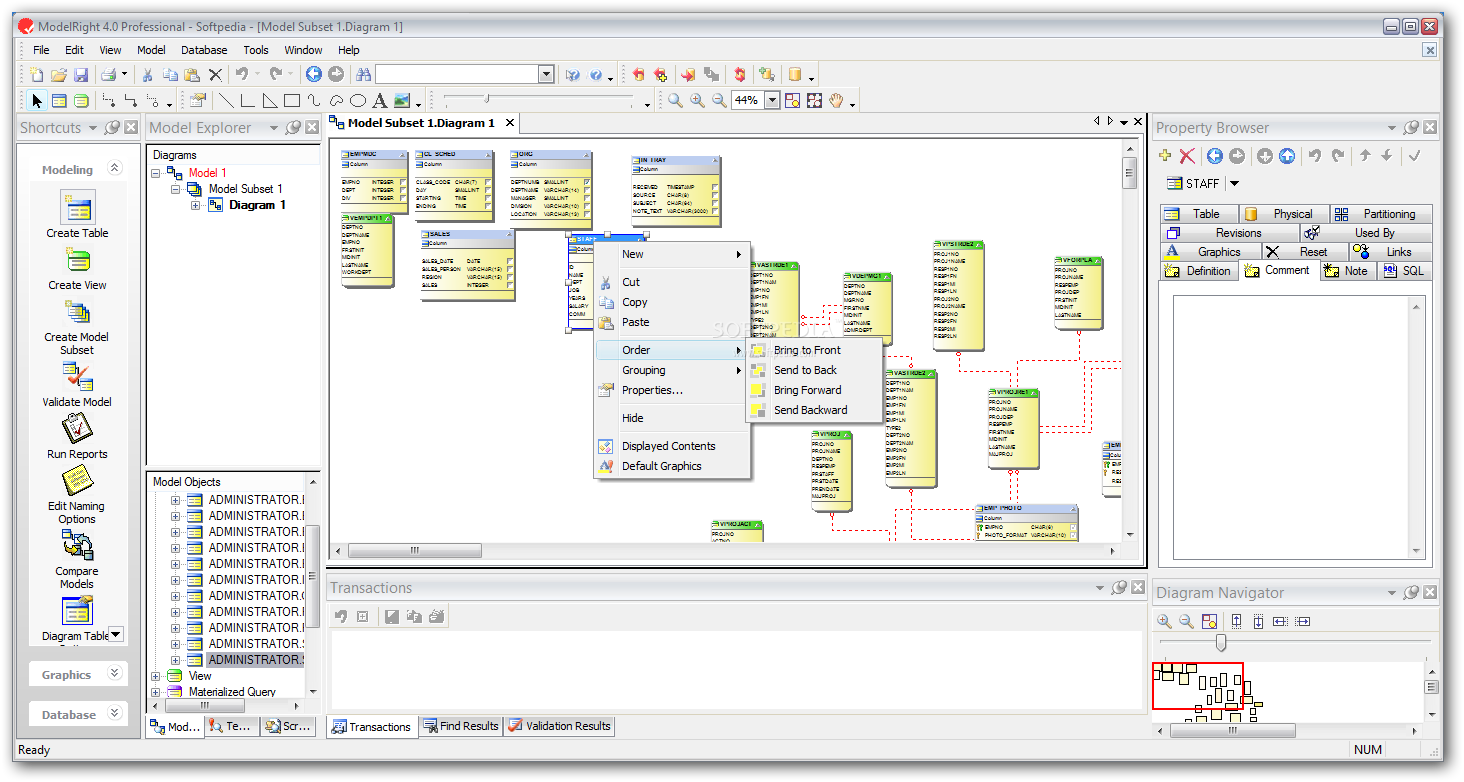
A Microsoft Access example database for home automation serves as a centralized, local repository for managing smart devices, maintenance schedules, and activity logs. By utilizing relational tables, users can track device specifications, room locations, and automation logic without relying on cloud-based subscriptions, ensuring data privacy and offline accessibility for complex home ecosystems.
As we move through 2026, the complexity of the average smart home has increased significantly. While mobile apps and cloud hubs offer convenience, they often lack the robust reporting and long-term data archival capabilities required by power users. Microsoft Access remains a powerful tool for these enthusiasts because it bridges the gap between a simple spreadsheet and a full-scale SQL server. Using an Access database allows you to document every component of your home network, from IP addresses and MAC codes to warranty expiration dates and battery replacement cycles.
The Strategic Importance of Local Data Management
In the current landscape of 2026, data sovereignty has become a primary concern for homeowners. Relying solely on manufacturer-specific clouds means your data is subject to their privacy policies and uptime. A local Microsoft Access database acts as your "Single Source of Truth." It doesn’t necessarily replace your real-time controller (like Home Assistant or a proprietary hub), but it functions as the administrative backbone.
By maintaining an example database, you can perform longitudinal analysis on device failures, energy consumption patterns (if imported), and network topology. This documentation is invaluable when troubleshooting connectivity issues or when handing over home systems to a new owner. Access’s ability to link to external data sources—such as Excel files or web-based APIs—makes it a versatile middleman for consolidating information from disparate brands like Philips Hue, Nest, and custom ESP32-based DIY sensors.
Core Database Architecture and Schema Design
A functional home automation database must be built on sound relational principles. You cannot simply list devices in a single table; doing so creates data redundancy and makes it difficult to update information globally. Instead, an example database should be divided into several core entities.
The Device Table (tblDevices)
This is the heart of your database. Every physical object in your home automation setup gets a record here.
- DeviceID (AutoNumber/PK): A unique identifier for every sensor, bulb, and switch.
- DeviceName (Short Text): A human-readable name, such as "Kitchen Main Ceiling Light."
- DeviceTypeID (Number/FK): Links to a lookup table for categories like "Lighting," "Climate," or "Security."
- ManufacturerID (Number/FK): Links to a table containing brand details and support links.
- MACAddress (Short Text): Crucial for network management and static IP assignments.
- PurchaseDate (Date/Time): For tracking warranty status.
The Location Table (tblLocations)
Home automation is inherently spatial. By separating locations into their own table, you can easily generate reports on a room-by-room basis.
- LocationID (AutoNumber/PK): Unique identifier for a room or zone.
- RoomName (Short Text): E.g., Living Room, Master Bedroom, Attic.
- FloorLevel (Number): Helpful for multi-story homes.
The Activity Log Table (tblActivityLog)
For users who want to track performance over time, this table records events. Note that for high-frequency sensors (like motion detectors), you might only want to store "Exceptions" or "Summaries" to prevent the database size from ballooning.
- LogID (AutoNumber/PK): Unique entry ID.
- DeviceID (Number/FK): Which device triggered the event.
- EventDescription (Short Text): E.g., "Firmware Update," "Offline Alert," "Battery Low."
- Timestamp (Date/Time): When the event occurred.
Normalization and Data Integrity
The primary advantage of using Microsoft Access over a tool like Microsoft Excel is normalization. In an example home automation database, normalization ensures that if a manufacturer changes their support URL, you only have to update it in one record (in tblManufacturers) rather than in five hundred individual device records.
You should enforce Referential Integrity between these tables. This prevents "orphan" records—for instance, it ensures you cannot delete a "Room" from the tblLocations table if there are still devices assigned to that room in tblDevices. In 2026, as home systems become more permanent fixtures of real estate, this level of data integrity is essential for maintaining accurate "as-built" documentation for the property.
Implementing the User Interface with Access Forms
A database is only as good as its ease of use. Microsoft Access allows for the creation of "Forms" which act as the graphical user interface (GUI). For a home automation example, you should design three primary forms:
- Dashboard: A high-level overview showing "Devices Offline," "Upcoming Maintenance," and "Recent Alerts." This can be achieved using subforms and aggregate queries (e.g.,
COUNTof devices whereStatus = 'Offline'). - Device Entry Form: A clean interface to add new hardware. Using combo boxes (drop-down menus) for "Manufacturer" and "Room" ensures that data entry remains consistent and free of typos.
- Maintenance Schedule: A form that highlights devices with batteries older than 12 months or firmware that hasn't been checked in the current quarter of 2026.
By using VBA (Visual Basic for Applications), you can add buttons to these forms that perform complex tasks. For example, a button labeled "Export Network Map" could run a query and generate a CSV file formatted for your router's static IP import tool.
Reporting and Advanced Data Analysis
The true power of Microsoft Access lies in its reporting engine. In a home automation context, you aren't just storing data; you are seeking insights.
- Battery Replacement Report: A report grouped by "Battery Type" (CR2032, AA, etc.) that tells you exactly how many of each you need to buy for the next maintenance cycle.
- Reliability Audit: A query that calculates the time between "Offline" events in the
tblActivityLog. If a specific brand of smart plug consistently shows up, you know it's time to find a different vendor. - Warranty Expiry Alert: A report that lists all devices whose warranty expires within the next 30 days, allowing you to perform a final functional check before the coverage ends.
Comparison of Local Databases vs. Cloud Solutions
When choosing to build an Access database in 2026, it is helpful to understand how it compares to other common home management methods.
| Feature | Microsoft Access (Local) | Manufacturer Cloud Apps | Standard Spreadsheet |
|---|---|---|---|
| Data Ownership | 100% User Owned | Proprietary/Third-Party | 100% User Owned |
| Relational Depth | High (Tables & Joins) | Limited to App Features | Very Low (Flat files) |
| Offline Access | Yes | No (Usually) | Yes |
| Custom Reporting | Robust (SQL Based) | Predetermined/None | Manual / Basic Charts |
| Automation Logic | Administrative/Scheduling | Real-time Triggering | None |
| Ease of Setup | Moderate (Requires Design) | Easy (Plug & Play) | Easy (List Making) |
Integrating with 2026 Technology
While Microsoft Access is a desktop-first application, it does not exist in a vacuum. In 2026, integration is smoother than ever. You can use Power Automate Desktop to bridge the gap between your Access database and web services. For instance, when a new device is registered in your Access database, Power Automate could automatically add the purchase receipt to a specific folder in OneDrive or send a notification to your mobile device.
Furthermore, if your home controller (like Home Assistant) can export a daily log in JSON or CSV format, Access can be configured to "Link" to that file. This allows you to keep the high-speed, real-time data in the controller while using Access for the heavy-duty historical archiving and relational documentation.
Common Pitfalls and Troubleshooting
When building your example database, beginners often make a few critical errors:
- Over-logging: Do not attempt to record every temperature change every minute in Access. Access has a 2GB file size limit. Keep high-frequency telemetry in a time-series database and only bring "Daily Averages" or "Monthly Highs" into Access.
- Lack of Backups: Because this is a local file, if your hard drive fails, your documentation is gone. In 2026, you should keep your
.accdbfile in a synced folder (like OneDrive or Dropbox) that offers version history. - Ignoring Data Types: Ensure your IP addresses are stored as text (since they contain periods) and your dates are stored as proper Date/Time objects to allow for chronological sorting.
Practical Steps to Start Your Database
To begin, open Microsoft Access and start with a "Blank Database." Instead of using a generic template, build your tables manually to match the schema discussed above.
- Create
tblManufacturersfirst (this is your "lookup" or "parent" table). - Create
tblLocations. - Create
tblDevicesand use the Lookup Wizard to link the Manufacturer and Location fields to their respective tables. - Enter a few test devices to ensure the relationships work.
- Build a simple query that shows "Device Name" and "Room Name" together to verify the join is functioning correctly.
For those looking for official documentation on building relational structures, the Microsoft Access Support Center provides comprehensive guides on table relationships and referential integrity. Additionally, the W3Schools SQL Tutorial is an excellent resource for learning how to write the custom queries that will drive your advanced home automation reports.
Frequently Asked Questions
Can Microsoft Access control my lights directly in 2026?
Microsoft Access is primarily a data management tool, not a real-time hardware controller. While it is technically possible to use VBA to send HTTP requests to a smart home API, it is not recommended for time-sensitive automation (like turning on a light when motion is detected). Use Access for the "Administrative Layer"—tracking what you own, where it is, and how it’s performing—rather than the "Action Layer."
How do I handle multiple houses in one database?
The most efficient way is to add a tblProperties table. Every record in tblLocations would then have a PropertyID foreign key. This allows you to use a single database to manage your primary residence, a vacation home, or even a rental property, filtering the dashboard by the specific house you are currently viewing.
Is Microsoft Access still relevant for IoT in 2026?
Yes. Despite the rise of web-based tools, the "Desktop Database" remains the most accessible way for a non-programmer to build a custom relational system. Its ability to handle thousands of records with complex relationships locally makes it superior to spreadsheets for serious hobbyists who want to maintain a "Manual of Arms" for their smart home.
Can I share my home automation database with my family?
Access databases are designed for local use, but you can place the "Backend" (the tables) on a network share or a service like SharePoint, while each family member has a "Frontend" (the forms and reports) on their own PC. However, for a home automation example, most users find it sufficient to have the database on a single "Home Server" or "Office PC" used for administrative tasks.
What happens if I exceed the 2GB limit?
If your home automation logs become massive, you should "Split" the database. You can keep your primary tables in Access and move the heavy log data to a linked SQL Server Express instance (which is free and has a 10GB limit). Access will still act as your user interface, but the data will be stored in a more robust engine.
Final Recommendation
For homeowners seeking a professional level of organization, building a Microsoft Access example database for home automation is the best way to move from "owning gadgets" to "managing a system." Start by documenting your most critical devices—routers, hubs, and security cameras—and gradually expand to include sensors and bulbs. By the end of 2026, you will have a comprehensive digital twin of your home’s technology, providing peace of mind and operational efficiency that cloud-only apps simply cannot match.