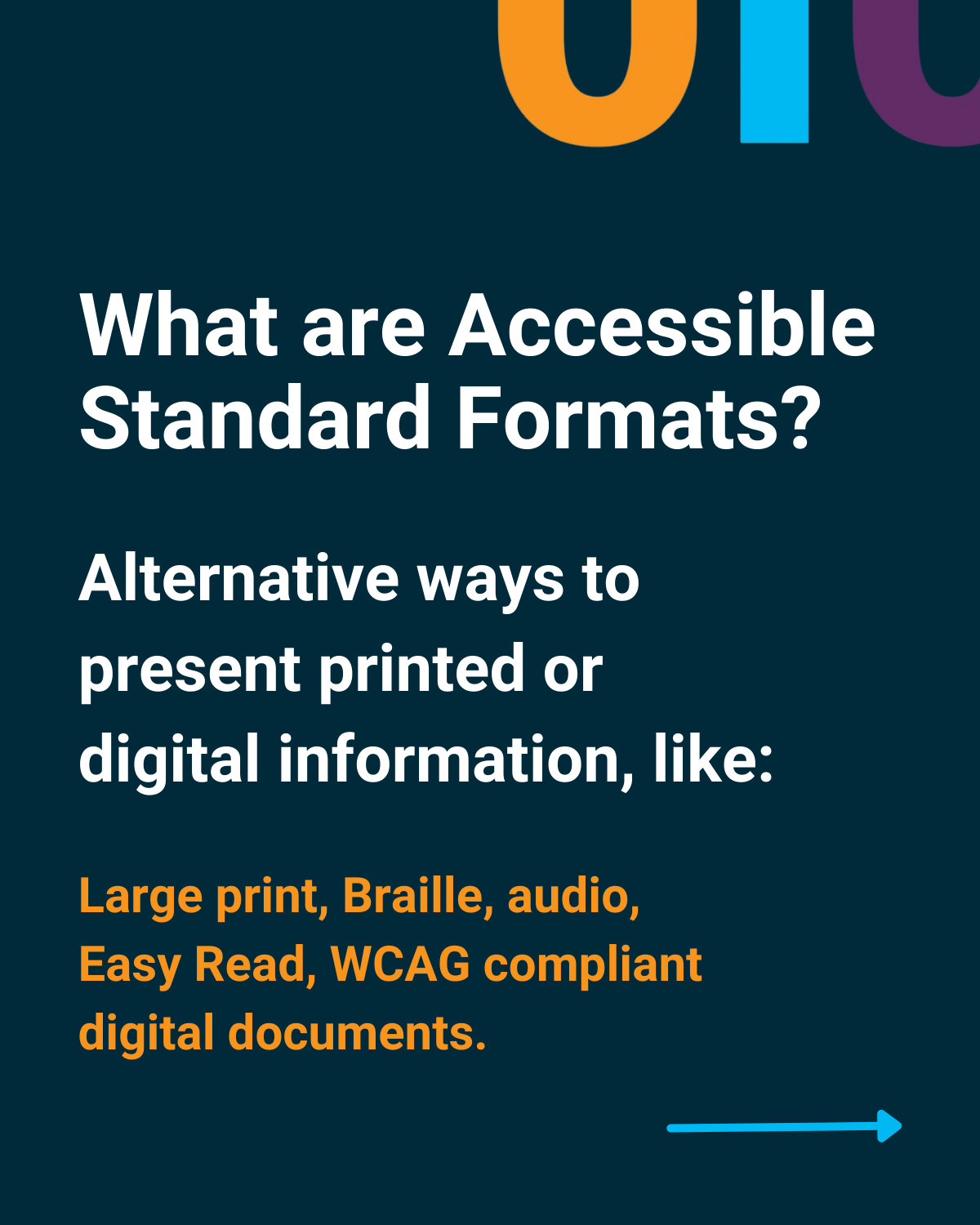
Providing support documentation in accessible formats involves using standards-compliant HTML, tagged PDFs, and alternative media such as ePub or transcript-backed video. By adhering to WCAG 2.2 and 3.0 guidelines, organizations ensure that users with visual, auditory, cognitive, or motor impairments can independently access troubleshooting guides, technical manuals, and self-service help centers.
The State of Accessibility in 2026
As of 2026, the landscape of digital accessibility has shifted from a "nice-to-have" feature to a strictly enforced legal and operational requirement. With the full implementation of the European Accessibility Act (EAA) in mid-2025 and the continued evolution of Section 508 in the United States, organizations must prioritize how support documentation is consumed by diverse populations. Accessible documentation is no longer just about screen reader compatibility; it encompasses cognitive ease, device flexibility, and the ability to consume information in various environments.
Modern support centers now face the challenge of managing high volumes of technical data while ensuring that every user, regardless of their physical or neurological profile, can resolve issues without needing to contact human support. This shift has driven the adoption of specific file formats and structured data practices that maximize "interoperability"—the ability for content to work across different assistive technologies.
Primary Accessible Formats for Support Content
Selecting the right format for support documentation is the first step in creating an inclusive user experience. While several formats exist, their level of accessibility varies based on how they handle metadata, structural tags, and reflow capabilities.
1. Semantic HTML5 (The Gold Standard)
HTML5 remains the most accessible format for support documentation. Because it is native to the web browser, it integrates seamlessly with screen readers like NVDA, JAWS, and VoiceOver.
- Reflow and Responsiveness: HTML naturally adjusts to different screen sizes, which is vital for users with low vision who use high-level zoom (up to 400%) to read text.
- Navigation: Proper use of HTML landmarks (like
,, and) and heading structures (through) allows users to jump directly to the information they need. - Interactivity: Support docs often include search bars, toggleable accordions, and feedback forms. When built with standard HTML and appropriate ARIA (Accessible Rich Internet Applications) roles, these elements remain fully functional for keyboard-only users.
2. Tagged PDF (ISO 14289 / PDF/UA)
While HTML is preferred, many organizations still rely on PDFs for offline manuals or printable guides. To be accessible, these must be "Tagged PDFs" that follow the PDF/UA (Universal Accessibility) standard.
A tagged PDF contains a hidden layer of metadata that defines the reading order and identifies elements like headings, lists, tables, and images. Without these tags, a screen reader may read columns out of order or fail to announce the presence of an image. In 2026, automated remediation tools have improved, but manual verification remains necessary to ensure that complex technical diagrams are logically described.
3. ePub (The Mobile Manual)
The ePub format is essentially a packaged website. It is highly favored for long-form support manuals because it supports reflowable text and allows users to customize fonts, colors, and line spacing. For users with dyslexia or vision impairments, the ability to change the reading environment on an e-reader or tablet makes ePub a superior alternative to the static layout of a PDF.
4. Accessible Video and Media
Support documentation frequently includes "How-to" videos. To meet accessibility standards, these must include:
- Synchronized Captions: Essential for users who are deaf or hard of hearing.
- Transcripts: A text-based version of the video content that allows users to search for specific steps.
- Audio Description: A narrated description of visual actions (e.g., "The user clicks the blue button in the top-right corner") for blind users.
Technical Requirements for Accessible Content
Creating an accessible document requires more than just choosing the right file extension. The internal structure must follow specific technical rules to ensure compatibility with assistive technology.
Hierarchy and Semantic Structure
The most common failure in support documentation is the improper use of headings. Headings should never be chosen based on their visual size; they must represent a logical outline of the page. An
should define the main topic, while
Alternative Text for Technical Imagery
Support docs are often image-heavy, featuring screenshots, flowcharts, and wiring diagrams.
- Decorative Images: If an image is purely for aesthetic purposes, it should have an empty
alt=""attribute so screen readers ignore it. - Informational Images: If a screenshot shows a settings menu, the alt text must describe the specific action or setting being highlighted.
- Complex Diagrams: For a flowchart, a short alt-tag is insufficient. A "long description" or a text-based list summarizing the flow should be provided nearby.
Color Contrast and Typography
Documentation must be legible for users with color blindness or low vision. In 2026, the standard for text contrast is a minimum ratio of 4.5:1 for normal text and 3:1 for large text. Furthermore, information should never be conveyed by color alone. For example, "Click the red button to delete" is inaccessible; it should be "Click the 'Delete' button."
Table Accessibility
Tables are frequently used in support docs to show specifications or pricing. Accessible tables require:
- Header Rows (
or): These tell the screen reader which cells are labels. - Captions: A brief summary of what the table represents.
- Avoiding Merged Cells: Complex merged or nested cells often break the reading order for assistive tech.
Comparison of Support Documentation Formats
The following table evaluates common formats based on their accessibility features and primary use cases in a 2026 technical environment.
| Format | Accessibility Level | Best Use Case | Primary Limitation |
|---|---|---|---|
| HTML5 | High | Help Centers, FAQs, Knowledge Bases | Requires active internet connection unless cached. |
| Tagged PDF | Moderate | Offline manuals, printable schematics | Fixed layout makes mobile viewing difficult. |
| ePub | High | Long-form guides, training manuals | Requires a dedicated e-reader app. |
| Markdown | High (as source) | Developer documentation, ReadMe files | Must be rendered to HTML for full accessibility support. |
| Video (MP4) | Low-High | Visual demonstrations, walkthroughs | Highly dependent on captions/audio descriptions. |
Implementation Workflow for Documentation Teams
Transitioning to accessible support formats requires a structured approach. Documentation teams should integrate accessibility into the content lifecycle rather than treating it as a final "check."
1. Audit and Inventory
Begin by identifying which documents are currently in use. Use automated tools like Axe-core or Lighthouse for web-based documentation and Acrobat Pro's Accessibility Checker for PDFs. Prioritize documents with the highest traffic—usually "Getting Started" guides and "Troubleshooting" FAQs.
2. Authoring with Accessibility in Mind
Technical writers should use authoring tools that support structured content. For example, using a DITA (Darwin Information Typing Architecture) or a specialized CMS (Content Management System) ensures that semantic tags are automatically applied. If writing in Markdown, ensure that the conversion engine produces valid, accessible HTML.
3. Manual Testing with Assistive Technology
Automated tools only catch about 30% to 40% of accessibility issues. A manual review is essential. This includes:
- Keyboard-only navigation: Can you reach every link and button using only the 'Tab' key?
- Screen reader testing: Listen to the page using NVDA or VoiceOver. Does the reading order make sense? Are technical terms pronounced correctly?
- Contrast checks: Verify that code snippets or "Note" boxes have sufficient contrast against the background.
4. Remediation of Legacy Files
Older PDFs and Word docs are often the biggest hurdles. If a legacy PDF cannot be easily tagged, the most efficient path is often to convert its content into a structured HTML page. In 2026, AI-driven remediation tools can assist in identifying heading structures, but human oversight is required to verify the accuracy of technical alt-text.
Common Pitfalls in Support Documentation
Even well-intentioned teams can make mistakes that hinder accessibility. Awareness of these common errors can save significant time during the QA process.
- Reliance on "Click Here" Links: Descriptive link text is vital. "Click here for the manual" is less helpful than "Download the [Product Name] Installation Manual (PDF)." Screen reader users often pull up a list of all links on a page; a list of twenty "Click Here" links provides no context.
- Inaccessible Code Snippets: For software support docs, code blocks must be accessible. Using a standard
andtag is better than using an image of code. Ensure that syntax highlighting colors meet contrast requirements.
Timed Content: Avoid support pages that automatically refresh or carousels that move too quickly. Users with cognitive disabilities or those using screen readers need time to process information at their own pace.
Missing Focus Indicators: When a user tabs through a page, a visual "ring" should appear around the active element. Removing this via CSS (e.g., outline: none;) makes the page unusable for keyboard-only users.
FAQs
What is the most accessible format for offline support documentation?
The ePub format is generally considered the most accessible offline format. Unlike PDF, it allows for reflowable text, which means users can increase font size without having to scroll horizontally. It also supports better navigation through a built-in table of contents that integrates with most e-reading software.
Does WCAG 2.2 apply to downloadable PDF manuals?
Yes. WCAG guidelines are technology-neutral, meaning they apply to any digital content, including web pages, mobile apps, and downloadable documents like PDFs or Word files. To be compliant, these files must meet the relevant success criteria, such as logical reading order and alternative text for images.
How do I handle accessibility for complex technical diagrams?
For complex diagrams, you should provide a multi-layered description. Use a short alt-tag for the general purpose of the image (e.g., "Network architecture diagram showing the connection between the server and the client"). Then, provide a detailed text description or an accessible table immediately following the image that breaks down the specific data or steps shown.
Can AI automatically make my support documentation accessible?
As of 2026, AI can significantly speed up the process by suggesting alt-text and identifying heading gaps. However, AI often struggles with the context of technical documentation. It might describe a specialized hardware component as a "generic electronic device," which is unhelpful for a user trying to troubleshoot. Human verification is always required for technical accuracy.
Is HTML5 or PDF better for screen reader users?
HTML5 is significantly better. It offers more robust navigation landmarks, better support for interactive elements, and more consistent behavior across different screen reading software. While a properly tagged PDF is accessible, it is often more cumbersome to navigate than a well-structured web page.
Practical Recommendation
To ensure your support documentation is fully inclusive in 2026, adopt an HTML-first strategy. Host your primary documentation in a responsive, semantic web portal. For users who require offline access, provide ePub versions for long-form manuals and tagged PDFs for short reference sheets or schematics. Finally, implement a regular "Accessibility Audit" as part of your content update cycle, using both automated scanners and manual screen reader testing to ensure no user is left behind.