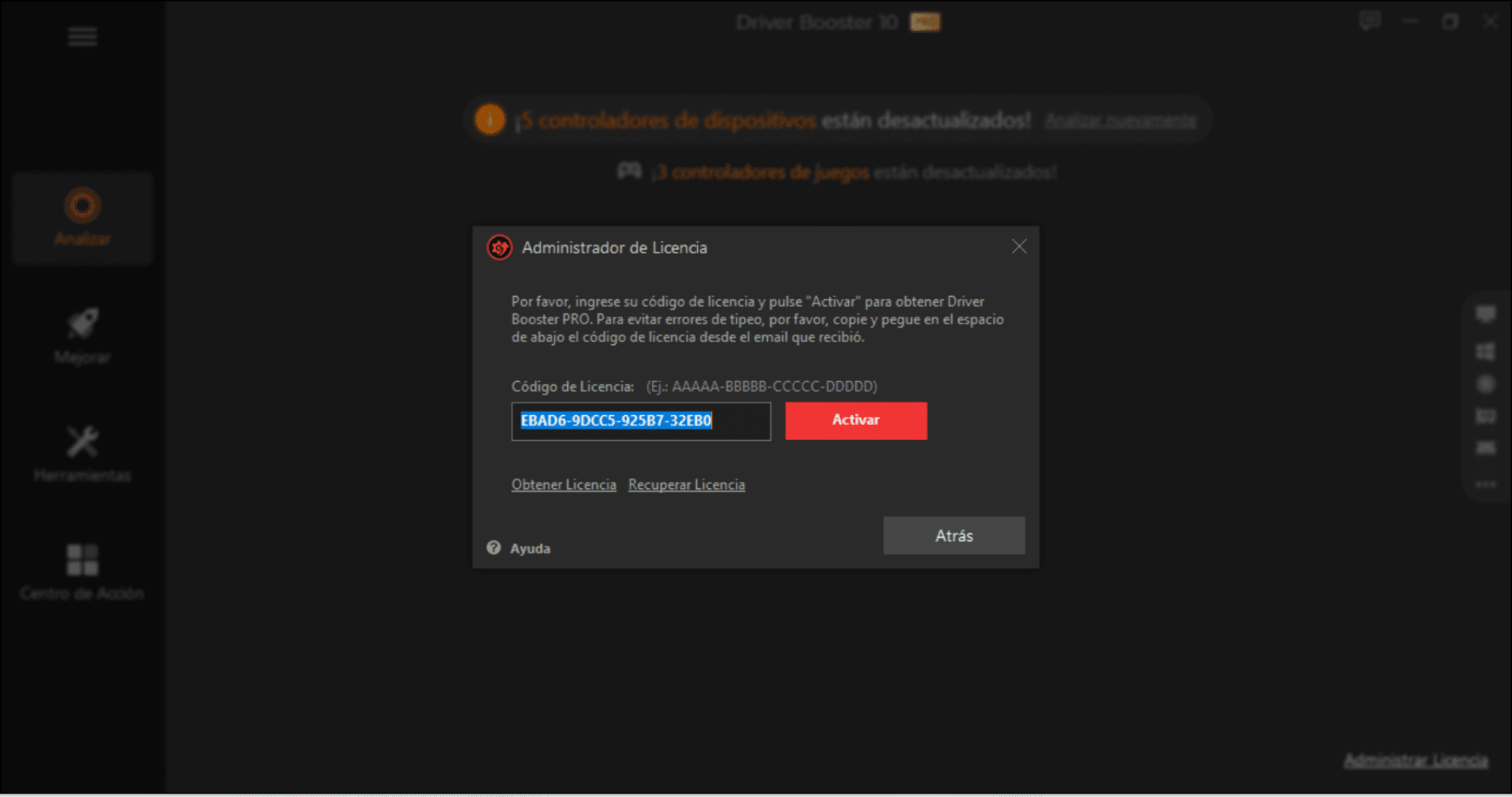
Managing system drivers on Windows 10 can be a complex task, and IObit Driver Booster is designed to streamline this process by scanning, downloading, and installing updates automatically over a structured implementation window.
Windows 10 relies heavily on up-to-date device drivers to communicate efficiently with internal hardware components and external peripherals. Over time, outdated, corrupt, or missing drivers can lead to system instability, reduced gaming performance, graphical glitches, and malfunctioning hardware components. While Windows Update periodically pushes patches, it often misses specific manufacturer-released drivers or older hardware components. Third-party utility tools like IObit Driver Booster aim to bridge this gap by offering centralized driver management.
This comprehensive ten-day guide outlines how to strategically approach, install, configure, and evaluate IObit Driver Booster on a Windows 10 operating system. By breaking the process down into manageable daily checkpoints, users can safely optimize their systems without falling into common pitfalls associated with automated driver updates.
Day 1: Understanding Driver Management and System Preparation
Before installing any third-party driver updater on Windows 10, it is vital to understand what drivers do and why system preparation is non-negotiable. Drivers act as translators between the Windows 10 operating system and physical hardware, such as graphics cards, network adapters, audio chips, and motherboards.
Why System Preparation Matters
Automated software interacts directly with deep system files and the Windows Registry. Modifying these components carries inherent risks. If a driver installation fails or installs an incompatible version, it can cause a Blue Screen of Death (BSOD), network failure, or complete system unresponsiveness.
Pre-Installation Checklist
- Check Windows Update: Ensure your Windows 10 operating system is fully up to date. This ensures baseline compatibility.
- Create a System Restore Point: Manually generate a restore point via the Windows System Properties menu. This provides an emergency rollback option if a driver update causes instability.
- Back Up Critical Data: Copy important files to an external drive or cloud storage service as an extra layer of security.
- Identify Current Hardware: Make a brief note of your core components (GPU, CPU, motherboard chipset) so you can cross-reference what the software detects later.
Day 2: Downloading, Installation, and Safety Configuration
Day 2 focuses on acquiring the software securely and configuring its settings to prioritize system safety over speed.
Safe Acquisition and Installation
Always download IObit Driver Booster directly from the official IObit Website or verified, reputable software repositories. Avoid third-party mirror sites that may bundle unwanted adware, toolbars, or potentially unwanted programs (PUPs) into the installer package.
During the installation wizard, pay close attention to every screen. Uncheck any pre-selected options that offer to install third-party utilities, browser extensions, or promotional security software.
Configuring Rescue and Backup Settings
Once installed, open Driver Booster and navigate to the settings menu before running any scans.
- Enable Driver Backup: Configure the software to automatically back up existing drivers before installing new ones. This allows you to roll back to a stable version if a new driver misbehaves.
- Configure Restore Points: Ensure the option to create a system restore point prior to installation is checked.
- Silent Mode Settings: If you prefer uninterrupted work or gaming sessions, configure notification and silent mode preferences to prevent pop-ups during intensive tasks.
Day 3: Executing the Initial System Scan and Analysis
With safety protocols in place, Day 3 centers on running the first comprehensive system scan to evaluate the current health of your device drivers.
Interpreting the Scan Results
Launch IObit Driver Booster and click the prominent "Scan" button. The software will query your hardware IDs and compare them against its cloud database. Once completed, the interface will categorize drivers into distinct groups:
- Outdated Drivers: Hardware components that have newer versions available.
- Missing Drivers: Unidentified hardware or devices running on generic Microsoft fallback drivers.
- Faulty/Bad Drivers: Components showing errors or instability flags in Device Manager.
Reviewing the Output Manually
Resist the temptation to click "Update Now" immediately. Take time to review the list line by line. Pay particular attention to:
- Display Adapters (GPUs): Essential for gaming and high-resolution rendering.
- Network Adapters: Wi-Fi and Ethernet drivers. Updating these incorrectly can cut off internet access.
- Audio and Chipset Drivers: Crucial for motherboard communication and sound output.
Day 4: Prioritizing Critical Drivers vs. Optional Updates
Not all driver updates carry the same weight. On Day 4, you will learn how to triage updates to minimize risk and maximize system stability.
The Hierarchy of Driver Updates
When faced with a long list of available updates, prioritize them based on functionality and stability impact:
| Priority Level | Component Type | Risk of Failure | Recommendation |
|---|---|---|---|
| High | Network Adapters, Chipset | Moderate | Update only if experiencing issues or security flaws. |
| Medium | Graphics Cards (GPU) | Low-Moderate | Update for gaming performance and bug fixes. |
| Low | Audio, Peripherals, Printers | Low | Update if specific features are malfunctioning. |
Deciding What to Skip
If a device (such as an older printer or secondary audio output) is working perfectly, the computing adage "if it ain't broke, don't fix it" applies heavily to driver management. Updating stable drivers unnecessarily can occasionally introduce regressions or compatibility conflicts. Uncheck non-essential updates to keep your system clean and focused.
Day 5: Implementing Staged Updates and Monitoring Performance
Executing updates in a single bulk operation is a common recipe for troubleshooting nightmares. Day 5 introduces the practice of staged updating.
Staged Update Workflow
Instead of clicking "Update All," select and update drivers in small, logical groups:
- Group 1: Chipset and Motherboard: Update foundational system drivers first, then reboot your computer.
- Group 2: Display Adapters: Install graphics driver updates next, rebooting afterward.
- Group 3: Peripherals and Audio: Handle remaining hardware components last.
Monitoring System Stability
After each reboot, test the specific hardware components you updated. Play a brief video game or run a benchmark if you updated the GPU; test web browsing and file transfers if you updated network drivers. Check the Windows 10 Device Manager to ensure no yellow exclamation marks or unrecognized devices remain.
Day 6: Leveraging Advanced Tools and System Tweaks
Beyond basic driver updates, IObit Driver Booster includes specialized utility tools designed to enhance Windows 10 performance and resolve common system errors.
Exploring Built-In Tools
- Fix Network Failure: A diagnostic tool designed to reset Winsock and TCP/IP stacks when internet connectivity drops after a driver update.
- Fix Bad Resolution: Helps recalibrate display scaling and monitor refresh rates if a GPU update scrambles display settings.
- Clean Unplugged Device Data: Removes ghost entries and residual registry keys left behind by old, disconnected USB devices and hardware.
Evaluating Game Boost Features
Driver Booster features a "Game Boost" module designed to stop unnecessary background Windows services and free up RAM before launching video games. While beneficial on entry-level or mid-range systems, users with high-end gaming rigs equipped with ample RAM and multi-core processors will notice minimal performance gains. Use this feature selectively based on your hardware specifications.
Day 7: Evaluating Free vs. Pro Limitations and Licensing
By the end of your first week, you will have a clear picture of how the software performs on your specific Windows 10 setup. Day 7 is dedicated to analyzing whether upgrading to a paid license is necessary.
Free Edition Capabilities
- Basic driver scanning and identification.
- Access to critical driver updates (often at capped download speeds).
- Manual installation prompts.
Pro Edition Additions
- Uncapped download speeds during updates.
- Expanded database covering rare and legacy hardware.
- Automatic background scanning and updating during idle time.
- Priority technical support from the developer.
Assess whether the manual throttling and limited database of the free tier justify purchasing a commercial license. For casual users who update drivers once or twice a year, the free version—or even manual updates via manufacturer websites—may suffice.
Day 8: Troubleshooting Common Post-Update Issues
Even with careful preparation, issues can occasionally arise. Day 8 prepares you to diagnose and resolve common post-update anomalies on Windows 10.
Scenario A: Network Disconnection
If updating your network adapter driver causes your Wi-Fi or Ethernet to stop working:
- Open Device Manager by right-clicking the Start menu.
- Expand Network Adapters, right-click your adapter, and select Properties.
- Navigate to the Driver tab and click Roll Back Driver (if available).
- If unavailable, use a secondary device to download the official driver from the motherboard or laptop manufacturer's website and transfer it via USB.
Scenario B: Graphical Artifacts or Screen Flickering
If a GPU update causes visual stuttering or black screens:
- Boot Windows 10 into Safe Mode.
- Open Driver Booster and use its built-in rollback feature, or use a tool like Display Driver Uninstaller (DDU) for a clean slate.
- Reinstall the stable graphics driver directly from NVIDIA, AMD, or Intel.
Day 9: Establishing a Long-Term Maintenance Routine
With your system fully optimized, Day 9 focuses on establishing a sustainable maintenance schedule that prevents software bloat and system fatigue.
Creating a Maintenance Calendar
- Monthly Checks: Run a manual scan once a month to check for security patches and major hardware optimizations. Avoid weekly or daily scans, as stable drivers do not require constant modification.
- Registry and Cache Hygiene: Periodically clear out temporary installation files generated by driver updaters to reclaim disk space on your Windows 10 boot drive.
- Review Restore Points: Clean out old system restore points every few months to free up storage space allocated to Volume Shadow Copy service.
Day 10: Final Audit and System Verification
On the final day of your guide, conduct a thorough audit to verify that your Windows 10 system is operating at peak stability and performance.
Final Verification Steps
- Open Device Manager: Confirm that every listed hardware component displays a normal icon without warning flags.
- Test Core Workflows: Run your primary productivity apps, games, and media tools to confirm seamless operation.
- Review Backup Integrity: Ensure your manual system restore points and driver backups are accessible and functional.
By following this structured 10-day methodology, you can successfully leverage IObit Driver Booster to maintain your Windows 10 hardware while mitigating the risks commonly associated with automated system software.
Frequently Asked Questions
Is IObit Driver Booster safe to use on Windows 10?
Yes, provided you download it from official sources and configure its safety settings correctly. Creating a system restore point and enabling driver backups before initiating updates ensures you have a reliable safety net if anything goes wrong.
Can I use Driver Booster on the free version indefinitely?
Yes. The free tier remains functional for basic scanning and manual updating, though it features download speed caps and a smaller hardware database compared to the Pro subscription.
Does Windows 10 need a third-party driver updater?
Not strictly. Windows Update and Device Manager handle standard drivers adequately for most users. However, third-party updaters like Driver Booster offer convenience by centralizing updates for niche hardware, proprietary chipsets, and gaming components in a single interface.
What should I do if an update causes a Blue Screen of Death (BSOD)?
Boot your computer into Windows Safe Mode, access IObit Driver Booster or the Windows Device Manager, and select the "Roll Back Driver" option. Alternatively, restore your system to the restore point you created on Day 1.
How often should I run Driver Booster scans?
Once a month is more than sufficient. Running scans too frequently is unnecessary because stable hardware drivers rarely require weekly adjustments.