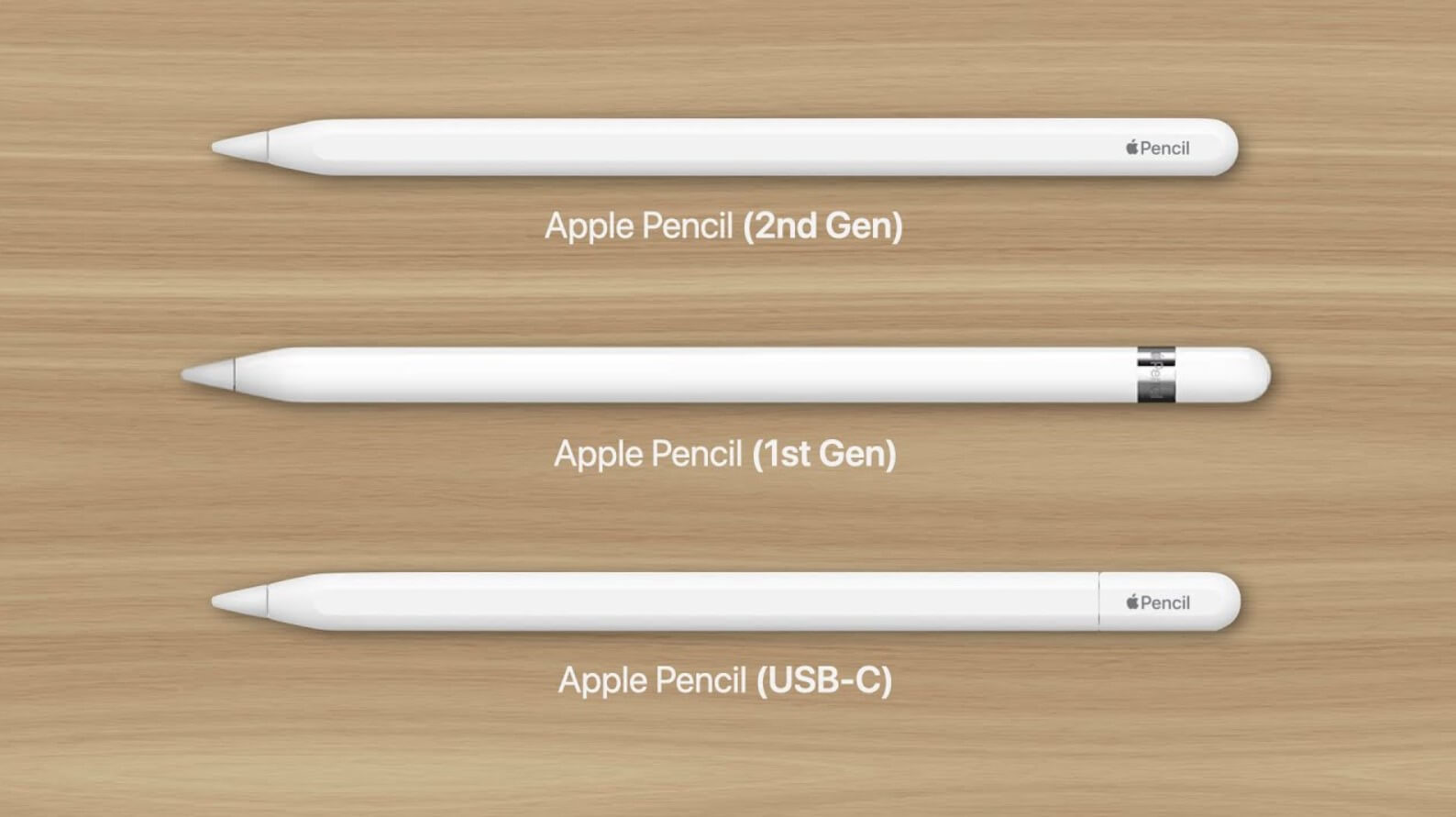
The Apple Pencil (1st Generation) is not compatible with the iPad 5th Generation (released in 2017). This specific iPad model lacks the necessary hardware components—primarily a specialized display digitizer and a high-refresh-rate sensor—required to communicate with any version of the Apple Pencil. Users of this device must instead utilize third-party capacitive styluses.
Understanding the Hardware Barrier: Why the iPad 5th Gen Fails
To understand why the iPad 5th Generation cannot use the Apple Pencil, one must look beneath the glass. The relationship between an iPad and an Apple Pencil is not merely a software connection or a standard Bluetooth pairing; it is a hardware-dependent interaction.
The Role of the Digitizer
The iPad 5th Generation features a standard multi-touch digitizer. This layer is designed to detect the electrical conductivity of a human finger or a "passive" stylus. However, the Apple Pencil is an "active" stylus. It emits a specific electronic signal that the iPad's display must be equipped to receive and interpret.
When Apple designed the iPad 5th Generation in 2017, they positioned it as a budget-friendly, entry-level device. To keep costs low, they utilized a non-laminated display assembly and excluded the auxiliary touch sub-system found in the iPad Pro models of that era. Without this sub-system, the iPad 5th Generation is "blind" to the Apple Pencil’s frequency. Even though the Apple Pencil 1st Gen uses Bluetooth to transmit pressure and tilt data, the actual position of the nib on the screen is tracked by the display’s specialized hardware, which the 5th Gen simply does not possess.
Lack of Lamination and Signal Frequency
Another factor is the air gap. The iPad 5th Generation has a non-laminated display, meaning there is a physical air gap between the glass and the LCD. While this makes repairs cheaper, it interferes with the high-precision tracking required for the Apple Pencil's sub-millimeter accuracy. When Apple finally brought Pencil support to the entry-level line with the iPad 6th Generation in 2018, they updated the screen technology to include the necessary sensors while maintaining a non-laminated design, proving that the 5th Generation’s omission was a deliberate hardware choice to maintain its 2017 price point.
The Evolution of iPad Pencil Support (2015–2026)
In the current landscape of 2026, the history of Apple Pencil support is well-defined. The technology was once a "Pro" exclusive feature, but it has since trickled down to every model in the current lineup. However, for those holding onto legacy hardware like the iPad 5th Generation, the "cutoff" point is firm.
Apple Pencil support began in late 2015 with the original 12.9-inch iPad Pro. For several years, the standard "iPad" line was left out. The 5th Generation iPad was the last "standard" iPad released without Pencil support. In March 2018, the 6th Generation iPad changed the market by introducing support for the 1st Generation Apple Pencil, effectively rendering the 5th Gen the last of the "finger-only" tablets.
iPad Compatibility Timeline
| iPad Model | Release Year | Apple Pencil Support | Connection Type |
|---|---|---|---|
| iPad (5th Gen) | 2017 | None | N/A |
| iPad (6th Gen) | 2018 | 1st Generation | Lightning |
| iPad (7th-9th Gen) | 2019-2021 | 1st Generation | Lightning |
| iPad (10th Gen) | 2022 | 1st Gen / USB-C / Pro* | USB-C / Adapter |
| iPad Air (M2) | 2024 | Pro / USB-C | Magnetic / USB-C |
| iPad Pro (M4) | 2024 | Pro / USB-C | Magnetic / USB-C |
*Note: Compatibility with the Apple Pencil Pro and the Apple Pencil (USB-C) depends on the specific hardware year; older iPads generally remain locked to the 1st Gen Pencil.
Third-Party Stylus Options for iPad 5th Generation
While the Apple Pencil is off the table, the iPad 5th Generation is still a capable device for basic note-taking and navigation in 2026. To use a stylus with this model, you must look for "Capacitive" styluses rather than "Active" styluses that require proprietary Apple technology.
Passive Capacitive Styluses
A passive stylus is essentially a high-tech replacement for your finger. These do not require batteries or Bluetooth. They usually have a rubber tip or a clear plastic disc at the end.
- Pros: Inexpensive, works with any app, no charging required.
- Cons: No pressure sensitivity, no palm rejection, less precision.
Active Capacitive Styluses
Brands like Adonit and Zagg have historically produced "active" styluses that work on the iPad 5th Generation. These pens use a battery to create a tiny electrical field at the tip, tricking the iPad into thinking a very small finger is touching the screen.
- Adonit Dash: A popular choice for the iPad 5th Gen. It provides a much finer point than a rubber-tip stylus, making it suitable for writing.
- Logitech Crayon (Warning): It is crucial to note that the Logitech Crayon does not work with the iPad 5th Generation. It uses the same technology as the Apple Pencil and requires the 6th Generation iPad or newer.
The Palm Rejection Workaround
One of the biggest frustrations for iPad 5th Gen users is the lack of "palm rejection." Because the iPad doesn't recognize the stylus as a separate entity from your hand, resting your palm on the screen while writing will cause stray marks or prevent the pen from working.
- The Solution: Many artists and students use a two-finger artist glove. These gloves cover the side of the hand and the pinky/ring fingers, providing a physical barrier of insulation so the iPad ignores your palm, allowing you to write more naturally with a third-party stylus.
Software and Performance Considerations in 2026
If you are attempting to use an iPad 5th Generation for creative work or intensive note-taking in 2026, you must account for its age and software limitations.
iPadOS and App Support
The iPad 5th Generation is powered by the A9 chip. As of 2026, this device has reached its "End of Life" regarding major iPadOS updates. It is likely stuck on an older version of iPadOS (such as version 16), which means many new features in apps like Procreate or Notability may no longer be available.
- App Optimization: While basic versions of apps still work, they are optimized for the M-series chips found in modern iPads. You may experience significant "lag" or "latency" when using a third-party stylus because the processor cannot render the digital ink fast enough to keep up with your hand movements.
Latency Issues
Latency is the delay between the stylus tip touching the screen and the line appearing. On modern iPads with 120Hz ProMotion displays, this delay is virtually zero. On the iPad 5th Generation, especially with a third-party stylus that isn't integrated into the system, the latency can be noticeable. This makes it difficult for professional illustrators but remains acceptable for general handwriting and document annotation.
Comparison: Upgrading vs. Equipping the iPad 5th Gen
Given the current market prices in 2026, many users find themselves deciding whether to buy a third-party stylus for their iPad 5 or simply upgrade to a newer model that supports the Apple Pencil.
Cost Analysis
- Equipping the iPad 5: A decent active capacitive stylus (like the Adonit Dash) costs roughly $30–$50. An artist glove adds another $10. Total investment: ~$60.
- Upgrading to a Refurbished iPad: A refurbished iPad 9th Generation (which supports the Apple Pencil 1st Gen) can often be found for under $150 in 2026. The improvement in speed, screen quality, and official Pencil support provides a much higher "value-per-dollar" for someone who intends to write or draw daily.
Who Should Keep the iPad 5th Gen?
The iPad 5th Generation is still an excellent "media consumption" device. If your primary goal is browsing the web, watching videos, or reading eBooks, and you only need a stylus for occasional navigation or signing a digital PDF once a month, a $10 rubber-tipped stylus is all you need. There is no need to upgrade the hardware for these low-intensity tasks.
Troubleshooting: Why Won't My Stylus Connect?
If you have purchased a stylus and it isn't working with your iPad 5th Generation, check the following:
- Is it an Apple Pencil? If it is an Apple Pencil 1st or 2nd Gen, it will never work. There is no software hack or adapter to fix this.
- Is it a "Pencil Clone"? Many cheap styluses on Amazon are "clones" of the Apple Pencil technology. If the product description says "Only for iPad 2018 and later," it will not work on your 2017 iPad 5th Gen.
- Bluetooth Interference: If you are using an older Bluetooth stylus (like the early Adonit Pixel), ensure your iPad's Bluetooth is on and that the specific app you are using (like ArtRage or Concepts) has the stylus selected in its settings.
- Battery Levels: Many active styluses have a tiny internal battery. If the pen hasn't been used in months, the battery may have depleted beyond the point of recovery.
Frequently Asked Questions
Can I use a Bluetooth adapter to make the Apple Pencil work on an iPad 5?
No. While the Apple Pencil uses Bluetooth to communicate data like pressure sensitivity, the iPad itself must "see" the tip of the pencil using a specific hardware layer in the screen. A Bluetooth adapter cannot replace the missing sensors in the iPad 5th Generation's display.
Does the Apple Pencil USB-C work with the iPad 5th Generation?
No. The Apple Pencil (USB-C) was designed for iPads with a USB-C port, starting with the iPad 10th Gen, Air 4, and Pro models. The iPad 5th Generation uses a Lightning port and lacks the internal logic to communicate with the USB-C version of the Pencil, even with a cable adapter.
What is the best stylus for drawing on the iPad 5?
For drawing on an iPad 5, the Adonit Pixel was historically the best option because it offered some pressure sensitivity through a Bluetooth connection with specific apps. However, in 2026, many of these apps have phased out support for older Bluetooth styluses. A simple active capacitive stylus is now the most reliable option.
Why does my iPad 5 say "Not Charging" when I plug in a stylus?
If you are trying to charge a 1st Gen Apple Pencil using the iPad 5's Lightning port, it may show a "Not Charging" notification or simply do nothing. This is because the iPad 5th Generation does not have the power-handshake protocol required to charge an Apple Pencil. You would need to use the small white adapter that came with the Pencil to charge it from a wall outlet.
Can I use the iPad 5th Generation for Procreate?
Yes, the iPad 5th Generation can run Procreate, but with limitations. You will have a restricted number of layers due to the A9 chip's low RAM, and since you cannot use an Apple Pencil, you will not have pressure sensitivity. This makes it difficult to achieve professional shading and line-weight variations.
Final Recommendation
If you currently own an iPad 5th Generation in 2026 and require a stylus for digital art or intensive note-taking, the most practical path is to upgrade your hardware. Even an entry-level iPad from several years ago (like the iPad 9th or 10th Gen) will offer a significantly better experience with official Apple Pencil support.
However, if you are committed to keeping your iPad 5th Generation, avoid buying any official Apple Pencil. Instead, purchase a high-quality active capacitive stylus (non-Bluetooth) and a two-finger artist glove. This combination will allow you to navigate the OS and take basic notes with much better precision than your finger, without the frustration of trying to connect incompatible hardware.