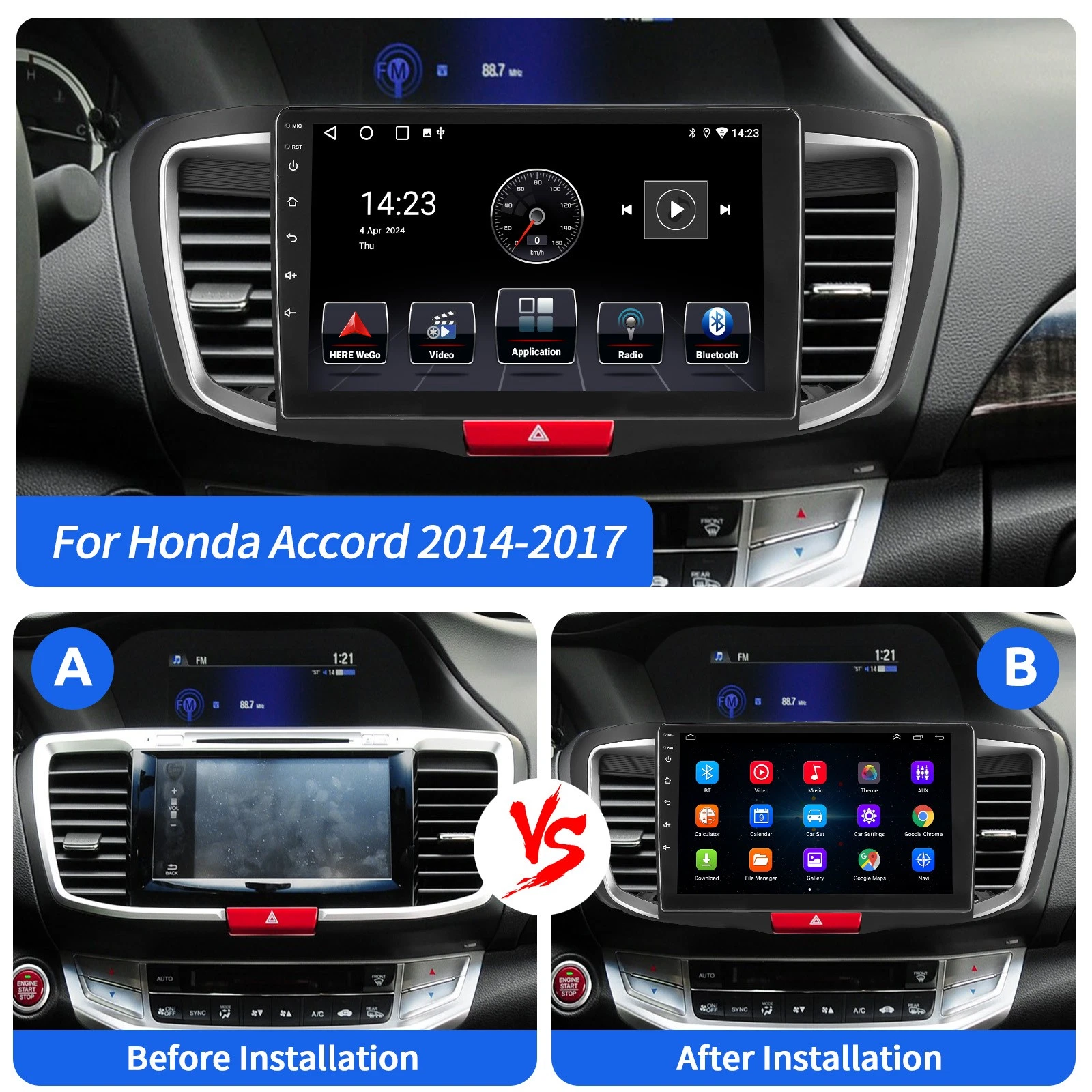
The 2017 Honda Accord supports Apple CarPlay as a standard factory feature on the EX, EX-L, EX-L V6, Touring, and Touring V6 trims, as well as the Hybrid EX-L and Hybrid Touring models. Base trims—including the LX, Sport, Sport Special Edition (SE), and base Hybrid—do not include factory CarPlay support. On compatible trims, CarPlay operates exclusively through a wired USB connection plugged into the dedicated smartphone port located in the center console storage bin.
Understanding 2017 Honda Accord Infotainment and CarPlay Compatibility
The 2017 Honda Accord represents the final model year of the ninth generation (specifically the 2016–2017 mid-cycle refresh). With this refresh, Honda introduced its dual-screen Display Audio interface to higher-tier trims. This dual-screen architecture separates primary vehicle metrics, climate status, and secondary audio information onto an upper 7.7-inch Intelligent Multi-Information Display (i-MID), while using a lower 7-inch capacitive touchscreen for direct touch interaction, media controls, and smartphone integration interfaces such as Apple CarPlay and Android Auto.
CarPlay capability is tied directly to the presence of this 7-inch Display Audio touchscreen. Vehicles equipped with the basic audio system utilize a single display layout and lack the digital signal processing, software license, and hardware interfaces required to host Apple CarPlay natively.
2017 HONDA ACCORD INFOTAINMENT LAYOUT (EX TRIM & ABOVE)
- Upper 7.7-inch i-MID Screen: Clock, Trip Data, LaneWatch Video
- Lower 7.0-inch Touch Screen: Apple CarPlay / Display Audio
Factory Compatible Trims (Standard Equipment)
Apple CarPlay comes built into the factory head unit on the following 2017 Accord configurations:
- Accord Sedan: EX, EX-L, EX-L V6, Touring, Touring V6
- Accord Coupe: EX, EX-L, EX-L V6, Touring V6
- Accord Hybrid: EX-L, Touring
Trims Lacking Native CarPlay Support
The following 2017 Accord trims ship with standard audio head units and do not feature Apple CarPlay hardware or software support:
- Accord Sedan: LX, Sport, Sport Special Edition (SE)
- Accord Coupe: LX-S
- Accord Hybrid: Base (Standard Hybrid)
For owners of LX or Sport trims, software updates cannot activate CarPlay because the base head unit lacks the internal processing architecture and dual-screen communication buses. Upgrading these vehicles requires installing an aftermarket head unit or specialized media receiver.
Requirements for Connecting Apple CarPlay
To run Apple CarPlay successfully in a supported 2017 Honda Accord trim, specific hardware and software prerequisites must be met.
- iPhone
- MFi-Certified USB Cable
- 1.5A Lower Storage USB Port
- Honda Display Audio
1. Compatible iPhone Hardware and iOS
CarPlay requires an iPhone 5 or newer running a updated version of iOS. While older iOS builds support basic CarPlay functions, maintaining current iOS versions ensures compatibility with modern Apple Maps navigation, updated turn-by-turn routing, third-party messaging applications, and advanced Siri voice command protocols.
2. High-Quality Data Cable
The 2017 Accord utilizes a wired connection for CarPlay. Cable quality is one of the most critical factors governing connection stability:
- Certification: Use an official Apple Lightning cable or an official Apple USB-C to Lightning / USB-C to USB-C cable (depending on your iPhone generation), or an MFi-certified (Made for iPhone) third-party cable from reputable brands like Anker or Belkin.
- Physical Specifications: Avoid ultra-long cables (over 3 to 6 feet / 1 to 2 meters) and cheap uncertified charging cables. Uncertified cables often lack high-speed data transmission lines, causing frequent dropped connections, refusal to handshake, or black screens on the Display Audio unit.
3. Selection of the Correct USB Port
The 2017 Accord contains multiple USB access points depending on the trim level, but only one port connects directly to the Display Audio head unit for CarPlay data transfer:
- Dedicated CarPlay Port: Located inside the open storage compartment directly beneath the climate control buttons in the center stack. This USB-A port is rated at 1.5 Amps and features a small icon displaying a smartphone alongside a standard USB symbol.
- Auxiliary Power Ports: The USB port inside the center console armrest compartment (when present) or rear-passenger USB ports are intended solely for device charging (typically rated at 1.0 Amp or lower) and will not establish an Apple CarPlay data link.
Step-by-Step: Setting Up CarPlay for the First Time
Setting up Apple CarPlay in your 2017 Honda Accord requires a simple, one-time pair-and-permission process. Follow these exact steps:
Turn on ignition (Engine running or Accessory mode).
Unlock iPhone and enable Siri in Settings.
Plug cable into 1.5A center stack USB port.
Plug cable into iPhone.
Touch "Always Enable" or "Enable" on Honda screen prompt.
Approve "Allow CarPlay while locked" on iPhone display.
Prepare the Vehicle: Start the vehicle's engine or switch the ignition to Accessory (ACC) mode. Ensure the vehicle is parked safely in Park (P).
Enable Siri on iPhone: On your iPhone, navigate to Settings > Siri & Search and verify that Listen for "Hey Siri" or Press Side Button for Siri is turned on. Apple CarPlay relies on Siri for voice control; CarPlay will not initialize if Siri is fully disabled.
Connect the Cable: Plug the USB-A end of your MFi-certified cable into the 1.5A USB port situated in the lower center console cubby beneath the climate controls.
Connect the iPhone: Unlock your iPhone and connect the opposite end of the cable.
Respond to the Honda Touchscreen Prompt:
- A pop-up prompt will appear on the lower 7-inch Display Audio touchscreen asking to connect to Apple CarPlay.
- Choose Always Enable to allow the system to launch CarPlay automatically whenever your phone is plugged in. Selecting Enable Once will require manual authorization every trip, while selecting Disable will block the phone from launching CarPlay entirely.
Authorize the iPhone: Check your iPhone screen. A dialog box will ask: "Allow CarPlay with 'Honda' while phone is locked?" Tap Allow.
Launch the Interface: The Honda lower touchscreen will switch to the familiar iOS CarPlay layout, showing icons for Phone, Music, Maps, Messages, Podcasts, and supported third-party apps (such as Spotify, Google Maps, or Waze).
Once initialized, the vehicle's steering wheel audio controls—including the Voice Command button (long-press activates Siri, short-press activates Honda native voice control)—will interact directly with Apple CarPlay.
Adding Wireless Apple CarPlay via Aftermarket Adapters
The 2017 Honda Accord was engineered prior to Honda introducing factory wireless Apple CarPlay. Consequently, the native system requires a physical cable. However, owners seeking a cable-free experience can add wireless capability using third-party wireless CarPlay adapters (dongles).
How Wireless CarPlay Dongles Work
A wireless CarPlay adapter acts as a hardware bridge between your phone and the car:
- The adapter plugs directly into the 1.5A USB data port in the Accord's center console cubby.
- The Honda head unit recognizes the adapter as a standard wired iPhone connection.
- The adapter creates a local, private Wi-Fi network (typically 5GHz) and a Bluetooth pairing connection.
- Your iPhone pairs to the adapter via Bluetooth initially, which then handshakes and hands off data transmission to the high-bandwidth 5GHz Wi-Fi network.
Recommended Dongle Features and Installation Steps
When choosing an adapter (such as units from Carlinkit, Ottocast, or Quad Lock):
- Select an adapter specifying support for wired-to-wireless CarPlay conversion for Honda Display Audio systems.
- Plug the adapter into the 1.5A USB port in the lower cubby.
- Access your iPhone’s Settings > Bluetooth and pair to the adapter’s broadcast name (e.g.,
AUTO-XXXX). - Confirm the prompt on your iPhone to Use CarPlay.
- Store the compact adapter neatly inside the cubby.
Trade-offs of Wireless Adapters
While wireless adapters enhance convenience, consider these operational operational nuances:
- Audio and Input Latency: Expect a brief delay (1 to 2 seconds) when changing music tracks, skipping songs, or pausing media due to Wi-Fi buffer management.
- Battery Drain: Wireless CarPlay uses phone GPS and Wi-Fi continuously, which accelerates iPhone battery drain. For long highway trips, plugging the phone into a dedicated charger remains advisable.
- Interference: In areas with heavy cellular or RF interference (such as toll plazas or dense urban centers), temporary audio drops or disconnections can occasionally occur.
Options for LX, Sport, and Base Trim Owners
If you drive a 2017 Honda Accord LX, Sport, or Sport SE, your car features a single-screen dash architecture without built-in Apple CarPlay capability. You have two primary paths for adding CarPlay functionality:
1. Aftermarket Head Unit Upgrade (Recommended)
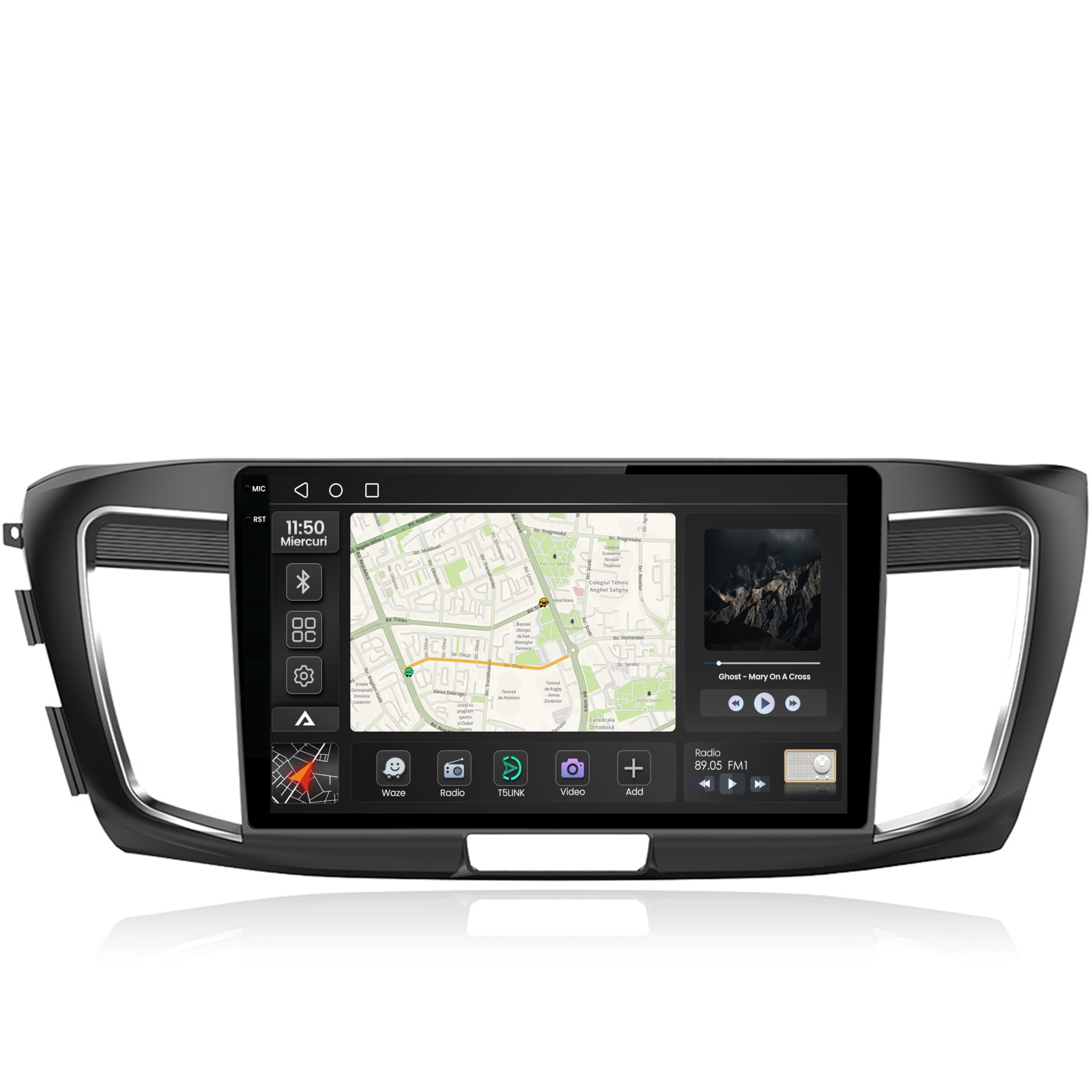
Installing an aftermarket touchscreen receiver (from brands such as Pioneer, Alpine, Sony, Kenwood, or custom Android-based units) provides native Apple CarPlay support, often with wireless capabilities.
- Integration Harnesses: Retaining original vehicle features requires specific installation kits and wiring interfaces. Utilizing modules like the iDatalink Maestro RR or PAC ControlPRO allows aftermarket receivers to retain:
- Steering wheel media and hands-free control buttons.
- Factory backup camera feeds (with multi-angle views where applicable).
- Vehicle diagnostic warnings and settings configuration.
- Dash Kits: Companies like Metra and Scosche produce custom dash bezels designed specifically for the 9th-generation Accord to house double-DIN (2-DIN) head units while maintaining an OEM aesthetic.
2. OEM Head Unit Retrofitting (Complex and Uneconomic)
Attempting to retrofit the dual-screen Display Audio hardware from an EX or Touring trim into an LX or Sport trim is generally discouraged. The conversion requires swapping the complete dashboard wiring harness, upper i-MID display module, lower touchscreen housing, climate control communication modules, and audio amplifier circuits. The high component costs and complex electrical rewiring make aftermarket receiver packages a far more reliable and cost-effective alternative.
Troubleshooting Common 2017 Accord CarPlay Issues
Despite robust design, users may occasionally encounter issues like connection drops, black screens, or unresponsive touch input on their 2017 Accord head unit. Below are step-by-step diagnostic procedures for resolving common issues.
TROUBLESHOOTING DECISION FLOW
- Issue Detected
- Cable/Port Failure?: Replace with OEM/MFi Cable
- System Freeze/Lag?: Hard Reset Head Unit (Hold PWR)
- Device Blocked?: Check Honda Smartphone List & iOS CarPlay Device Settings
1. Apple CarPlay Fails to Launch ("No Device Found")
- Check the Cable Connection: Ensure the cable is plugged into the lower center cubby USB port, not the center armrest port.
- Inspect the Lightning / USB-C Port: Pocket lint and debris inside an iPhone's charging port can prevent data pins from making continuous physical contact while still allowing power charging. Clean the port gently using a wooden toothpick or compressed air.
- Verify Smartphone Device List in Honda Settings:
- On the Honda lower touchscreen, press Home > Settings > Smartphone.
- Select Apple CarPlay.
- Locate your iPhone in the device list. If the device status is set to Disable, toggle it to Enable.
2. Unresponsive or Black Touchscreen (System Freeze)
If the Honda Display Audio screen turns black, freezes, or fails to respond to touch inputs, perform a system restart (hard reboot) of the infotainment unit:
- Ensure the vehicle is parked.
- Press and hold the physical Audio System Power Button / Volume Knob on the upper-left side of the lower touchscreen for approximately 5 to 10 seconds.
- A prompt will appear on the screen asking: "Do you want to restart the system?"
- Select Yes. The head unit will perform a full soft reboot of its internal Android-based operating system without clearing your saved vehicle settings or radio presets.
3. Frequent Disconnections While Driving
- Cable Replacement: Intermittent dropouts when hitting bumps or moving the phone indicate internal micro-fractures in the cable wiring. Replace the cable with a brand-new, short (3-foot) Apple MFi-certified cable.
- Reset iOS CarPlay Connection:
- On your iPhone, go to Settings > General > CarPlay.
- Select Honda (or Honda Accord) under Saved Cars.
- Tap Forget This Car.
- Re-plug the iPhone into the vehicle USB port and complete the initial setup process again.
4. Audio Plays Through iPhone Speaker Instead of Car Speakers
- Check iOS Audio Output: Swipe down from the top-right corner of your iPhone to open the Control Center. Tap the AirPlay/Audio routing icon in the media card and ensure CarPlay or Honda is selected rather than the internal iPhone speaker or an external Bluetooth device (such as headphones or a smartwatch).
- Disable Conflicting Bluetooth Pairings: Disconnect third-party Bluetooth accessories that may be hijacking the iPhone's audio output routing upon entering the vehicle.
2017 Honda Accord Infotainment Specifications by Trim
The matrix below compares the standard infotainment features, screen configurations, and smartphone connectivity options across all 2017 Honda Accord trim levels:
| Trim Level | Upper i-MID Display | Lower Touchscreen | Native Apple CarPlay | Native Android Auto | USB Data Port Location |
|---|---|---|---|---|---|
| LX (Sedan / Coupe) | 8.0-inch High-Res LCD | Not Available | No | No | Center Stack (1.0A Charge/Audio) |
| Sport / Sport SE | 8.0-inch High-Res LCD | Not Available | No | No | Center Stack (1.0A Charge/Audio) |
| EX | 7.7-inch High-Res LCD | 7.0-inch Capacitive | Yes | Yes | Lower Center Cubby (1.5A Smartphone) |
| EX-L / EX-L V6 | 7.7-inch High-Res LCD | 7.0-inch Capacitive | Yes | Yes | Lower Center Cubby (1.5A Smartphone) |
| Touring / Touring V6 | 7.7-inch High-Res LCD w/ Navi | 7.0-inch Capacitive | Yes | Yes | Lower Center Cubby (1.5A Smartphone) |
| Hybrid Base | 8.0-inch High-Res LCD | Not Available | No | No | Center Stack (1.0A Charge/Audio) |
| Hybrid EX-L / Touring | 7.7-inch High-Res LCD | 7.0-inch Capacitive | Yes | Yes | Lower Center Cubby (1.5A Smartphone) |
Frequently Asked Questions
Can I upgrade my 2017 Honda Accord LX or Sport trim with a software update to get Apple CarPlay?
No. Software updates cannot add Apple CarPlay to LX, Sport, or Sport SE trims. These trims use a single-screen audio head unit that lacks the physical touchscreen hardware, signal processing chips, and system architecture required to run Apple CarPlay. Adding CarPlay to these trims requires installing an aftermarket head unit receiver.
Why does my iPhone charge when plugged in, but Apple CarPlay does not start?
This issue typically occurs if your cable is connected to a charging-only USB port (such as the port inside the center armrest box) rather than the 1.5A smartphone USB port located in the lower storage cubby under the climate controls. It can also happen if you are using a charge-only cable that lacks internal data transfer wires, or if CarPlay is set to "Disable" under Settings > Smartphone > Apple CarPlay on the Honda touchscreen interface.
How do I reboot the infotainment system if the screen freezes?
To reboot the 2017 Accord's Display Audio screen, press and hold the main Audio Power Button (located on the top-left bezel of the touchscreen) for roughly 5 to 10 seconds. When the system displays a confirmation box asking if you want to reboot, tap Yes. The screen will restart and reload its software without erasing your stored vehicle options or radio presets.
Does the 2017 Honda Accord support Wireless Apple CarPlay natively?
No. The 2017 Honda Accord only supports wired Apple CarPlay out of the factory. However, you can add wireless functionality by connecting an aftermarket USB wireless CarPlay adapter (dongle) to the 1.5A smartphone USB port in the center stack storage cubby.
Will Honda LaneWatch and the factory backup camera still work while using CarPlay?
Yes. On EX, EX-L, and Touring trims equipped with Honda LaneWatch (the side-mirror camera that displays right-lane blind spots) and multi-angle rear backup cameras, camera video feeds automatically override the CarPlay display on the upper i-MID screen or lower screen when signaling right or shifting into Reverse. Once the turn signal cancels or the car is shifted out of Reverse, the screen immediately returns to the active CarPlay interface.
Practical Recommendations & Next Actions
- Verify Your Trim Level: If you are shopping for a used 2017 Honda Accord and Apple CarPlay is a priority, focus your search on EX, EX-L, or Touring models to ensure native support without needing aftermarket modifications.
- Upgrade Your Cable Infrastructure: For existing EX or higher trim owners experiencing connection dropouts, replace worn or uncertified cords with an official Apple or MFi-certified USB cable kept under 3 feet in length.
- Explore Aftermarket Upgrades for LX/Sport Trims: If you own an LX or Sport trim, research double-DIN head unit packages incorporating an iDatalink Maestro RR module. This setup adds full Apple CarPlay functionality while preserving essential vehicle settings, steering wheel controls, and backup camera functionality.