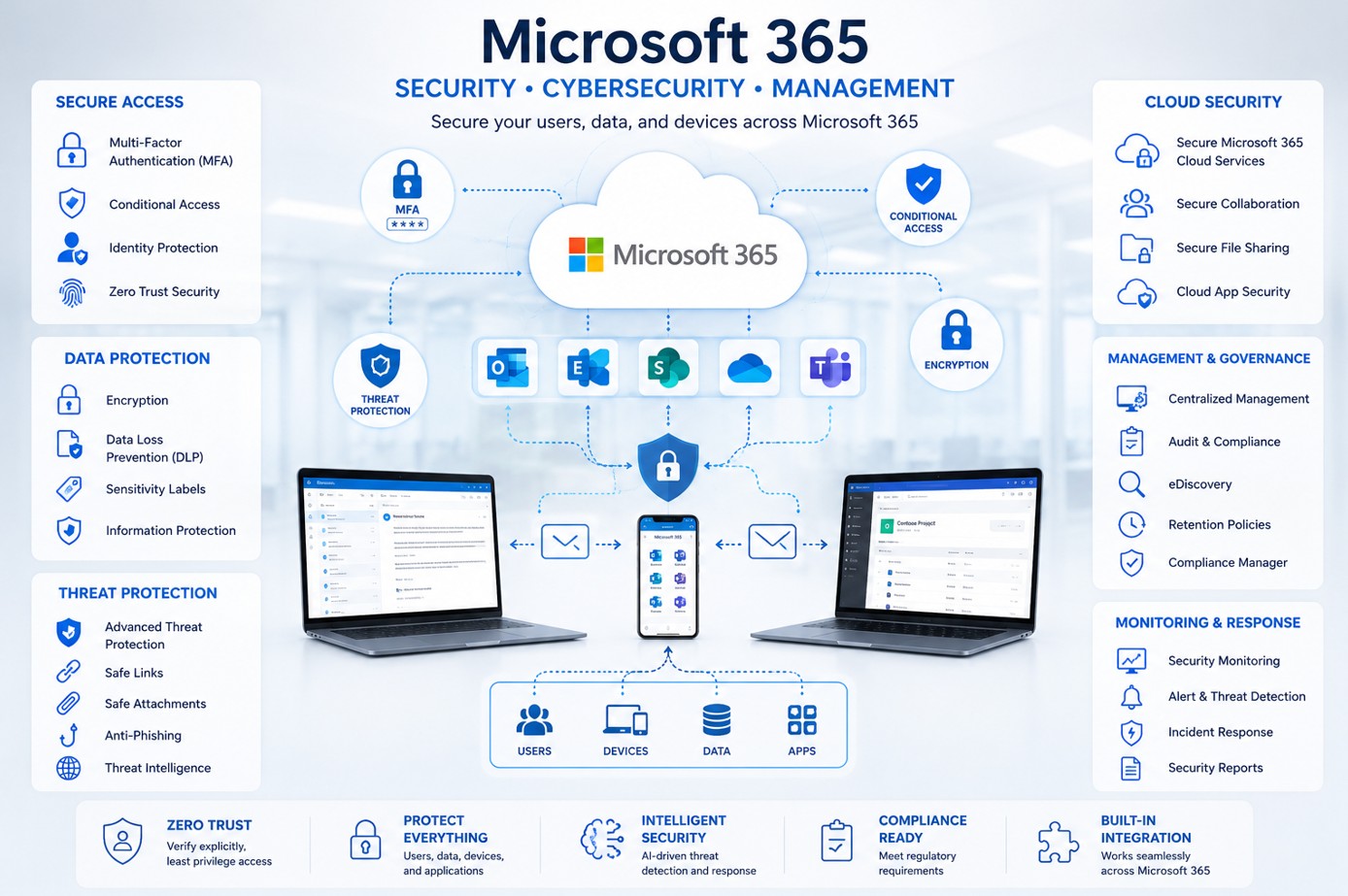
The primary security mechanism available within Microsoft 365 cloud services is Entra ID, formerly known as Azure Active Directory. This identity and access management platform serves as the foundational gatekeeper, enforcing multi-factor authentication, conditional access policies, and identity protection to ensure that only authorized users and devices can access sensitive corporate data.
The Centrality of Identity as the Perimeter
In the modern enterprise environment, the traditional "network perimeter"—defined by firewalls and physical office locations—has largely dissolved. With the transition to cloud-based productivity suites like Microsoft 365, the identity of the user has become the new perimeter. Microsoft Entra ID functions as the centralized authority for verifying this identity, providing the essential "first line of defense" against unauthorized access.
By shifting the focus from IP addresses to identity tokens, organizations can maintain high security regardless of whether an employee is working from a headquarters, a home office, or a mobile device. Entra ID manages the entire lifecycle of a user identity, from provisioning and authentication to application access and lifecycle management. This architectural shift means that if the identity layer is compromised, the entire cloud service ecosystem is at risk; conversely, if this layer is robust, it provides a comprehensive barrier against common attack vectors such as credential stuffing and password spraying.
Implementing Multi-Factor Authentication (MFA)
Multi-factor authentication represents the most significant improvement over traditional password-only security. Within Microsoft 365, Entra ID enforces MFA, which requires a user to provide two or more verification methods to gain access. This might involve something the user knows (a password), something the user has (a mobile app or hardware security key), or something the user is (biometric data like facial recognition or a fingerprint).
In 2026, the reliance on legacy SMS-based MFA is increasingly discouraged in favor of the Microsoft Authenticator app or FIDO2-compliant security keys. These modern methods are resistant to sophisticated phishing attacks that attempt to intercept one-time passcodes sent via text message. Administrators managing Microsoft 365 instances are encouraged to enforce "Security Defaults" or use "Conditional Access" policies to ensure that every user is enrolled in MFA, effectively eliminating the danger posed by a single leaked password.
Leveraging Conditional Access Policies
Conditional Access is the engine that transforms static security into a dynamic, context-aware framework. Rather than a binary "allowed or denied" approach, Conditional Access evaluates signals in real-time to make informed authentication decisions. These signals include:
- User Risk: Is the account exhibiting signs of a potential compromise?
- Device Health: Is the device compliant with organizational security policies (e.g., encrypted disk, updated operating system)?
- Location: Is the user signing in from an expected or known geographic region?
- Application: Is the user attempting to access a high-sensitivity application or a general resource?
By synthesizing these signals, Microsoft 365 can automatically trigger a requirement for MFA, block access entirely, or grant access with restrictions—such as limiting the ability to download files—based on the specific level of risk detected at the moment of the request.
The Role of Privileged Identity Management (PIM)
While general user accounts require security, administrative accounts pose the highest risk to an organization. Privileged Identity Management (PIM) is a premium component of the Entra ID ecosystem that provides time-based, role-based access control. Instead of granting a user permanent "Global Administrator" status, PIM allows the administrator to request access only for the specific timeframe needed to perform a maintenance task.
Once the task is complete, or the time expires, the elevated privileges are automatically revoked. This "Just-In-Time" (JIT) access model significantly reduces the window of opportunity for attackers to utilize compromised administrative credentials. It also provides an audit trail for every elevated action taken within the environment, ensuring accountability and aiding in post-incident forensic investigations.
Comparative Overview of Core Security Components
To understand how Microsoft 365 manages security, it is helpful to distinguish between the identity-based foundation and the peripheral layers that secure data and devices.
| Security Layer | Primary Function | Scope |
|---|---|---|
| Entra ID | Identity & Access Management | Global user/device authentication |
| Conditional Access | Contextual Security Enforcement | Real-time policy application |
| Microsoft Defender | Threat Protection | Endpoint, email, and app security |
| Purview | Data Governance & Compliance | Information protection and discovery |
| Privileged Identity Management | Elevated Access Control | Administrative privilege lifecycle |
Strengthening Endpoint Security with Microsoft Intune
While identity is the first layer, the devices used to access Microsoft 365 must also be secured. Microsoft Intune, integrated with the broader Microsoft security suite, acts as the Unified Endpoint Management (UEM) solution. It ensures that devices—whether company-owned or personally owned—meet specific security benchmarks before they are allowed to synchronize with Microsoft 365 services.
Intune policies can enforce device encryption, require a minimum operating system version, and mandate the presence of antivirus software. If a device falls out of compliance, Conditional Access can automatically block that device from accessing company data until the user remediates the issue, such as by installing a pending security update.
Protecting Data with Microsoft Purview
Data security within Microsoft 365 extends beyond simple access control; it involves the classification and protection of the data itself. Microsoft Purview provides information protection capabilities that allow organizations to label and encrypt sensitive documents.
For example, an organization can create a label such as "Highly Confidential," which automatically applies encryption and restricts printing or forwarding rights. This ensures that even if a file is exfiltrated from the Microsoft 365 environment, it remains encrypted and unreadable by unauthorized parties. This data-centric approach ensures that security travels with the document, rather than relying solely on the security of the container in which the document is stored.
Common Security Pitfalls and How to Avoid Them
Even with robust tools like Entra ID, misconfigurations remain a leading cause of security incidents. Common pitfalls include:
- Excluding Break-glass Accounts: Organizations often lock themselves out by applying MFA policies to all accounts without maintaining two "cloud-only" emergency access accounts that are excluded from MFA and kept in a physical safe.
- Over-provisioning Permissions: Assigning "Global Admin" roles when lower-privilege roles (like "Exchange Admin" or "Helpdesk Admin") are sufficient violates the principle of least privilege.
- Ignoring Guest User Access: Inviting external partners into Microsoft 365 groups creates a risk if those guests are not subject to the same conditional access requirements as internal employees.
- Static Security Reviews: Threat landscapes evolve; failing to review Conditional Access policies annually can result in "configuration drift," where policies no longer align with current business needs or security requirements.
Troubleshooting Access and Authentication Issues
Users may occasionally encounter friction with security measures, such as MFA prompts failing or being locked out of an account. Troubleshooting should follow a structured approach:
- Audit Logs: Administrators should first check the Microsoft Entra sign-in logs. These logs provide specific error codes, such as "MFA verification failed" or "Conditional Access policy blocked the request."
- Verification of Compliance: If a device is blocked, check the Microsoft Intune portal to see if the device has flagged an "Incompliant" status due to missing patches or encryption issues.
- Self-Service Password Reset (SSPR): Encourage users to register for SSPR. This reduces helpdesk tickets and allows users to securely recover their accounts without administrative intervention, provided they have configured their secondary authentication methods correctly.
Strategic Next Steps for Organizations
To ensure your Microsoft 365 environment remains secure, consider these immediate actions:
- Enable Security Defaults: If your organization does not have specific, complex requirements, enable Microsoft's "Security Defaults" in the Entra admin center to instantly apply a baseline of security, including mandatory MFA for all users.
- Perform an Identity Audit: Use the "Secure Score" feature in the Microsoft Defender portal to identify specific, actionable recommendations to improve your security posture.
- Implement Phishing-Resistant MFA: Move away from legacy SMS methods and standardize on FIDO2 keys or the Microsoft Authenticator app for all high-privilege users.
- Draft an Incident Response Plan: Security is not solely a technical problem; ensure that your team knows exactly how to respond if a user reports a compromised password or if an unusual login pattern is flagged.
By focusing on the identity-centric model provided by Entra ID and supporting it with device management and data governance, organizations can effectively mitigate the vast majority of cloud-based security risks.