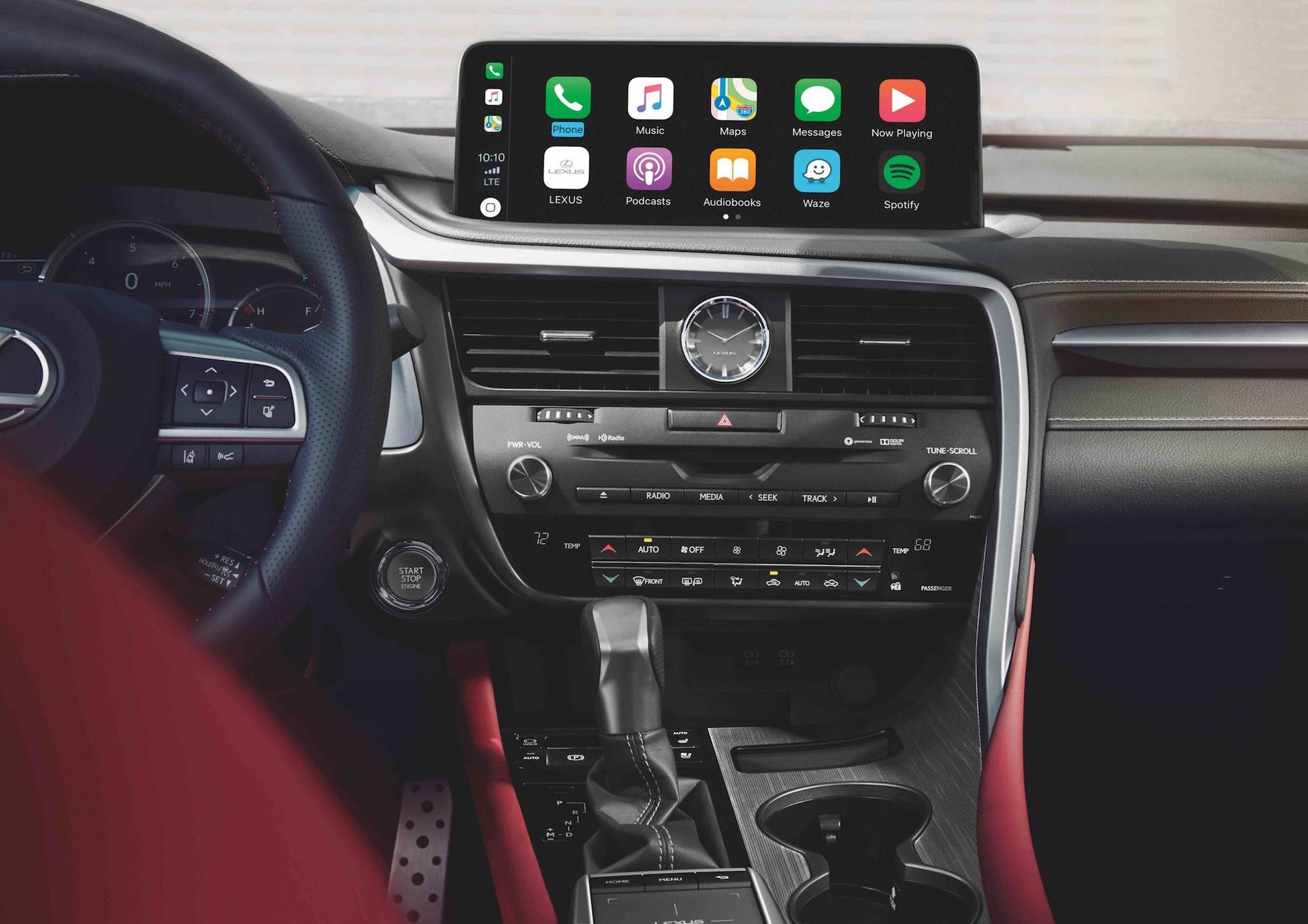
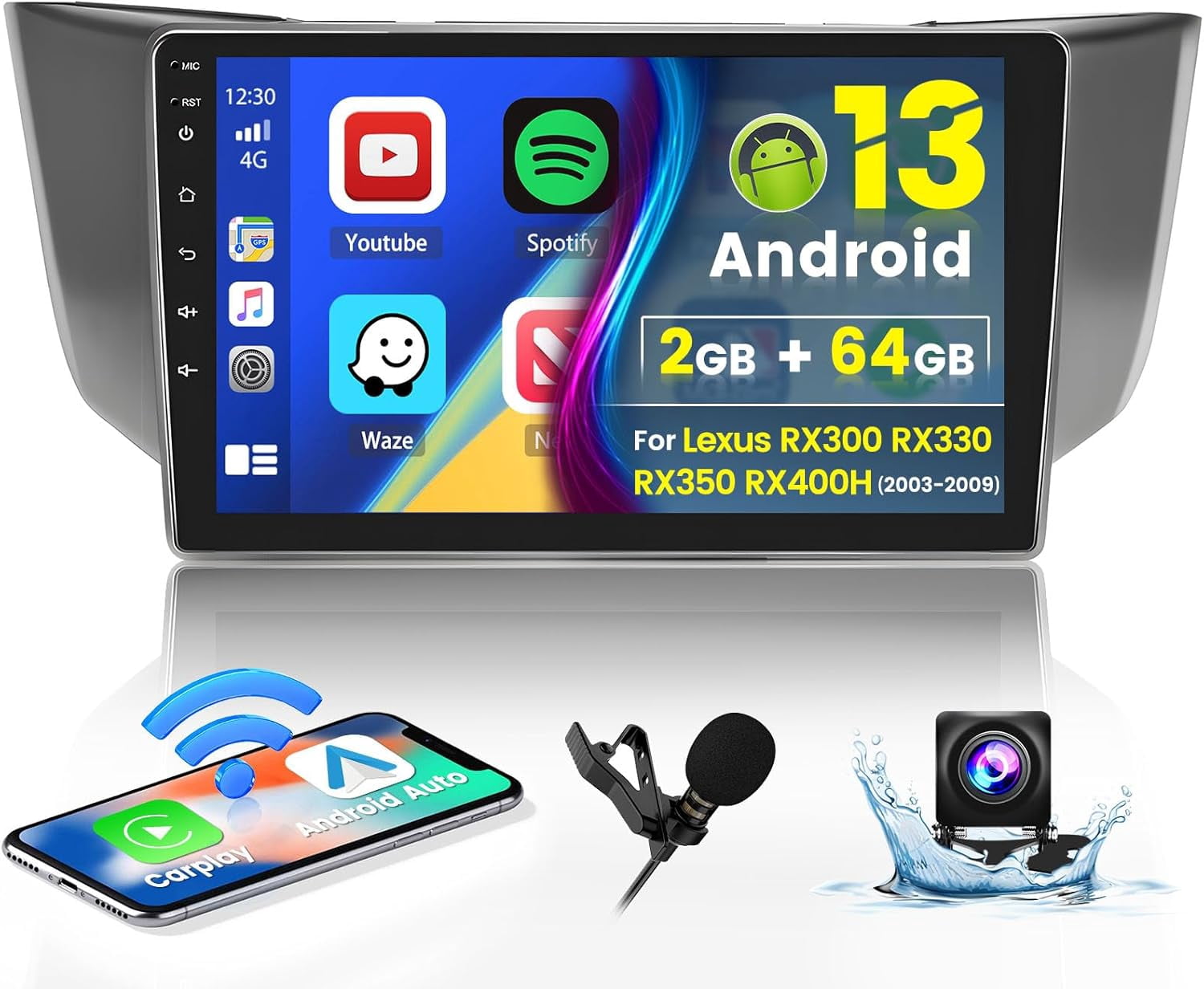
Apple CarPlay integration in the Lexus RX 350 provides a seamless connection between your iPhone and the vehicle's multimedia system, allowing you to access navigation, music, communication, and messaging apps through the car’s display. By mirroring the familiar iOS interface, the system prioritizes driver convenience, voice command functionality, and safety by reducing the need for direct smartphone handling while the vehicle is in operation.
Understanding the Lexus RX 350 CarPlay Ecosystem
The Lexus RX 350 has evolved significantly over the last decade, transitioning from trackpad-controlled infotainment systems to the current touch-sensitive, high-definition interfaces found in 2026 models. Understanding how CarPlay functions within this ecosystem requires recognizing that the feature acts as an overlay or an extension of the iPhone’s capabilities, rather than replacing the proprietary Lexus interface.
When you connect your device, CarPlay utilizes the vehicle’s high-resolution screen to project a simplified, driver-friendly version of your iPhone’s display. It is important to note that the processing power, the app updates, and the data usage for CarPlay are driven by the connected smartphone. The Lexus infotainment system acts primarily as the hardware interface—the screen, the speakers, and the microphone—facilitating the interaction.
Prerequisites for Successful Connection
Before attempting to establish a connection, ensure your hardware and software meet the necessary requirements. CarPlay compatibility in the Lexus RX 350 is generally standard for model years 2020 and newer. If you are operating an earlier model, the functionality may not be present unless retrofitted or part of a specific mid-cycle update.
Device Compatibility
- iPhone Requirements: You must have an iPhone 5 or later running the latest version of iOS to ensure compatibility with both wired and wireless CarPlay protocols.
- Cable Integrity: For wired connections, always use a high-quality, Apple-certified Lightning or USB-C cable. Damaged or non-certified third-party cables are the leading cause of "Device Not Recognized" errors.
- Settings Configuration: Verify that Siri is enabled on your iPhone, as CarPlay relies heavily on voice commands for hands-free operation. Additionally, ensure that your iPhone is unlocked the first time you initiate the pairing process.
Establishing the Connection: Wired vs. Wireless
Lexus has transitioned to wireless CarPlay as a standard offering in recent iterations of the RX 350, though wired connections remain a fallback for stability and charging purposes.
Wireless CarPlay Setup
- Activate Bluetooth and Wi-Fi: On your iPhone, toggle both Bluetooth and Wi-Fi to the "On" position.
- Infotainment Pairing: Navigate to the "Settings" or "Phone" menu on your Lexus multimedia display. Select "Add New Device" or "Manage Devices."
- Confirm Pairing: Search for your Lexus system in the Bluetooth menu of your iPhone. Once selected, confirm that the PIN displayed on the Lexus screen matches the one on your phone.
- Accept Prompt: Your iPhone will prompt you to "Use CarPlay with Lexus." Select "Enable" to finalize the setup. Once paired, the vehicle should automatically recognize your phone whenever you enter the cabin.
Wired CarPlay Setup
- Connect the Cable: Plug your certified cable into the vehicle’s designated data-transfer USB port (typically indicated by a smartphone icon or located within the center console).
- Automatic Detection: The Lexus system will automatically detect the connection and prompt the CarPlay interface to launch. If it does not appear immediately, navigate to the "Menu" or "Apps" screen on the Lexus display and select the "Apple CarPlay" icon.
Navigating the Interface and Feature Set
Once connected, the CarPlay dashboard provides a simplified view of your most essential applications. The interface is designed to prevent driver distraction while maintaining access to critical functions.
Navigation and Mapping
One of the most frequent uses of CarPlay is GPS navigation. While the Lexus native navigation system is robust, many drivers prefer the real-time traffic data, crowd-sourced incident reports, and familiar interface of Apple Maps, Google Maps, or Waze. These apps update dynamically based on your iPhone's GPS, providing accurate arrival times and lane guidance directly on the RX 350’s center display.
Communication and Messaging
CarPlay integrates directly with the iPhone’s Phone and Messages apps. When you receive a text message, CarPlay does not display the text on the screen for safety reasons. Instead, Siri reads the message aloud, and you can dictate a response entirely through voice commands. This functionality is essential for maintaining focus on the road while staying connected.
Media and Audio
CarPlay supports a wide array of audio streaming services, including Apple Music, Spotify, Pandora, and various podcast applications. The interface allows you to browse playlists, search for artists, and control playback using either the touchscreen or the physical steering wheel controls of your RX 350.
Comparative Overview of Integration Methods
| Feature | Wired CarPlay | Wireless CarPlay |
|---|---|---|
| Stability | High; less prone to interference | Moderate; depends on signal strength |
| Setup Speed | Manual; requires physical connection | Automatic; near-instant once paired |
| Battery Impact | Charges device during use | Drains device battery |
| Data Transfer | Dedicated data stream | Wi-Fi protocol |
| Reliability | Excellent for long journeys | Convenient for short trips |
Troubleshooting Common Issues
Even with a sophisticated system, users occasionally encounter technical hurdles. Below are the most common issues and their resolutions.
Connection Dropping
If you experience intermittent disconnections, particularly with wireless CarPlay, check for sources of signal interference. Sometimes, a high concentration of Wi-Fi signals or proximity to other Bluetooth devices can cause instability. If the issue persists, "Forget" the device in both the Lexus settings and the iPhone Bluetooth settings, then perform a fresh pairing.
Audio Lag or Distorted Sound
Audio issues are frequently related to the quality of the Bluetooth connection or a software glitch. A soft reset of the Lexus multimedia system—often accomplished by holding down the power/volume knob for several seconds until the system reboots—can resolve most minor software conflicts.
"No Device Found" Errors
If your Lexus RX 350 fails to find your phone, check your iPhone’s Screen Time settings. If "Content & Privacy Restrictions" are active, verify that CarPlay is set to "Allowed." Additionally, ensure your iPhone is not set to "Airplane Mode" and that your software is updated to the latest version of iOS, as outdated firmware can lead to communication gaps with vehicle head units.
Safety Considerations and Best Practices
While CarPlay is designed to facilitate safe driving, the responsibility remains with the operator. Use Siri for as many tasks as possible. Avoid attempting to type addresses or browse complex library menus while the vehicle is in motion. The Lexus steering wheel controls for volume, track skipping, and voice activation should be your primary interface methods while driving.
Furthermore, keep your iOS updated. Apple frequently releases stability patches that improve how CarPlay interacts with third-party vehicle infotainment systems. Checking for system updates on your Lexus through the dealership or the manufacturer’s portal can also ensure that the vehicle’s software remains optimized for modern smartphone standards.
Frequently Asked Questions
Can I use the native Lexus navigation system while CarPlay is running?
Generally, you cannot display both the native Lexus navigation and CarPlay navigation simultaneously on the primary screen. However, if your RX 350 is equipped with a head-up display, some turn-by-turn directions from Apple Maps may project onto the windshield, depending on the specific model year and firmware version of your vehicle.
Does CarPlay consume cellular data?
Yes, CarPlay functions by utilizing your iPhone’s data connection. When using streaming audio or real-time navigation apps, you are using the data plan associated with your smartphone. It is recommended to monitor your data usage if you have a limited cellular plan.
Can I have two iPhones connected to CarPlay at the same time?
No, the Lexus infotainment system can only support one active CarPlay session at a time. If you have multiple devices paired, you must designate which phone is the "active" device via the Bluetooth management settings on the Lexus screen.
Will CarPlay work if I do not have a cellular signal?
CarPlay will continue to function for features that do not require an active internet connection, such as playing music stored locally on your device. However, navigation features like Google Maps or Waze will not update traffic information or reroute without an active data connection.
Is there a subscription fee for CarPlay in the Lexus RX 350?
No, CarPlay is a built-in feature of the vehicle's multimedia suite. There is no subscription fee to use Apple CarPlay itself, provided your iPhone is compatible and you have a data plan for your phone.
Recommendation for Next Actions
To ensure the best experience, start by verifying your iPhone software is current. If you have not yet paired your device, park in a safe location, ensure your vehicle is in "Park," and follow the prompts in the multimedia "Settings" menu. For those who frequently take long trips, keeping a high-quality Lightning or USB-C cable in the vehicle is recommended, as it provides a reliable power source that keeps your iPhone battery charged during extended use of high-drain navigation apps. If you encounter persistent bugs that the steps above do not resolve, consult your local Lexus dealership’s service department to see if your vehicle’s infotainment firmware requires an official manufacturer update.