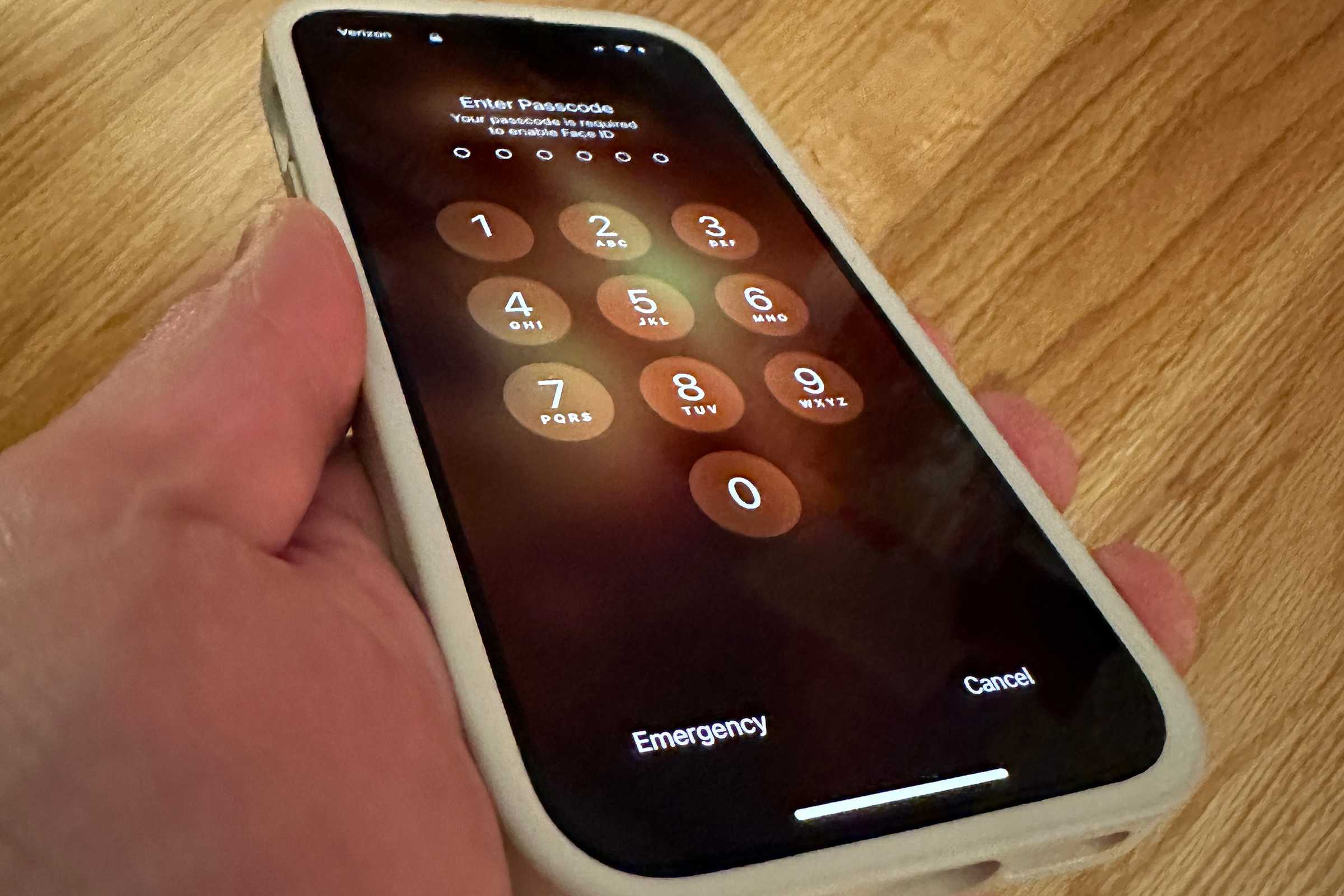
Factory resetting an iPhone 6s is widely misunderstood, with common misconceptions suggesting it fixes all hardware failures, permanently deletes data beyond recovery, or instantly upgrades iOS performance. While a factory reset successfully clears user data and restores default software settings, it cannot reverse physical wear, override Activation Lock security, or substitute for comprehensive hardware diagnostics.
Introduction to the iPhone 6s Factory Reset Landscape
The iPhone 6s, originally released by Apple in September 2015, remains a frequently used device in secondary markets, enterprise test environments, and legacy app deployment configurations. As users prepare these devices for resale, recycling, or troubleshooting, factory resets are often performed as a catch-all maintenance step. However, a persistent cycle of technological folklore surrounds the mechanics of iOS data erasure and device recovery.
Misunderstandings about what a factory reset actually accomplishes can lead to security vulnerabilities, unrealistic expectations regarding device performance, and wasted troubleshooting hours. To make informed decisions about managing, selling, or securing an older Apple smartphone, it is necessary to separate common myths from the technical realities of iOS storage management, cryptographic wiping, and hardware limitations.
Myth 1: A Factory Reset Permanently Destroys All Data Beyond Any Forensic Recovery
One of the most persistent and potentially dangerous myths regarding mobile device maintenance is that tapping "Erase All Content and Settings" instantly obliterates data so thoroughly that forensic extraction is impossible. While this belief offers psychological comfort to users recycling or selling their devices, it misinterprets how modern solid-state flash memory and cryptographic protocols function.
The Reality of iOS Cryptographic Erasure
Since the introduction of dedicated hardware encryption secure enclaves in Apple devices, data stored on an iPhone 6s is not wiped by overwriting every individual sector with zeros, a time-consuming process typical of older mechanical hard drives. Instead, iOS utilizes a system-wide hardware-based encryption model.
When you initiate a factory reset on an iPhone 6s:
- The device instantly deletes the unique hardware-assigned encryption key stored within the Secure Enclave.
- Without this specific cryptographic key, any remaining ciphertext residing on the NAND flash memory chips is rendered mathematically unreadable and indistinguishable from random digital noise.
- The operating system pointers and file directory structures are completely rebuilt to a factory-default baseline.
When Forensic Tools Can Still Interfere
While cryptographic erasure is robust, misunderstandings arise when users confuse a standard factory reset with incomplete procedures or cloud synchronization artifacts:
- Incomplete Logouts: If a user fails to sign out of iCloud, iMessage, and associated Apple services before wiping, cached tokens or re-synced metadata can sometimes repopulate upon connection to a network.
- Secondary Backups: Data is often recoverable not because the iPhone 6s retained it after a clean wipe, but because it automatically backed up to iCloud or a local desktop computer via iTunes or Finder prior to the reset.
- Third-Party App Caches: Certain legacy applications failing to comply strictly with Apple's data sandbox APIs could theoretically leave orphaned cache fragments, though modern flash translation layers typically render these inaccessible without specialized government-grade laboratory equipment.
For practical purposes, a proper factory reset executed through the iOS settings menu or a clean firmware restore via a computer provides a sufficiently high level of data sanitization for everyday users. However, enterprises dealing with classified information should rely on physical destruction or specialized sanitization verification standards.
Myth 2: A Factory Reset Reverses Hardware Failures and Restores Battery Health
Another widespread misconception is that wiping an iPhone 6s clean will resolve persistent hardware malfunctions, such as rapid battery discharge, unresponsive touch screen regions, or failing internal components. This myth stems from a conflation between software performance degradation and physical component degradation.
Software Bloat vs. Physical Degradation
Over years of continuous operation, iOS devices accumulate cache files, background application processes, and localized filesystem fragmentation. A factory reset effectively purges this software bloat, giving the device a clean slate. This can temporarily make an older iPhone 6s feel faster because background tasks, orphaned app data, and corrupted preference files are eliminated.
However, a factory reset cannot alter the physical state of hardware components:
- Battery Chemistry: The iPhone 6s relies on a lithium-ion battery subject to chemical aging. Over hundreds of charge cycles, the maximum capacity and chemical efficiency of the battery decline permanently. A factory reset cannot restore lost chemical capacity or reverse internal resistance increases. Users checking Settings > Battery > Battery Health will find that maximum capacity remains unchanged after a reset.
- Thermal Throttling: Apple introduced performance management features to prevent unexpected shutdowns on devices with degraded batteries. A reset will not disable or bypass this mechanism if the battery health has dipped below optimal performance thresholds.
- Component Wear: Physical defects, such as a failing flash memory controller, degraded speaker diaphragms, or worn-out buttons, remain entirely unaffected by software reinstallation.
When a Reset Actually Helps Performance
To understand why this myth persists, it is helpful to look at what a reset can fix. If an iPhone 6s is experiencing severe sluggishness caused by a runaway background process, corrupted system preferences, or a failed iOS update installation, a clean wipe restores optimal software efficiency.
| Issue Category | Effect of Factory Reset | Underlying Cause |
|---|---|---|
| App Crashes & Freezes | Resolved | Corrupted local cache or conflicting software dependencies |
| Rapid Battery Drain | Varies | Software loop vs. degraded chemical battery cell |
| Storage Full Errors | Resolved | Accumulation of "Other" system storage and cached media |
| Touch Disease / Screen Lag | None | Digitizer hardware failure or physical connection damage |
Myth 3: A Factory Reset Removes Activation Lock and Unlocks the Phone for Any Carrier
Perhaps the most frustrating myth for secondary buyers and sellers is the belief that performing a factory reset removes iCloud Activation Lock or bypasses carrier SIM locks. This misunderstanding leads to numerous bricked or unusable devices circulating in the secondhand market.
Activation Lock and Apple ID Security
Activation Lock is a security feature tied directly to Apple's activation servers, designed to deter theft by making a stolen iPhone unusable to anyone other than the rightful owner.
- When "Find My iPhone" is enabled on an iPhone 6s, the device's unique identifier (UDID or IMEI) is registered on Apple's activation servers as linked to a specific Apple ID.
- Performing a factory reset locally on the device initiates the erasure process, but upon rebooting, the device must connect to Apple's servers to verify activation status.
- If the previous owner did not sign out of their iCloud account before wiping the device, it hits the Activation Lock screen, demanding the original Apple ID and password. A factory reset performed from the device settings menu without signing out first will invariably trigger this security gate.
Carrier SIM Restrictions
Similarly, users frequently confuse a software factory reset with carrier unlocking:
- A factory reset clears the operating system and user data, but it does not alter the baseband firmware's network policy configuration.
- If an iPhone 6s is locked to a specific carrier (such as AT&T, Verizon, or Vodafone), wiping the phone will not allow it to accept a SIM card from an incompatible carrier.
- Carrier unlocking requires authorization and processing through the original carrier or an official unlocking service, which updates the device status in Apple's activation database.
Prerequisites and Preparation Before Resetting an iPhone 6s
Before initiating any reset procedure on an iPhone 6s, proper preparation prevents permanent data loss and ensures the device transitions smoothly to a new user or a clean troubleshooting state.
- Back Up Important Data: Verify that all photos, messages, contacts, and app data are securely backed up via iCloud or by connecting the device to a computer.
- Sign Out of Services: Navigate to Settings > [Your Name] at the top of the screen, scroll to the bottom, and tap Sign Out. Enter your Apple ID password to disable Find My iPhone and remove Activation Lock.
- Unpair Accessories: If an Apple Watch or other Bluetooth peripherals are paired, unpair them to maintain synchronization integrity.
- Charge the Battery: Ensure the device has at least 50% battery charge or is connected to a power source to prevent unexpected shutdowns during the flashing process.
Step-by-Step Guide to Factory Resetting an iPhone 6s
Executing a clean factory reset can be accomplished directly on the device or via a computer for a deeper system file verification.
Method 1: Resetting Directly on the Device
- Open the Settings app from the home screen.
- Tap on General, scroll to the bottom, and select Transfer or Reset iPhone (or Reset on older iOS versions).
- Tap Erase All Content and Settings.
- Enter your device passcode and Apple ID password when prompted to confirm the action and disable Find My iPhone.
- Allow the device to complete the erasure process, indicated by the Apple logo and a progress bar.
Method 2: Restoring via Computer (Recommended for Troubleshooting)
For users experiencing severe system corruption, performing a full firmware restore via a computer provides a deeper cleaning process.
- Connect your iPhone 6s to a Mac or Windows PC using a lightning cable.
- Open Finder (on macOS Catalina and later) or iTunes (on Windows or older macOS versions).
- Select your iPhone 6s from the sidebar or device menu.
- Click Restore iPhone. This downloads a fresh copy of the latest compatible iOS firmware from Apple's servers and overwrites the entire flash storage partition.
Frequently Asked Questions
Can I factory reset an iPhone 6s if I forgot the passcode?
Yes, but you cannot do it directly from the settings menu without the passcode. You must put the iPhone 6s into Recovery Mode by connecting it to a computer, holding down the Home and Power buttons simultaneously until the recovery mode screen appears, and selecting the Restore option in iTunes or Finder. This will erase the device and require your Apple ID credentials to set it back up.
Does a factory reset remove the latest iOS update installed on my iPhone 6s?
No. A factory reset restores the device to its default factory settings for the currently installed version of iOS. It does not downgrade the operating system to the version that shipped with the phone in 2015.
What is the difference between "Reset All Settings" and "Erase All Content and Settings"?
"Reset All Settings" reverts system preferences—such as Wi-Fi passwords, wallpaper, network settings, and brightness—back to defaults without deleting personal data, photos, or apps. "Erase All Content and Settings" performs a complete wipe of all user data, media, and applications, returning the device to its out-of-the-box software state.
Is it safe to recycle an iPhone 6s after a factory reset?
Yes, provided you successfully signed out of your iCloud account before initiating the erase. Once signed out and wiped, the cryptographic keys are destroyed, making your personal data unrecoverable to anyone who acquires the device.
Final Recommendation
When working with an iPhone 6s, approach factory resets with a clear understanding of their technical boundaries. Use a reset to clear software bloat, prepare a device for a new owner, or troubleshoot erratic application behavior. Always ensure you sign out of iCloud beforehand to avoid Activation Lock hurdles, and remember that no software wipe can reverse a chemically degraded battery or fix broken physical hardware.