If your Amazon orders are not working, the issue typically stems from an expired payment method, a corrupted app cache, or a temporary regional server outage. Most problems can be resolved by updating your credit card details, toggling your internet connection, or clearing your browser's cookies to refresh the checkout session.
Navigating the world’s largest e-commerce platform is usually a seamless experience, but technical glitches and account-level restrictions can occasionally halt your shopping. When an Amazon order fails to go through, or if your existing orders have seemingly vanished from your history, it can be a source of significant frustration. In 2026, with the integration of more complex biometric payments and advanced AI-driven fraud detection, the reasons for "Amazon orders not working" have evolved beyond simple connectivity issues.
This guide provides a comprehensive roadmap for diagnosing and fixing Amazon order failures, whether you are using the mobile app, a desktop browser, or an Alexa-enabled device.
Identifying Why Your Amazon Order Is Failing
Before diving into complex fixes, it is essential to categorize the type of failure you are experiencing. "Not working" is a broad term that usually falls into one of three categories: the inability to place a new order, the failure of a payment to process after checkout, or the inability to view and track existing orders.
1. The Checkout Button Is Unresponsive
Sometimes, you may find that the "Place Your Order" or "Buy Now" button is grayed out or does not respond when clicked. This is often a client-side technical issue. In 2026, Amazon’s interface relies heavily on JavaScript and real-time inventory checks. If your browser or app cannot communicate with Amazon's stock database, the checkout button remains inactive to prevent overselling.
2. Payment Revision Needed
You might successfully click the order button, only to receive an email or push notification minutes later stating "Payment Revision Needed." This indicates that while the order was technically placed, Amazon’s payment gateway could not secure an authorization from your bank. This is a common hurdle with modern 3D Secure 2.0 protocols and multi-factor authentication (MFA) requirements implemented by financial institutions.
3. Orders Not Showing in History
A different facet of this problem occurs when you have already placed an order, but it does not appear in your "Returns & Orders" section. This is often caused by account synchronization issues, accidental archiving, or the use of multiple Amazon accounts (such as a separate business and personal account).
Resolving Technical and App-Based Issues
If the Amazon app or website feels sluggish or refuses to process a transaction, the problem is likely technical. As software grows more complex, the metadata stored in your local cache can become corrupted, leading to broken session tokens.
Clearing Cache and Cookies
For those using a desktop browser (Chrome, Firefox, Safari, or Edge), the most effective first step is clearing your cookies. Amazon uses these small files to remember who you are and what is in your cart. If a cookie becomes "stale," it can create a loop where the server thinks you are logged out while the browser thinks you are logged in.
- Chrome/Edge: Go to Settings > Privacy and Security > Clear Browsing Data. Select "Cookies and other site data" and "Cached images and files."
- Safari: Go to Settings > Safari > Clear History and Website Data.
On mobile devices, the process is slightly different. On Android, you can go to Settings > Apps > Amazon Shopping > Storage > Clear Cache. On iOS, you generally need to offload the app or uninstall and reinstall it to completely clear the local data stores.
Updating the Amazon App
By 2026, Amazon frequently pushes "silent updates" to its app to maintain compatibility with new OS versions. If your app version is outdated, it may lack the necessary security patches to communicate with the payment gateway. Always check the Apple App Store or Google Play Store to ensure you are running the latest version of the Amazon Shopping app.
Disabling VPNs and Ad-Blockers
Virtual Private Networks (VPNs) and aggressive ad-blockers are frequent culprits behind checkout failures. Amazon’s fraud prevention algorithms monitor the IP address of every transaction. If you are using a VPN that masks your location or routes your traffic through a different country, Amazon may flag the transaction as high-risk and block the order. Similarly, some ad-blockers mistakenly identify checkout scripts as tracking scripts and prevent them from running.
Solving Payment and Financial Hurdles
Payment failures are the most common reason for Amazon orders not working. Even if your card has worked for years, several factors can cause a sudden decline.
Checking 3D Secure and MFA Requirements
In 2026, most credit cards and digital banks require a second form of verification for online purchases. If your bank expects you to approve the transaction via a mobile app notification and you miss it, the Amazon order will fail. Ensure that your bank's app has "Push Notifications" enabled and that your phone is not in "Do Not Disturb" mode during the checkout process.
Updating Expired Payment Methods
It sounds simple, but expired cards are a leading cause of order disruptions. Amazon does not always automatically remove expired cards. If your "1-Click" settings are tied to an old card, every "Buy Now" attempt will fail. To fix this:
- Navigate to Your Account.
- Select Your Payments.
- Review each card for an "Expired" tag or an old billing address.
- Update the CVV or expiration date as needed.
Verification of Billing Address
Amazon’s security system performs a "billing address match" with your bank. If you have recently moved and updated your shipping address but forgot to update the billing address associated with your credit card in the Amazon "Your Payments" section, the bank may decline the authorization request to prevent fraud.
| Potential Issue | Likely Cause | Recommended Action |
|---|---|---|
| Button Grayed Out | Missing required info (address/phone) | Fill in all account profile fields. |
| "Revision Needed" | Bank decline or expired CVV | Update card details and check bank app. |
| Order Disappeared | Logged into wrong account | Check email for confirmation and verify login. |
| App Crashing | Corrupted local cache | Clear app cache or reinstall the app. |
| Infinite Loading | VPN or slow connection | Disable VPN and switch to Wi-Fi/LTE. |
Account-Level Restrictions and Security Holds
In some instances, Amazon orders are not working because of an administrative hold on the account. Amazon uses sophisticated AI to detect patterns that suggest account compromise or policy violations.
Account Verification Requests
If you are placing an unusually large order or ordering from a new location, Amazon may temporarily "freeze" your ability to place orders until you verify your identity. Check your email (including the spam folder) for a message from account-confirmation@amazon.com. They may ask you to upload a redacted utility bill or a bank statement to prove that you are the authorized user of the account.
Regional Restrictions and Prime Status
Certain items are restricted by geography. For example, some electronics or hazardous materials cannot be shipped to Alaska, Hawaii, or specific international territories. If an item in your cart is restricted, Amazon may prevent the entire order from processing until that item is removed. Furthermore, if your Prime membership has lapsed due to a failed payment, you may find that certain Prime-exclusive items or shipping speeds are no longer available, causing errors during the selection process.
Troubleshooting Missing Orders in History
If the problem isn't placing the order, but rather finding it, you are likely dealing with a display or synchronization issue.
The "Hidden" Order: Archived Orders
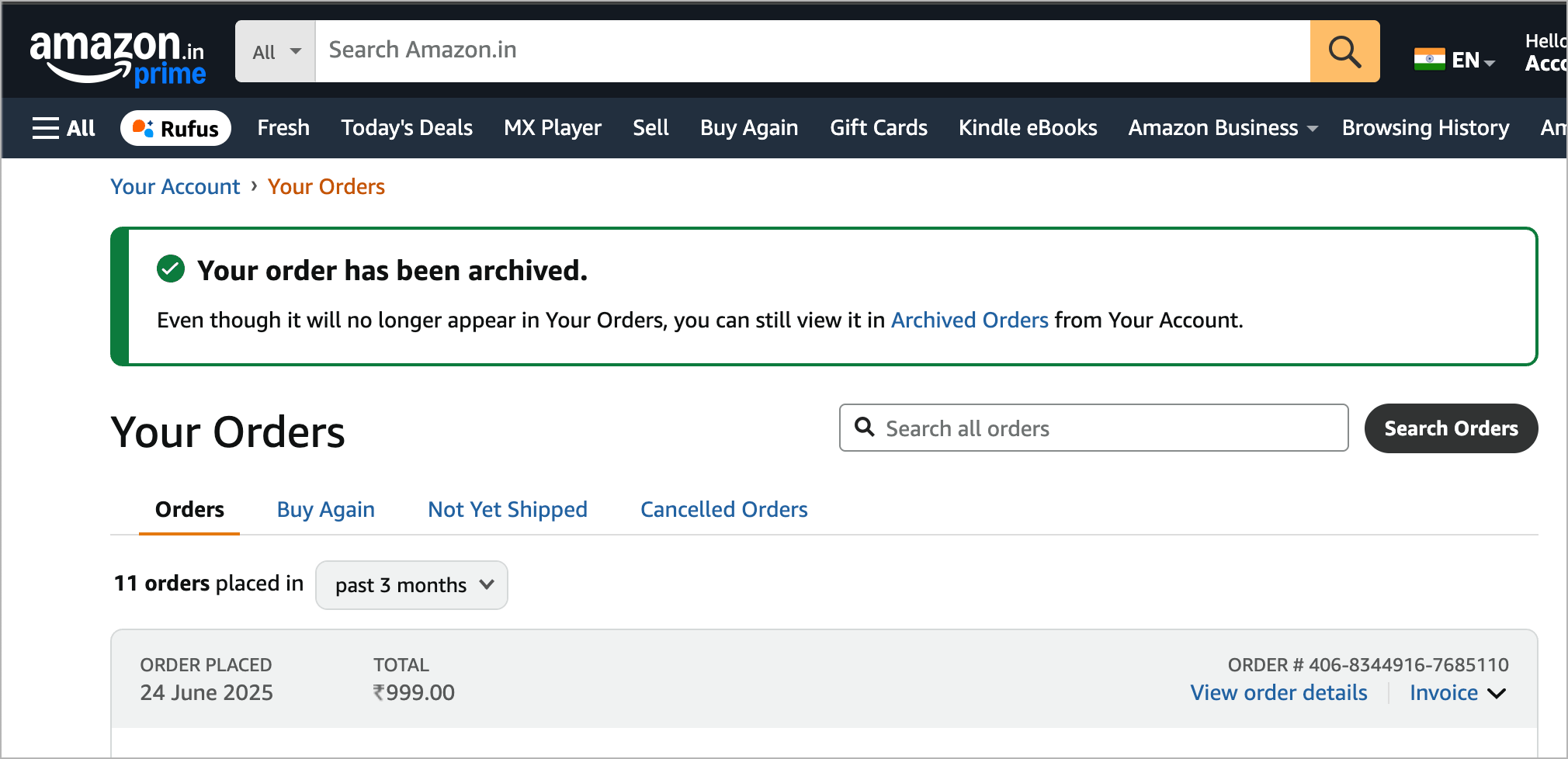
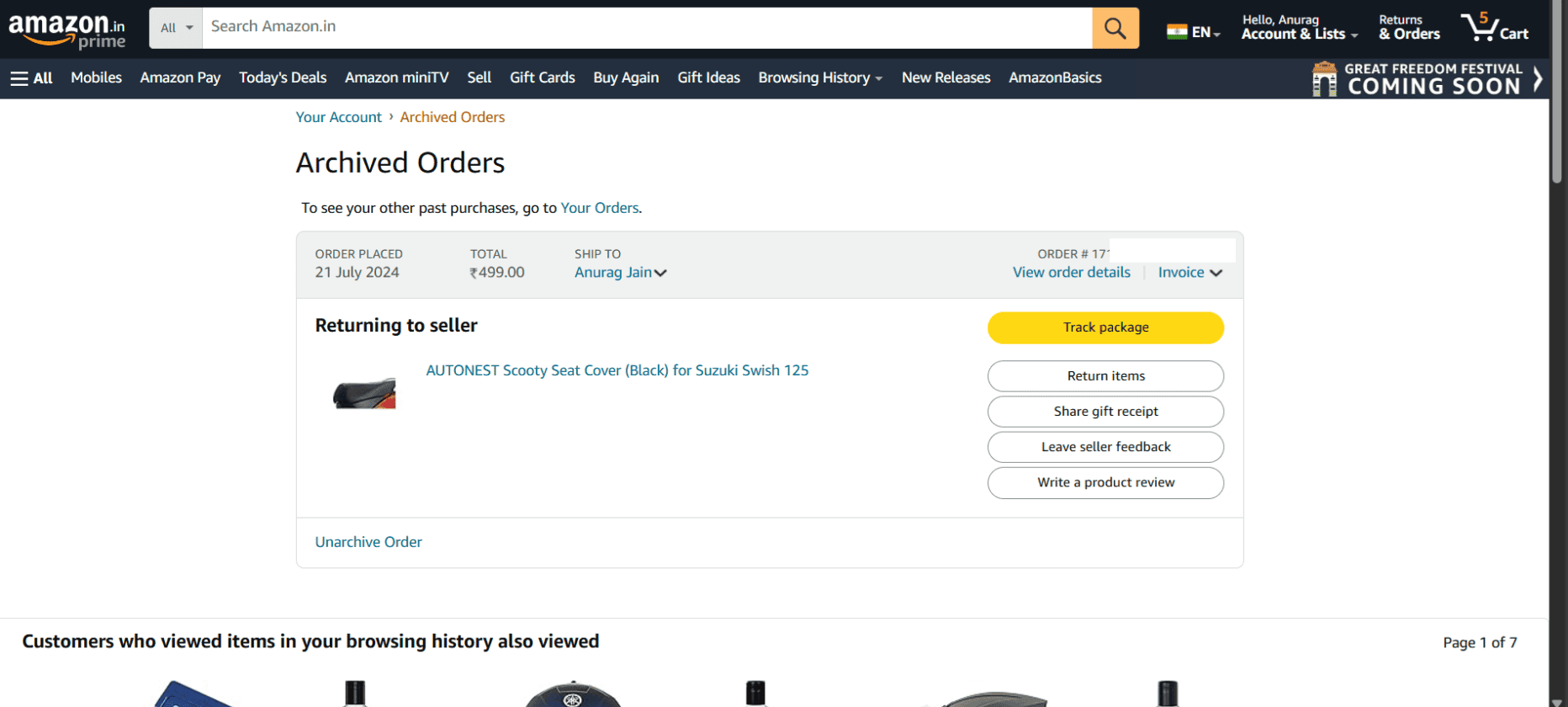
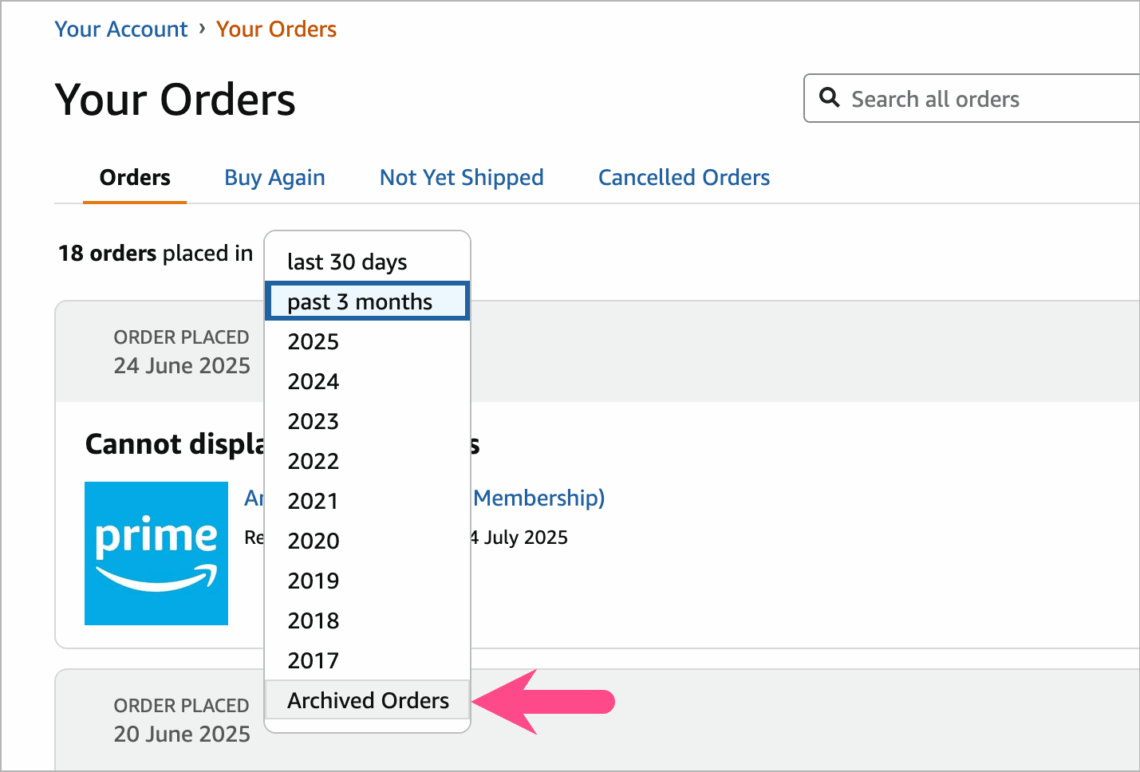
It is surprisingly easy to accidentally archive an order, especially on the mobile app. Once archived, an order no longer appears in your standard "Returns & Orders" list.
- To find them: On a desktop, go to "Account" and look for the "Archived Orders" link under the "Ordering and shopping preferences" section.
Multiple Accounts and Regional Domains
With the expansion of Amazon’s global footprint, users often inadvertently create accounts on different regional domains (e.g., Amazon.com vs. Amazon.ca or Amazon.co.uk). If you placed an order on the UK site but are logged into the US app, your order will not show up. Always verify the flag icon or domain extension in the app settings to ensure you are viewing the correct marketplace.
Advanced Solutions for Persistent Errors
If standard troubleshooting fails, you may need to look at deeper system conflicts.
- Check Amazon Server Status: While rare, Amazon’s servers can experience localized outages. Websites like DownDetector can provide real-time updates on whether other users are experiencing similar issues.
- Switch Devices: If the order fails on the app, try using a mobile browser or a desktop computer. This helps isolate whether the problem is with your account or the specific device you are using.
- Delete and Re-add Payment Method: Sometimes, a payment method's data string becomes corrupted in Amazon's database. Deleting the card entirely and re-adding it as a "New Payment Method" can force a fresh handshake between Amazon and your bank.
- Contact Amazon Customer Service: If you receive a specific error code (like "Error 500" or a unique alphanumeric string), note it down. Use the "Chat with us" feature in the Help section. In 2026, Amazon’s automated assistant is highly capable of identifying specific backend blocks on your account that are not visible to the user.
Frequently Asked Questions
Why does Amazon say my order is "Pending" for so long?
A "Pending" status usually means Amazon is waiting for payment authorization from your bank. This can take anywhere from a few minutes to 48 hours depending on the bank's processing speed. If it stays pending longer than 48 hours, there is likely a problem with the card that requires your attention in the "Your Payments" section.
Can a VPN cause my Amazon order to fail?
Yes. Amazon’s security protocols often flag IP addresses associated with VPNs because they are frequently used by bad actors to hide their location during fraudulent transactions. If your order isn't going through, disable your VPN and try again using your local ISP's connection.
Why did my Amazon order disappear from my history?
The most common reason is that you are logged into a different account or a different regional domain (like Amazon.ca instead of Amazon.com). Additionally, check your "Archived Orders" section, as orders can be moved there and hidden from the main view.
What should I do if the "Place Your Order" button is gray?
A grayed-out button usually indicates that required information is missing. Check that you have selected a valid shipping address and a valid payment method. If those are set, try refreshing the page or clearing your browser cookies, as a session timeout might have occurred.
Why am I getting an "Order Not Found" error when clicking a tracking link?
This often happens if you are trying to view the order while logged into a different Amazon account than the one used to make the purchase. It can also happen immediately after an order is placed while the system is still indexing the data. Wait 10-15 minutes and try again.
Does my "1-Click" setting affect my order success?
Yes. "1-Click" settings use a default payment method and address. If that specific card has expired or the address is no longer valid, every "1-Click" attempt will fail, even if you have updated your primary account settings. You must update the specific "1-Click" preferences in your account settings.
Final Recommendation
If your Amazon orders are still not working after checking your payment methods and clearing your cache, the most effective next step is to attempt the purchase in "Incognito" or "Private" mode on your browser. This bypasses all existing cookies and extensions that might be interfering with the checkout script. If the order works in Incognito mode, the issue is definitely related to your browser's stored data or an installed extension. If the problem persists even in Incognito mode and across different devices, contact your financial institution to ensure they aren't blocking Amazon's authorization requests, then reach out to Amazon's dedicated account specialist team for a deeper review.