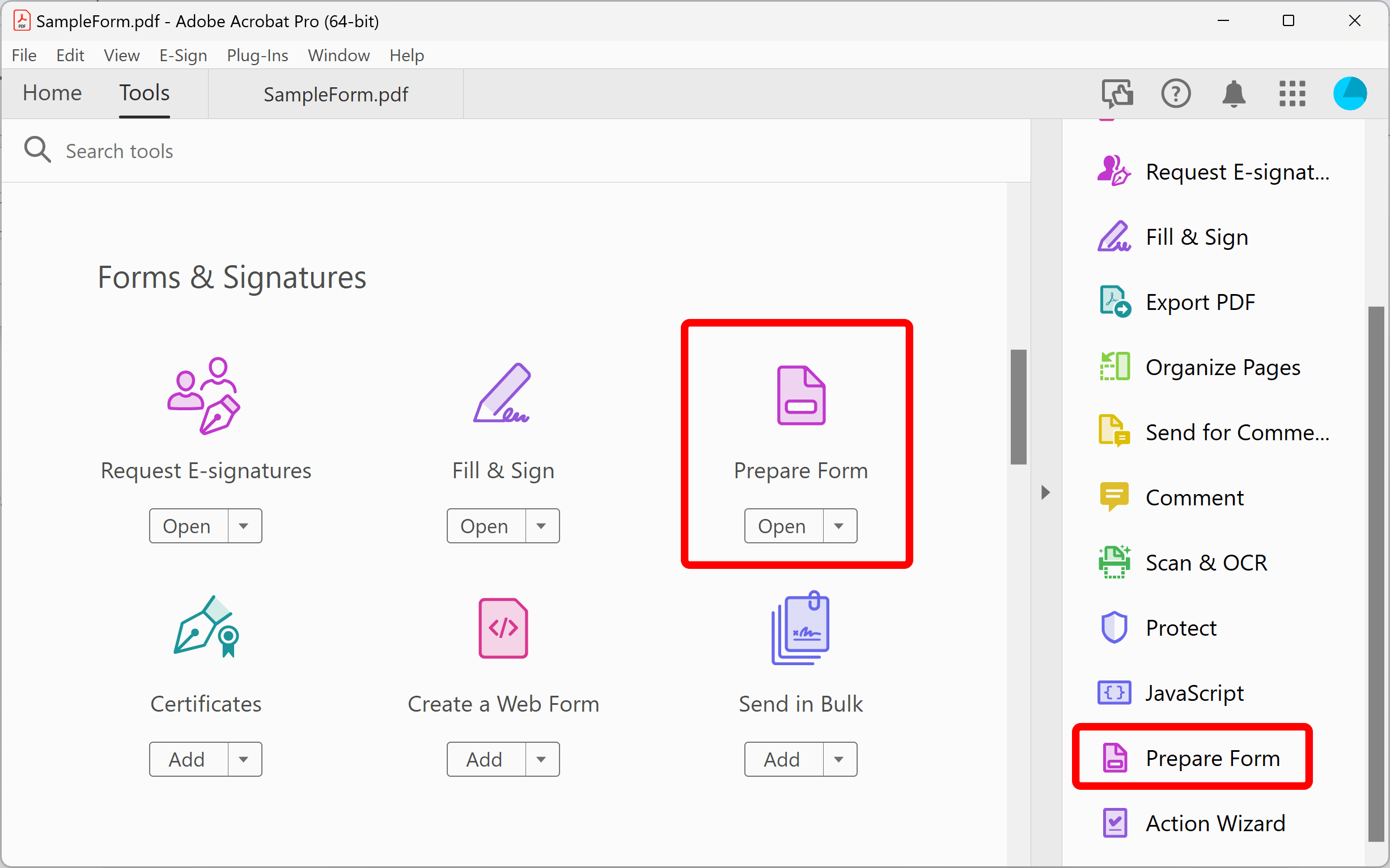
Adobe Reader for the web, officially part of the Adobe Acrobat web ecosystem, is a cloud-based suite that allows users to view, comment, fill, sign, and edit PDF documents directly within a web browser. It provides a platform-independent solution for managing PDF workflows without the need to install traditional desktop software.
The landscape of digital documentation has shifted toward high-accessibility, cloud-first solutions. As of 2026, Adobe has fully unified its browser-based offerings, ensuring that the "Adobe Reader" experience is no longer just a passive viewing tool but a robust, interactive environment. Whether you are using a Chromebook, a locked-down corporate laptop, or a public terminal, the web version of Adobe’s PDF tools ensures that document fidelity and security remain consistent.
Understanding Adobe Reader for the Web vs. Desktop
To maximize the utility of Adobe Reader for the web, it is essential to distinguish it from its desktop counterpart, Adobe Acrobat Reader DC. While the desktop application remains the gold standard for heavy-duty offline processing and complex prepress tasks, the web version is designed for agility and collaboration.
The web interface is accessible via acrobat.adobe.com. Upon login, users are greeted with a dashboard that synchronizes with Document Cloud. This means any file started on a mobile device or desktop can be finished in the browser. In 2026, the distinction between "Reader" (free) and "Acrobat" (paid) functionality on the web has become more nuanced, with many high-value features such as basic e-signatures and cloud storage integration available to all users with an Adobe ID.
The Shift to Browser-Native Productivity
The primary advantage of the web-based version is the elimination of the "install-update-repair" cycle. Browsers like Google Chrome, Microsoft Edge, and Apple Safari have evolved to handle complex rendering engines, allowing Adobe to stream a full-featured experience. This is particularly vital for organizations that follow a Zero Trust security model, where installing local .exe or .dmg files is restricted.
Core Features of the Adobe Web Experience
The functionality of Adobe Reader for the web is categorized into four primary pillars: viewing/reviewing, editing/converting, signing, and managing.
1. Viewing and Collaborative Reviewing
The viewing engine in the web version uses the same rendering technology as the desktop version, ensuring that fonts, layers, and vector graphics appear exactly as intended. However, the true power lies in the Review functionality.
- Real-time Commenting: Multiple users can highlight text, add sticky notes, and draw freehand on a document simultaneously.
- @Mentions: By using the "@" symbol in comments, users can tag collaborators, triggering instant email notifications and dashboard alerts.
- Liquid Mode for Web: Originally a mobile feature, Liquid Mode is now integrated into the web experience to reflow text for better readability on narrow browser windows or tablets.
2. PDF Conversion and Exporting
One of the most frequent tasks for web users is converting documents to and from the PDF format. Adobe’s web portal provides high-fidelity conversion tools that outperform generic third-party websites.
- To PDF: Convert Word, Excel, PowerPoint, and image files (JPG, PNG, TIFF) into professional PDFs.
- From PDF: Export PDFs back into editable Office formats while preserving tables, columns, and font styles.
- OCR (Optical Character Recognition): The web tool automatically detects scanned text, making it searchable and selectable without requiring local processing power.
3. Editing and Organizing
While "Reader" was historically for viewing only, the 2026 web platform allows for significant document manipulation.
- Page Management: Users can rotate, delete, reorder, or insert pages.
- Content Editing: Subscribers can edit text and images directly within the browser, a feature that was previously reserved for the desktop Pro version.
- Splitting and Merging: Combine multiple reports into a single PDF or split a large document into individual chapters.
4. Fill, Sign, and Secure
The web version integrates Adobe Acrobat Sign capabilities. For most users, the "Fill & Sign" tool allows for the placement of a digital signature, initials, and date fields on any form.
- Security: Users can password-protect sensitive documents or use the "Hide Information" (redaction) tool to permanently remove confidential data before sharing.
Technical Requirements and Browser Compatibility
To run Adobe Reader for the web effectively in 2026, your hardware and software should meet specific benchmarks. Because the rendering happens via the browser's engine and Adobe's cloud servers, the local CPU load is relatively low, but RAM is crucial for large documents.
| Requirement | Recommended Specification |
|---|---|
| Supported Browsers | Google Chrome (v110+), Microsoft Edge (v110+), Safari (v16+), Firefox (v115+) |
| Operating System | Windows 11, macOS Sonoma/Ventura, ChromeOS, Linux (Ubuntu/Fedora) |
| Memory (RAM) | Minimum 4GB; 8GB recommended for documents over 500 pages |
| Internet Speed | 5 Mbps for basic viewing; 25 Mbps+ for large file uploads/OCR |
| Display Resolution | 1366 x 768 or higher (Responsive design supports mobile web) |
The Role of Browser Extensions
For an optimized experience, Adobe offers the Acrobat Extension for Chrome and Microsoft Edge. This extension allows users to bypass the browser’s native (often limited) PDF viewer and open files directly in the Adobe web interface. It also adds a "Convert to PDF" button to the browser's context menu, enabling one-click conversion of any webpage into a high-quality PDF document.
Free vs. Premium: Feature Comparison
Adobe uses a "freemium" model for its web services. Anyone with a free Adobe ID can access basic viewing and sharing tools, but advanced manipulation requires an Acrobat Pro or Standard subscription.
| Feature | Free Adobe Account | Acrobat Pro/Standard Subscription |
|---|---|---|
| View and Annotate | Yes (Unlimited) | Yes (Unlimited) |
| Fill and Sign | Yes (Self-signature) | Yes (Request signatures from others) |
| File Storage | 2GB Cloud Storage | 100GB to 1TB Cloud Storage |
| Convert to/from PDF | Limited daily uses | Unlimited |
| Edit Text and Images | No (View only) | Yes (Full browser editing) |
| OCR (Scanned Text) | No | Yes |
| Password Protection | No | Yes |
| Merge/Split Files | Limited daily uses | Unlimited |
Security, Privacy, and Data Integrity
In a 2026 enterprise environment, document security is the primary concern when using web-based tools. Adobe Reader for the web utilizes several layers of protection to ensure that your data is not compromised during transit or storage.
Encryption Standards
All files uploaded to the Adobe Document Cloud are encrypted both in transit (using HTTPS/TLS 1.2 or higher) and at rest (using AES-256 bit encryption). This ensures that even if data packets are intercepted, they remain unreadable to unauthorized parties.
Privacy and Data Retention
Adobe’s privacy policy for web tools distinguishes between "transient" processing and "cloud storage." If you use a tool without signing in, the file is often stored temporarily on Adobe's servers to facilitate the conversion or edit and then deleted within a set timeframe (usually 24 hours). If you are signed in, the files remain in your Document Cloud until you manually delete them.
Compliance and Certifications
For legal and financial sectors, Adobe Acrobat for the web maintains compliance with:
- GDPR: Ensuring data rights for users in the European Union.
- HIPAA: Supporting the secure handling of medical records (requires specific enterprise agreements).
- SOC2 Type II: Providing third-party verification of security and availability controls.
Integrating Adobe Web Tools with Cloud Ecosystems
Adobe Reader for the web does not exist in a vacuum; it is designed to act as the "connective tissue" between various productivity suites.
Microsoft 365 Integration
Through the Microsoft AppSource, users can integrate Acrobat directly into Teams, SharePoint, and OneDrive. This allows a user to right-click a PDF stored in OneDrive and select "Open in Adobe Acrobat for Web," enabling advanced editing without leaving the Microsoft environment.
Google Workspace Integration
Similar to the Microsoft integration, Adobe offers a Google Drive Add-on. This enables users to open PDFs from their Drive directly into the Adobe web editor. Once the edits are finished, the updated file is automatically saved back to Google Drive, maintaining version control.
API and Automation
For developers and enterprise power users, Adobe’s web tools can be triggered via Adobe PDF Services API. In 2026, many businesses use this to automate the generation of invoices or reports directly in the cloud, using the same engine that powers the web interface.
Troubleshooting Common Web PDF Issues
Despite the stability of the platform, users may occasionally encounter hurdles when working in a browser environment.
1. Document Fails to Load
This is often caused by a cache conflict or an outdated browser.
- Solution: Clear your browser cache or try opening the document in an Incognito/Private window. Ensure your browser is updated to the latest version to support the necessary JavaScript libraries.
2. Slow Performance with Large Files
High-resolution architectural drawings or 1,000-page manuals can tax browser memory.
- Solution: Disable "Liquid Mode" for very complex documents. If performance persists, consider using the "Compress PDF" tool on the Adobe web portal to reduce the file size before editing.
3. Font Substitution
If a PDF uses a custom or proprietary font that is not embedded in the file, the web reader may substitute it with a standard system font like Arial or Times New Roman.
- Solution: When creating PDFs, always select the "Embed All Fonts" option in the original application. If you are only viewing, there is little you can do other than download the file and view it on a machine with the specific fonts installed.
4. Signature Not Validated
Sometimes a digital signature appears as "Validity Unknown" in the web browser.
- Solution: This is common because browsers do not always have access to the full Windows or macOS Certificate Store. For legal verification, it is often necessary to view the document in the Acrobat desktop application, which can connect to the Adobe Approved Trust List (AATL).
Future-Proofing Your Workflow
As we look toward the remainder of 2026 and beyond, Adobe Reader for the web is incorporating more Generative AI features. The "AI Assistant" in the web interface can now summarize long documents, answer specific questions about the content, and even draft emails or social media posts based on the PDF's data. Utilizing these tools via the web ensures you are always using the latest AI models without needing to update local software.
To get started, simply visit the Adobe Acrobat web portal, sign in with your credentials, and drag any PDF into the browser window. For those who frequently interact with PDFs, installing the browser extension is the most effective next step to streamline your digital workflow.
FAQs about Adobe Reader for the Web
Is Adobe Reader for the web free to use? Yes, the basic version is free. It allows for viewing, basic commenting, and sharing. However, advanced features like permanent text editing, OCR, and unlimited conversions require a paid Acrobat subscription.
Can I use Adobe Reader for the web offline? No, the web version requires an active internet connection to load the interface and process files. For offline access, you must use the Adobe Acrobat Reader desktop application or mobile app with files synced to your device.
Is it safe to upload confidential documents to Adobe’s web tools? Yes, Adobe uses industry-standard AES-256 encryption and secure HTTPS protocols. For highly regulated industries, Adobe offers enterprise-grade security configurations and compliance certifications like SOC2 and HIPAA.
How do I make Adobe my default PDF viewer in the browser? To make Adobe the default, you should install the Adobe Acrobat extension for Chrome or Edge. Once installed, go to the extension settings and enable "Allow access to file URLs" and set it as the primary PDF handler.
Does Adobe Reader for the web work on mobile devices? Yes, you can access the portal via a mobile browser, but Adobe generally recommends the Adobe Acrobat Mobile App for iOS and Android, as it is optimized for touch interfaces and includes "Liquid Mode" specifically for small screens.