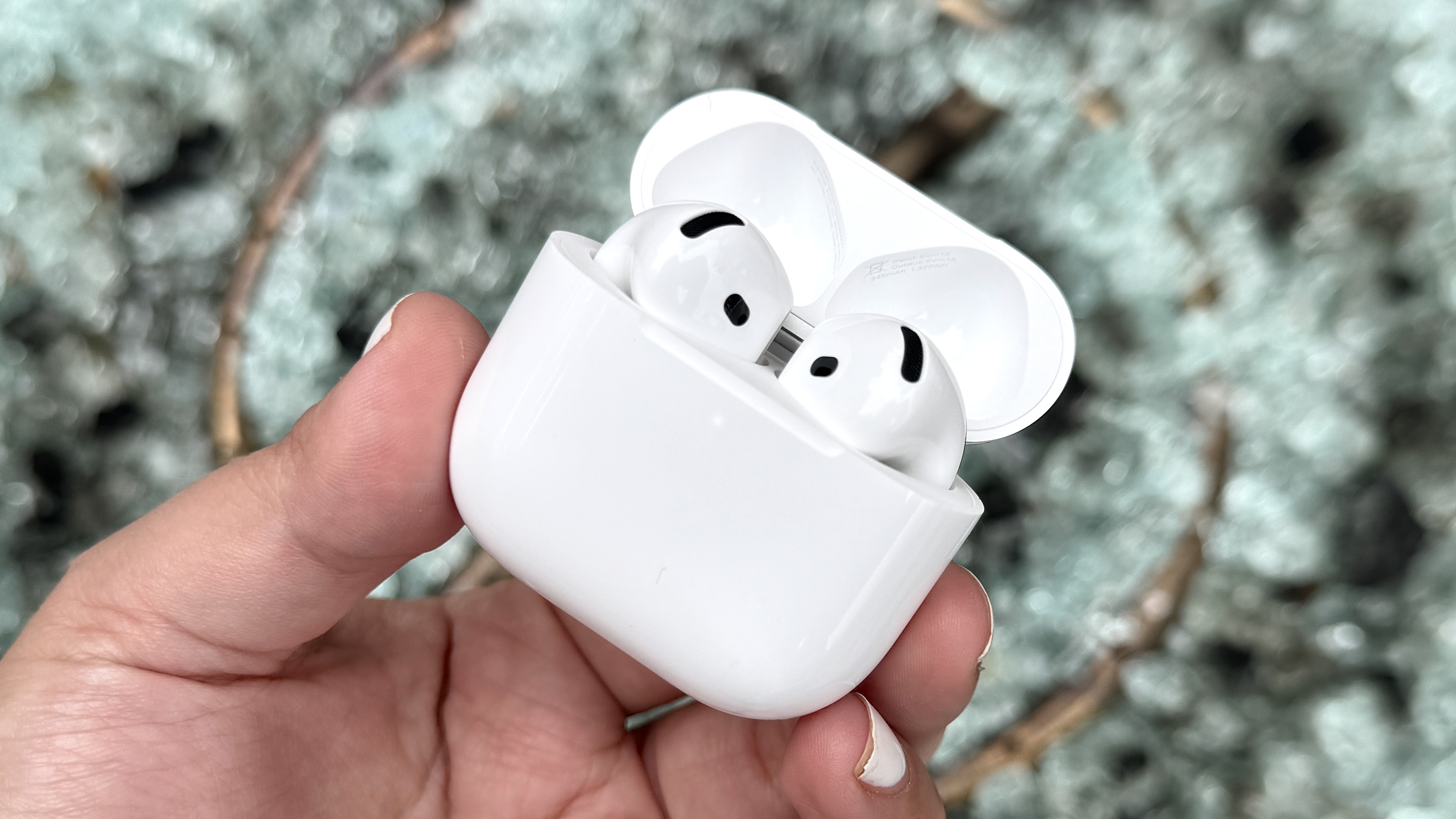
Pairing your AirPods 4 to your iPhone is a seamless process designed to take advantage of Apple’s H2 chip integration. By simply bringing the charging case near your unlocked iPhone and opening the lid, you trigger a proximity-based setup prompt that handles the entire Bluetooth pairing sequence automatically, requiring only a single tap to confirm the connection.
Understanding the Apple Ecosystem Pairing Process
Apple has refined the pairing experience for its wireless audio devices to prioritize user convenience. Unlike traditional Bluetooth peripherals that often require users to navigate through "Settings" menus and manually enter discovery modes, the AirPods 4 utilize a proprietary communication protocol. When the charging case lid is opened near an iPhone running a compatible version of iOS, the devices broadcast a secure handshake signal.
This system relies on the Apple ID signed into your iPhone. Once paired, the AirPods 4 are automatically associated with your account. This means they will seamlessly connect to other devices, such as your iPad or Mac, provided those devices are signed into the same Apple ID and utilize iCloud Keychain for synchronization. This "it just works" philosophy is the cornerstone of the AirPods experience, removing the technical barriers typically associated with wireless audio pairing.
Prerequisites for Successful Pairing
Before attempting to connect your AirPods 4, verify that your hardware and software are prepared to support the connection. While the process is intuitive, certain environmental and software requirements must be met to ensure the pairing signal is recognized by your iPhone.
1. Software Compatibility
Ensure your iPhone is updated to the latest version of iOS supported by your specific model. While AirPods 4 are generally compatible with recent iterations of iOS, maintaining current firmware reduces the risk of connectivity bugs or handshake failures. You can check for updates by navigating to Settings, selecting General, and tapping Software Update.
2. Bluetooth and Wireless Status
Your iPhone must have Bluetooth enabled for the discovery process to function. While the H2 chip facilitates a rapid connection, it does not bypass the need for an active Bluetooth radio. Additionally, ensure your iPhone is unlocked and on the Home Screen when you open the AirPods case; this allows the iOS interface to trigger the pop-up pairing card immediately.
3. Charging Status
It is advisable to ensure your AirPods 4 have a sufficient battery charge before initiating the pairing process. If the case is entirely depleted, the hardware may not be able to transmit the initial Bluetooth signal required for the handshake. If the status light on the case does not illuminate when you open the lid, connect the case to a power source for at least 15 minutes before attempting the pairing again.
Step-by-Step Pairing Procedure
Follow these steps to establish a connection between your AirPods 4 and your iPhone. This method is the primary and most efficient way to ensure all features—such as spatial audio and automatic device switching—are correctly configured.
- Prepare the Devices: Ensure your iPhone is unlocked, the Bluetooth icon is active in the Control Center, and you are on the Home Screen.
- Open the Case: Place your AirPods 4 inside their charging case and open the lid. Hold the case close to your iPhone (within 2 to 3 inches).
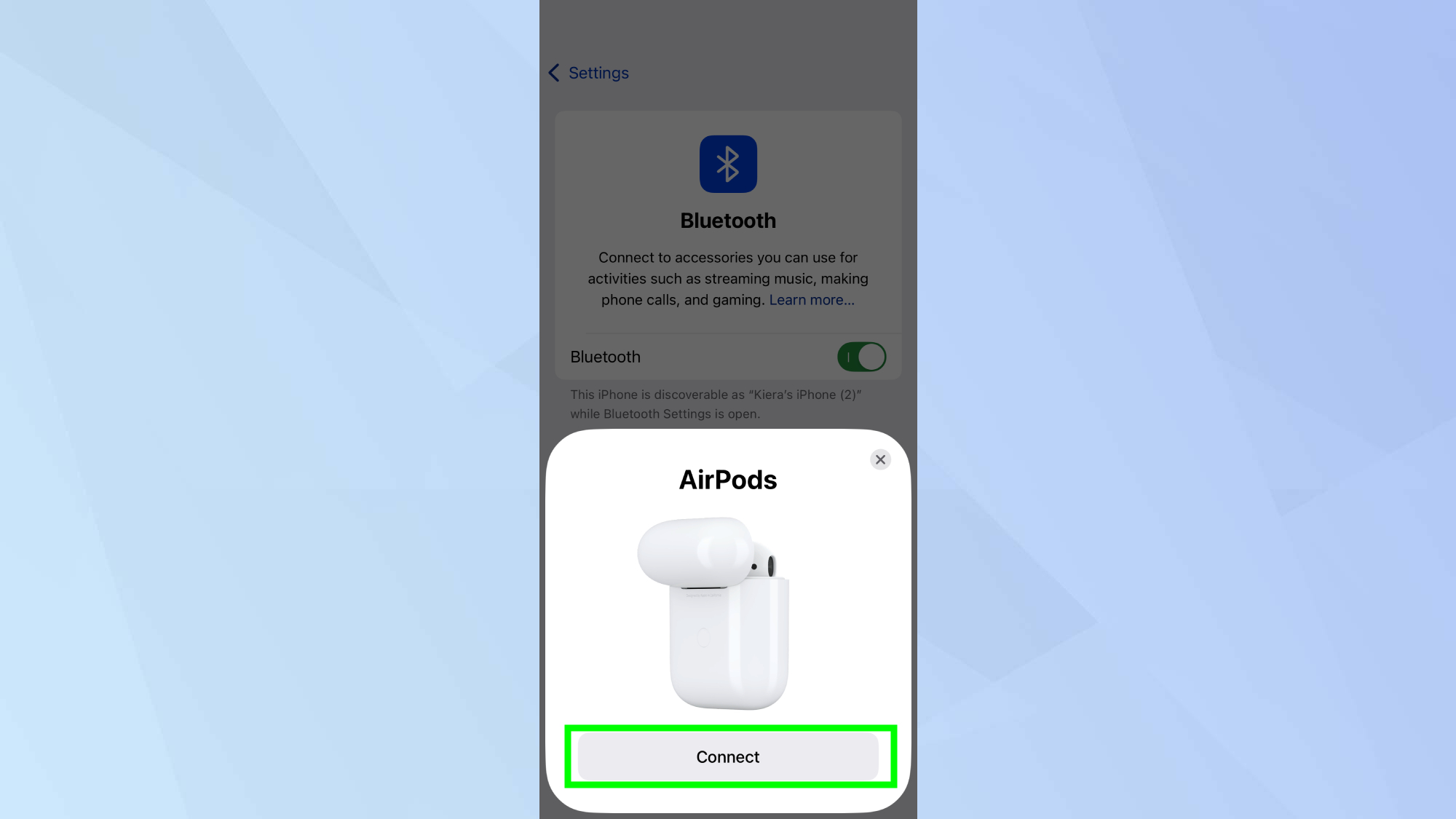
- Initiate the Prompt: An animation will appear on your iPhone screen, showing an image of the AirPods 4.
- Confirm Connection: Tap the "Connect" button displayed on the screen.
- Finalize Setup: Follow the on-screen instructions if prompted to enable features like Siri, Find My, or personalized Spatial Audio. Once the setup completes, tap "Done."
Troubleshooting Common Pairing Issues
If the setup animation does not appear, or if the connection fails to complete, you can address the issue through a few standard troubleshooting procedures. Most problems are related to temporary software interference or improper hardware positioning.
Check the Status Light
The LED indicator on the front or inside of your AirPods 4 case provides diagnostic information. If the light is flashing white, the device is in pairing mode and waiting for an iPhone to discover it. If the light is amber, you may need to reset the connection.
Performing a Manual Reset
If your AirPods 4 refuse to pair, a factory reset often resolves the issue. To do this:
- Go to Settings on your iPhone and tap Bluetooth.
- Find your AirPods in the list of devices, tap the "i" icon, and select Forget This Device.
- Place your AirPods in the charging case and leave the lid open.
- Locate the setup button on the back of the case. Press and hold the button for about 15 seconds until the status light flashes amber and then white.
- Close the lid, wait a few seconds, open it again, and attempt the pairing process from the beginning.
Environmental Interference
In environments with heavy electromagnetic activity or a high density of active Bluetooth devices, the initial pairing signal may be obstructed. Move away from other high-frequency equipment or non-Apple Bluetooth devices to simplify the handshake process.
Comparison of Pairing Methods
While the proximity method is the standard, it is helpful to understand the alternatives available for different use cases.
| Method | Use Case | Complexity |
|---|---|---|
| Proximity Popup | Initial setup with a primary iPhone | Very Low |
| Manual Bluetooth Settings | Pairing with secondary/non-Apple devices | Moderate |
| iCloud Sync | Connecting to other Apple devices already owned | Automatic |
| Manual Reset | Troubleshooting failed connections | Moderate |
Frequently Asked Questions
Can I pair AirPods 4 with a non-Apple smartphone?
Yes, you can pair AirPods 4 with non-Apple devices, such as Android phones, by using the manual Bluetooth menu. Open the lid of your AirPods case, hold the setup button on the back until the status light flashes white, then search for the AirPods in your device’s Bluetooth settings. Note that you will lose features like automatic switching and instant ear detection.
What should I do if the pairing animation doesn't appear?
Ensure your iPhone is unlocked and that you are on the Home Screen. If it still does not appear, restart your iPhone and ensure your Bluetooth is toggled on. If the issue persists, perform a manual reset of the AirPods 4 using the setup button on the charging case.
Does pairing require a Wi-Fi connection?
No, pairing between the AirPods 4 and an iPhone relies solely on Bluetooth and proximity sensing. However, having a stable internet connection is helpful for initial firmware updates that may occur immediately after pairing to ensure optimal performance.
Can I pair AirPods 4 to more than one device at a time?
AirPods 4 can be paired with multiple devices through your iCloud account. Once paired to your primary iPhone, they will be recognized by any other iPad, Mac, or Apple Watch signed into the same Apple ID, allowing for automatic switching based on the active audio source.
Why do my AirPods 4 disconnect intermittently?
Intermittent disconnection is often a result of software bugs or interference. Ensure your iPhone firmware is up to date and check for any localized sources of radio frequency interference. If the issue continues, forgetting the device and re-pairing usually resets the stable connection link.
Next Steps for New Users
Once you have successfully paired your AirPods 4, take a moment to explore the specific settings available for them. Navigate to Settings > Bluetooth, and tap the "i" icon next to your AirPods. Here, you can customize double-tap gestures, toggle noise control features, and rename your AirPods to distinguish them in your device list. By configuring these preferences early, you ensure that your hardware experience is tailored to your listening habits.