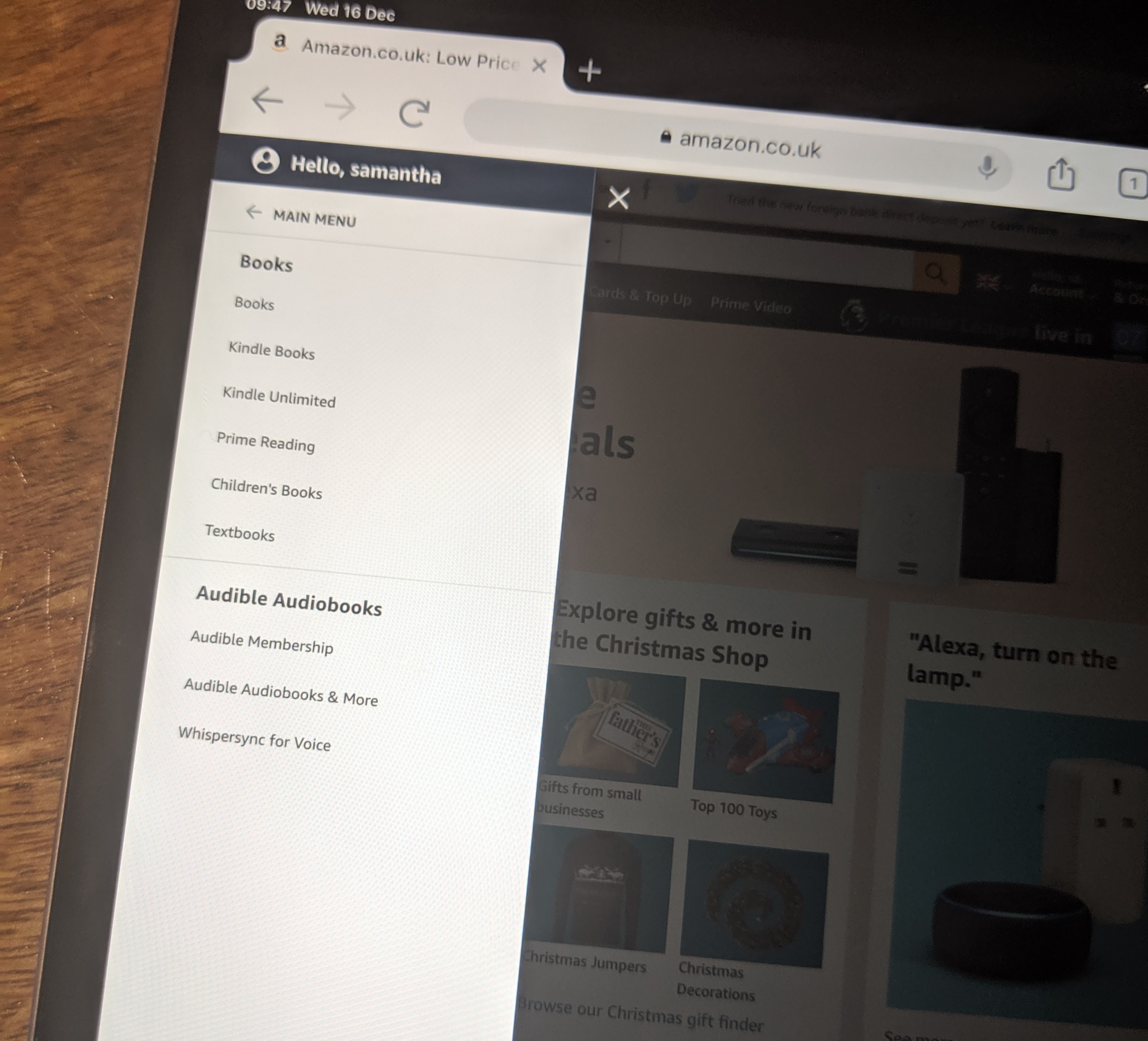
Amazon Prime members can access a rotating selection of digital magazines at no additional cost through a benefit called Prime Reading. By using a Kindle e-reader, Fire tablet, or the Kindle app on iOS and Android, members can borrow current issues of popular publications, ranging from lifestyle and fashion to technology and news, as part of their existing subscription.
The digital landscape in 2026 offers more content than ever, but navigating the specific benefits of an Amazon Prime membership can still be complex due to the overlapping nature of Amazon’s various reading services. While many users associate Kindle primarily with purchased ebooks, the "free" magazine component is one of the most underutilized perks of the Prime ecosystem. This guide provides a comprehensive breakdown of how to identify eligible titles, the technical requirements for different devices, and how to manage your digital newsstand efficiently.
Understanding the Prime Reading Ecosystem
To access free magazines, it is essential to distinguish between Prime Reading and Kindle Unlimited. This is the primary point of confusion for most users.
Prime Reading is a private library for Prime members. It includes a curated selection of several thousand books, comics, and, most importantly, a rotating selection of top-tier magazines. There is no extra monthly fee for this; it is bundled into your annual or monthly Prime membership.
Kindle Unlimited, conversely, is a standalone subscription service. While it offers a much larger catalog (millions of titles and thousands of magazines), it requires a separate monthly payment. In 2026, the Prime Reading magazine selection remains a "boutique" experience—focused on high-quality, recognizable brands like Vogue, Wired, Better Homes & Gardens, and National Geographic—rather than the exhaustive archive found in the paid Unlimited tier.
Eligibility and Prerequisites
Before attempting to download magazines, ensure you meet the following criteria:
- Active Amazon Prime Membership: This includes standard Prime, Prime Student, and shared household members (if the primary account holder has enabled sharing of digital benefits).
- Compatible Device: You do not strictly need a Kindle-branded device. The service works on:
- Kindle E-readers: (Paperwhite, Oasis, Scribe, and the standard Kindle).
- Fire Tablets: Optimized for color layouts.
- The Kindle App: Available on iPhones, iPads, and Android smartphones or tablets.
- Web Browsers: Using the Kindle Cloud Reader (though the experience is less optimized for magazines).
- Amazon Account Region: Prime Reading availability varies by country. Most major markets (US, UK, Canada, Germany, etc.) have a robust magazine selection, but the specific titles will differ based on local publishing agreements.
How to Find and Borrow Free Magazines
Finding the "free" section requires specific navigation, as Amazon often displays paid magazines alongside those included in your membership.
Step-by-Step Discovery on the Kindle App or Fire Tablet
The most common way to read magazines is via the Kindle app. In 2026, the interface emphasizes discovery, but you can narrow your search:
- Open the Kindle App: Ensure you are signed into the account associated with your Prime membership.
- Navigate to 'Discover': Usually located in the bottom navigation bar.
- Locate the Prime Reading Badge: Look for a dedicated section labeled "Prime Reading" or a "Read for Free" banner.
- Filter by Magazines: Within the Prime Reading section, use the category filter to select "Magazines" or "Newsstand."
- Identify the Prime Logo: Every eligible magazine will have a small "Prime" logo next to the price. Instead of a "Buy" button, you will see a button labeled "Read for Free" or "Borrow."
- Click to Download: Once clicked, the current issue will be added to your "Library" tab and begin downloading for offline reading.
Browsing via the Amazon Website
If you prefer using a desktop to manage your library:
- Go to the Amazon Prime Reading landing page.
- Select the "Magazines" sub-category from the left-hand sidebar.
- Click on a title you are interested in.
- On the product page, ensure the "Prime" price is selected ($0.00) and click "Read for Free."
- Choose the device you want the magazine delivered to from the dropdown menu.
Technical Specifications and Reading Experience
The experience of reading a magazine on a Kindle device varies significantly depending on the hardware's display technology. Magazines are high-bandwidth, image-heavy files, which presents unique challenges for different screens.
E-ink vs. LCD/OLED Displays
- Kindle E-readers (Paperwhite, Oasis): These devices use electronic ink. While they are excellent for text-heavy articles, they are limited to grayscale. If you are reading a photography-heavy magazine like Travel + Leisure, the images will lose their impact. However, the "Article View" feature allows you to double-tap on a text block to see a clean, large-font version of the story, which is ideal for long-form journalism.
- Fire Tablets and iPads: These are the preferred devices for magazines. They support full color and interactive elements. In 2026, many magazines included in Prime Reading feature "Kindle Interactive" elements, such as scrollable sidebars or embedded video clips, which only function on color-screen devices.
Storage and Borrowing Limits
Unlike ebooks you purchase, Prime Reading magazines are borrowed.
- The 10-Title Limit: Typically, Amazon allows you to have up to 10 Prime Reading titles (books or magazines) borrowed at any single time. If you try to borrow an 11th, the system will prompt you to "return" one of your current titles.
- File Size: Magazines are much larger than ebooks. While a standard novel might be 2MB, a high-resolution magazine can be 50MB to 200MB. Users with 8GB Kindle devices should be mindful of their storage if they keep multiple back issues.
Comparing Digital Reading Options (2026)
| Feature | Prime Reading | Kindle Unlimited | Magazine Subscriptions |
|---|---|---|---|
| Monthly Cost | Included with Prime | ~$13.99/month | Varies ($1–$5/issue) |
| Selection Size | ~3,000 Total Titles | 4 Million+ Titles | Single Publication |
| Magazine Count | Rotating Selection (approx. 50-100) | 1,000+ Magazines | 1 Title |
| Ownership | Borrowed (Temporary) | Borrowed (Temporary) | Permanent Digital Copy |
| Best For | Casual Readers | Power Readers / Researchers | Dedicated Fans of 1 Brand |
Managing Your Borrowed Content
Because of the borrowing limit, you will eventually need to return magazines to make room for new ones.
How to Return a Magazine
- Go to your Library on your Kindle device or app.
- Long-press on the cover of the magazine you have finished.
- Select "Return Magazine" (or "Return to Prime Reading").
- The title will disappear from your device, freeing up one of your 10 "slots."
Accessing Back Issues
One limitation of Prime Reading is that it usually only provides the current issue or a very small selection of recent back issues. If you are looking for an article from three years ago, Prime Reading likely won't have it. In 2026, Amazon has improved the "Newsstand" interface to show when a new issue of a Prime-eligible magazine is released, but it does not automatically download it. You must manually "borrow" each new issue as it becomes available.
Common Troubleshooting Steps
Even with a high-speed connection, users may encounter issues with digital magazines.
- "This title is not available for your device": Some magazines are formatted specifically for tablets and cannot be opened on older Kindle Paperwhite models. Check the "Available on these devices" link on the Amazon product page.
- Syncing Issues: If you borrowed a magazine on your computer but it isn't appearing on your Kindle, ensure "Whispersync" is enabled in your account settings and that your device has an active Wi-Fi connection. You can also go to "Manage Your Content and Devices" on Amazon to manually "Push" the file to a specific serial number.
- Membership Lapses: If your Prime membership expires or is paused, you will immediately lose access to all borrowed Prime Reading titles, including magazines. They will remain in your library but will be "locked" until the membership is renewed.
Frequently Asked Questions
Can I keep the magazines after my Prime membership ends?
No. Prime Reading operates like a digital library. You do not own the files. Access is strictly tied to an active Prime membership. If you cancel Prime, the magazines will be removed from your Kindle library. For permanent ownership, you must purchase individual issues or digital subscriptions through the Amazon Newsstand.
Are all magazines on Amazon included in Prime Reading?
No, only a small fraction are included. Amazon partners with specific publishers to provide a rotating "taster" of content. While heavy hitters like The New Yorker or Time are occasionally included, they are often used as promotional tools to encourage users to sign up for full Kindle Unlimited subscriptions or individual paid digital deliveries.
Does Prime Reading include international magazines?
The selection is primarily determined by your Amazon account's home region. If you have a US-based account, you will see US versions of magazines. While some international titles are available, they are much rarer than domestic ones due to licensing and distribution rights that vary significantly by country.
Is there a limit to how many articles I can read within a magazine?
There are no "per-article" limits. When you borrow a magazine via Prime Reading, you receive the full digital version of that issue, including all articles, advertisements, and photography found in the print edition. Some "Kindle Singles" or "Magazine Shorts" also exist, which are individual long-form articles, and these are also included in the borrowing limit.
Can I read Prime magazines on my computer?
Yes. You can use the Kindle Cloud Reader through any modern web browser or download the Kindle for PC/Mac application. This is often the best way to view high-resolution photography if you do not own a tablet, as a large computer monitor provides the screen real estate necessary for multi-column magazine layouts.
Final Recommendation
To get the most out of Amazon Prime free magazines on Kindle, use a device with a color screen, such as an iPad or Fire Tablet, to preserve the intended visual experience. Make it a habit to check the "Prime Reading" section on the first of every month, as this is when the catalog typically rotates. If you find yourself consistently hitting the 10-title borrowing limit or wishing for more back issues, consider a free trial of Kindle Unlimited, which expands the magazine library significantly. However, for most casual readers, the standard Prime Reading benefit provides more than enough high-quality content to stay informed and entertained at no extra cost.