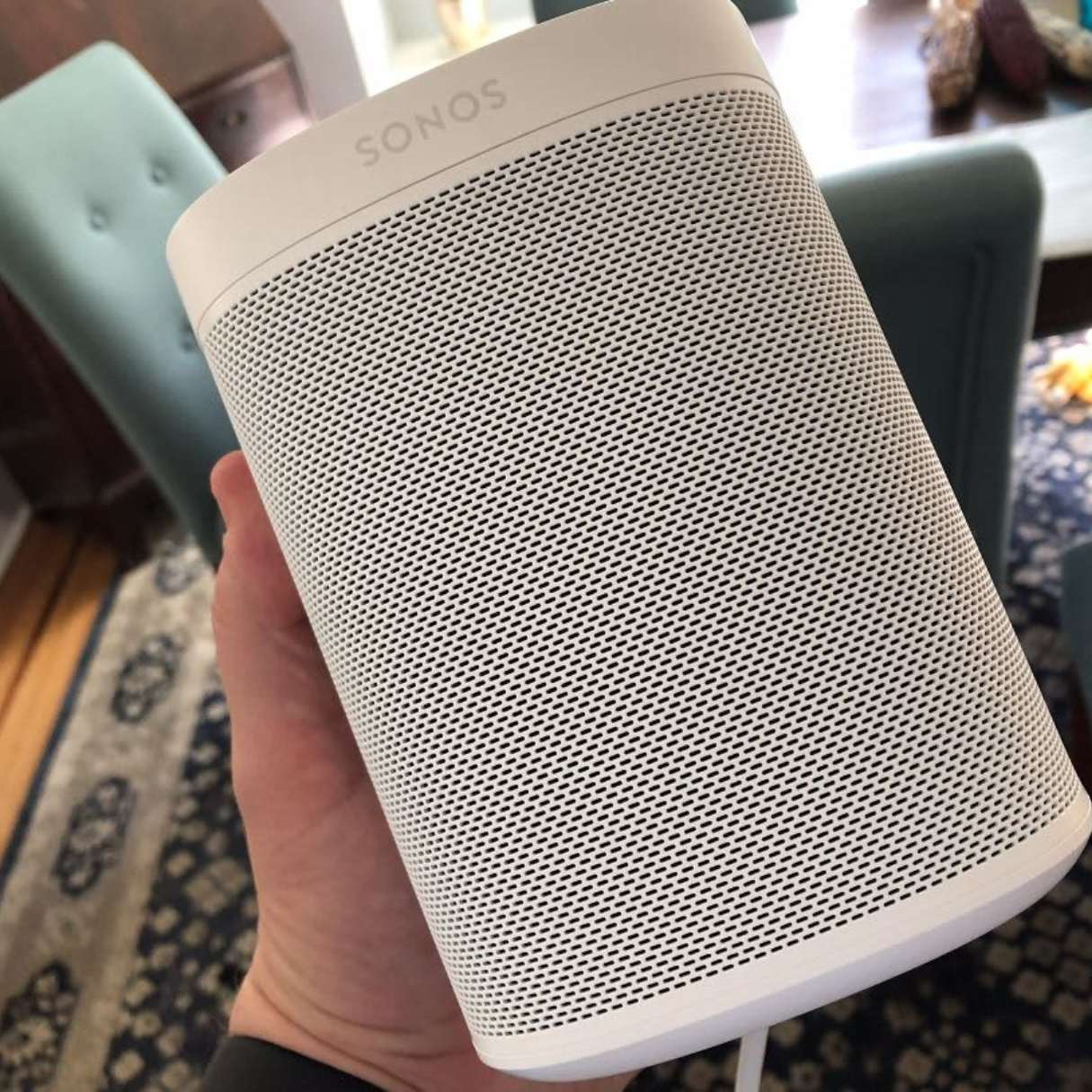
To control Sonos with Alexa, you must link your Sonos account to the Alexa app and enable the Sonos Skill. This integration allows you to use voice commands to play music from specific services, adjust volume, group speakers for multi-room audio, and control home theater settings on Alexa-compatible Sonos devices.
The integration between Amazon Alexa and Sonos has matured significantly by 2026, evolving from a basic remote-control relationship into a deeply integrated ecosystem. Whether you own a dedicated smart speaker with built-in microphones like the Sonos Era 300 or an older "passive" speaker like the Sonos Play:1, voice control offers a hands-free way to manage your acoustic environment. Understanding the nuances of these commands is the key to unlocking the full potential of your high-fidelity hardware.
The Two Methods of Alexa Integration
Before mastering the commands, it is essential to distinguish how Alexa interacts with your hardware. As of 2026, Sonos systems generally fall into two categories regarding voice control:
1. Integrated Alexa (Voice-Enabled Speakers)
Products such as the Sonos Era 100, Era 300, Move 2, Beam (Gen 2), and Sonos Arc feature built-in far-field microphone arrays. On these devices, Alexa lives directly on the speaker. You can speak to the speaker itself to trigger actions. These devices use "ducking" technology, which automatically lowers the music volume when they detect the "Alexa" wake word, ensuring the microphone can hear your follow-up command.
2. Remote Alexa Control (Voice-Compatible Speakers)
Legacy or non-microphone devices, such as the Sonos Five, Ray, or Sub, cannot "hear" you. To control these via voice, you must use an external Amazon Echo device (like an Echo Dot or Echo Show). In this setup, you tell the Echo what to do, and it sends the instruction through the cloud to your Sonos speaker. For the most seamless experience, these speakers should be assigned to an "Alexa Group" within the Alexa app so that the Echo knows which Sonos speaker to target by default.
Essential Setup and Prerequisites
To ensure commands are executed accurately, your system must meet specific technical requirements.
- Software Version: Your speakers must be running the latest Sonos S2 (or subsequent) firmware.
- The Sonos Skill: Within the Alexa app, you must navigate to Skills & Games, search for "Sonos," and enable it. This requires signing into your Sonos account to "handshake" the two platforms.
- Music Service Linking: Alexa cannot play music from a service on Sonos unless that service is linked in both the Sonos app and the Alexa app. If you want to use Spotify, ensure your Spotify account is connected to both platforms and set as the "Default Music Service" in the Alexa settings to avoid having to say "...on Spotify" at the end of every sentence.
- Naming Conventions: Room names are critical. Avoid generic names like "Speaker 1." Use distinct names like "Living Room," "Patio," or "Master Bedroom." Avoid naming a room and a smart light the same thing (e.g., "Kitchen"), as Alexa may become confused about whether you want to play music or turn off the lights.
Standard Playback Commands
The most common use case for Alexa on Sonos is basic playback management. These commands work across all music services supported by both platforms, including Amazon Music, Apple Music, Spotify, and Tidal.
Core Navigation
- "Alexa, play [Artist/Song/Album] in the [Room Name]." This is the foundational command.
- "Alexa, pause/stop/resume in the [Room Name]." Note that "Stop" clears the queue on some services, while "Pause" maintains the position.
- "Alexa, next/skip" or "Alexa, previous song." These allow you to navigate through a playlist or album.
- "Alexa, what’s playing in the [Room Name]?" Alexa will announce the track title and artist currently active on that specific speaker.
Volume and Muting
Sonos uses a volume scale of 0 to 100, but Alexa interprets volume on a scale of 0 to 10.
- "Alexa, set volume to 5 in the Kitchen." (This corresponds to 50% volume in the Sonos app).
- "Alexa, turn it up/down." This typically moves the volume by increments of 1 (10%).
- "Alexa, mute the Living Room." This silences the audio without stopping the playback stream.
Advanced Multi-Room and Grouping Commands
The hallmark of the Sonos experience is synchronized multi-room audio. By 2026, the logic for grouping speakers via voice has become much more intuitive.
Dynamic Grouping
You no longer need to open the Sonos app to link the kitchen and the dining room for a dinner party.
- "Alexa, group the Living Room and the Kitchen." This creates a temporary group where the audio playing in the Living Room begins playing in the Kitchen in perfect sync.
- "Alexa, play music everywhere." If you have created an "Everywhere" group in the Alexa app containing all your Sonos speakers, this command initiates system-wide playback.
- "Alexa, ungroup [Room Name]." This removes a specific speaker from a group while leaving the others playing.
Moving Music
A common scenario involves moving from one room to another and wanting the audio to follow.
- "Alexa, move the music from the Office to the Bedroom." This command stops playback in the first room and resumes it at the exact same timestamp in the second.
Home Theater Commands for Sonos Arc and Beam
If you have a Sonos soundbar connected via HDMI-ARC or eARC, Alexa can control certain aspects of your television experience through the CEC (Consumer Electronics Control) protocol.
| Command Task | Voice Instruction Example | Technical Requirement |
|---|---|---|
| Power Toggle | "Alexa, turn on the TV." | HDMI-CEC enabled on TV |
| Volume Control | "Alexa, turn up the TV volume." | HDMI-ARC/eARC connection |
| Sound Modes | "Alexa, turn on Speech Enhancement." | Sonos Arc/Beam/Beam G2 |
| Switching Input | "Alexa, switch to TV mode." | Ends music and switches to Optical/HDMI input |
Note: While Alexa can turn a TV on, its ability to turn a TV off via Sonos can sometimes be limited by the TV manufacturer’s specific implementation of the CEC "Standby" command.
Alexa vs. Sonos Voice Control (SVC)
In 2026, many users choose to run both Alexa and Sonos Voice Control (SVC) simultaneously on the same speaker. They serve different purposes and can coexist without conflict.
| Feature | Amazon Alexa | Sonos Voice Control (SVC) |
|---|---|---|
| Primary Strength | Smart home control & general knowledge | Fast, local music & speaker control |
| Privacy | Cloud-based processing | On-device processing (no cloud) |
| Smart Home | Controls lights, locks, and thermostats | No smart home support |
| Music Services | Broad (Spotify, Apple, Amazon) | Limited (Sonos Radio, Apple, Amazon, Pandora) |
| Wake Word | "Alexa" | "Hey Sonos" |
| Multi-room Logic | Good | Superior (Optimized for Sonos hardware) |
For the best experience, use SVC for specific hardware tasks like "Hey Sonos, group the patio" or "Hey Sonos, how much battery is left on my Move?" and use Alexa for smart home requests or general questions like "Alexa, what’s the weather today?"
Troubleshooting Voice Commands
Even with the advancements of 2026, technical friction can occur. Most issues stem from network discovery or account de-syncing.
"I can’t find that device"
If Alexa claims a room doesn't exist, first verify the room name in the Sonos app. If they match, try saying, "Alexa, discover my devices." This forces Alexa to re-scan the local network for any new or renamed Sonos hardware.
The "Ducking" Problem
If the volume lowers and stays low even after you finish speaking to Alexa, it usually indicates a temporary loss of cloud communication. Usually, pausing and resuming the music fixes this. If it persists, a "Power Cycle" (unplugging the speaker for 30 seconds) is the recommended technical fix.
Music Plays on the Wrong Speaker
This typically happens when an Echo device is not correctly associated with a Sonos speaker in the Alexa App Groups. Ensure that in the Alexa app, the "Playback Device" for your Kitchen group is set to your Sonos speaker rather than the Echo Dot sitting on the counter.
Strategic Recommendations for 2026
To get the most out of your Sonos and Alexa integration, we recommend the following "next actions":
- Audit Your Room Names: Ensure no two devices in your entire smart home share a name. Use "Master Bedroom Sonos" if you have a "Master Bedroom Light."
- Set Default Services: Navigate to the Alexa App > Settings > Music & Podcasts > Default Services. Setting these ensures you don't have to specify "on Spotify" for every request.
- Utilize Routines: Don't just rely on real-time commands. Create an Alexa Routine where saying "Alexa, I'm home" triggers your Sonos to play a specific "Welcome Home" playlist at 30% volume while simultaneously turning on your entryway lights.
- Privacy Physical Toggles: If you are concerned about privacy, remember that the Era and Move series feature physical switch toggles on the back that disconnect power to the microphones, providing a hardware-level privacy guarantee that software commands cannot override.
By mastering these commands, you transform your Sonos system from a simple wireless speaker into a sophisticated, voice-responsive audio network that enhances the atmosphere of your home with minimal effort.